Your iPad Air (2026) was responding a moment ago, and now the screen ignores every tap, or it has gone completely black and refuses to wake. A frozen tablet is unsettling, but in most cases the M4-powered iPad Air recovers on its own with a few ordered steps, from a quick app force-quit to a full power cycle. The nine fixes below run from the easiest and safest first to the official reset and service paths last, so you can stop the moment your iPad responds again.
Close the one app that locked up
If only a single app stopped responding while the rest of the iPad still works, you probably do not need to restart the whole tablet. The iPad Air (2026) has no Home button, so you close apps from Exposé rather than double-pressing a button.
Open Exposé by swiping up from the bottom of the screen, pausing in the center, then lifting your finger.
Swipe up on the frozen app to quit it.
Reopen it from the Home Screen, App Library, or Dock.
According to the official support guidance, if quitting and reopening the app does not solve your problem, the next move is to restart the iPad.
Restart from Control Center while the screen still responds
When the display still reacts to touch but the iPad feels sluggish or partly stuck, a normal restart usually clears it. On iPadOS 26 you can trigger one straight from Control Center without touching the buttons.
Swipe down from the top-right corner of your screen to open Control Center.
Press and hold the Power button in the top-right corner of your screen, then let go.
Drag the slider, then wait for 30 seconds for your device to turn off.
Press and hold the top button until you see the Apple logo.
Power off and on with the volume and top buttons
If Control Center is awkward to reach or the gesture will not register, you can restart with the physical buttons instead. It is the same clean shutdown, just driven by hardware.
Press and hold either volume button and the top button until the power off slider appears.
Drag the slider, then wait 30 seconds for the device to turn off.
To turn it back on, press and hold the top button until you see the Apple logo.
Force restart when the screen is black or unresponsive
When the screen is completely black or frozen and will not respond to a touch or the slider, a force restart is the move. It cuts power and reboots without erasing anything, and the sequence is a quick three-button rhythm. For the iPad Air (2026), which has no Home button, use the following sequence.
- 1.Press and quickly release the volume button closest to the top button.
- 2.Press and quickly release the volume button farthest from the top button.
- 3.Press and hold the top button until you see the Apple logo.
Identify the buttons by their position relative to the top button rather than by "volume up" or "volume down," since their orientation changes when you rotate the iPad.
Give a drained battery up to an hour on the charger
If a force restart does nothing and the screen stays black, the battery may simply be flat rather than the iPad being frozen. This model charges over USB-C only and has no wireless or inductive charging, so reach for the cable that came in the box. Connect the iPad with its USB-C charge cable to the 20W USB-C Power Adapter that came with it, or to another USB power source, and leave it to charge.
The official guidance notes that you might need to charge for up to an hour before it will respond, so be patient before assuming the worst.
If a low-battery symbol appears on the screen, take that as your cue to keep it plugged in rather than to keep retrying the buttons.
Install the latest iPadOS to clear freezing bugs
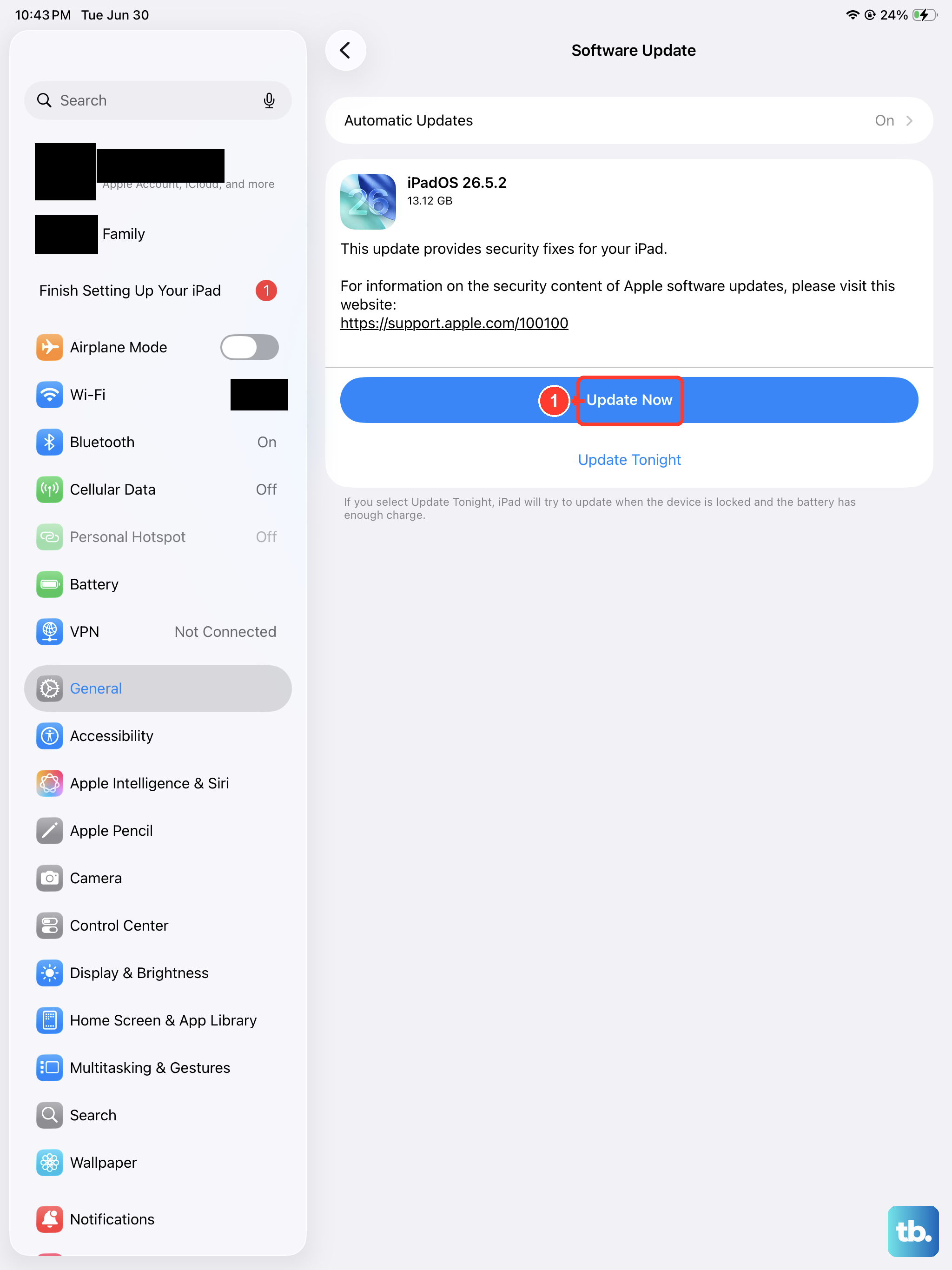
Once your iPad responds again, installing any pending update is worth a few minutes, since software bugs are a common cause of freezing. Updating keeps your data and settings in place, though backing up first is always sensible.
Go to Settings > General > Software Update.
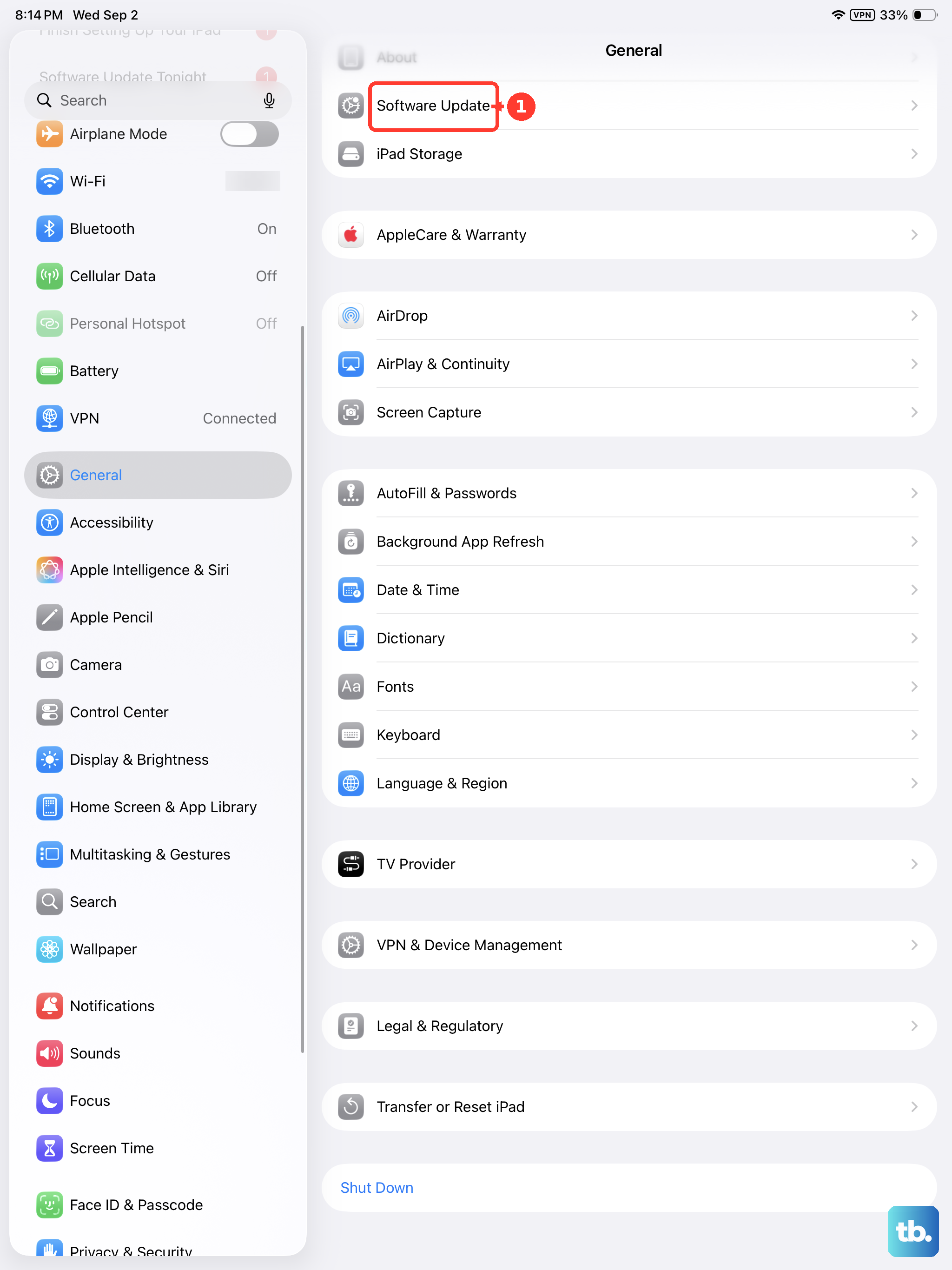
Check the currently installed version, shown along with whether an update is available.
If one is available, tap Download and Install, then follow the onscreen instructions.
Keep the iPad connected to power and Wi-Fi while it downloads so the install does not stall partway through.
Use recovery mode when it sticks on the Apple logo
If your iPad gets stuck during startup and shows the Apple logo for a long time, it needs a computer to recover. There is no phone companion app for iPad, so you use Finder on a Mac running macOS Catalina 10.15 or later, or the Apple Devices app or iTunes on a Windows PC or an older Mac.
Connect the iPad to the computer.
Press and quickly release the volume button closest to the top button.
Press and quickly release the volume button farthest from the top button.
Press and hold the top button, and keep holding past the Apple logo until you see the recovery-mode screen.
When you get the option to restore or update, choose Update.
Choosing Update reinstalls iPadOS without erasing your data, so it is the safe option to try before any erase.
Erase and set up again as a last resort
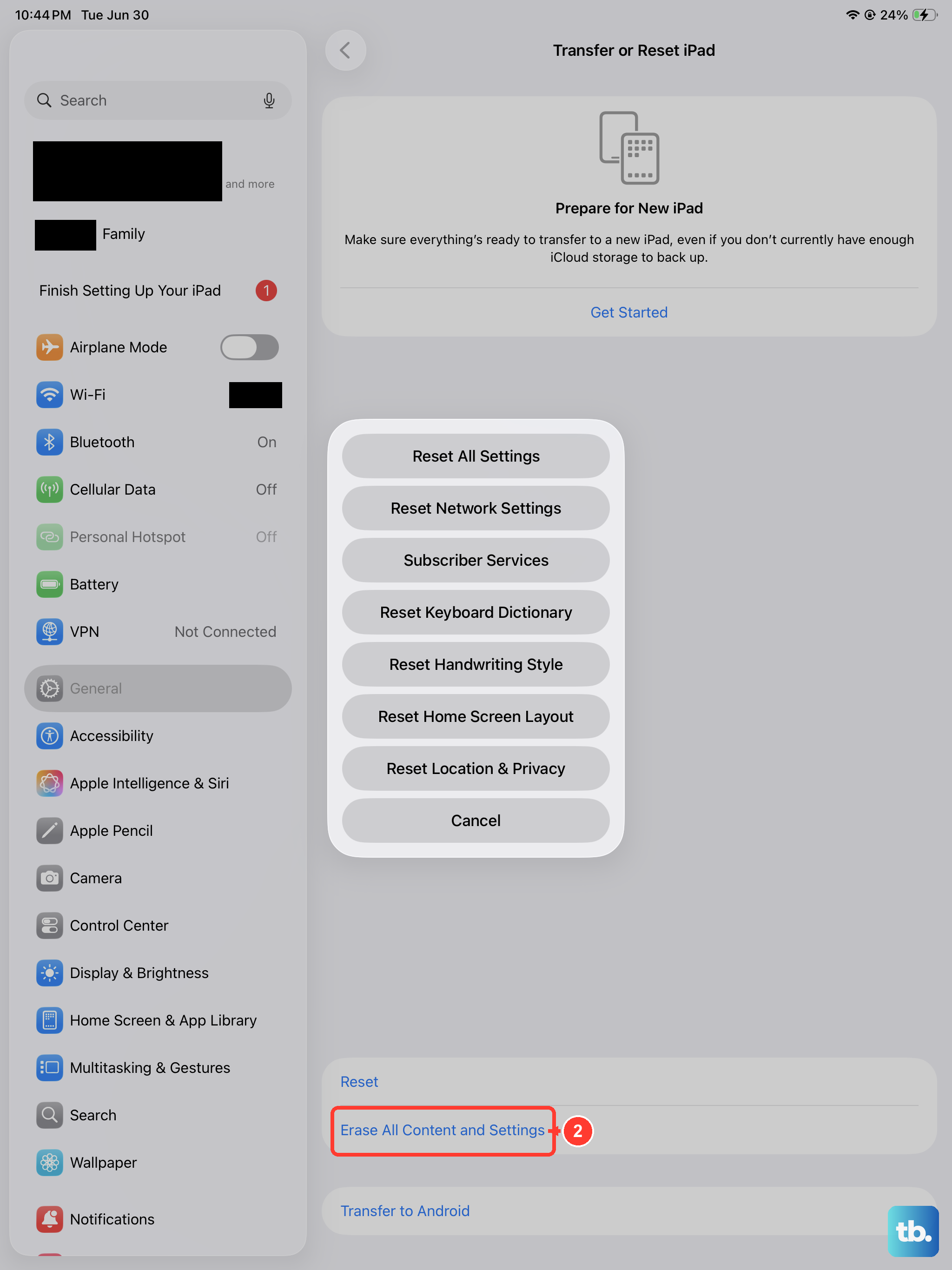
If every step above has failed and the iPad still freezes, erasing it and setting it up fresh is the final software fix. This action is destructive. The official guidance states that when you erase your iPad, it is restored to factory settings, so back up your iPad first so you can restore your data later on a different device.
Go to Settings > General > Transfer or Reset iPad > Erase All Content and Settings.
Enter your passcode or Apple Account password.
Tap Continue to confirm.
If you cannot reach Settings because the iPad is too frozen, you can erase it instead through Finder, or the Apple Devices app or iTunes, on a computer. Either way, the wipe removes everything, so make sure your backup is current before you commit to it.
When to book service or reach Apple Support
If the iPad still will not respond after a force restart, a long charge, a recovery-mode update, and even an erase, the trouble may be hardware rather than software. The official frozen-iPad guidance ends by noting that if your iPad still is not working, you might need service. You can start a repair or get help through Apple Service and Repair for iPad or the Contact Apple Support page, where you can chat, call, book a visit, or mail the device in.
Have your Apple Account details and, if you have one, your AppleCare coverage information ready so the conversation moves faster.
Frequently Asked Questions
Will a force restart on my iPad Air (2026) delete anything?
No. A force restart only cuts power and reboots the iPad; it does not remove apps, photos, or settings. Only Erase All Content and Settings wipes your data, and that step warns you and asks for your passcode first.
The screen is black and a force restart did nothing, so what now?
The battery may be fully drained. Connect the iPad to the included 20W USB-C Power Adapter with its USB-C cable and leave it; you might need to charge for up to an hour before it responds, then try the force restart again.
Why does the old Home-button force-restart trick not work?
The iPad Air (2026) has no Home button. Instead, press and quickly release the volume button closest to the top button, then the volume button farthest from the top button, then press and hold the top button until the Apple logo appears.
Can I charge the iPad Air (2026) wirelessly if the port seems faulty?
No. This model charges over USB-C only and has no wireless or inductive charging, so a working USB-C cable and adapter, or another USB power source, are the only ways to power it.
Does choosing Update in recovery mode erase my data?
No. In recovery mode, choosing Update reinstalls iPadOS without erasing your data. The Restore option is the one that wipes the iPad, so pick Update first and keep Restore for when nothing else works.