Your iPad Air (2026) is built to capture crisp photos and sharp video calls, so when your shots come back soft, smeared, or out of focus, it stands out right away. The good news is that a blurry camera on the iPad Air 11-inch (M4) or 13-inch (M4) is usually something simple, a smudge, a case lip, or a small software hiccup, rather than a broken lens. Work through the fixes below in order, starting with the quickest and safest, and you will most likely have the 12MP Wide rear camera (or the 12MP Center Stage front camera) shooting clearly again.
These steps follow Apple's official camera troubleshooting guidance for the iPad Air (M4), which runs iPadOS 26. None of the early fixes risk your data, and only the final reset erases anything, so there is no harm in trying the simple things first.
Take off the case, film, or stick-on lens first
Apple's very first troubleshooting step is to clear anything physically in the camera's way.
Remove any case, film, or accessory (such as a polarizer, extender, or magnifier) that might block the camera or flash or that places a magnet near the camera, then test the camera by trying to take a photo.
A slightly misaligned case lip or a screen film that creeps over the rear camera is one of the most common reasons iPad Air shots look soft or partly covered.
Wipe the lens with a microfiber cloth
If the photo is blurry, clean the front and back camera lenses with a microfiber cloth.
Fingerprints and grease are the single most frequent cause of a hazy-looking iPad camera, since the rear glass sits flush where your fingers naturally land while you hold the tablet.
Apple's cleaning guidance says to use a soft, slightly damp, lint-free cloth, and to avoid window or household cleaners, compressed air, aerosol sprays, solvents, ammonia, abrasives, and hydrogen-peroxide cleaners, all of which can damage the lens coating.
A gentle wipe is almost always enough to bring back a clear image.
Pull off lens converters and magnetic mounts in low light
Add-on optics are handy until they fight the camera's own stabilization and focus.
If you see motion blur in low-light situations and you use a lens converter, metallic case, or a magnetic lens mount, try removing the accessory.
These attachments can sit slightly off-center or interfere with focus, which leaves dim shots looking smeared even when your hands are steady.
Work out whether the front or rear camera is at fault
Before you dig deeper, figure out which lens is actually the problem.
If your device has a front and rear camera, check if one or both aren't working; to switch cameras, tap the rotate button.
On the iPad Air (M4) this tells you whether the 12MP rear Wide camera or the 12MP Center Stage front camera is producing the blur, which narrows down every step that follows.
Quit and reopen the Camera app
A glitchy Camera app can leave the preview stuck or soft even when the hardware is perfectly fine, so closing and relaunching it forces a clean start.
In iPadOS 26, open Expose, then swipe up on the Camera app to quit it.
Next, reopen the app by tapping it on the Home Screen, in the App Library, or in the Dock.
If quitting and reopening the app doesn't fix the blur, the next step is to restart the iPad.
Restart your iPad Air
A normal restart clears the temporary software state that often trips up the camera.
On the iPad Air (M4), which has no Home button, press and hold either volume button and the top button until the power off slider appears.
Then drag the slider, then wait 30 seconds for your device to turn off.
To turn it back on, press and hold the top button until you see the Apple logo.
Once it boots, open the Camera app and take a test shot to see whether the image has sharpened up.
Force restart when the preview is black or frozen
When the camera preview is black or the iPad has stopped responding entirely, a force restart is the next move.
The iPad Air (M4) uses Touch ID in the top button and has no Home button, so the sequence is specific and must be done in this exact order.
- 1.Press and quickly release the volume button nearest to the top button.
- 2.Press and quickly release the volume button farthest from the top button.
- 3.Press and hold the top button.
- 4.When the Apple logo appears, release the top button.
Install the latest iPadOS 26 update
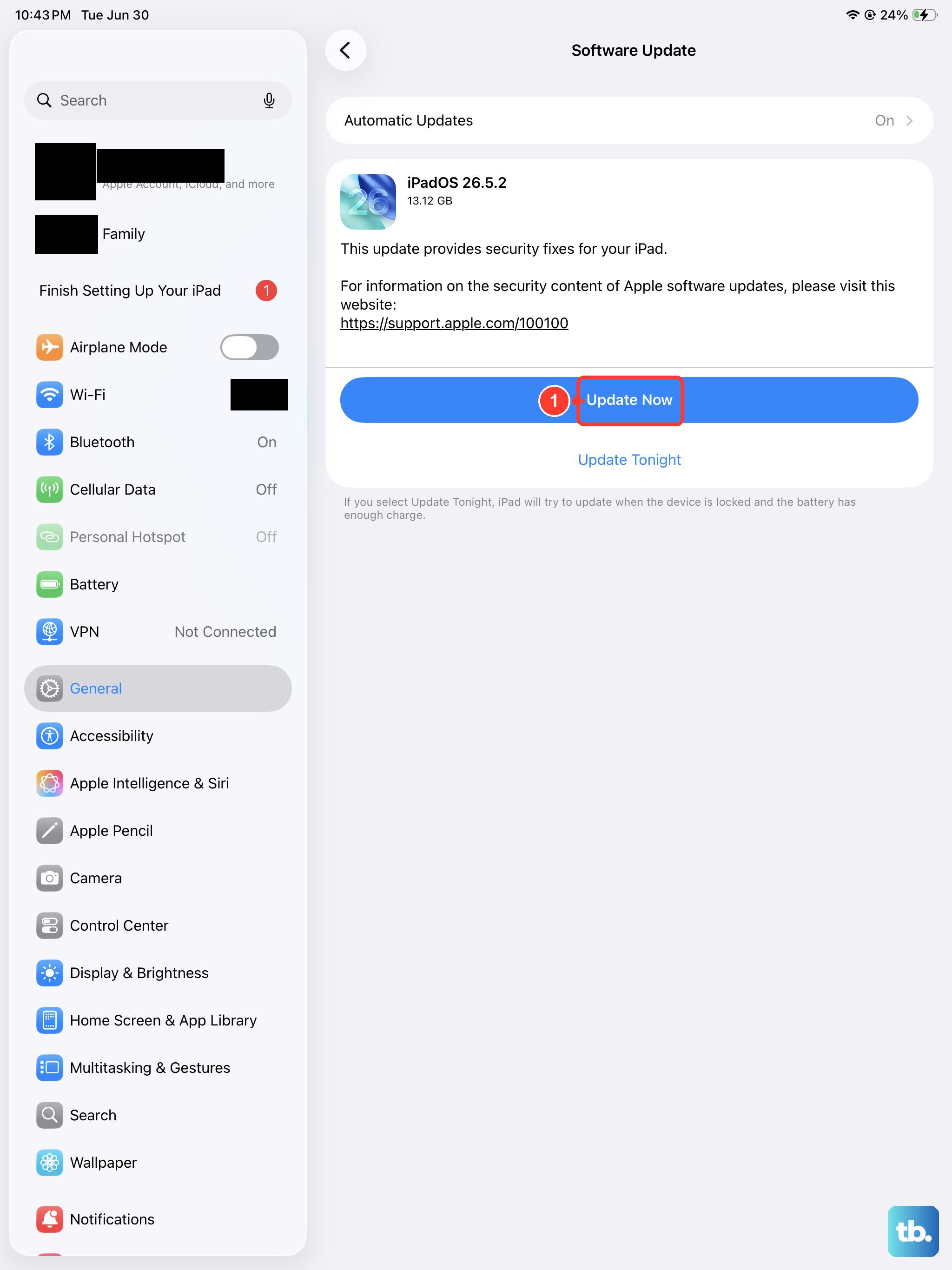
Camera glitches are frequently patched in software, and Apple lists updating to the latest OS among its camera troubleshooting steps.
Your iPad Air ships with iPadOS 26, so it is worth checking for a newer build.
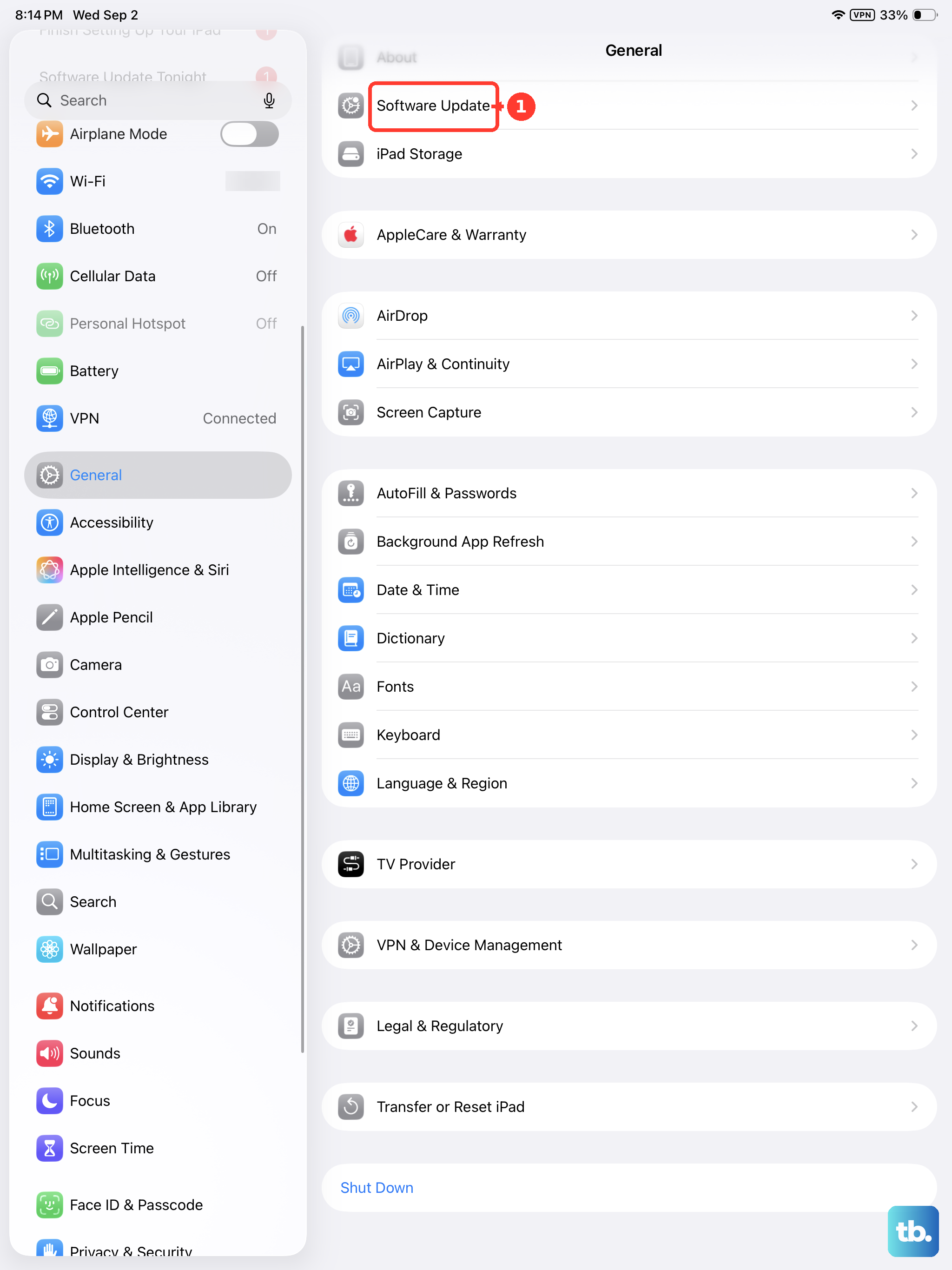
Open the Settings app on your iPad.
After that, tap General, then tap Software Update.
If an update is available, tap Download and Install, then follow the onscreen instructions.
The full path is Settings > General > Software Update.
Keep the iPad on power and Wi-Fi while it downloads so the update can finish cleanly.
Check the Lens Correction and Scene Detection settings
If the issue is really distortion in your selfies rather than a focus problem, two advanced camera settings are worth a look.
Lens Correction adjusts photos taken with the front camera or Ultra Wide camera for more natural-looking results and is on by default, so you can turn it off at Settings > Camera > Lens Correction to compare.
Scene Detection can be toggled the same way at Settings > Camera > Scene Detection.
Because the iPad Air (M4) has only a single Wide rear camera and no Ultra Wide lens, Lens Correction on this model affects the front camera only.
Toggle each setting and retake the same shot to decide which look you prefer.
Erase all content and settings as a last resort
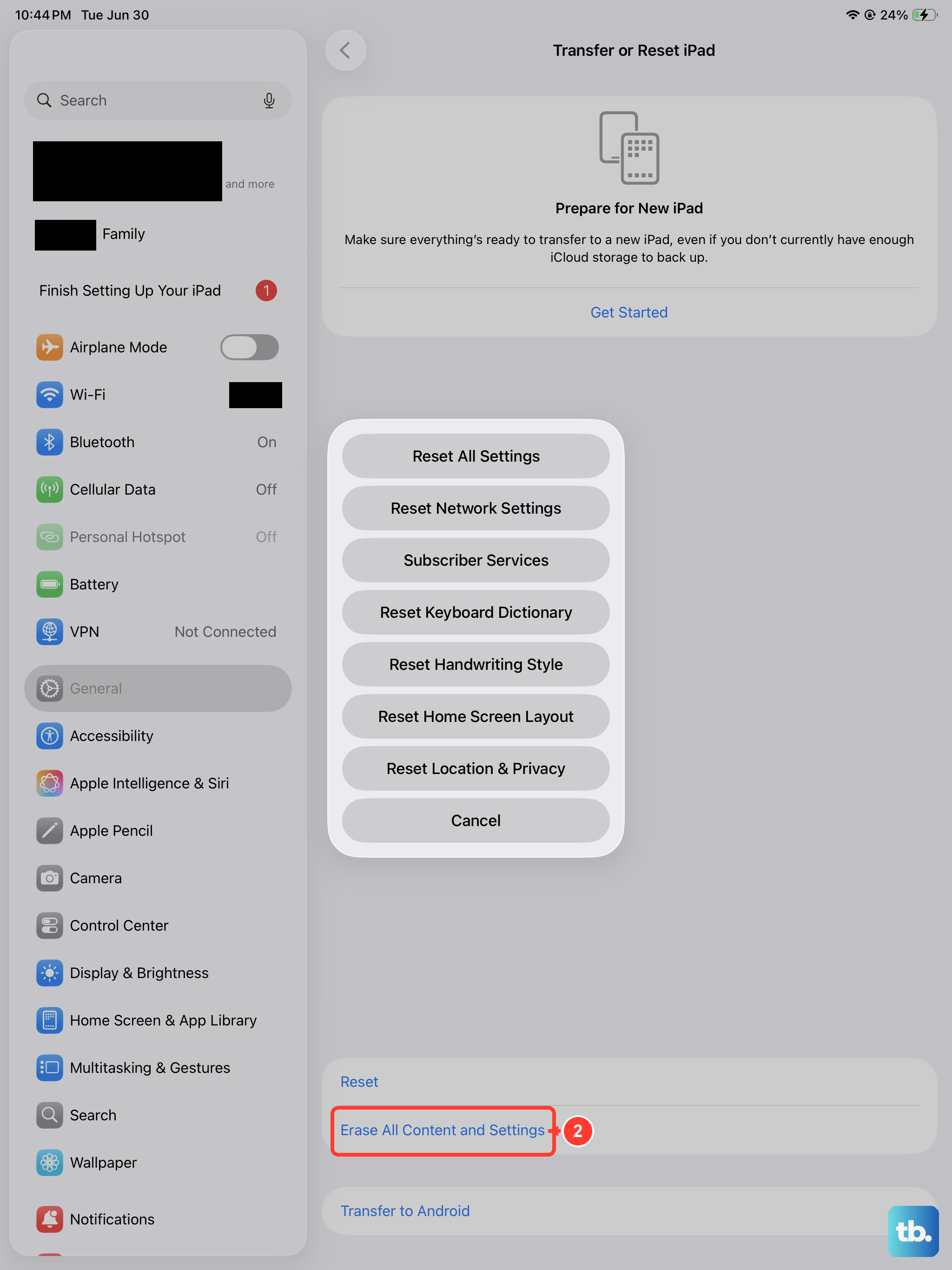
If every step above fails and the camera still misbehaves across multiple apps, a full reset is the last software option.
This restores the iPad to factory settings and erases everything, so back up your iPad first so you can restore your data later.
Open the Settings app on your iPad.
Then tap General, then tap Transfer or Reset iPad.
Tap Erase All Content and Settings.
If asked, enter your iPad passcode or Apple Account password.
Tap Continue to confirm.
If you prefer to handle the restore from a computer, Apple uses the Finder on a Mac, or the Apple Devices app on Windows (or iTunes on older systems), to update or fully restore the iPad.
When a blurry camera means it needs service
If the rear or front camera is still blurry, shows visible spots or artifacts, or stays black after all of the above, the cause may be a hardware fault rather than software.
As the official guidance puts it, if the camera or flash still isn't working properly, you might need service.
At that point, contact Apple Support and use its official service options instead of continuing to troubleshoot a faulty module.
A technician can confirm whether the camera unit needs repair or replacement.
Frequently Asked Questions
Does the iPad Air (2026) have a Macro mode for close-ups?
No. The iPad Air (M4) has a single 12MP Wide rear camera and no Ultra Wide lens, and Macro on Apple devices relies on the Ultra Wide camera, so there is no Macro mode to turn on or off. For close-ups, hold the iPad steady, give the autofocus a moment to lock, and make sure the lens is clean.
Why do my selfies look distorted rather than blurry?
That is usually Lens Correction at work rather than a focus fault. It is on by default and adjusts front-camera photos for more natural-looking results, so you can turn it off at Settings > Camera > Lens Correction and retake the photo to compare the two looks.
How do I force restart the iPad Air (2026) if the camera freezes?
Press and quickly release the volume button nearest to the top button, then press and quickly release the volume button farthest from the top button, then press and hold the top button and release it when the Apple logo appears. This model has Touch ID in the top button and no Home button, so this is the correct sequence.
Will erasing my iPad fix a blurry camera?
Only if the cause is software. Try the case removal, lens cleaning, restart, and update steps first, since they are faster and keep your data. If you do erase the iPad, back it up beforehand because Erase All Content and Settings restores the device to factory settings and removes everything.
What is the safest way to clean the camera lens?
Use a soft, slightly damp, lint-free or microfiber cloth. Avoid window or household cleaners, compressed air, aerosol sprays, solvents, ammonia, abrasives, and hydrogen-peroxide cleaners, all of which can harm the lens coating over time.