
When your iPad (11th generation) GPS keeps dropping signal, it can turn a simple navigation task into a major headache. This is usually a software hiccup that you can fix yourself, but it's worth checking a few things to get back on track. I'd start with the quick fixes below, as they resolve most intermittent GPS problems.
The most common culprit is a temporary glitch in iPadOS or the app you're using. A simple restart or toggling a setting often does the trick. Let's walk through the steps to get your location services working reliably again.
Restart Your iPad
This is almost always my first step. A restart clears out any temporary software bugs that might be interfering with the GPS chip. Just press and hold the top button and either volume button, then slide to power off. Wait about 30 seconds, then press the top button again to turn it back on.
If the issue is more stubborn, try a force restart. This doesn't erase any data. Quickly press and release the Volume Up button, then quickly press and release the Volume Down button. Finally, press and hold the top button until you see the Apple logo appear on the screen.
Check Your Location Services Settings
Head to Settings > Privacy & Security > Location Services. First, make sure the main Location Services switch at the top is turned on. Then, scroll down and find the app you're having trouble with, like Maps or Google Maps.
Tap on the app and ensure its permission is set to "While Using the App" or "Always." If it's set to "Never," that's why it can't get your location. Also, make sure "Precise Location" is enabled for the best accuracy.
Toggle Airplane Mode
This resets all the iPad's wireless radios, including the one that assists the GPS. Swipe down from the top-right corner to open Control Center and tap the airplane icon. Wait about 15 seconds, then tap it again to turn Airplane Mode off.
This forces the iPad to reacquire all signals from scratch, which can clear up any conflicts. Give your navigation app another try after the cellular and Wi-Fi icons reappear.
Ensure Date & Time Are Correct
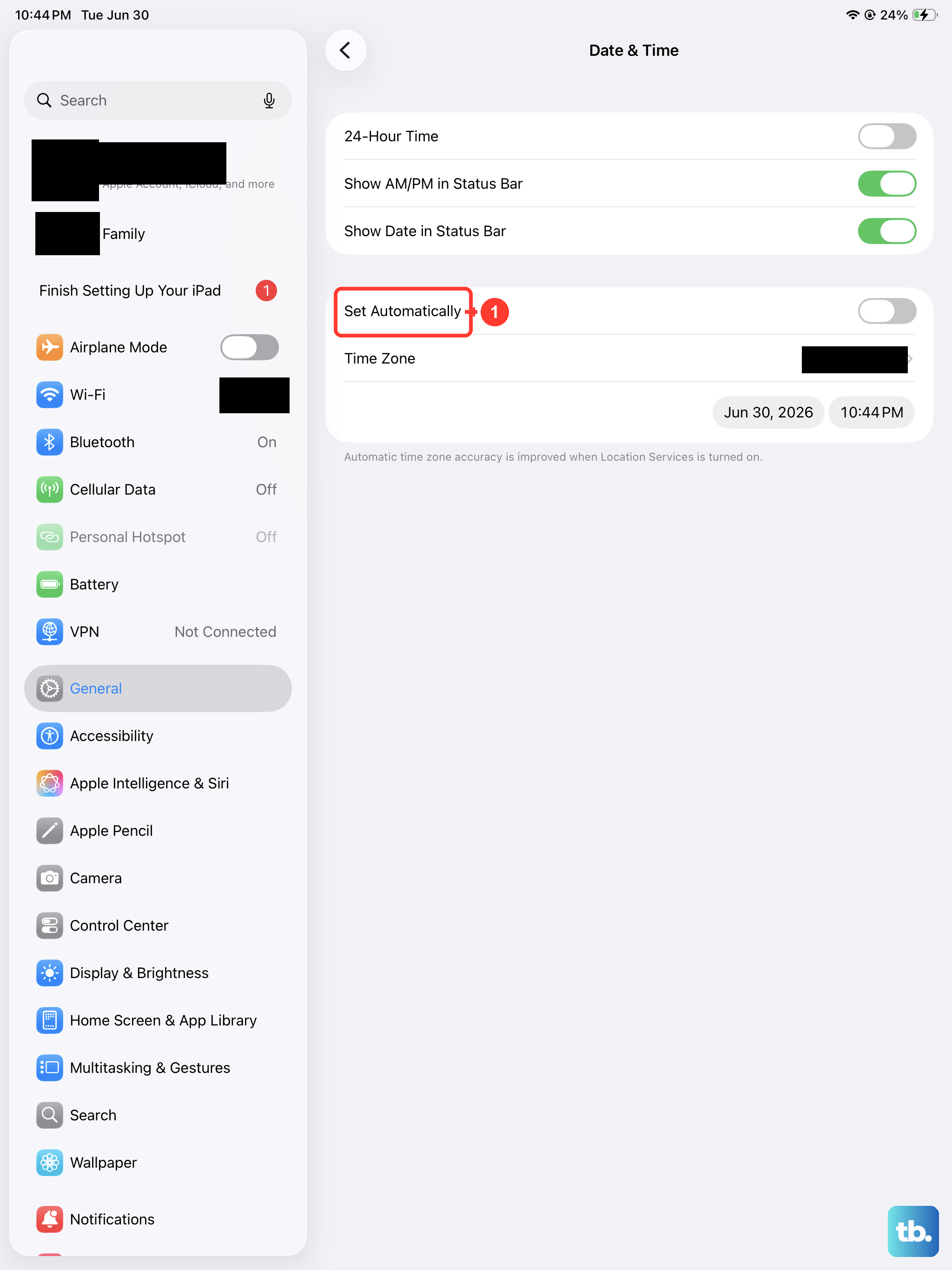
Your iPad's GPS relies on having the correct time to sync with satellites. Go to Settings > General > Date & Time. Turn on the switch for "Set Automatically."
If it's already on, try turning it off and back on again. This ensures your iPad is getting the correct time from the network, which is crucial for proper GPS function.
Update Your iPadOS Software
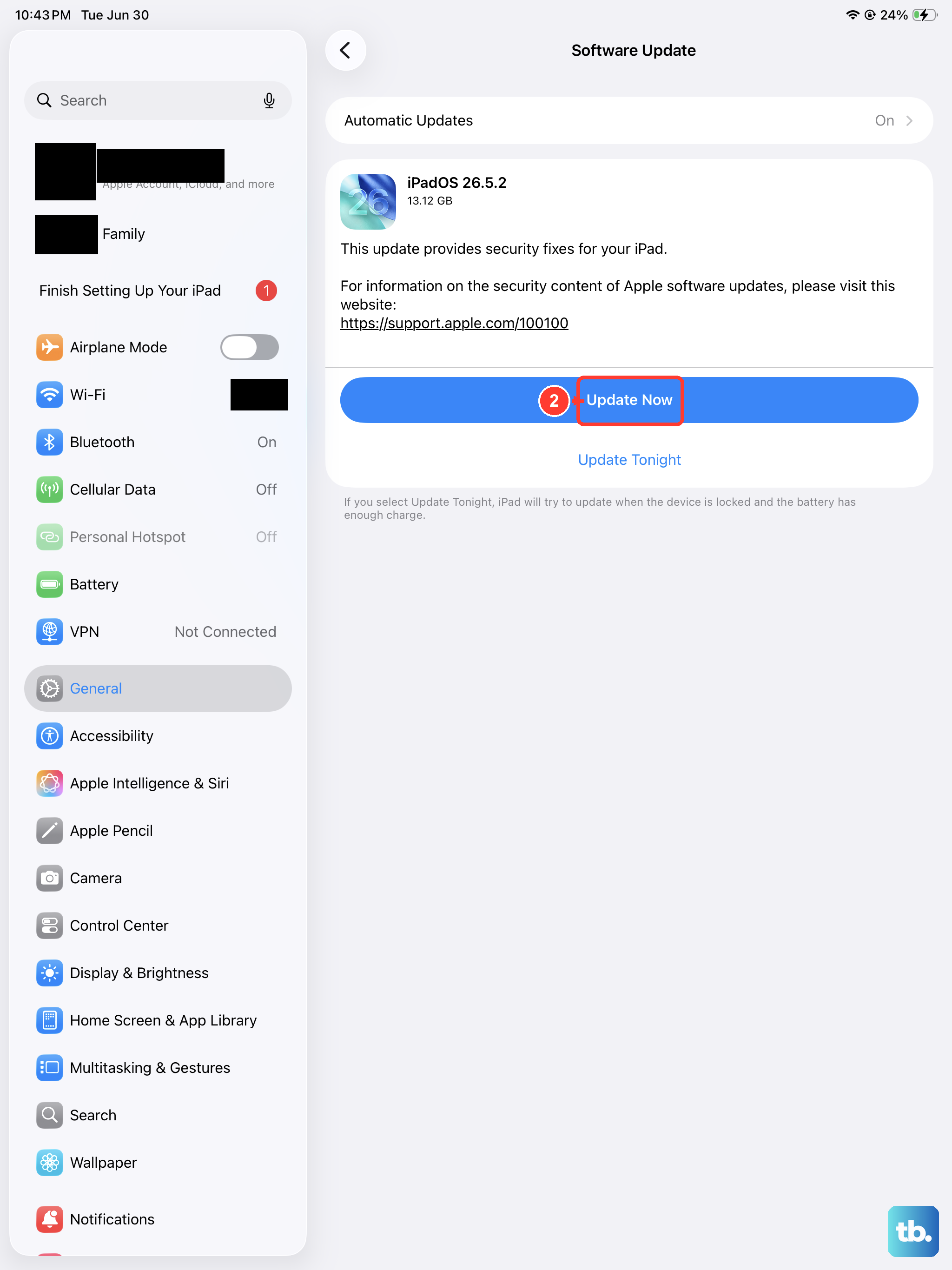
Apple frequently releases updates that fix bugs, including ones related to location services. Connect to Wi-Fi and go to Settings > General > Software Update.
If an update is available, tap "Download and Install." It's a good idea to keep your iPad (11th generation) on the latest version of iPadOS for performance and security, not just GPS fixes.
Check for Physical and Environmental Factors
GPS signals are line-of-sight and can be blocked. If you're indoors, in a basement, or in a vehicle with a metallic tint on the windows, the signal will be weak or nonexistent. Try moving near a window or stepping outside.
Dense urban areas with tall buildings can also cause signal bounce and loss. Thick cases, especially ones with metal elements, can sometimes interfere. Try removing the case temporarily to see if the GPS signal improves.
Reset Your Network Settings
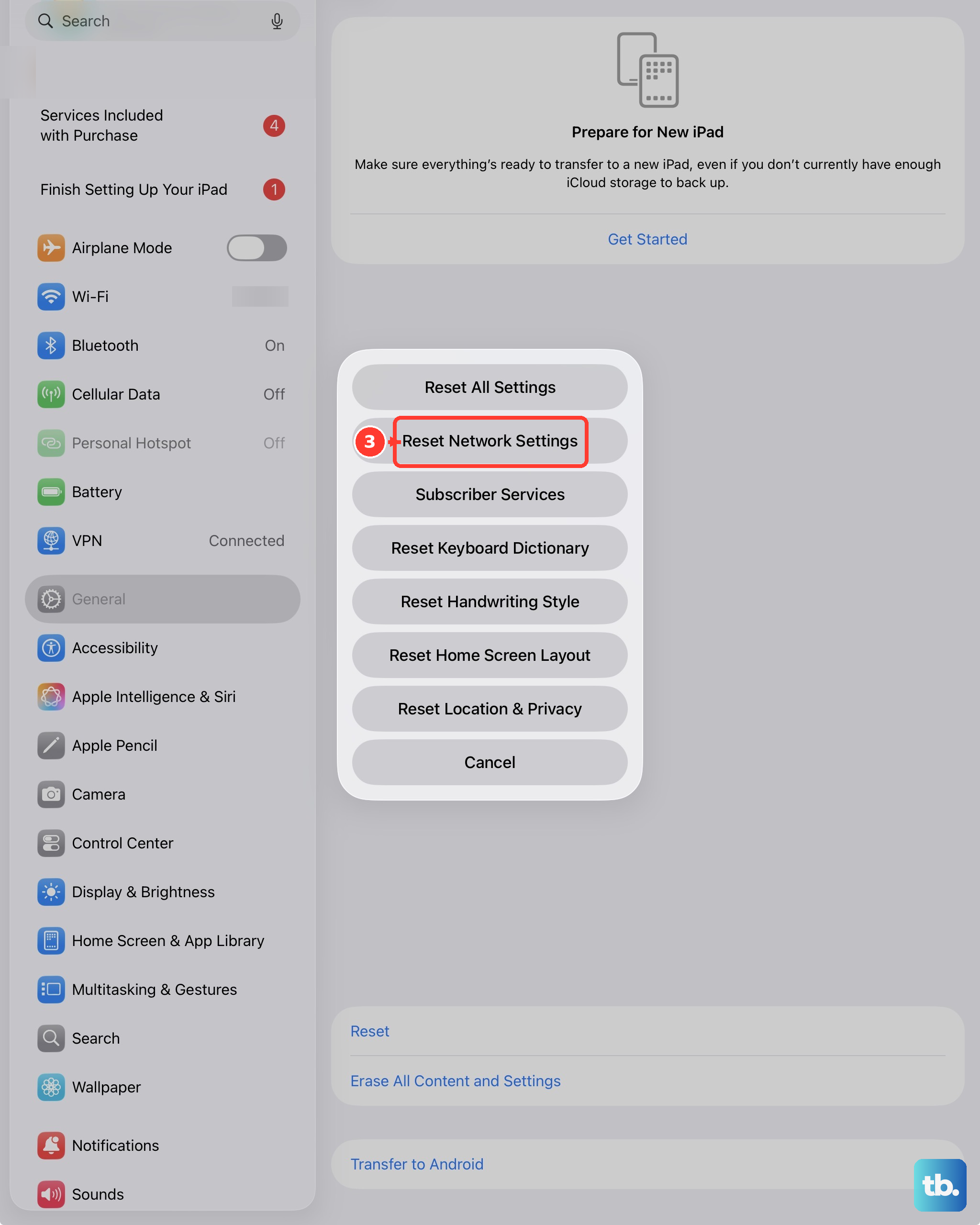
This can help if there's a deeper software issue with how your iPad manages location data from Wi-Fi and cellular networks. Go to Settings > General > Transfer or Reset iPad > Reset.
Tap "Reset Network Settings." You'll need to re-enter Wi-Fi passwords afterward, but it won't delete your personal data or media. This often clears up odd connectivity-related GPS problems.
Close and Reopen Your Navigation App
Sometimes the app itself is the problem. Swipe up from the bottom of the screen and pause in the middle to enter the app switcher. Find your maps app and swipe it up and off the top of the screen to close it completely.
Then, tap the app icon to relaunch it. This gives the app a fresh start and can resolve temporary freezes or glitches that are causing the GPS to fail.
Check for a Cellular or Wi-Fi Connection
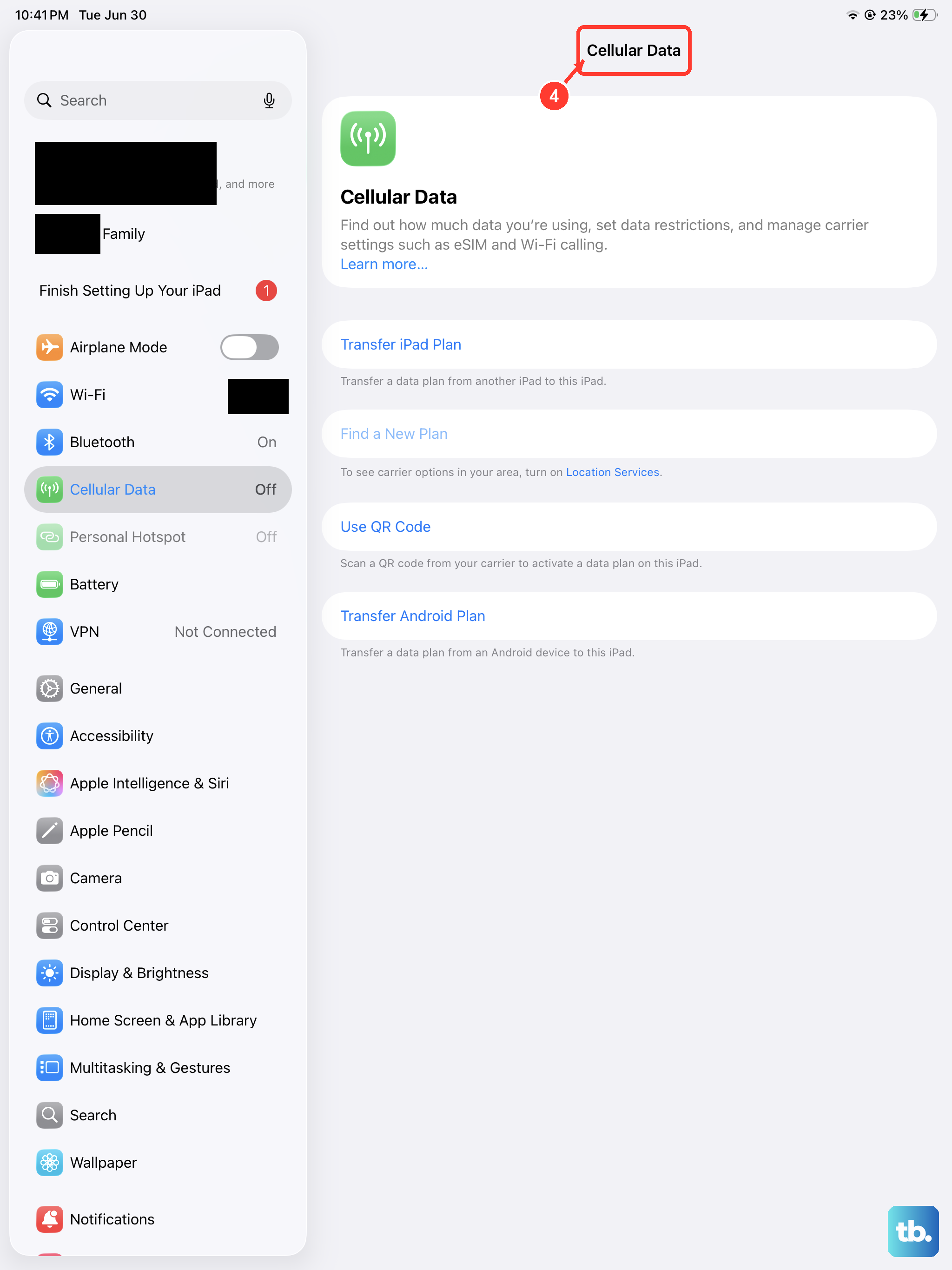
While the iPad's GPS chip gets location from satellites, apps often use Wi-Fi and cellular data to get a faster initial lock and assist with accuracy in tricky areas. Make sure you're connected to a network.
If you're using a Cellular model, ensure cellular data is turned on in Settings. For Wi-Fi only models, being connected to a known network can significantly improve location speed and reliability, especially when you first open an app.
Test with a Different App
To rule out a problem with one specific app, try using a different one. Open Apple Maps if you were using Google Maps, or vice versa. You can also try a dedicated compass app.
If GPS works fine in a different app, then the issue is isolated to the original application. In that case, try checking for an update to that app in the App Store, or offload and reinstall it.