
When your Infinix Note 40 Pro gets stuck on an update, it's a common hiccup. You might see the download frozen, an endless "Installing" screen, or an error message popping up. The good news is, a few straightforward steps can usually get things moving again.
Force Restart Your Phone
This is the quickest fix for a frozen update process. Press and hold the Power button and the Volume Down button together for about 10 seconds. Keep holding until you see the Infinix logo appear, then let go. This forces a reboot and can clear the temporary glitch that's blocking the update.
Check Your Wi-Fi Connection
Android updates are large and require a stable, strong Wi-Fi connection. Go to Settings > Network & internet > Internet and make sure you're connected. Try loading a webpage to test the speed. If it's slow, restart your router or move closer to it. I'd avoid public Wi-Fi for updates, as they often restrict large downloads.
Free Up Storage Space on Your Device
Your Note 40 Pro needs several gigabytes of free space to download and install an update. Go to Settings > Storage to see how much you have left. If you're low, clear cached data by tapping "Clean" or manually delete old downloads, unused apps, and backed-up photos. The included 256GB storage helps, but it can still fill up fast.
Clear the Data for Software Update
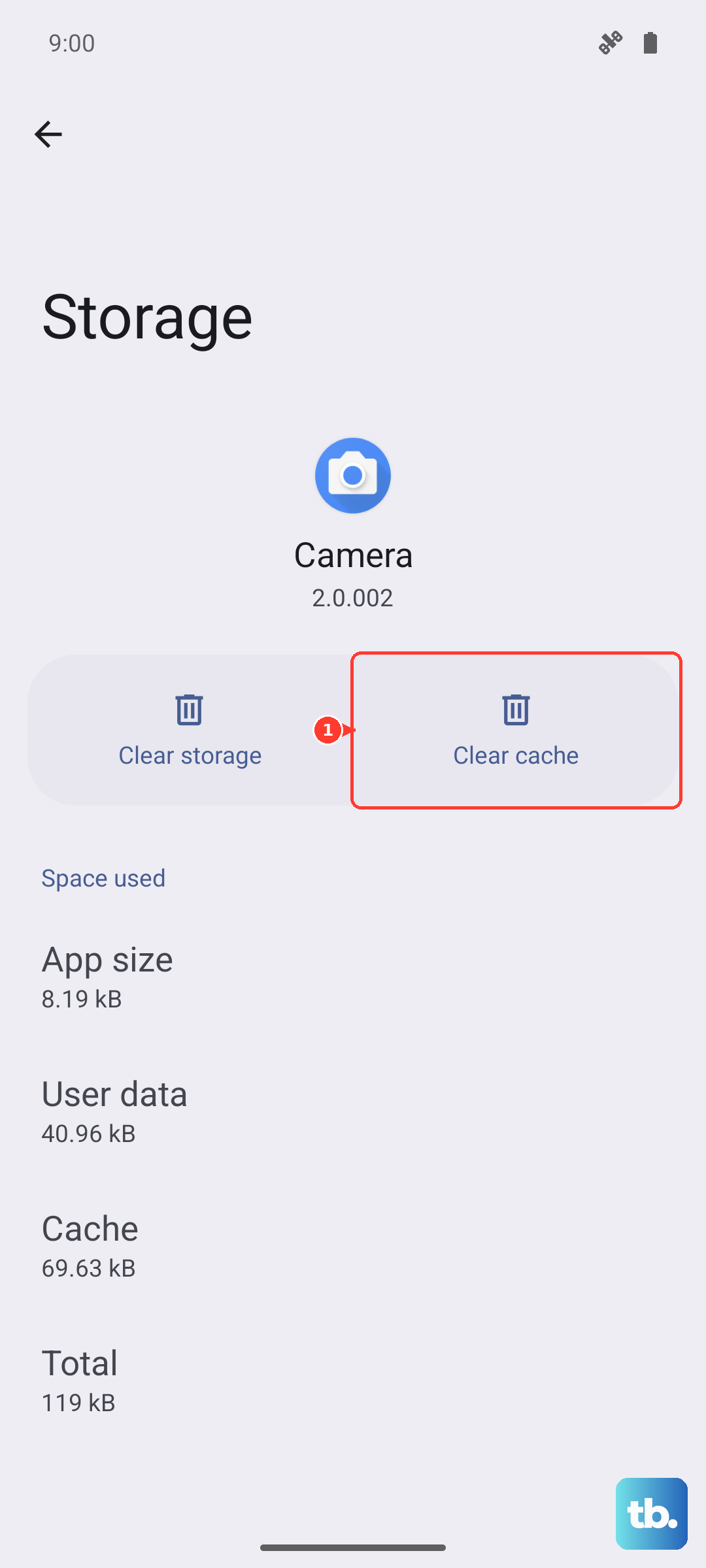
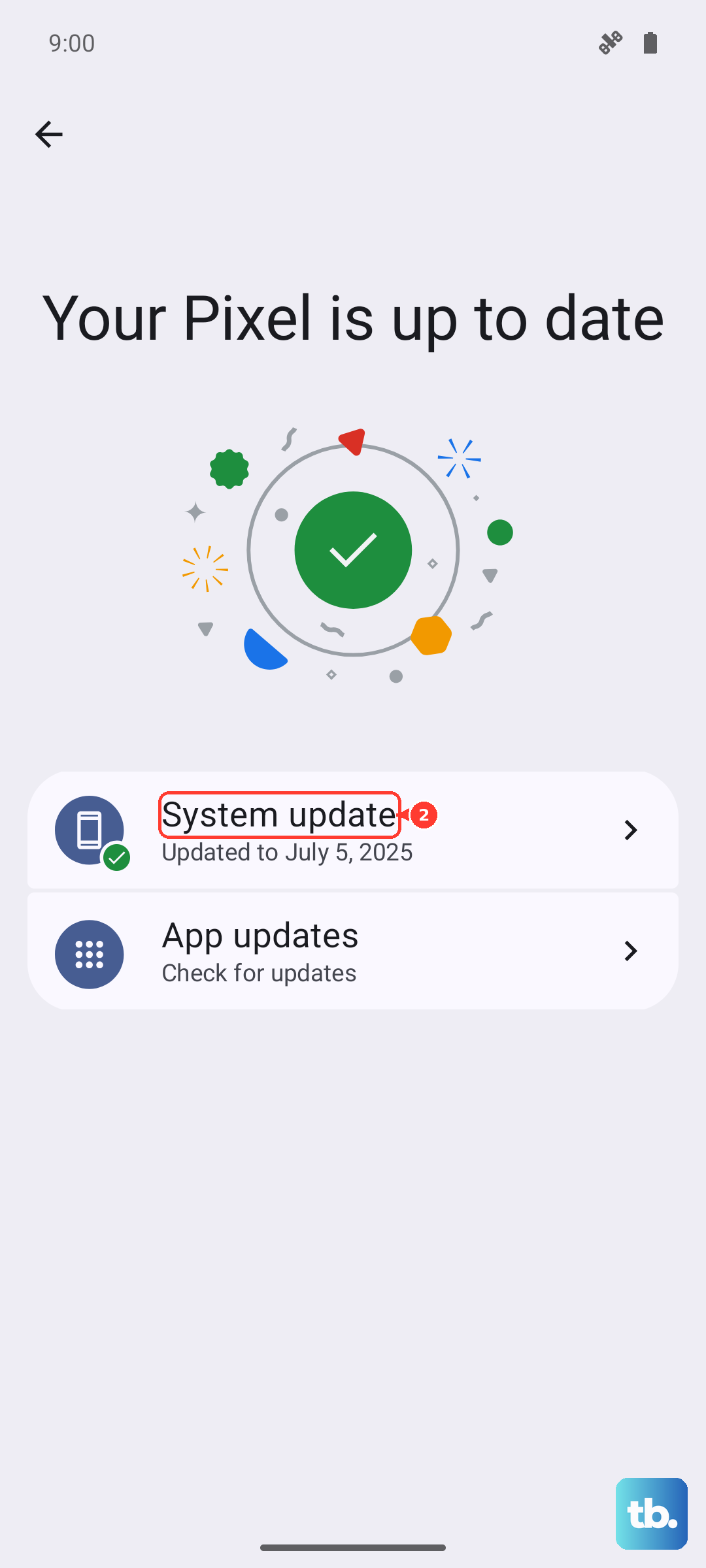
Sometimes the update app itself gets stuck with bad data. Go to Settings > Apps > See all apps. Tap the three-dot menu, select "Show system," then find and tap "Software Update." Select Storage & cache and tap both "Clear storage" and "Clear cache." This resets the update service. Head back to Settings > System > System update to try again.
Use Mobile Data as a Fallback
If your Wi-Fi seems unreliable, you can try downloading the update using your cellular connection. First, go to Settings > Network & internet > SIMs & network and ensure mobile data is on. Then, in Settings > System > System update, tap the three-dot menu and look for an option like "Download via mobile data" or "Auto-download over Wi-Fi" to disable the Wi-Fi-only restriction. Be mindful of your data cap, as updates are large.
Reset Your Network Settings
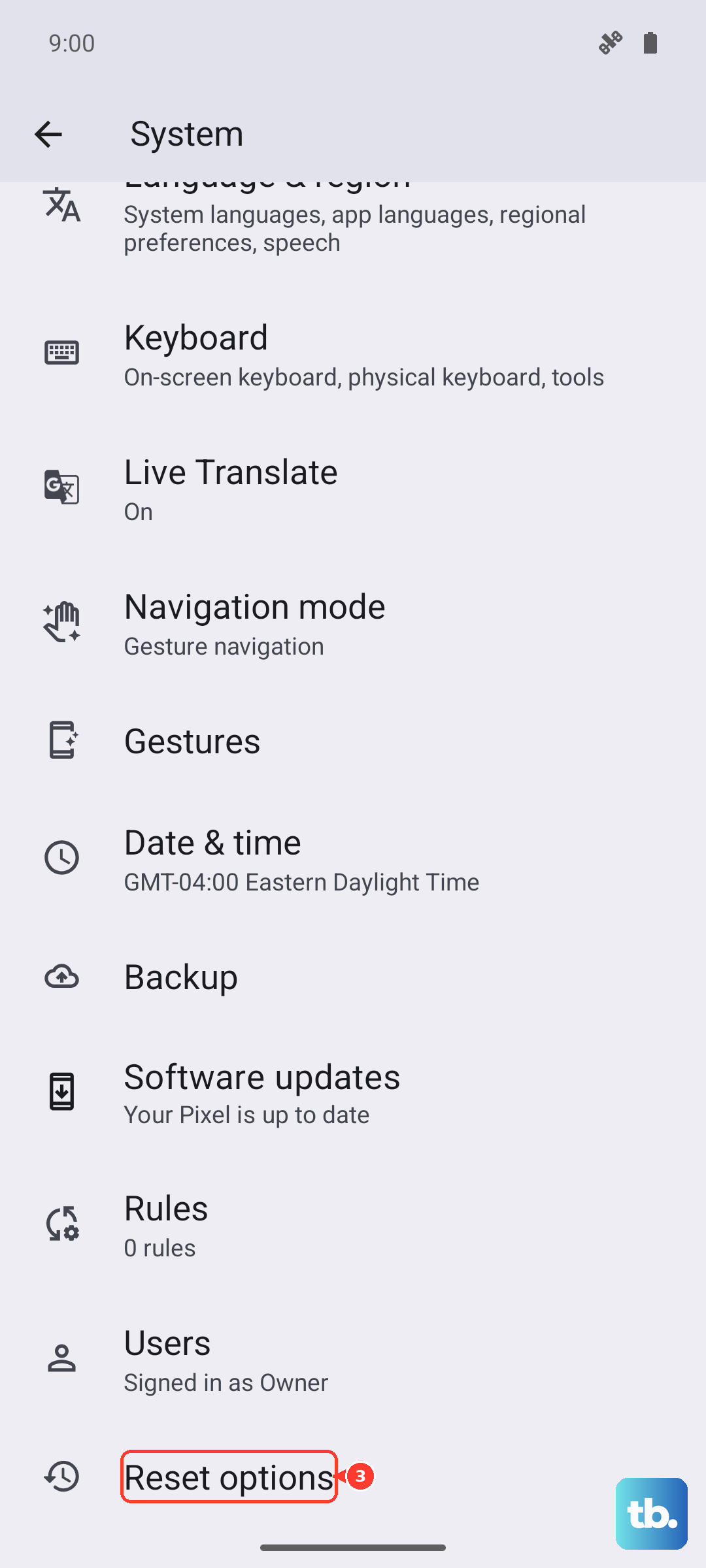
Corrupted network profiles can block the update. This will erase all saved Wi-Fi passwords and Bluetooth pairings. Go to Settings > System > Reset options. Tap Reset Wi-Fi, mobile & Bluetooth and confirm. After your phone restarts, reconnect to your Wi-Fi network and immediately check for the update again.
Charge Your Phone Properly
The update process requires your battery to be above 50%, and it's best to plug it in. Use the powerful 70W charger that came in the box for the fastest, most reliable power. You can also use the 20W wireless charging feature if you have a compatible pad, but I'd recommend the wired connection for something as critical as a system update to ensure a steady power flow.
Check for Server-Side Issues
Occasionally, the delay isn't on your end. When Infinix rolls out a major XOS update, their servers can get overwhelmed. Try checking for the update at a different time, like early in the morning or late at night. You can also look online on community forums or Infinix's official social media channels to see if other Note 40 Pro users are reporting the same update problem.
Update Using a PC (Last Resort)
If nothing else works, you can try updating your phone by connecting it to a computer. You'll need to download the official Infinix Flash Tool and the correct SP Flash file for the Note 40 Pro from a reliable source. This method is more technical and carries a risk of data loss if done incorrectly, so it's worth considering only if the over-the-air update is completely unavailable and you're comfortable with the process.