
If your Infinix Note 40 Pro is getting uncomfortably warm, you're not alone. The combination of a powerful 70W charger and a mid-range MediaTek Dimensity 7020 chip can sometimes lead to heat buildup, especially during demanding tasks. A hot phone can slow down performance, shorten battery life, and just be unpleasant to hold. Let's get it cooled down.
Before we dive into the deeper fixes, there's one quick thing you should always check first. Are you using the phone while it's fast charging with the included 70W adapter? That process generates significant heat. If you're gaming or using the camera while plugged in, the phone can get quite warm. I'd simply unplug it for a bit and see if the temperature drops back to normal once the battery is full.
Close Background Apps and Reduce Load
Your Note 40 Pro's processor can get overwhelmed if too many apps are running, particularly games or social media apps with constant video playback. Swipe up from the bottom and hold to enter the recent apps view, then swipe away everything you're not actively using. This instantly reduces the CPU load.
Also, take a look at your notification shade and quick settings. If you have mobile data, Bluetooth, GPS, and hotspot all running simultaneously, that's asking a lot from the modem and radios. Turn off any connectivity features you don't need at the moment. The Dimensity 7020 is a capable chip, but it's not a flagship, so it's more prone to heating up under heavy, sustained loads.
Manage XOS and Disable Smart Services
This is a big one specific to Infinix phones. XOS comes with a feature called "Smart Service" that can show ads and recommendations in places like the app drawer or file manager. These background processes can contribute to unnecessary CPU usage and heat.
Go to Settings > Smart Service and turn off options like "Recommendations" or "Smart Suggestions." You can also go through your app list and look for any pre-installed apps you never use. Don't uninstall system apps, but you can often disable them from their app info page to stop them from running in the background.
Adjust Your Charging Habits
The 70W wired charging is incredibly fast, but it pours a lot of energy into the battery very quickly, which generates heat. If you're not in a rush, consider using a slower charger overnight. The 20W wireless charging is a great feature for a phone in this price range, and it actually tends to generate less peak heat than the max-speed wired charging, though it is slower.
Avoid using the phone for intensive tasks while it's charging, especially on the 70W adapter. Charging in a cool environment, not on a bed or under a pillow, also helps. If the phone feels excessively hot while charging, it's a safety feature to unplug it, let it cool, and try again.
Check for Software Updates
Infinix occasionally releases software updates that can improve thermal management and fix bugs causing abnormal CPU usage. Go to Settings > System > System update and tap "Check for updates." Installing the latest version of Android 14 and XOS 14 can sometimes resolve overheating issues that appeared after a previous update.
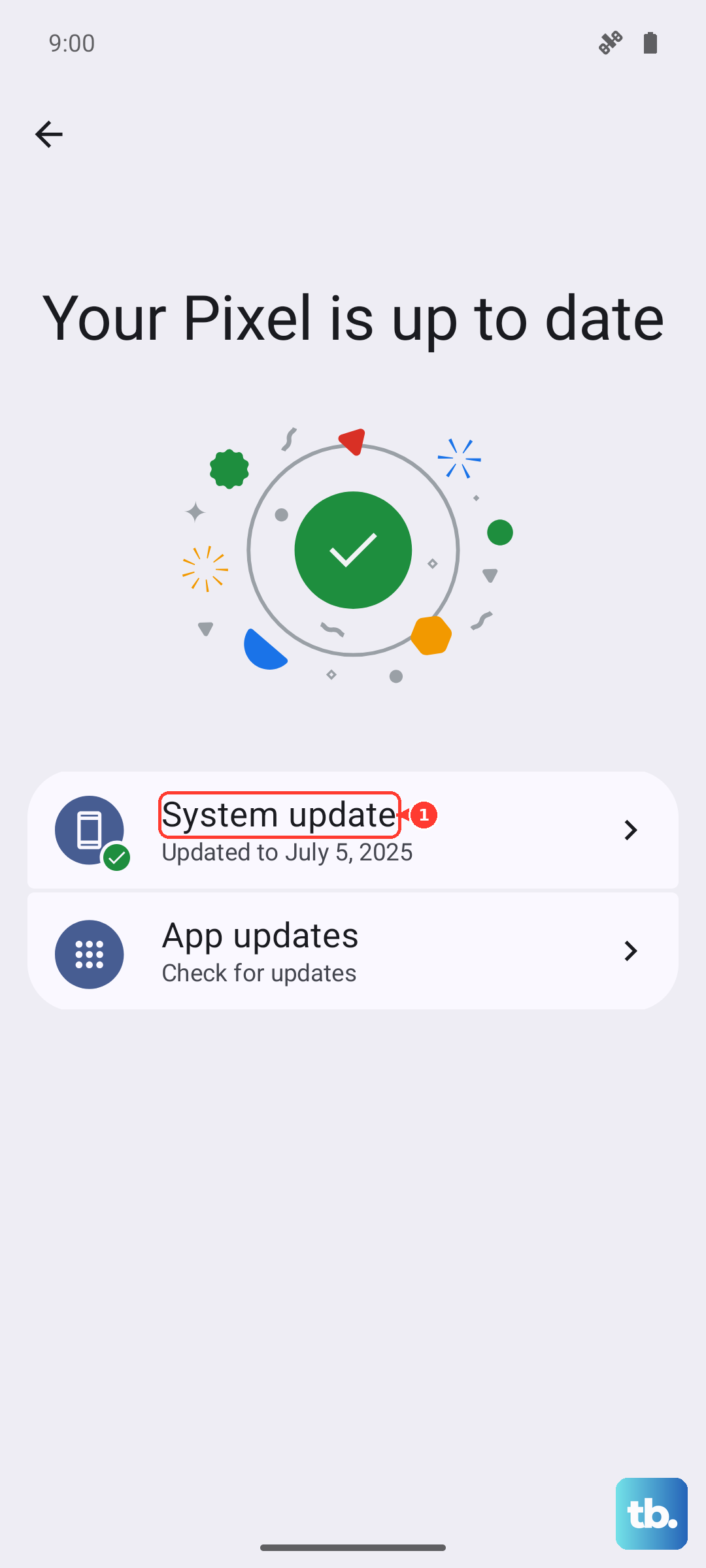
While you're there, check your individual apps for updates in the Google Play Store. A buggy app, particularly a game or social media app, can sometimes get stuck in a loop that maxes out your processor.
Be Mindful of Your Environment and Case
Using your phone in direct sunlight or a hot car is a surefire way to make it overheat. The screen itself generates a lot of heat, and sunlight will cause it to max out its brightness, compounding the problem. Try to use it in the shade or indoors when it's very hot out.
Also, consider your phone case. A thick, insulating case can trap heat around the device. If your phone is consistently warm, try taking the case off for a while, especially during charging or gaming sessions, to see if it improves heat dissipation.
Monitor Camera and Gaming Sessions
The camera processing on the Note 40 Pro can be slow, and that extended processing time, especially with 4K video or night mode, keeps the CPU and GPU working hard. Try to avoid taking long bursts of photos or extended video recordings in hot conditions.
For gaming, the Dimensity 7020 can struggle with heavy titles at high graphics settings. If your phone heats up while gaming, go into the game's settings and lower the graphics quality or frame rate. This reduces the strain on the chipset significantly. Taking short breaks during long gaming sessions also lets the phone cool down.
Perform a Force Restart
If the phone is hot and becoming sluggish or unresponsive, a software glitch might be the culprit. A force restart can clear this without deleting any data. Press and hold the Power button and the Volume Down button together for about 10 seconds. Keep holding until you see the Infinix logo appear, then release. This gives the system a fresh start.
Review App Permissions and Battery Optimization
Some apps run constantly in the background, checking location or syncing data. You can restrict this. Go to Settings > Apps and select apps you suspect. Look at their permissions and turn off things like "Background data" or precise location if they don't need it.
Also, enable battery optimization for apps. Go to Settings > Battery > Battery optimization. You can set it to optimize all apps, which helps Android intelligently restrict background activity for apps you aren't using.