
When your Infinix Note 40 Pro goes silent on notifications, you can miss important messages and alerts. This is a common hiccup with Android devices, especially on custom skins like XOS 14. The good news is it's usually a simple setting or a quick software refresh that gets things back on track.
To separate hardware from software, open a online speaker test and play the channel tones. What you hear, or do not hear, tells you which fixes below matter most.
Let's start with the most common and effective fix. Head into your phone's Settings and tap on 'Apps'. Find the specific app that isn't making a sound, like Messages or Gmail, and tap on it. Go to 'Notifications' and make sure the toggle at the top is switched on. Then, tap on the notification category itself, such as 'Messages', and ensure 'Sound' is selected and the volume slider isn't all the way down.
Check Your Sound and Volume Settings
It sounds obvious, but it's the first place to look. Swipe down from the top of your screen twice to open the quick settings panel. Here, make sure the 'Do Not Disturb' icon isn't highlighted, as this silences all notifications. Also, check that your media volume is up by pressing the volume buttons and tapping the settings icon that appears to adjust the notification volume slider separately.
For a deeper check, go to Settings > Sound & vibration. Scroll down to 'Default notification sound' and tap it to hear if a tone plays. If it does, the system sound is working. I'd also look at the 'Vibration & haptic strength' menu here to ensure your phone isn't set to vibrate only for notifications.
Restart Your Infinix Note 40 Pro
A simple restart clears out temporary glitches in the system and apps that can cause sound services to stall. Just press and hold the power button until the power menu appears, then tap 'Restart'. If your phone is completely unresponsive, you can perform a force restart by holding the Power button and the Volume Down button together for about 10 seconds until you feel a vibration and see the Infinix logo.
Review App-Specific Notification Channels
Android and XOS allow very granular control over notifications. Even if an app's notifications are enabled, the specific 'channel' for messages or alerts might be muted. Go back to Settings > Apps, select the problematic app, and tap 'Notifications'. You'll see a list of categories like 'Chat messages' or 'Promotions'.
Tap into each relevant category. Ensure 'Sound' is enabled here. Sometimes an app update can reset these channels to a silent default, so it's worth a quick look.
Clear the Cache for the Problem App
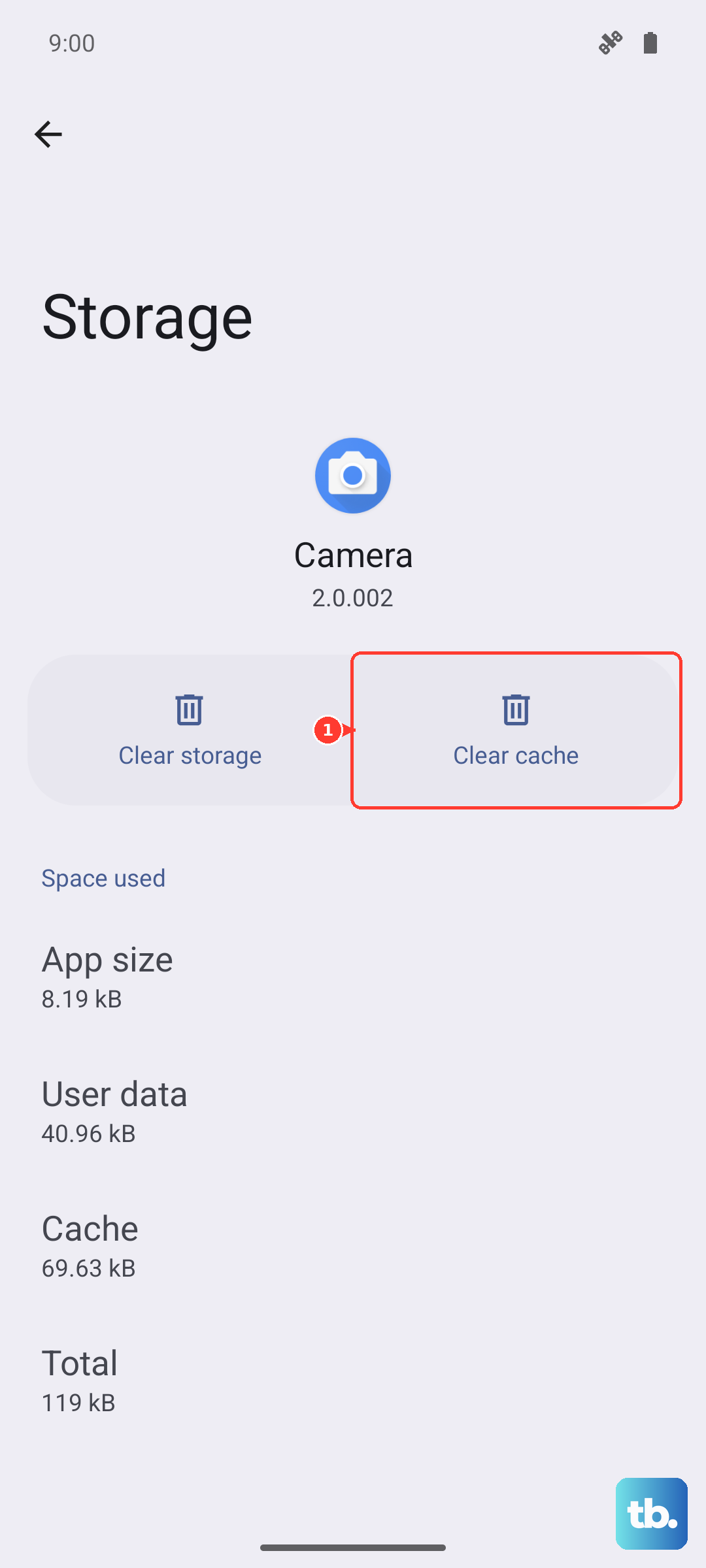
Corrupted temporary data in an app's cache can disrupt its normal functions, including playing sounds. Clearing it is safe and won't delete your login info or personal data within the app. Go to Settings > Apps, select the app, then tap 'Storage & cache'. Hit the 'Clear cache' button. After doing this, open the app again and see if a test notification makes a sound.
Disable Battery Optimization for Key Apps
XOS, in an effort to save battery life, can sometimes be too aggressive and stop apps from running background services needed for timely notifications. You can prevent this for critical apps like your messaging apps. Navigate to Settings > Battery > Battery optimization.
Tap the dropdown menu and select 'All apps'. Find the app in question and tap on it. Choose 'Don't optimize' and confirm. This tells the system to leave that app alone and let it function fully in the background.
Check for Software Updates
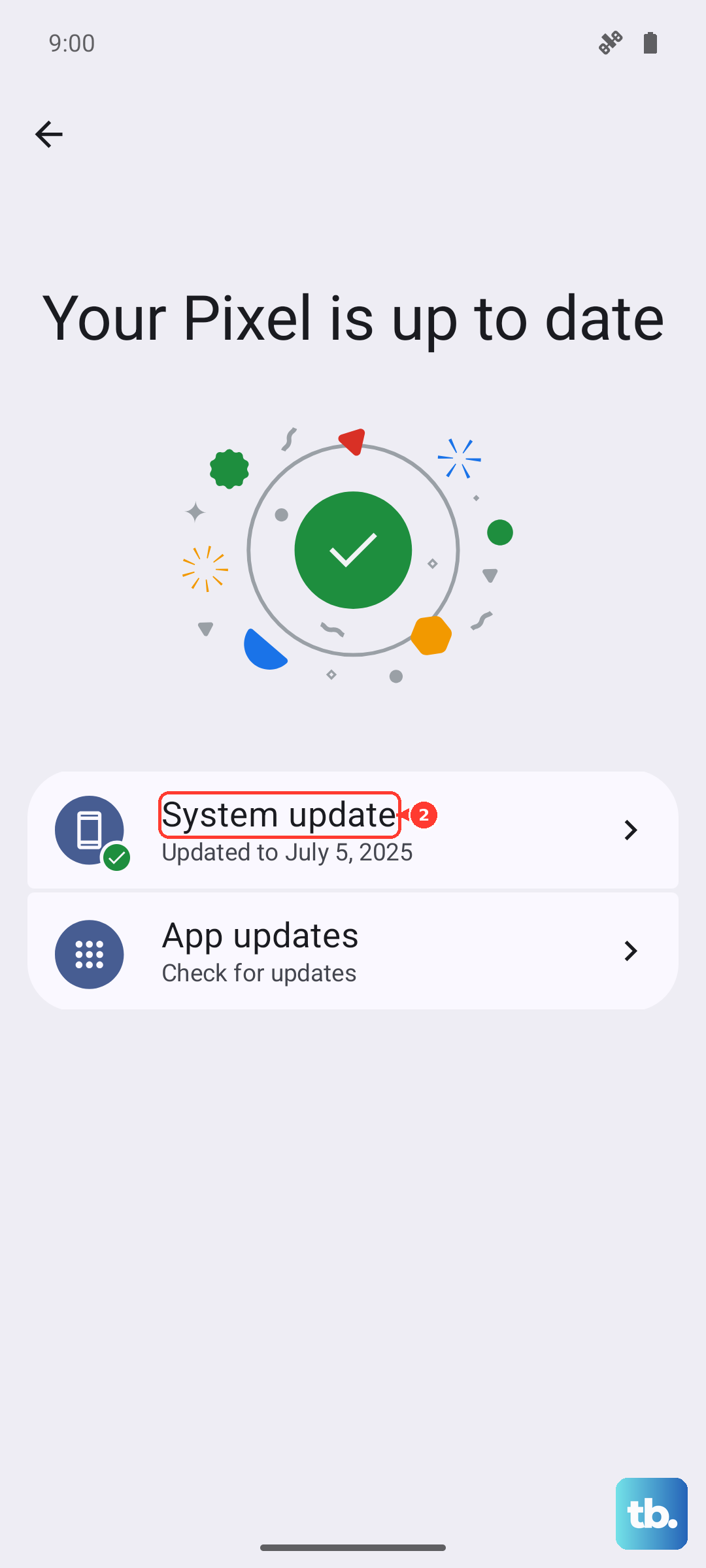
Software updates often contain bug fixes for known issues, including audio and notification problems. Infinix periodically releases updates for XOS. To check, go to Settings > System > System updates. Tap 'Check for updates'. If an update is available, I'd recommend installing it while connected to Wi-Fi and ensuring your battery is above 50%.
Inspect the Do Not Disturb and Focus Schedules
Beyond just being turned on manually, Do Not Disturb can be scheduled or activated by rules. Go to Settings > Sound & vibration > Do Not Disturb. Look at any active schedules, like one for bedtime, and see if the rules are set to silence all notifications. Also, check if 'Turn on automatically' is enabled for events in your calendar, which might be activating it unexpectedly.
Reset App Preferences
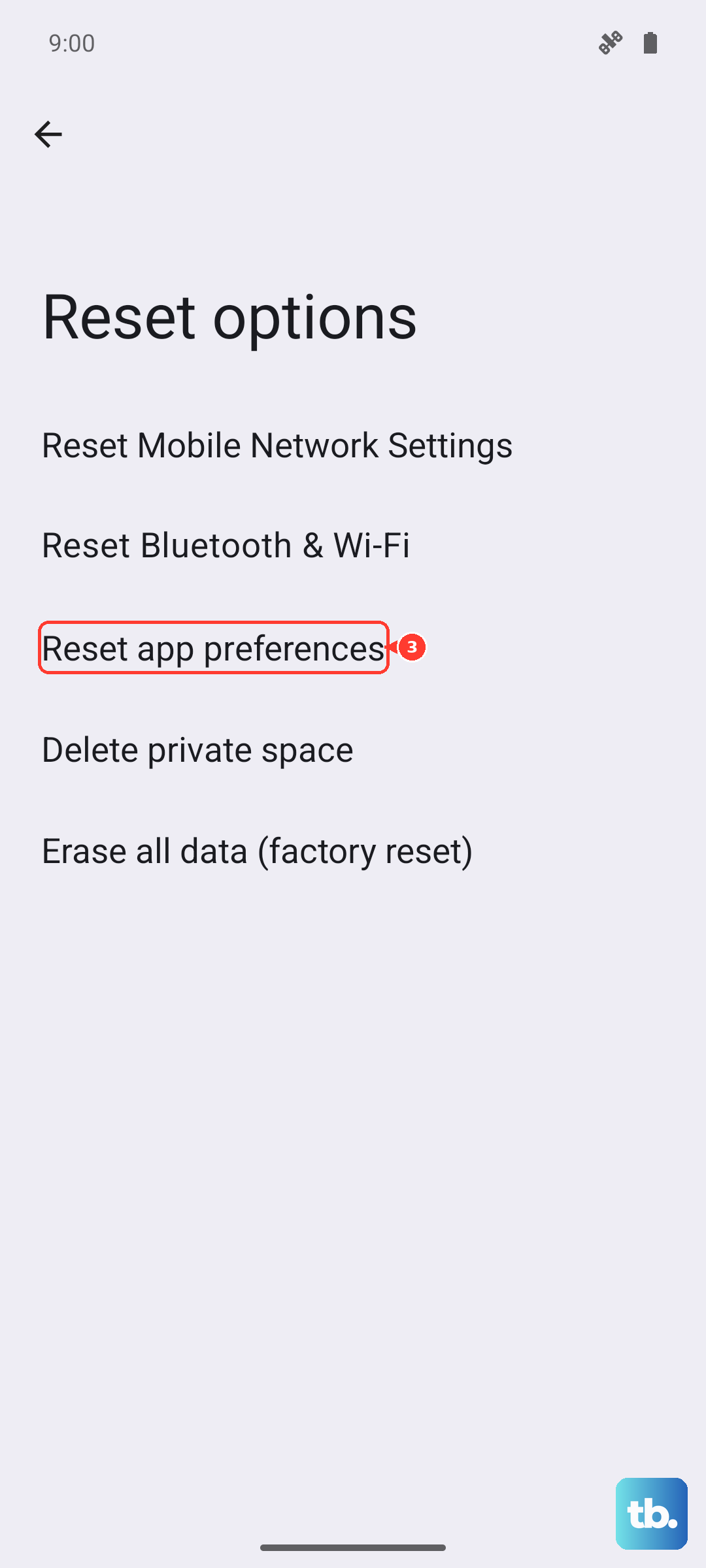
This is a broader fix that resets all your app-related settings, like notifications, default apps, and background data restrictions, back to their factory defaults. It won't delete any app data. Go to Settings > System > Reset options. Tap on 'Reset app preferences' and confirm. After the phone resets, you'll need to re-grant notification permissions to your apps when they first ask, but this often clears up conflicting settings causing the silence.
If you've just installed a new theme or changed the system font from the XOS Theme Store, try reverting to the default theme. Sometimes third-party themes have bugs that can affect system sounds and notification behaviors.
Ensure No Accessibility Settings Are Interfering
Certain accessibility features can alter how notifications are presented. Go to Settings > Additional settings > Accessibility. Look at features like 'Accessibility menu', 'TalkBack', or 'Sound amplifiers'. If any of these are turned on and you're not using them, try turning them off to see if it restores normal notification sounds.