Your Infinix Note 40 Pro shows the hotspot as switched on, the little broadcast icon sits in your status bar, yet the laptop or second phone you are trying to connect either never sees the network or joins and then loads nothing. That gap between "hotspot is on" and "internet actually flows" is the heart of nearly every tethering complaint on this phone, and it almost always traces back to a handful of fixable causes rather than a broken device. Because the Note 40 Pro runs XOS 14 on top of Android 14 with cellular mobile data and dual-band Wi-Fi, it carries the standard Mobile and Wi-Fi Hotspot tools, so the cure is in the settings, not the hardware. Work through the fixes below in order, starting with the safest checks and saving the data-erasing options for last.
Make sure there is actually internet to share
A hotspot does not create internet; it only re-broadcasts the mobile data your phone already has. The official after-sales guidance from Carlcare, Infinix's service provider, makes its very first check the simplest one: confirm that your data plan is active, has not expired, and still has data allowance left. If your plan is empty or lapsed, the hotspot will switch on and broadcast normally while delivering no connection at all, which is exactly the confusing symptom many owners describe.
Check that mobile data itself is turned on, then open a website or app on the Note 40 Pro directly to confirm the phone is online before you blame the hotspot. If the phone cannot browse on its own, no amount of hotspot tweaking will help until the underlying data connection is restored.
Flip the hotspot off and on, the fastest reset
Once you know there is data to share, the quickest cure for a temporary glitch is to switch the Wi-Fi hotspot off and then back on. Carlcare lists this toggle as one of the easiest ways to clear a momentary software hiccup and re-establish the broadcast.
Give it a few seconds between off and on so the radio fully cycles, then try connecting again. A surprising share of "hotspot not working" cases clear up at this step alone.
Rule out the device you are connecting
The problem is not always on the Infinix. The phone, tablet, or laptop trying to join the hotspot can have its own Wi-Fi fault, so it is worth confirming where the fault really sits.
- 1.On the receiving device, swipe down from the top of the screen to open quick settings, then toggle Wi-Fi off and back on.
- 2.Restart that receiving device, then have it scan again for your hotspot's network name.
- 3.If it still will not connect, test the hotspot with a completely different phone or laptop.
If a second device connects fine, the original receiver has the hardware or software issue, and that is where you should focus next. Carlcare specifically recommends this cross-check to isolate the culprit.
Stop Power Saving Mode from throttling the link
Battery-saving features work by trimming performance and limiting background radios, and that can quietly interfere with the Wi-Fi hotspot. Carlcare advises turning off power saving mode while you are tethering.
Open your battery settings and disable Power Saving Mode, then start the hotspot again. With the phone allowed to run at full power, the connection has the headroom it needs to stay stable.
Build a fresh hotspot from scratch
If the existing hotspot profile has become corrupted, recreating it with a new name and password often clears the fault outright. On XOS, follow the path exactly:
- 1.Open Settings > Wireless & networks > More > Hotspot & tethering > Wi-Fi hotspot > Set up Wi-Fi hotspot.
- 2.Enter a new network name and a new password.
- 3.Set a strong password that you can type accurately on the other device.
- 4.Save the new profile and try connecting again.
A clean network name and password also rules out a forgotten or mistyped password as the reason a device keeps failing to join.
Match the broadcast band to the device that cannot connect
Some devices, especially older laptops, cheaper tablets, and certain smart gadgets, can only see a 2.4GHz network and will never detect a 5GHz hotspot. The Note 40 Pro lets you choose which band it broadcasts on, and switching to 2.4GHz gives you the widest compatibility.
Inside Set up Wi-Fi hotspot, tap Select AP Band, pick 2.4GHz or 5GHz, then tap Save. On the standard Android wording the same control lives under Settings > network and internet > hotspot and tethering > wifi hotspot > AP band, where you choose 2.4Ghz. Carlcare's guidance points specifically to 2.4GHz when a device refuses to find the network.
Turn off the setting that quietly drops your hotspot
An automatic Wi-Fi feature can switch the radio in a way that interrupts an active hotspot, causing it to drop without warning. Carlcare's Android hotspot guidance recommends disabling it.
Go to Network and internet > wifi hotspot and turn off the "turning on the wifi automatically" option. With that toggle disabled, the hotspot is far less likely to cut out mid-session.
Restart the phone, and force a restart if it is frozen
A normal restart clears lingering bugs, glitches, and cached states that can jam the hotspot, and Carlcare recommends it as a reliable reset for connectivity faults. Power the Note 40 Pro down, wait a moment, and switch it back on, then test the hotspot again.
If the phone is frozen or completely unresponsive, Carlcare says you can force restart most Android phones by holding the Power button for about 10 to 15 seconds until the device reboots on its own. Use this only when the screen will not respond; a normal restart is enough in every other case.
Update the software to clear connectivity bugs
Outdated firmware is a common source of Wi-Fi and tethering faults, and an update frequently carries the fix. Before you start, make sure the battery is above 50 percent and you have a strong internet connection.
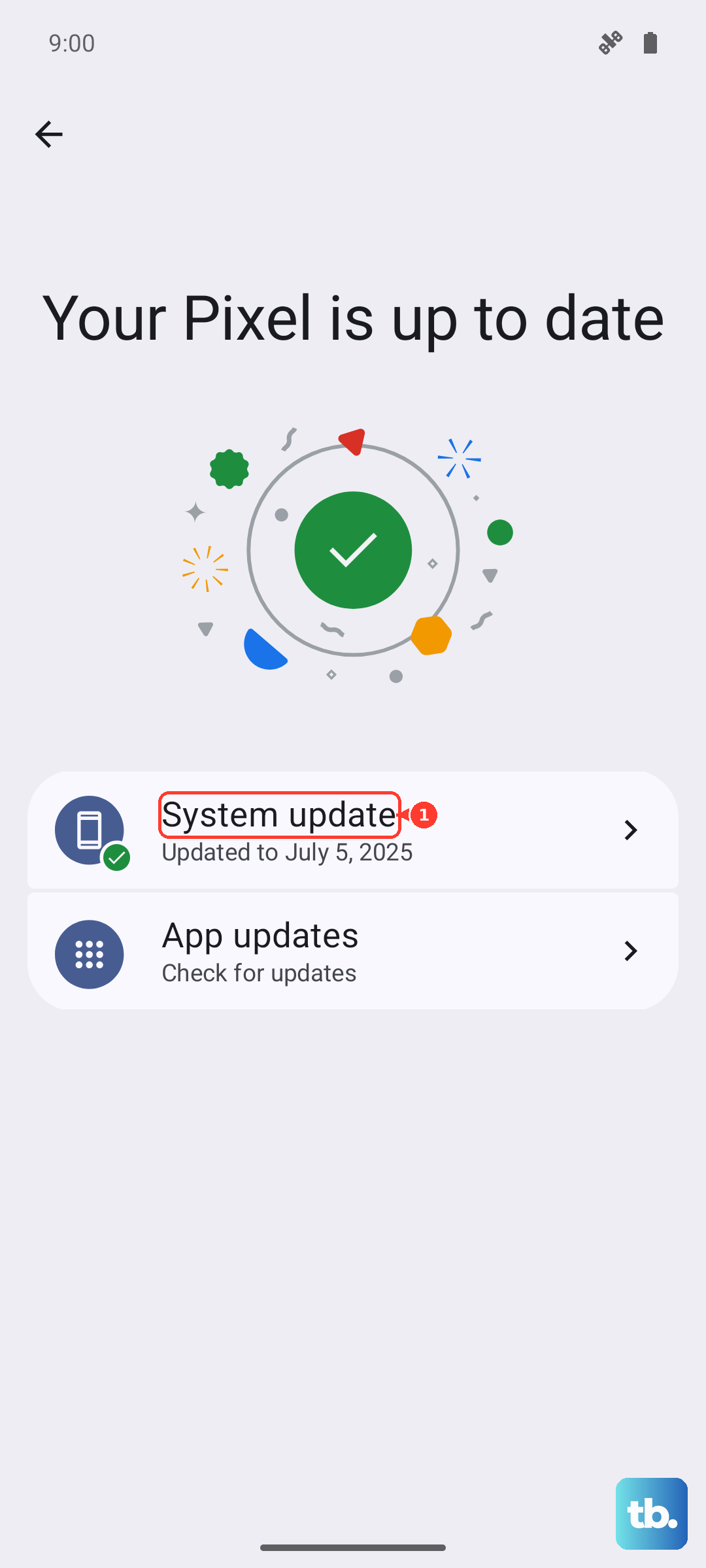
Open Settings > System > System Update > Online Update and install whatever is offered. Letting the phone finish the update fully, then restarting it, gives the hotspot a clean, patched system to run on.
The last-resort reset and official Carlcare help
If every step above fails, a factory reset returns the phone to its original software state, but it erases everything on the device, so this is strictly a last resort. Back up your photos, messages, and accounts first, because this action wipes all data.
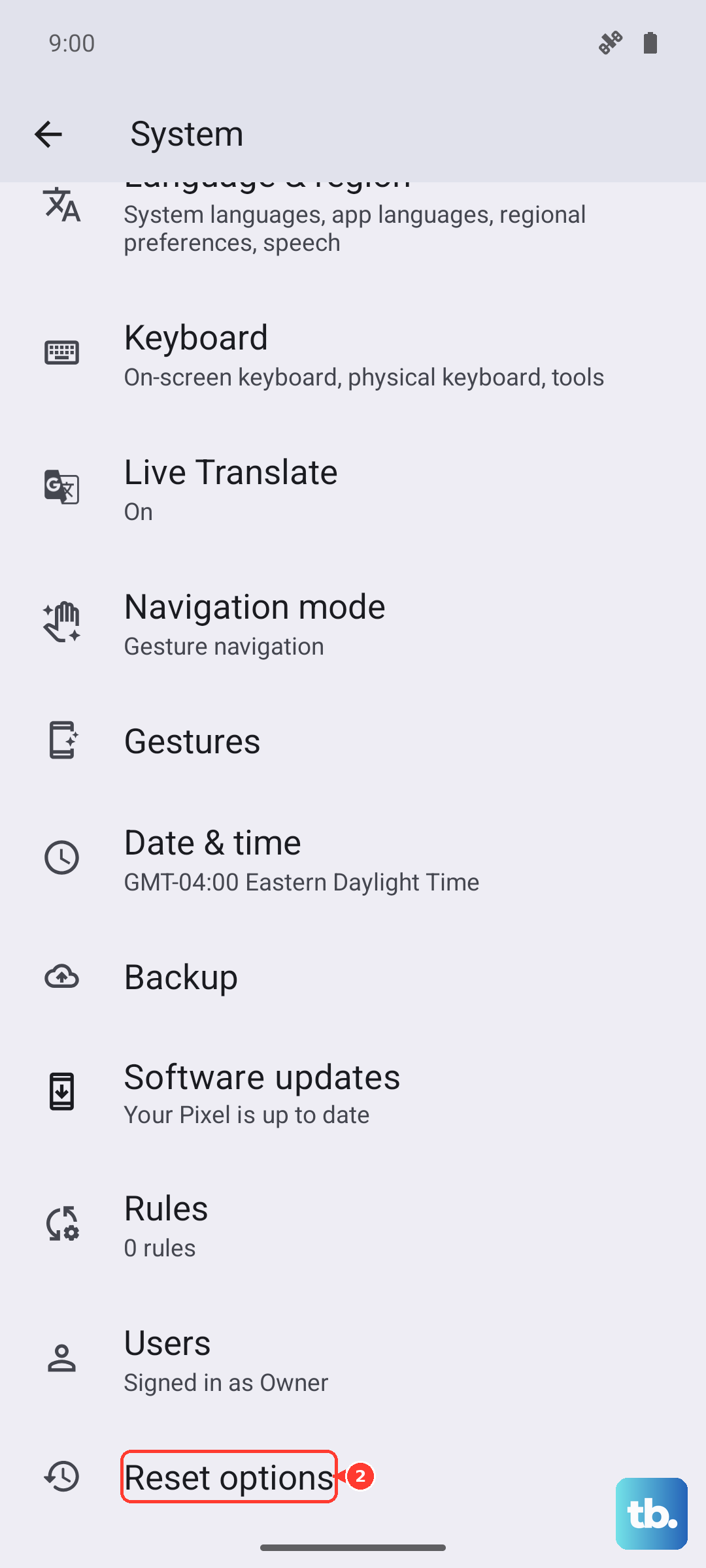
- 1.Open Settings > System > Reset options > Erase all data (factory settings).
- 2.Enter your phone password if you have one set.
- 3.Confirm to begin the reset.
If the hotspot still will not work after a full reset, the issue may be beyond a settings fix. At that point, visit your nearest Carlcare service center, the official after-sales service provider for Infinix, for professional diagnosis and repair.
Frequently Asked Questions
Why does my Infinix Note 40 Pro hotspot turn on but give no internet?
This usually means the phone has no data to share. Confirm your mobile data plan is active and not expired, check that mobile data is switched on, and verify the phone can browse on its own before troubleshooting the hotspot itself.
A laptop cannot find my hotspot network at all. What should I change?
Switch the broadcast band to 2.4GHz, since some devices cannot see a 5GHz network. Open Set up Wi-Fi hotspot, tap Select AP Band, choose 2.4GHz, and tap Save, then have the laptop scan again.
My hotspot keeps dropping after a few minutes. How do I keep it stable?
Turn off Power Saving Mode in your battery settings, and disable the "turning on the wifi automatically" option under Network and internet > wifi hotspot. Both settings can interrupt an active hotspot, and switching them off helps the connection hold.
How do I restart the phone if it freezes while I am tethering?
For a normal reset, power the phone off and on again. If it is frozen or unresponsive, hold the Power button for about 10 to 15 seconds until it reboots.
Will updating or resetting the phone fix the hotspot?
An update often clears connectivity bugs and should be tried first, via Settings > System > System Update > Online Update with the battery above 50 percent. A factory reset can resolve deeper faults but erases all data, so back up first and treat it as a last resort before contacting Carlcare.