A frozen Infinix Note 40 Pro with an unresponsive screen is incredibly frustrating. The touchscreen might stop registering taps and swipes completely, or it might become laggy and inaccurate. Since this is a 2024 phone running Android 14 with XOS 14, the issue is almost always a temporary software glitch you can fix yourself.
Force Restart Your Phone
This is the first and most effective step for any unresponsive Android phone. On the Infinix Note 40 Pro, press and hold the Power button and the Volume Down button together. Keep holding them for about 10 to 15 seconds until you feel a vibration or see the Infinix logo appear on the screen. This forces a clean reboot without deleting any of your personal data.
Check for a Software Update
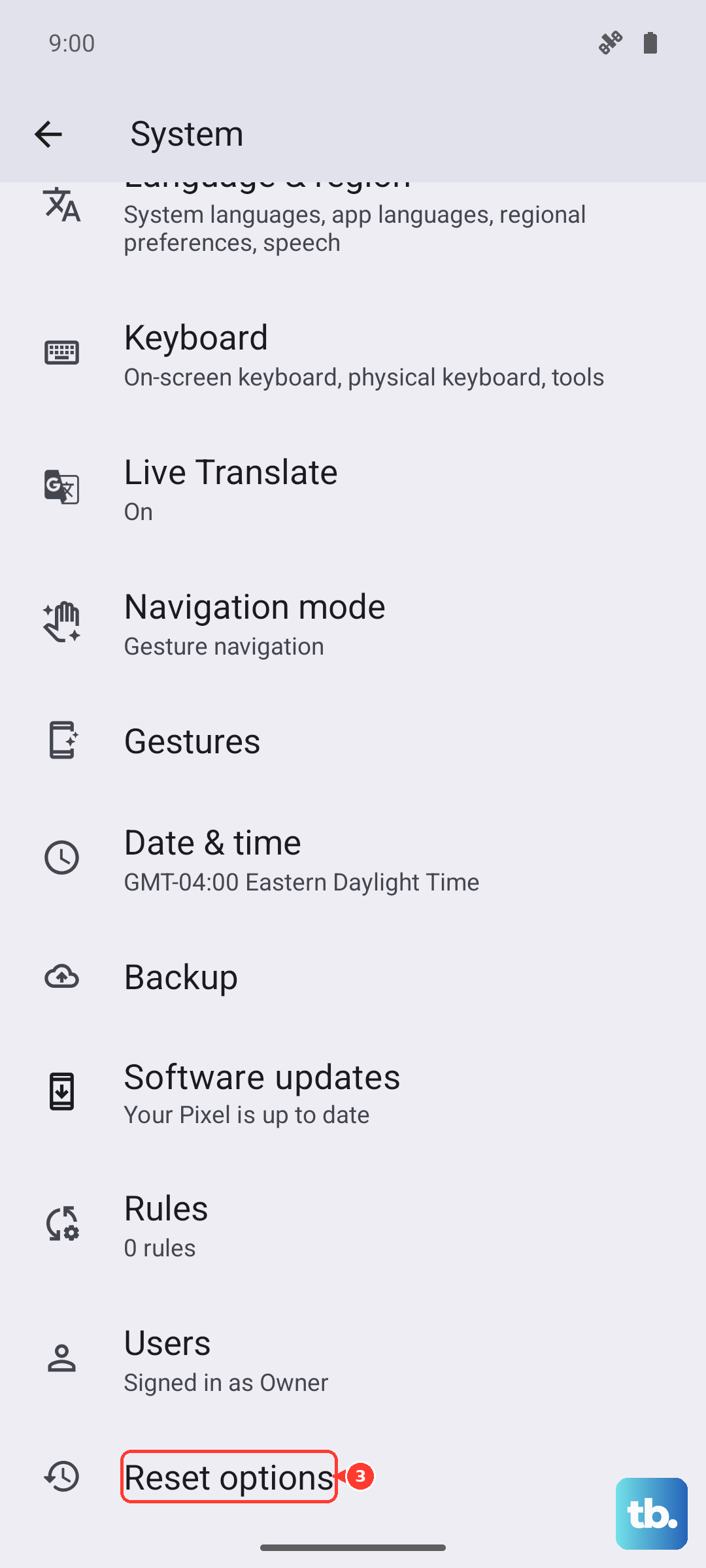
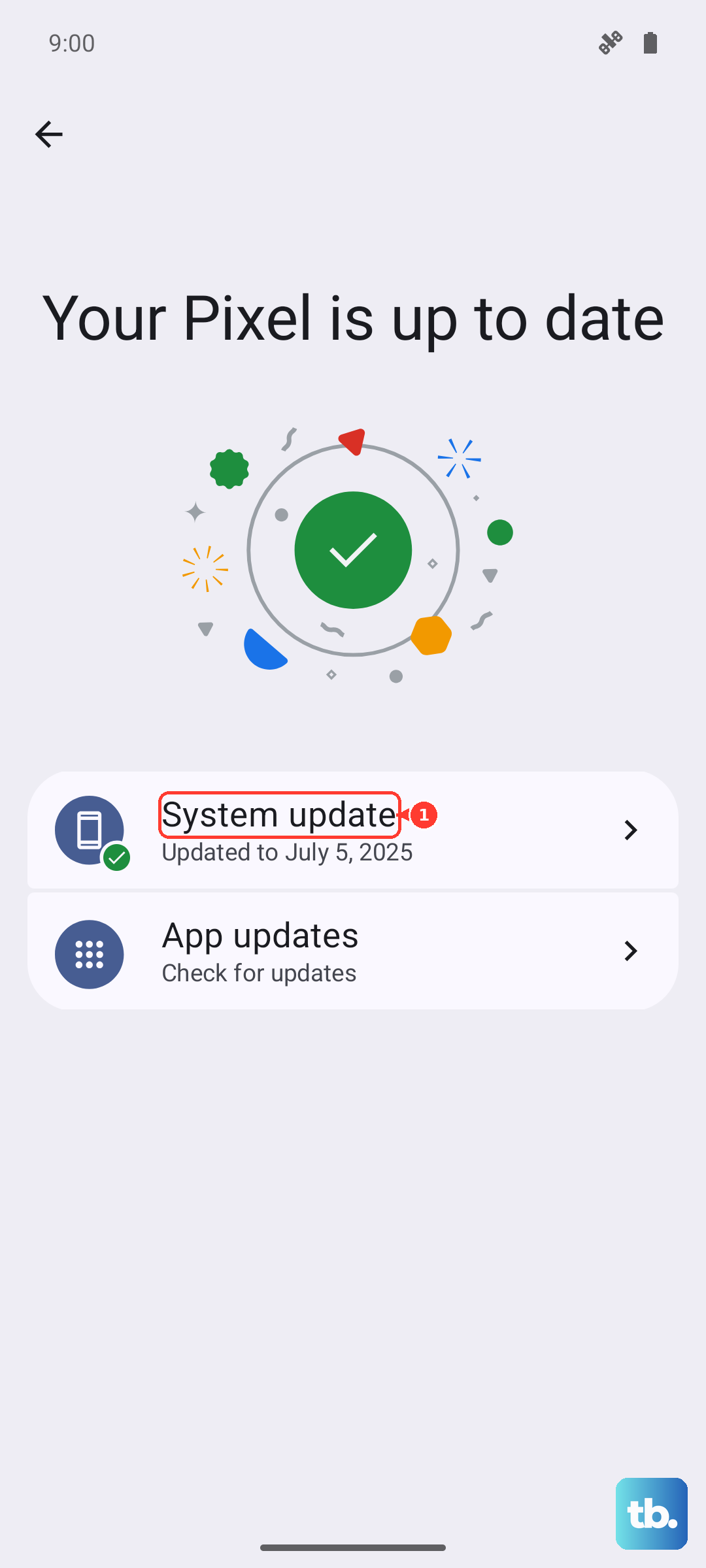
Outdated system software can contain bugs that cause touchscreen problems. After your phone restarts, go to Settings > System > System updates. Download and install any available updates. Infinix often releases patches to improve system stability and performance, especially for a new model like this.
Clean the Screen and Remove the Case
Sometimes the issue is physical, not digital. Wipe your screen clean with a soft, dry cloth to remove any moisture, grease, or dirt. Also, take the phone out of its case. A poorly fitting or thick case can sometimes interfere with the screen's sensitivity, especially around the edges.
Close Problematic Apps
If the touchscreen works in some apps but not others, or becomes laggy during gaming, a specific app might be the culprit. Swipe up from the bottom and hold to open the recent apps menu. Swipe up on any app you suspect is causing trouble to close it completely. The MediaTek Dimensity 7020 chip in the Note 40 Pro is capable, but heavy games can sometimes push it and cause temporary freezes.
Boot into Safe Mode
Safe mode temporarily disables all third-party apps. If your touchscreen works perfectly in safe mode, you know a downloaded app is causing the problem. To enter safe mode, press and hold the power button until the power menu appears. Then, tap and hold the "Power off" option on your screen until you see a prompt to reboot to safe mode. Tap "OK".
Check for Overheating
If your phone feels very warm to the touch, it may have throttled performance or temporarily disabled the screen to cool down. This can happen during long gaming sessions or while using the fast 70W charger. Move it to a cooler place, remove the case, and let it sit for 10-15 minutes before trying to use it again.
Calibrate the Touchscreen
Some Android phones have built-in diagnostic tools for the screen. On your Infinix, you can try accessing a hidden calibration menu. Open the Phone dialer and enter *#*#64663#*#*. This should open a testing menu where you can find a "Touchscreen" or "Touch" test to help recalibrate the digitizer.
Reset App Preferences or All Settings
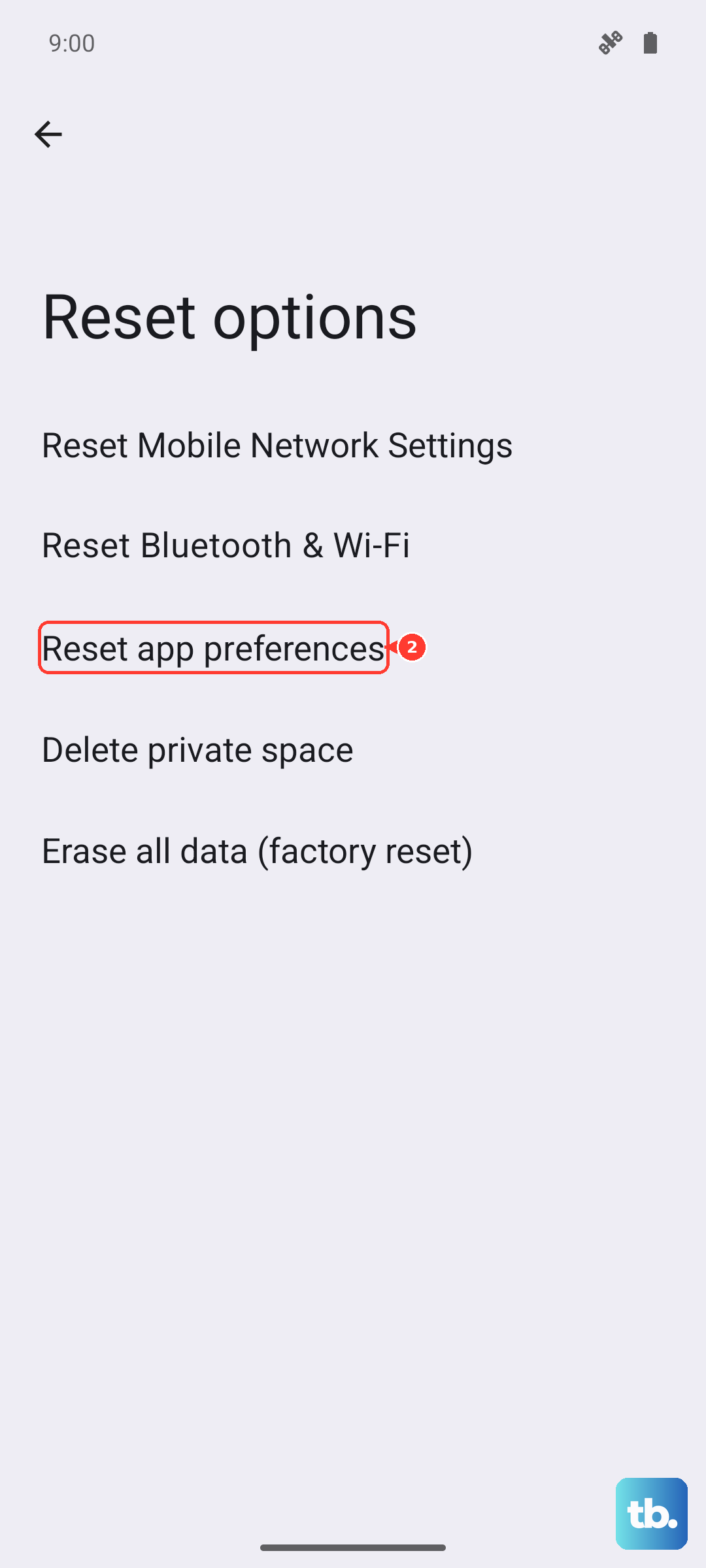
Corrupted system settings can lead to weird behavior. Go to Settings > System > Reset options. First, try "Reset app preferences". This resets permissions and default apps without deleting your data. If the problem persists, you can choose "Reset all settings". This will revert Wi-Fi, Bluetooth, and display settings back to default but will keep your photos and apps.
Consider a Factory Reset
This is a last resort if nothing else works and the phone is still under warranty. A factory reset will erase everything, so ensure you have a backup. Go to Settings > System > Reset options > Erase all data (factory reset). If the screen is too unresponsive to navigate there, you can use the hardware keys: power off the phone, then hold Power + Volume Up to boot into recovery mode and select "Wipe data/factory reset".