You tap the torch icon on your Infinix Note 40 Pro, expecting a quick burst of light, and nothing happens. The button may grey out, flicker on and snap back off, or simply ignore every press while you are stuck in the dark trying to find your keys, read a label, or check under a desk.
Here is the reassuring part. On the Note 40 Pro the flashlight is not a separate bulb; it is the rear LED camera flash doing double duty, toggled from the XOS Quick Settings panel. Because that flash hardware is shared with the camera, the most common reason the torch will not fire is that the Camera app, or a video-call app, is still holding onto the flash in the background. The vast majority of these failures are software, not a broken LED, so work through the fixes below in order, starting with the gentlest.
Reboot before you try anything else
A quick restart is the single most effective first move because it clears the temporary glitches and frozen processes that stop the torch from responding. According to the manufacturer's after-sales service, rebooting gives the system a fresh start and clears the RAM, which is often all the flashlight needs to behave again.
Power the phone off, wait a few seconds, then turn it back on and open the Quick Settings panel to test the torch.
If it lights up, you are done.
If not, move to the next step.
Free the flash from the camera and video apps
This is the fix that resolves most flashlight failures on the Note 40 Pro. Because the flash and the camera share the same hardware, the torch is unavailable whenever the Camera app, or a video app such as a video-calling tool with the camera enabled, is actively using the flash.
The official guidance is blunt about it. If you do not close the camera app properly, the flashlight and camera problems will keep happening.
Open the Recent Apps view, fully close the Camera and any other camera or video apps, then try the torch again.
Switch off Battery Saver mode
Power-saving features can quietly shut down the things you least expect. The manufacturer notes that power saver mode can switch off some functions, and at times that includes the torch itself, so a phone in this mode may refuse to light up no matter how many times you tap.
Turn the mode off with this path.
Open SETTINGS, then BATTERY SAVER.
Tap the 3 dots at the top right corner.
Choose TURN IT OFF.
Once Battery Saver is disabled, open Quick Settings and test the flashlight again.
Cool the phone down if it feels hot
XOS includes thermal protection that throttles performance and can shut the camera or disable the flash when the device gets too warm. The official support guidance explains that the phone may deliberately close the camera app when overheating and will not work fully again until its internal temperature returns to normal.
If the Note 40 Pro feels hot to the touch, remove any case.
Stop heavy tasks such as gaming or long video recording, and keep it out of direct sunlight.
Give it several minutes to cool, then retry the torch.
Reset the Camera app's data and force stop it
Since the Camera app controls the shared flash, resetting that app to its defaults often restores torch control. Clearing its data wipes the app's saved settings, not your saved photos, and force stopping it kills any stuck instance still gripping the flash.
First, clear the Camera data.
Open SETTINGS and go to APPS & NOTIFICATIONS, then select "See all Apps".
Scroll to CAMERA.
Tap STORAGE, then tap "Clear Data".
Then force the app to stop.
In SETTINGS, open APPS & NOTIFICATIONS and select "See all Apps".
Scroll to CAMERA.
Tap FORCE STOP, and then OK.
Reopen the Camera once to let it rebuild its settings, close it again, then test the flashlight.
Check camera permissions and try a backup torch app
If the default switch still fails, confirm the Camera has the permissions it needs to drive the flash, because a permission that has been revoked can block the torch.
Check it through Settings > Camera > Permissions, where you can open the three-dot menu and grant all permissions.
The official guidance also recommends two quick diagnostic steps.
Remove any app you installed just before the problem started, since a recently added app can interfere with the flash.
Then install a different flashlight app and test it.
If a third-party torch app works, the LED itself is fine and the issue is software, which points you back toward the camera and system fixes rather than a repair.
Install the latest XOS system update
Software bugs that affect the camera and flash are frequently fixed in newer XOS and Android builds, so installing the latest update can clear a flashlight fault you cannot pin down.
Use this path.
Open SETTINGS, then SYSTEM.
Tap SYSTEM UPDATE.
Select ONLINE UPDATE and install anything offered.
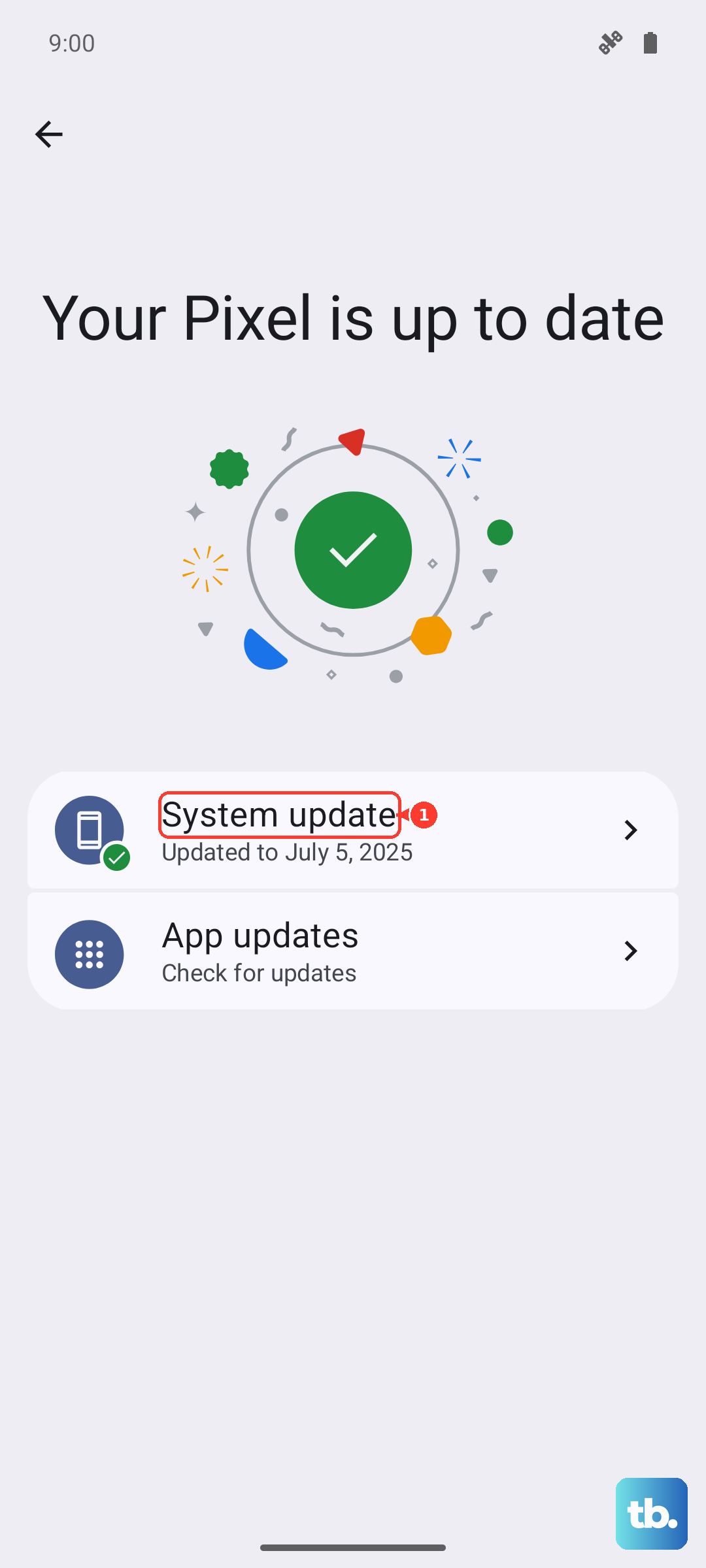
Before you start, keep the battery above 50 percent and stay on a strong Wi-Fi connection, and never interrupt the install while it is running.
After the phone reboots, test the torch again.
Force a restart when the screen is frozen
Sometimes the phone is not just refusing the torch; the whole screen has become unresponsive. In that case a normal shutdown will not work, so use the official force-restart method, which reboots the device without erasing any data.
Press and hold the Power button together with the Volume Down button for a few seconds.
Wait until the device logo appears on the screen, then release both buttons.
Once the phone has booted, open Quick Settings and check the flashlight.
Factory reset as a last resort, then call Carlcare
If every step above has failed, a factory reset returns the software to a clean state and can clear a deep-seated glitch. This step erases all data on the phone and is irreversible, so back up your photos, contacts, and files first.
When you are ready, reset from Settings.
- 1.Open SETTINGS, then SYSTEM.
- 2.Tap RESET OPTIONS.
- 3.Choose FACTORY DATA RESET, then RESET PHONE.
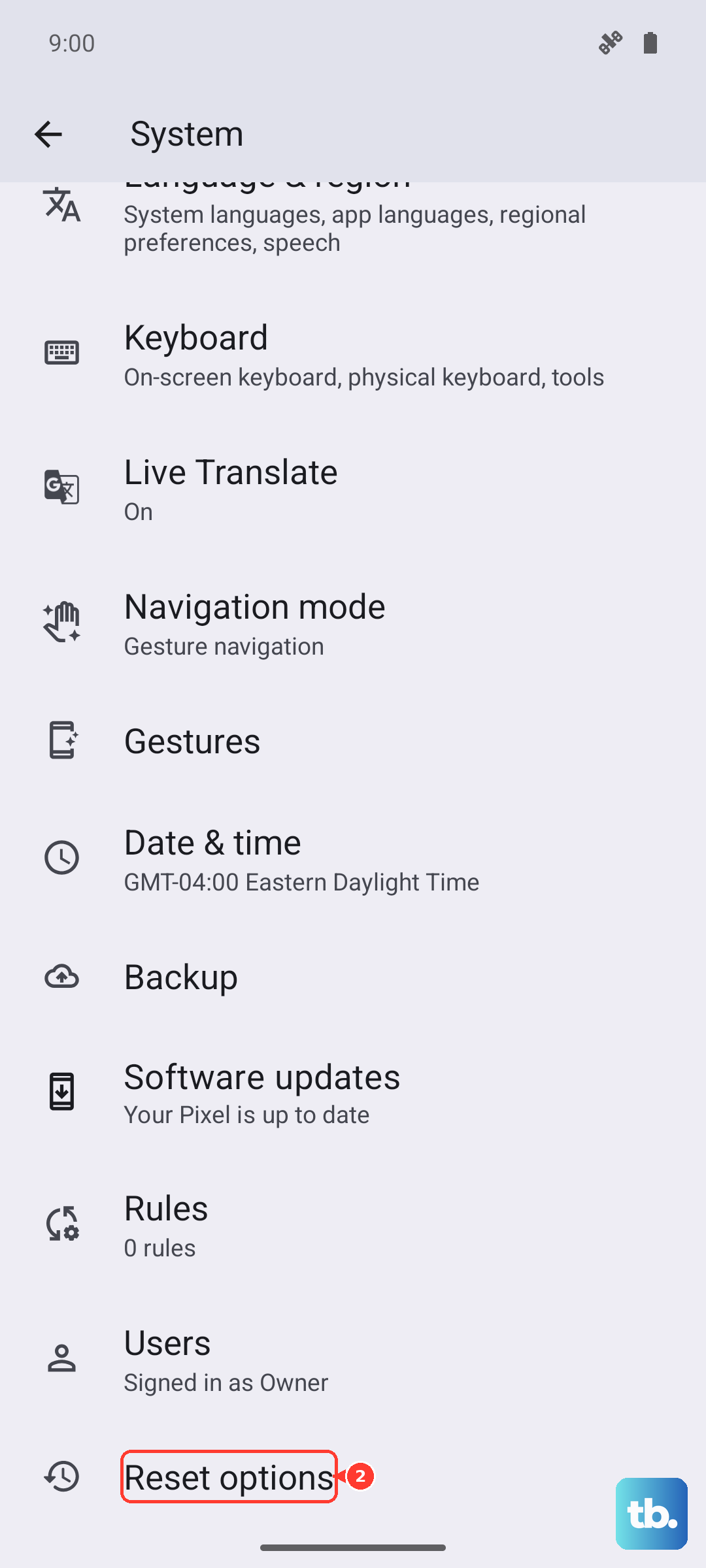
If the screen will not let you reach Settings, you can reset from recovery instead.
Press and hold the Power and Volume Down buttons, release the Power button once you see the boot logo or animation.
Scroll to "Wipe data factory reset" with the Volume Down button, then press the Power button to select it.
If the flashlight still will not work after a reset, you are almost certainly looking at a hardware fault.
Do not try to open or disassemble the phone.
Take it to an authorized Carlcare service center, or book an online repair reservation through Infinix's official after-sales service so a technician can diagnose and fix the flash.
Frequently Asked Questions
Why does my flashlight turn off whenever I open the camera?
On the Note 40 Pro the flashlight is the rear camera's LED flash, so the camera and the torch cannot use it at the same time. Whenever the Camera app or a video app is active and holding the flash, the torch will be unavailable until you fully close that app.
Does Battery Saver really disable the flashlight?
Yes. The official guidance states that power saver mode can disable some functions including, at times, the torchlight. Turn it off via SETTINGS > BATTERY SAVER > the 3 dots at the top right > TURN IT OFF, then test the light again.
Will clearing the Camera app's data delete my photos?
No. Clearing the Camera app's data resets the app's own settings to default, which is what restores flash control; it does not remove the photos and videos you have already saved. Even so, keeping a recent backup is always wise.
How do I tell if the flashlight problem is hardware or software?
Install a different flashlight app and test it. If a third-party torch app lights the LED, the hardware is fine and the fault is software, so the camera and system fixes above should solve it. If no app can turn the light on after a factory reset, it points to a hardware fault that Carlcare should inspect.
What should I do if the torch still fails after a factory reset?
Treat it as a likely hardware fault and stop troubleshooting at home. Do not open the phone yourself; instead take it to an authorized Carlcare service center or book an online repair reservation so a technician can examine the flash.