
A blurry camera on your Infinix Note 40 Pro can turn a great shot into a disappointing one. The blur might be constant, only happen in low light, or make your photos look soft and out of focus. Before you worry about a hardware problem, there are several things you can try to get your camera sharp again.
Clean the Camera Lenses
This is the simplest and most common fix. Grab a soft microfiber cloth, like the kind for cleaning glasses, and gently wipe the entire camera module on the back of your phone. Fingerprints, dust, and smudges on the lens glass are the number one cause of hazy, blurry photos. Avoid using your shirt or rough paper, as they can scratch the lens coating over time.
Remove Your Phone Case
Some cases, particularly third-party ones, don't have a perfectly aligned cutout for the camera. A case can slightly cover the edge of a lens or, if it's a clear case, develop a foggy film that degrades image quality. Take the case off and snap a quick test photo to see if the blur disappears.
Tap to Focus on Your Subject
Open the Camera app and tap directly on the main subject in your viewfinder. You should see a focus box appear. The Note 40 Pro's autofocus is generally good, but it can sometimes focus on the background instead of a close-up object. Tapping tells the camera exactly where to focus. For more control, you can press and hold on the screen to lock focus and exposure.
Check Which Camera Lens You're Using
The Infinix Note 40 Pro has multiple cameras. If your main 108MP camera is blurry, try switching to the ultrawide or macro lens within the Camera app. If only one specific lens is consistently blurry, the issue is isolated to that sensor, which could indicate a hardware problem or that particular lens needs a more thorough cleaning.
Force Close and Reopen the Camera App
Swipe up from the bottom of your screen and hold to enter the recent apps view. Find the Camera app and swipe it away to close it completely. Then, reopen it from your app drawer or home screen. A temporary software glitch in the app can cause the autofocus motor to stick or the image processing to malfunction.
Restart Your Infinix Note 40 Pro
If closing the app didn't help, a full restart can clear out deeper software hiccups. Press and hold the Power button and the Volume Down button together for about 10 seconds, until you feel a vibration and see the Infinix logo. This force restart refreshes all system processes, including those controlling the camera hardware.
Disable Any Special Camera Modes
Modes like Portrait or certain AI scene enhancers apply heavy software processing that can sometimes introduce blur or softness, especially if the subject detection is off. Try switching back to the standard Photo mode for a test shot. Also, if you're using a high-resolution mode like the full 108MP setting, processing can be slower and may occasionally glitch.
Check for Software Updates
Go to Settings > System > Software update. Infinix releases updates that often include camera performance improvements and bug fixes. A known autofocus issue in XOS might have already been patched in an update you haven't installed yet.
Clear the Camera App's Cache and Data
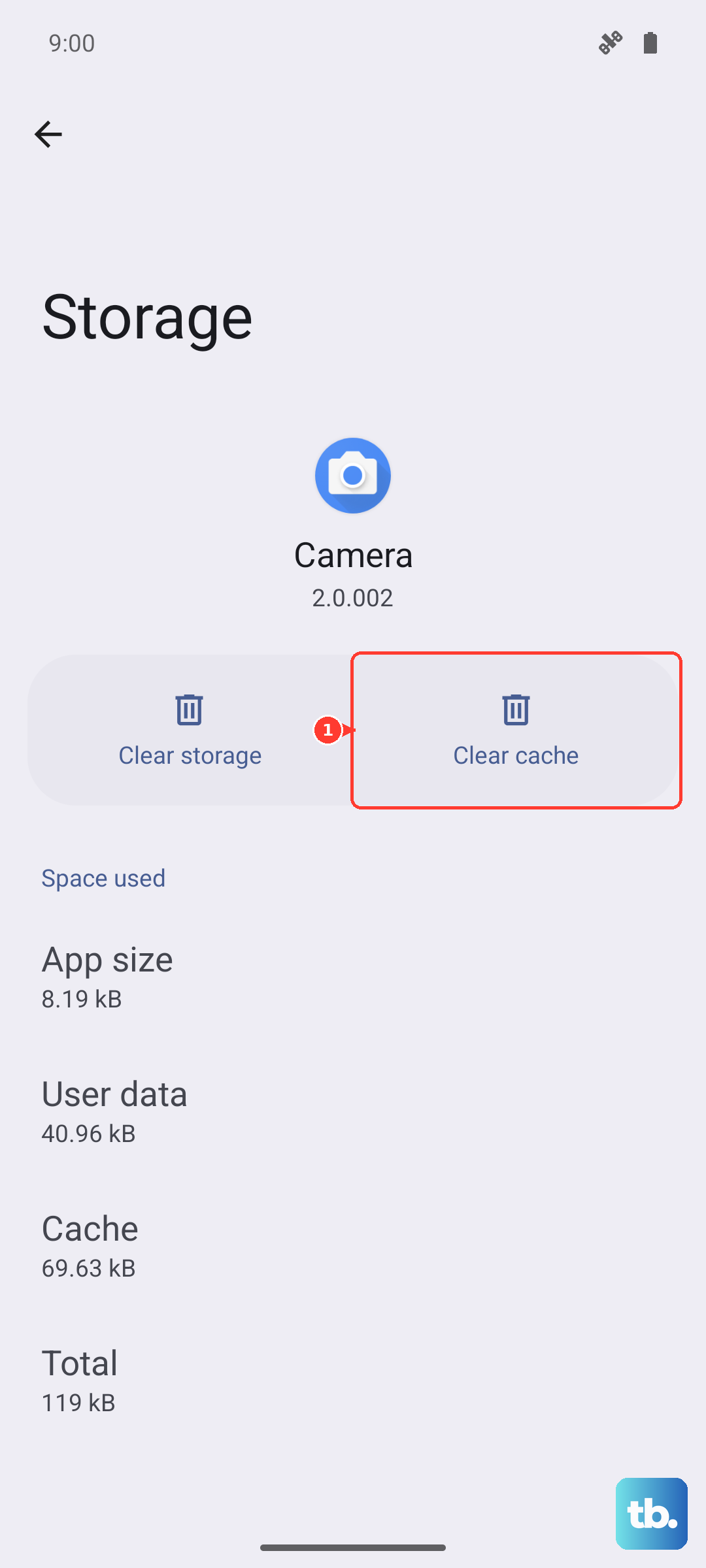
If the problem persists, corrupted app data could be the culprit. Go to Settings > Apps > Manage apps, find and select the "Camera" app. Tap on Storage usage, then tap Clear cache. If that doesn't work, you can tap Clear data. Just be aware that clearing data will reset all your camera app settings to default.
Check for Physical Damage or Moisture
Inspect the camera lens glass closely for any cracks or deep scratches. Also, if you've recently been in a humid environment or moved from a cold to a warm place, condensation could have formed inside the lens housing, causing a permanent foggy look in photos. Let the phone sit at room temperature for an hour to see if it clears.