
Having your Infinix Note 40 Pro drop calls mid-conversation is incredibly annoying. It usually comes down to a weak signal, a software hiccup in XOS, or a setting that needs adjusting. Since this is a 2024 phone, most issues are software-related and can be fixed pretty quickly.
Let's start with the simplest solutions that often clear up the problem in under a minute.
Toggle Airplane Mode On and Off
This is the quickest way to refresh your phone's connection to the cellular network. Swipe down from the top of your screen to open the Quick Settings panel. Tap the Airplane Mode icon to turn it on, wait about 10 seconds, and then tap it again to turn it off.
Your phone will reconnect to the network, which can clear out any temporary glitches causing the drops.
Check Your Signal Strength
Weak signal is the number one reason for dropped calls. Look at the signal bars in the top-right corner of your Note 40 Pro's screen. If you only have one or two bars, try moving to a different room or near a window.
Buildings, thick walls, and even certain weather can interfere. If you're in a basement or a rural area, the signal might just be poor, and that's a network coverage issue.
Perform a Force Restart
If a simple toggle doesn't work, a force restart can clear out deeper software bugs. Press and hold the Power button and the Volume Down button together for about 10 seconds.
Keep holding until you see the Infinix logo appear on the screen, then let go. Your phone will reboot. This doesn't delete any data, it just gives the system a fresh start.
Disable Battery Saver and Data Saver Modes
XOS's battery and data saving features are aggressive to extend the life of that big battery. Sometimes, they can limit background processes a bit too much, including those needed for stable calls.
Swipe down and check if the Battery Saver or Data Saver icon is highlighted. Tap them to turn them off. You can also go into Settings > Battery > Power Saving Mode and Settings > Network & internet > Data Saver to disable them.
Update Your Phone Software
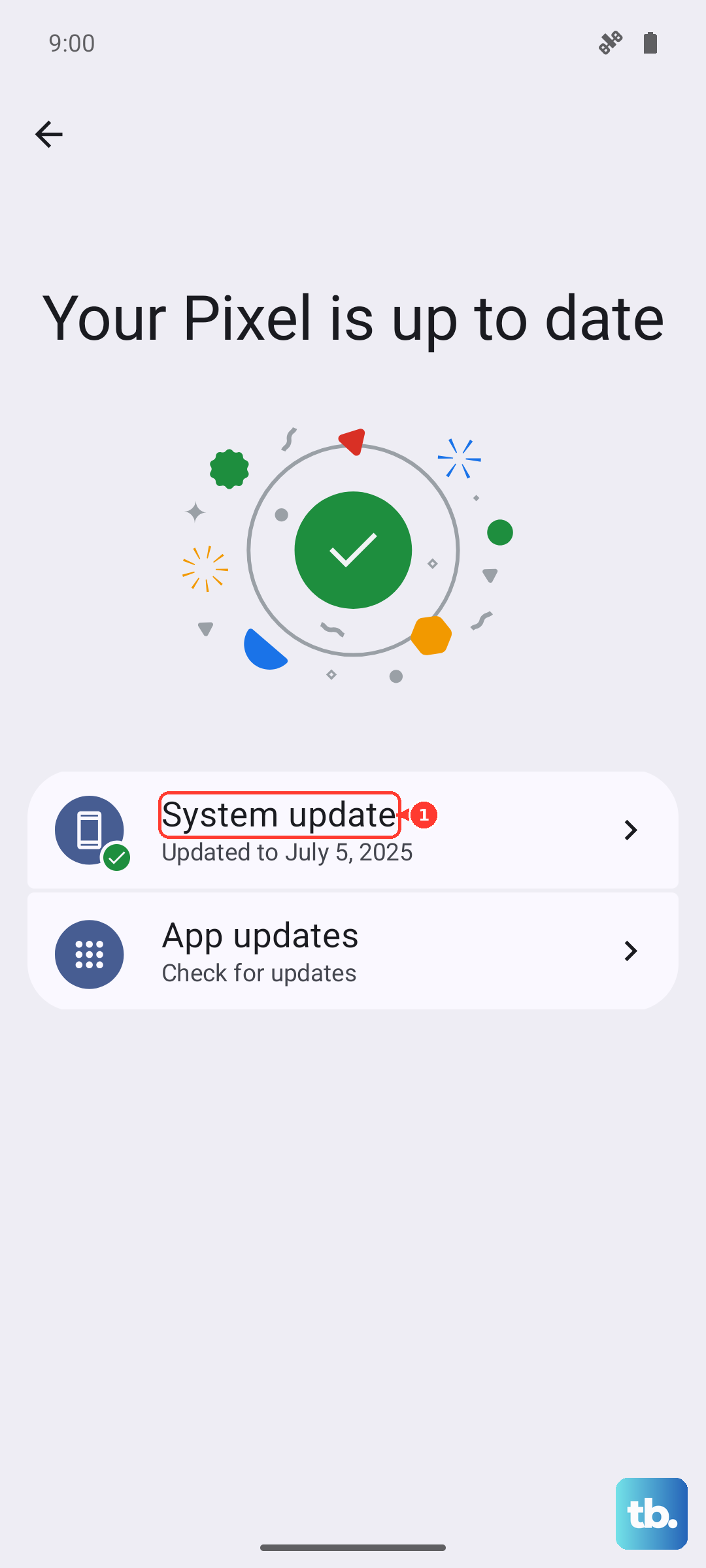
Infinix releases updates that fix bugs, including ones related to network stability and call performance. Make sure your Note 40 Pro is running the latest version of Android 14 and XOS 14.
Connect to Wi-Fi, then go to Settings > System > System update. Tap "Check for updates" and install anything available. I'd recommend doing this every few weeks to keep things running smoothly.
Check for App-Specific Issues
Are calls dropping only when you're using a specific app, like WhatsApp or Messenger? The problem could be with that app, not your phone's dialer. Try making a regular cellular call to see if it's more stable.
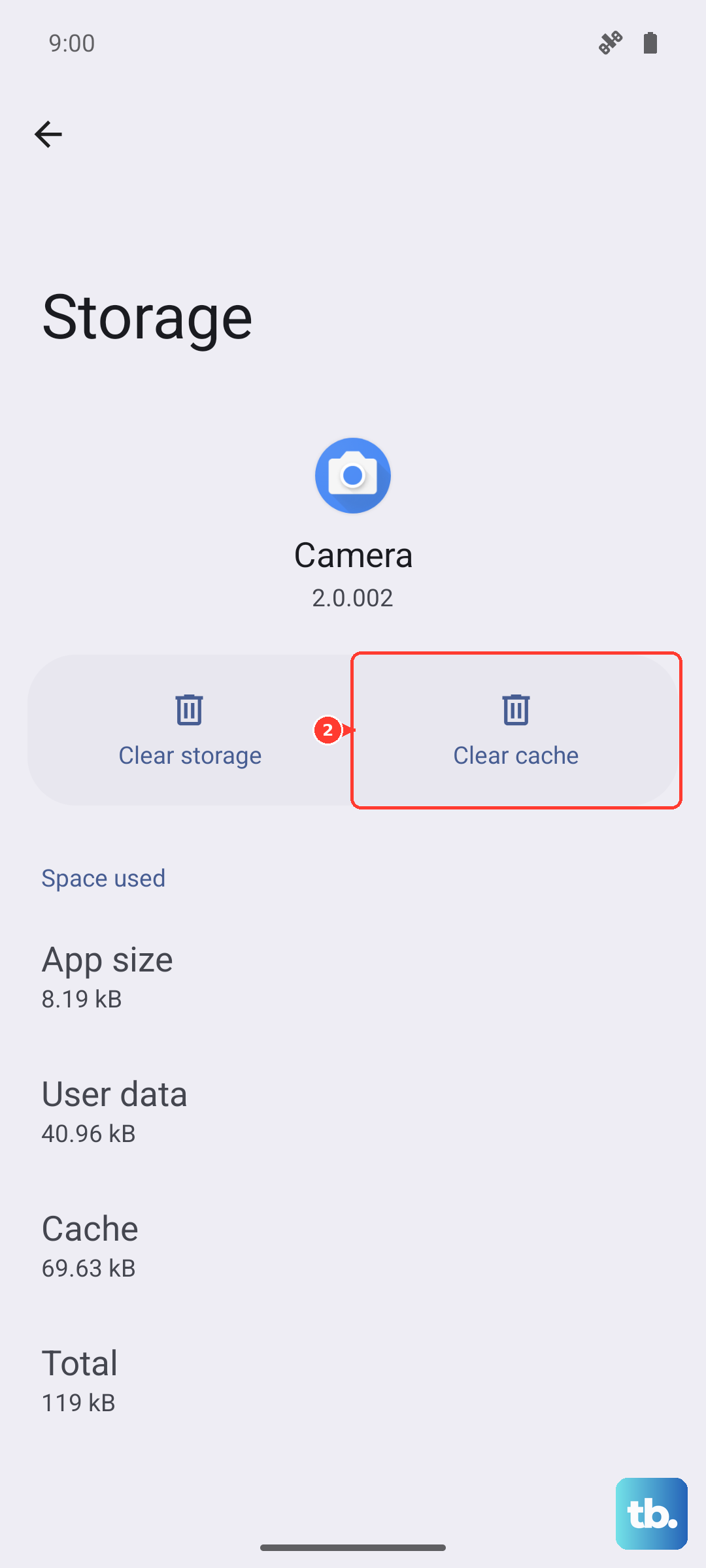
If it's an app issue, go to Settings > Apps, find the problematic app, and tap "Force stop". Then clear its cache by going into Storage & cache > Clear cache. Finally, check the Google Play Store for an update to that app.
Reset Your Network Settings
This is a more thorough step that resets all Wi-Fi, mobile data, and Bluetooth connections back to default. You'll need to re-enter Wi-Fi passwords afterward, but it won't touch your photos, messages, or apps.
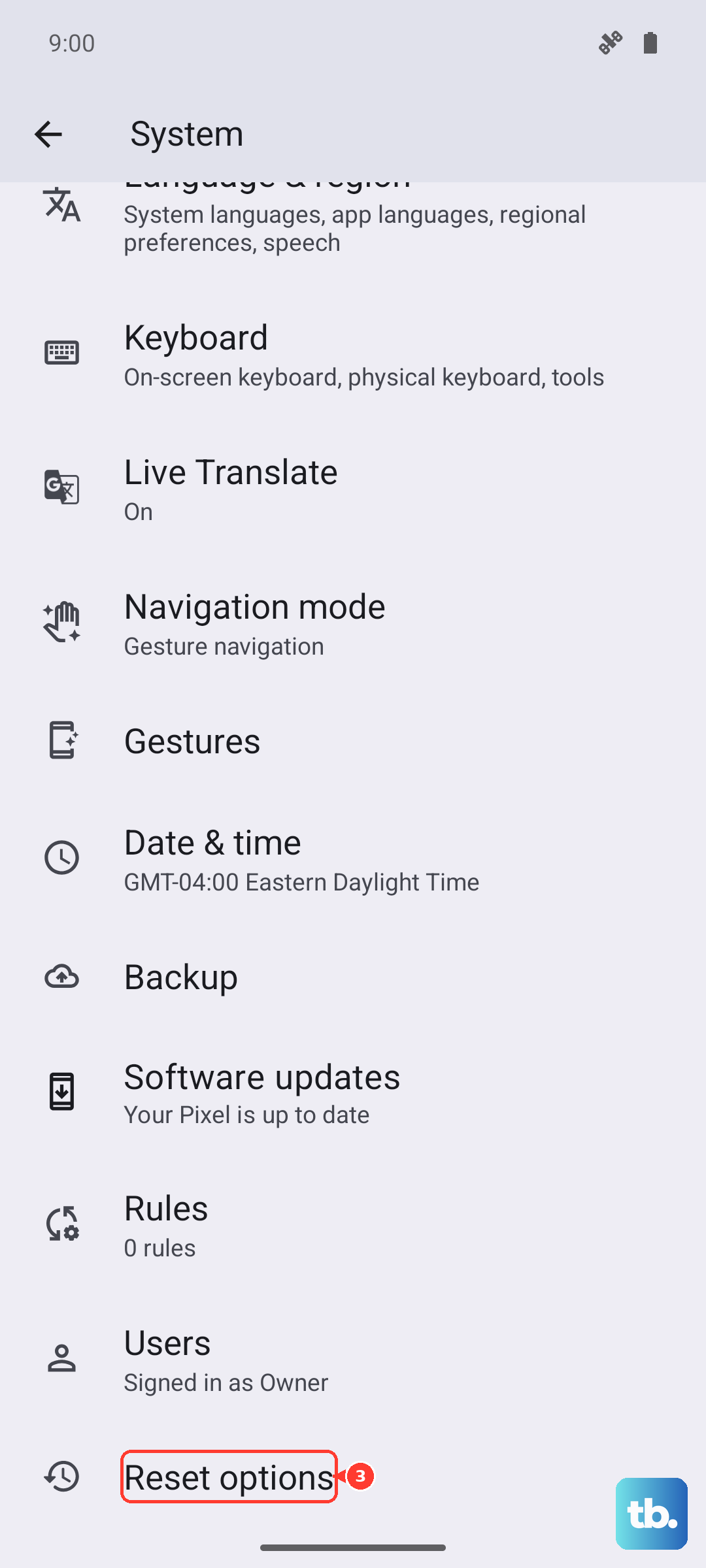
Go to Settings > System > Reset options. Tap "Reset Wi-Fi, mobile & Bluetooth" and confirm. After your phone reboots, reconnect to your cellular network and Wi-Fi. This often resolves persistent connection weirdness.
Switch Between 4G/5G and 3G
Sometimes, the faster 4G or 5G network in your area might have spotty coverage for voice calls. You can force your phone to use the older, but often more reliable, 3G network for calls.
Go to Settings > Network & internet > SIMs. Tap on your active SIM card and look for "Preferred network type". Change it from "5G/4G/3G/2G (Auto)" to just "3G/2G (Auto)". Test a call, then switch it back to see if the issue is resolved.
Inspect and Clean Your SIM Card
A dirty, loose, or slightly damaged SIM card can cause intermittent connection loss. Use the SIM ejector tool that came in the box (or a small paperclip) to pop out the SIM tray on the side of the phone.
Carefully remove the SIM card and gently wipe the gold contacts with a soft, dry cloth. Blow any dust out of the tray slot, then reinsert the SIM card firmly. Make sure it's seated correctly before sliding the tray back in.
Disable XOS Smart Services and Ads
This is a specific tip for Infinix phones. The XOS software can come with aggressive "smart" services and ads that run in the background. These processes can sometimes interfere with system stability.
Go to Settings > Special features > Smart Service. Here, you can turn off recommendations and personalized ads. Also, check individual apps like the Theme Store or Phone Manager in their settings to disable push notifications and ads. It cleans up the interface and might free up system resources.
Contact Your Mobile Carrier
If you've tried everything and calls are still dropping, the issue might be on your carrier's end. There could be network maintenance, a local tower outage, or even a problem with your account provisioning.
Give your carrier's customer service a call from a different phone. Ask them to check for outages in your area and to reprovision your line on their network. They can also check if your SIM card needs to be replaced, which they can usually do for free or a small fee.