
When your iMac M4's WiFi keeps dropping out, it can feel like you're constantly fighting to stay connected. The connection might seem fine one minute and then vanish the next, especially on the newer macOS 26 Tahoe. Here are the most effective ways to get a stable connection back.
Toggle WiFi Off and On
Click the WiFi icon in your menu bar and choose "Turn Wi-Fi Off." Wait a solid 10 seconds, then click the icon again and turn it back on. This simple refresh of the wireless adapter clears out a lot of temporary glitches that cause drops.
It's the digital equivalent of taking a quick breath. I'd start with this one every time, as it often resolves the issue in seconds without any deeper changes to your system.
Forget and Rejoin Your Network
Head to System Settings > Wi-Fi. Click the i (info) button next to your problem network's name. At the bottom of the details pane, click Forget This Network.
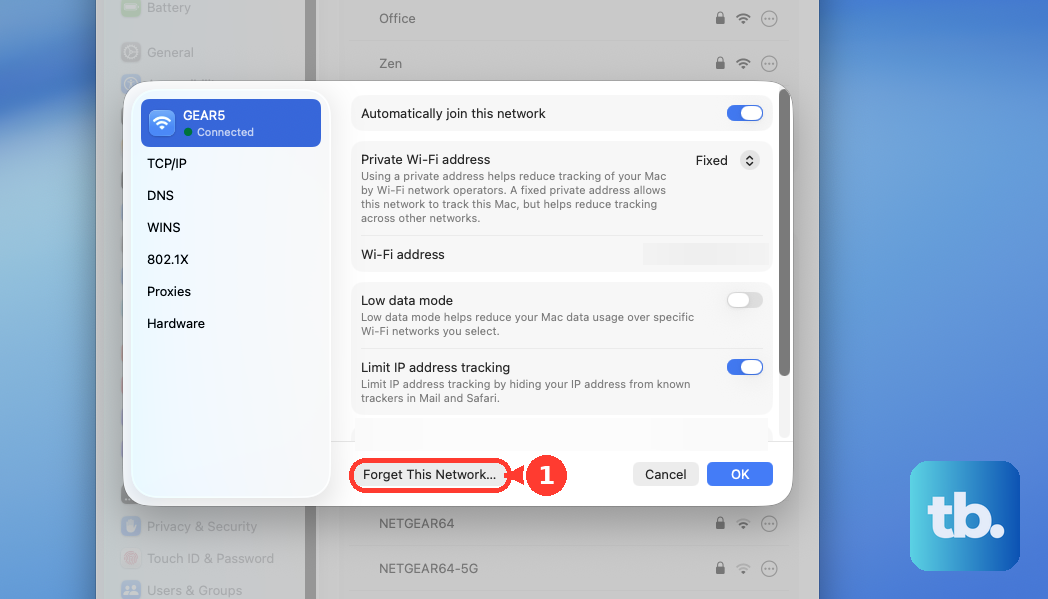
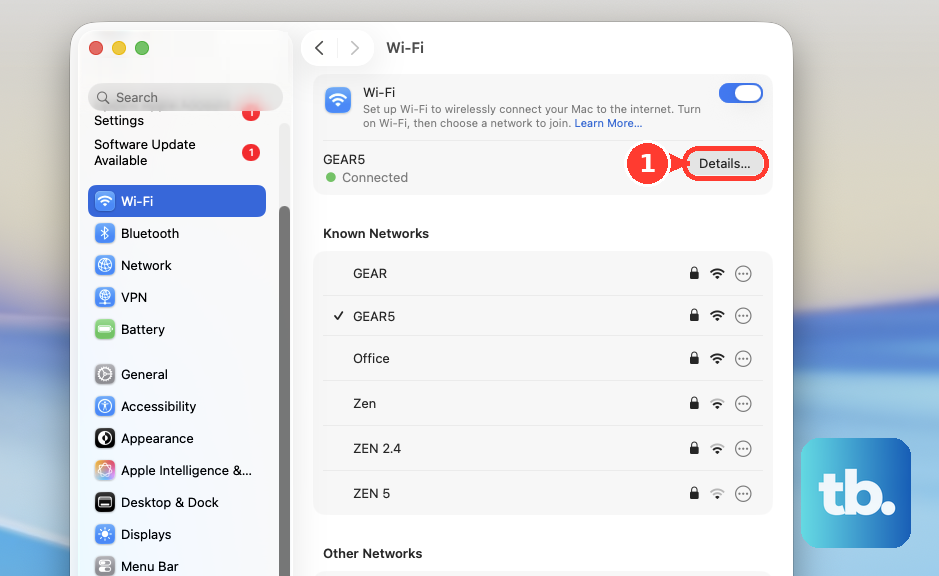
After confirming, find the network in the list again, select it, and re-enter the password. This forces your iMac to build a brand new connection profile from scratch, which can fix authentication or configuration hiccups.
Restart Your iMac M4
Go to the Apple menu > Restart. Since the iMac M4 has no battery and is always on mains power, a full restart is a clean slate for all system processes.
It reloads the WiFi drivers and clears any cached network states that might be causing the intermittent drops. This is a very reliable second step if toggling didn't do the trick.
Renew Your DHCP Lease
In System Settings > Wi-Fi, click the i next to your connected network. Go to the TCP/IP tab and click the Renew DHCP Lease button.
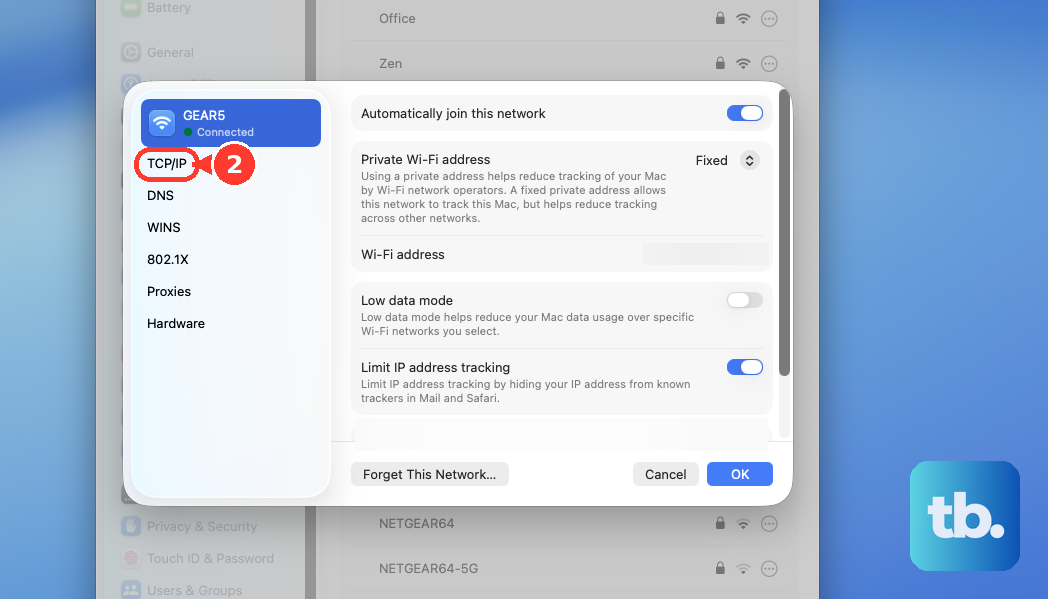
This asks your router for a fresh IP address. If your current lease was corrupted or conflicting with another device, it can cause a "connected but no internet" scenario or frequent disconnections.
Change Your DNS Servers
Staying in the same network details window, switch to the DNS tab. Remove any existing DNS server addresses listed there.
Click the + button and add 8.8.8.8 and 8.8.4.4 (Google's DNS) or 1.1.1.1 (Cloudflare's DNS). Sometimes the problem isn't the WiFi signal itself, but the DNS server provided by your ISP being slow or unresponsive.
Create a New Network Location
Open System Settings > Network. Look for the "Location" dropdown menu near the top, it might say "Automatic." Click it and choose Edit Locations.
Click the + to add a new location, give it a name like "Fresh Start," and click Done. Switch to this new location. This creates a completely blank slate for all network interfaces, which often resolves persistent, weird issues.
Update macOS to the Latest Version
Go to System Settings > General > Software Update. Apple frequently releases updates that include fixes for wireless connectivity and hardware drivers.
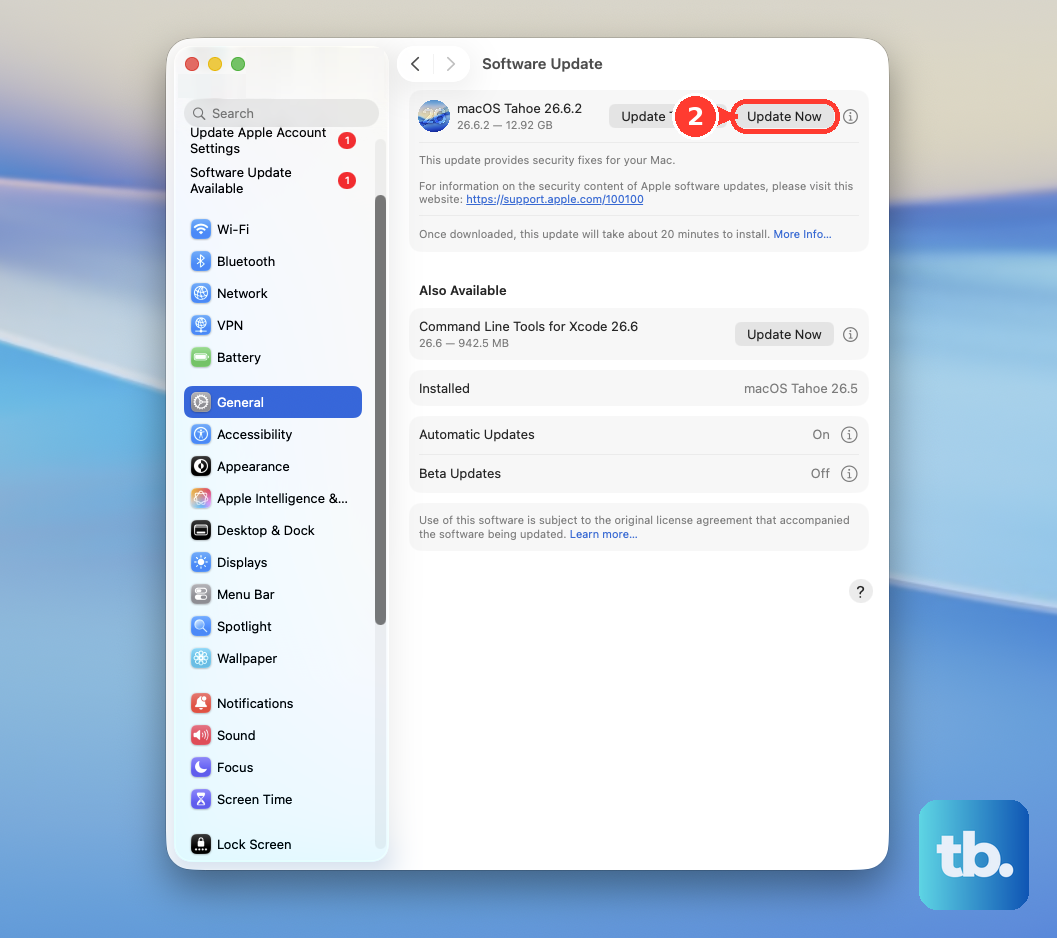
Ensuring you're on the latest version of macOS 26 Tahoe is crucial, as early software for a new chip like the M4 can have bugs that are later patched. The update process only takes a few minutes.
Reset the SMC and NVRAM
Since the iMac M4 uses Apple silicon, the process is different from older Intel Macs. First, shut down your iMac completely.
Now, press and hold the power button on the back of the display for a full 10 seconds, then release. Wait a few seconds, then press it again normally to turn on. This performs a management controller reset that can clear hardware-level network issues.
Check for Physical Interference
Take a look at what's around your iMac. The sleek design can sometimes mean the WiFi antennas are in the thin chin or display enclosure.
Large metal objects, other electronics like cordless phones or microwaves, and even certain types of glass can interfere with the signal. Try moving your iMac or your router just a foot or two to see if the stability improves.