
When your Huawei Pura 70 Pro won't send messages, it cuts off a core way you stay connected. Texts might get stuck on "Sending," fail with an error, or just disappear into the void. The fixes are usually straightforward, and I'd start with the simplest ones first.
Check Your Mobile Data and Signal
Messages need a cellular signal to send as SMS or MMS. Look at the signal bars in your status bar. If they're low or missing, try moving to a different location. A quick refresh often helps, so swipe down and toggle Airplane Mode on for a few seconds, then turn it off again.
For multimedia messages (MMS), you also need mobile data enabled. Swipe down and make sure the mobile data icon is active. If you're on Wi-Fi, try switching it off temporarily, as some carriers require mobile data for MMS to work properly.
Force Restart Your Phone
This is the universal first step for any weird phone behavior. Simply press and hold the Power button for about 10 seconds. Keep holding it until you see the Huawei logo appear, which means the phone is restarting. This clears out any temporary software glitches that could be blocking the Messages app.
Clear the Messages App Cache
Corrupted app data can cause sending failures. Go to Settings > Apps > Apps and find Messages in the list. Tap on it, then go to Storage. Here, tap Clear Cache. This deletes temporary files without touching your actual message history.
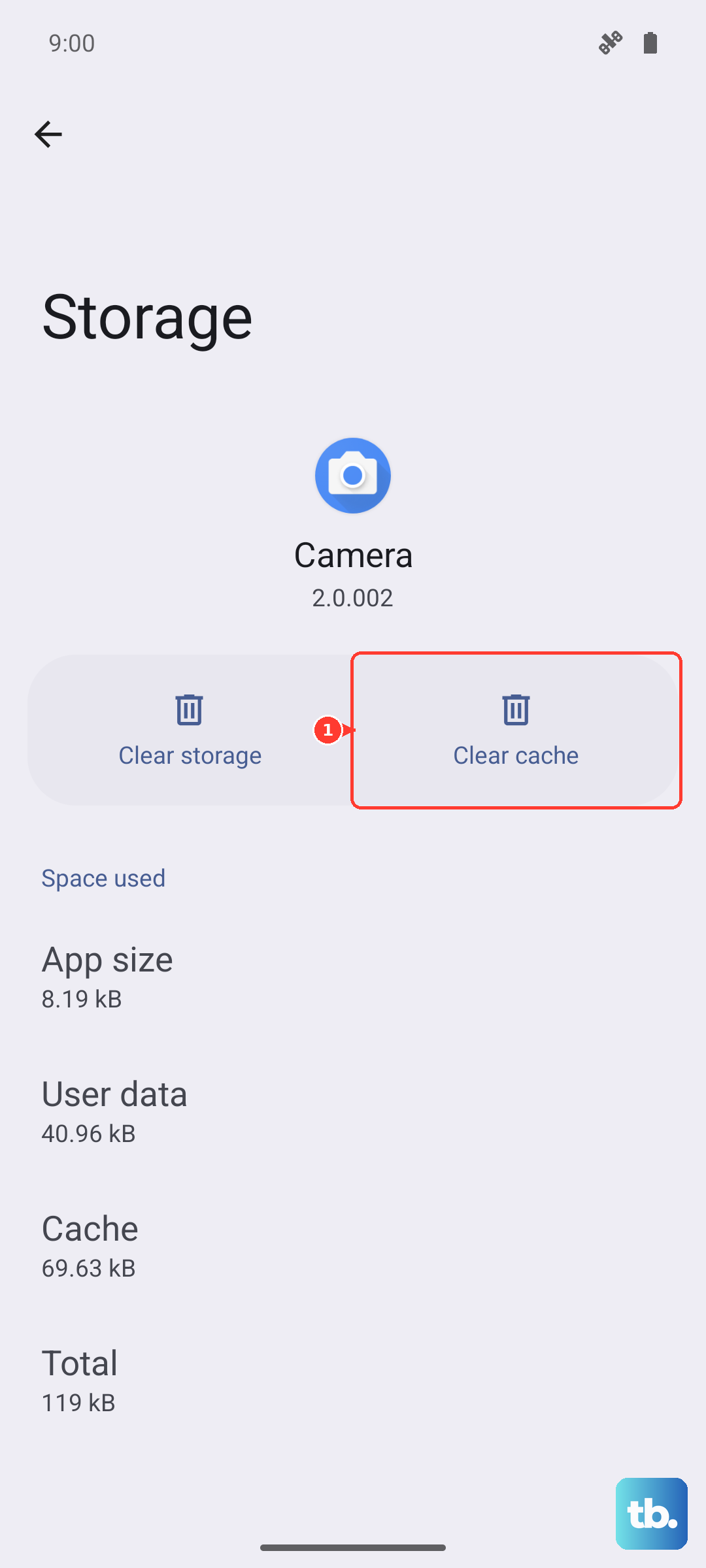
If the problem persists, you can take the next step and tap Clear Data. Be aware this will reset the app to its default state and erase all your message threads, so only do this if you're okay with that loss or have a backup.
Check for App and System Updates
An outdated Messages app or EMUI version can have bugs that break sending. Open the AppGallery and tap on Me at the bottom, then Update management to see if the Messages app needs an update.
For the system, go to Settings > System & updates > Software update and tap Check for updates. Installing the latest EMUI update can resolve a host of connectivity and compatibility issues.
Verify Your APN Settings
Incorrect Access Point Name (APN) settings are a common culprit for MMS failures. These settings tell your phone how to connect to your carrier's data network. Go to Settings > Mobile network > Mobile data > Access Point Names (APN).
You should see an APN list. Tap the one that's currently selected. The exact values here are unique to your carrier. The safest move is to contact your carrier's support, tell them you have a Huawei Pura 70 Pro, and ask them to confirm or text you the correct APN settings.
Reset Your Network Settings
This is a more thorough network refresh. It will wipe all your saved Wi-Fi networks, Bluetooth pairings, and mobile data settings. Go to Settings > System & updates > Reset. Then, tap Reset network settings and confirm.
After the phone reboots, you'll need to reconnect to Wi-Fi and re-pair Bluetooth devices, but this often clears deep-seated network configuration errors that stop messages from going through.
Check Your Blocked Numbers List
If messages are failing to send to one specific contact, you might have blocked them by accident. Open the Phone app, tap the three dots in the top right, and go to Blocked. See if the number is in the list. If it is, tap the trash can icon next to it to unblock them.
Reinsert Your SIM Card
A poor connection between the SIM card and the phone's tray can disrupt network services. Turn off your Pura 70 Pro first. Use the SIM eject tool that came in the box to pop out the tray.
Remove the SIM card, gently wipe the gold contacts with a soft, dry cloth, and then reinsert it carefully. Push the tray back in, power the phone on, and see if your messaging service has been re-established.
Try a Different Messaging App
Since the Pura 70 Pro uses Huawei's AppGallery, you have access to alternative messaging apps. Sometimes, the issue is isolated to the default Huawei Messages app. Search the AppGallery for a trusted third-party SMS app and set it as your default to test if sending works from there.
This can help you figure out if the problem is with the app itself or with a deeper system or network setting. Just remember that without Google Play Services, app selection will be different from a standard Android phone.
Contact Your Mobile Carrier
If you've tried everything else, the issue might be on your carrier's end. There could be a service outage in your area, a problem with your account provisioning, or SMS/MMS might be disabled on your plan. Give their customer service a call. They can check your line status and often push a network refresh to your device remotely.