
A slow HP Pavilion 15 can turn a simple task into a frustrating wait. The good news is, you can almost always speed it up with a few software tweaks. I'd start with the first couple of fixes, as they resolve the issue for most people.
Restart Your Pavilion
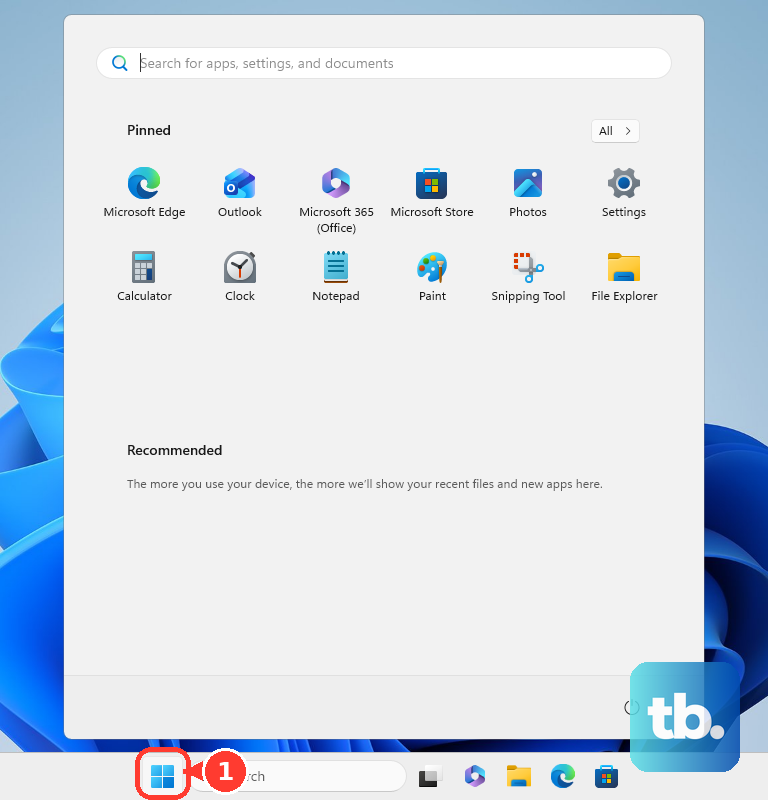
If you usually just close the lid, your laptop has likely been in sleep mode for weeks. This lets background processes and memory leaks pile up. Click Start > Power > Restart to give it a fresh start. Don't just shut down, as Windows' fast startup feature doesn't fully clear the system memory.
Check What's Hogging Resources
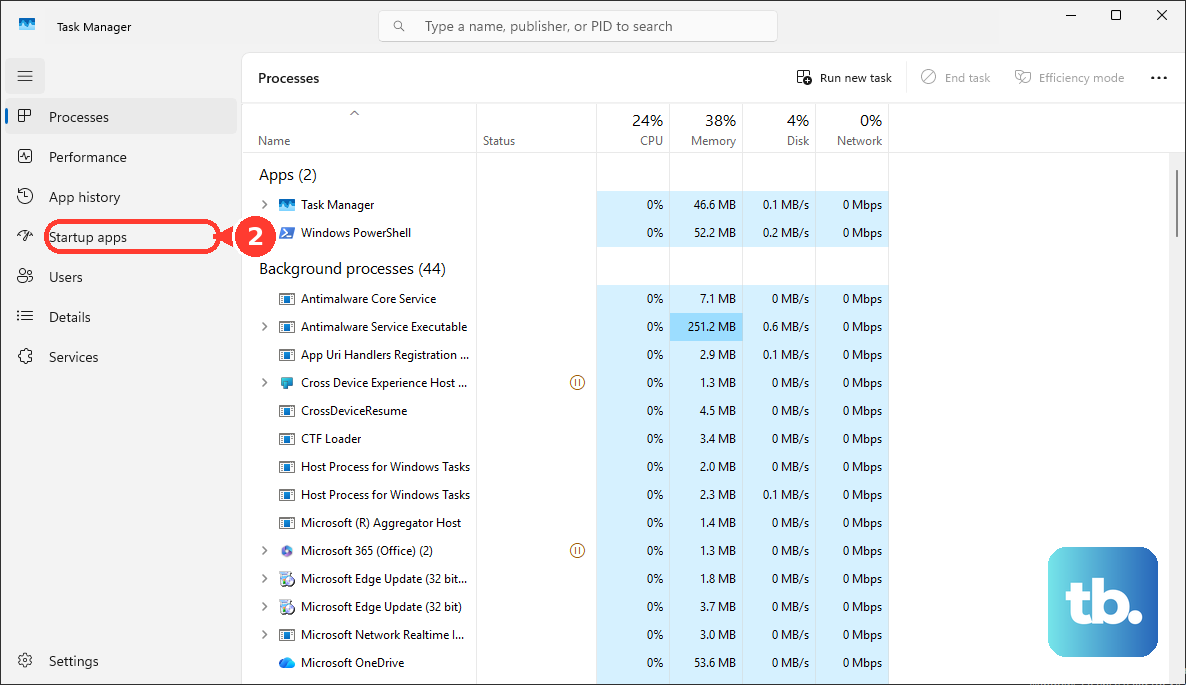
Press Ctrl + Shift + Esc to open Task Manager. Click the CPU, Memory, or Disk columns to sort by what's being used the most. Look for any single process using a huge percentage. Right-click on non-essential items and select End task. Common culprits on Pavilions are background updaters for pre-installed software.
Stop Programs from Launching at Boot
In Task Manager, go to the Startup apps tab. You'll likely see a long list of programs from HP and other software vendors. Right-click and Disable everything you don't need immediately when Windows starts, like Spotify, Steam, or Skype. This dramatically improves boot time and frees up RAM.
Clean Up Your Hard Drive
A full drive, especially a traditional hard drive (HDD) which many Pavilions have, is a major bottleneck. Go to Settings > System > Storage and turn on Storage Sense to automate cleanup. Then, click Temporary files and check all the boxes to remove update leftovers and system cache. Aim to keep at least 20% of your C: drive free.
Run a Malware Scan
Open Windows Security from the Start menu. Go to Virus & threat protection and run a Full scan. Malicious software running in the background can consume massive amounts of CPU and network resources, slowing everything to a crawl. This scan is thorough and worth the time.
Update Everything with HP Support Assistant
Search for and open the HP Support Assistant app. This is HP's one-stop tool for your laptop. Run a check for updates; it will find the latest BIOS, chipset, audio, and graphics drivers specifically for your Pavilion 15 model. Outdated drivers are a frequent cause of performance hiccups.
Also, head to Settings > Windows Update and install all available system updates. Microsoft regularly releases performance improvements and bug fixes through these updates.
Switch to High Performance Mode
Your power plan might be limiting your CPU to save battery. Plug in your laptop, then go to Settings > System > Power & battery. Find the Power mode and change it to Best performance. For desktop use, always keep it on this setting to prevent unnecessary throttling.
Reduce Visual Animations
Search for "Adjust the appearance and performance of Windows" in the Start menu and open it. In the Visual Effects tab, select Adjust for best performance. This turns off animations, shadows, and transparency effects. On a Pavilion with integrated graphics, this can free up noticeable system resources for your actual tasks.
Consider a Hardware Upgrade
If your Pavilion 15 has a mechanical hard drive and 4GB or 8GB of RAM, upgrading is the most impactful fix. Replacing the HDD with a solid-state drive (SSD) makes the entire system feel new, with boot times dropping from minutes to seconds. Adding more RAM (up to 16GB on most models) lets you run more apps and browser tabs smoothly without constant disk swapping.
Remove Pre-installed HP Software
HP laptops often come with trial software and utilities that run in the background. You can safely remove many of these. Go to Settings > Apps > Installed apps and look for items like "McAfee LiveSafe," "HP JumpStart," or "HP Audio Switch." Uninstalling this bloatware can free up disk space and stop unnecessary background processes.
Reset Windows as a Last Resort
If the slowness persists after all else, a reset can help. Go to Settings > System > Recovery and click Reset PC. Choose Keep my files to reinstall Windows while preserving your personal documents. This removes all your apps and settings, giving you a clean slate without years of accumulated software clutter.