You sent a document to your HP OfficeJet Pro 9015e and nothing came out, and the 2.7-inch touchscreen is showing the printer as disconnected or stuck searching for your network. A printer that drops off Wi-Fi is one of the most frustrating home-office snags, because the hardware is fine; it just lost the handshake with your router.
The good news is that this model is a full wireless printer with built-in dual-band Wi-Fi, so almost every connection problem can be solved from the screen on the printer itself or from the free HP Smart app. Work through the fixes below in order. The earliest ones are quick, non-destructive checks that solve most cases, and the more involved resets are saved for last so you only use them if you truly need them.
Make Sure Both Devices Are on the Same Network
The single most common cause of a printer that "won't connect" is a band or network mismatch. The OfficeJet Pro 9015e supports both 2.4 GHz and 5.0 GHz, but the printer and the computer or phone you print from must be on the same network to talk to each other.
If your dual-band router broadcasts separate names (SSIDs) for the 2.4 GHz and 5.0 GHz bands, connect the printer to one of them and confirm your device is joined to that same one. The fastest way to know which network the printer is actually on is to print the Wireless Test Report and check the SSID, which is covered in a fix further down.
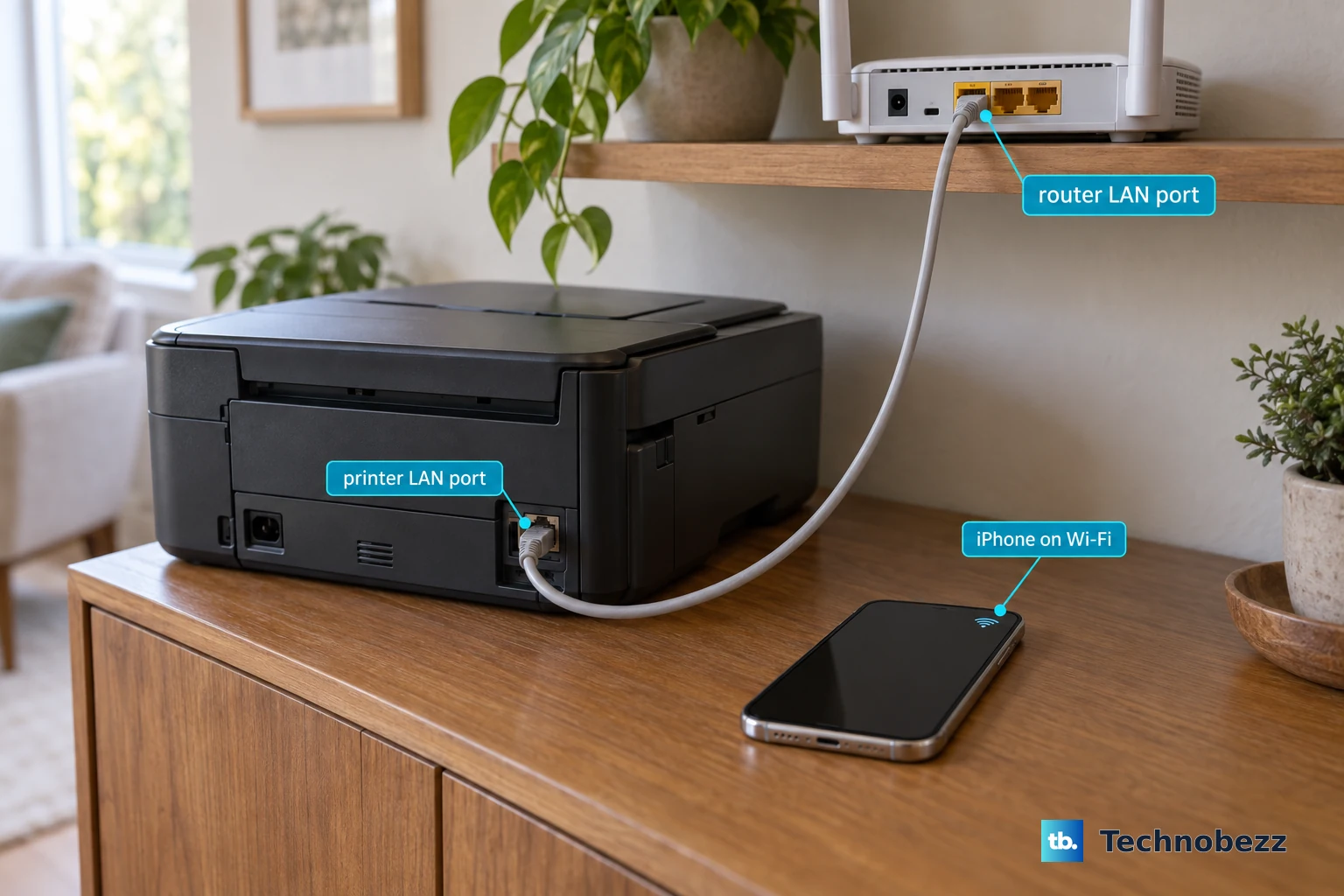
One more thing to check physically: connecting an Ethernet cable turns off the printer's wireless automatically. If a network cable is plugged into the back of the unit, the Wi-Fi will not come on until you remove it.
Give the Printer, Router, and Computer a Clean Restart
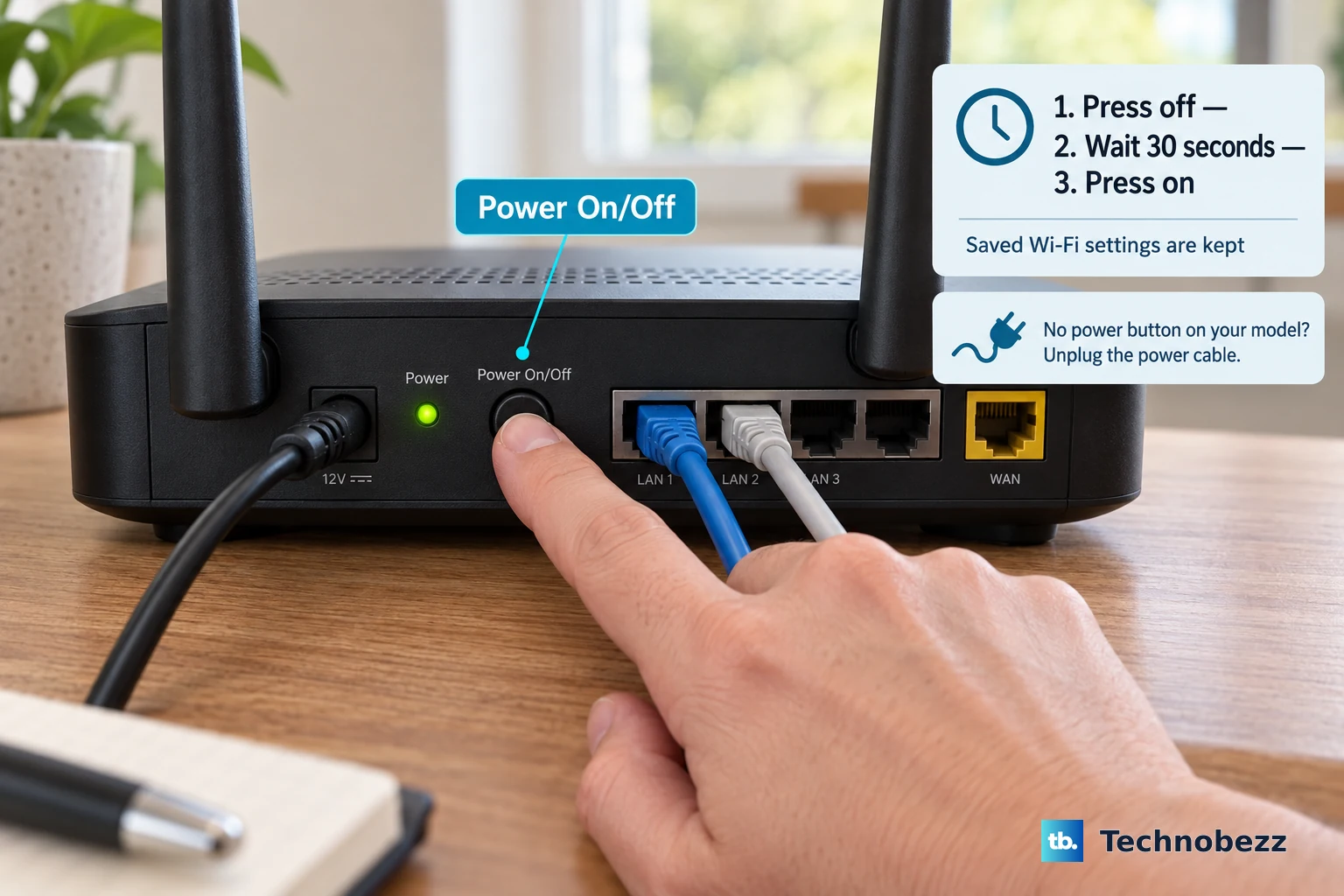
A power cycle clears temporary glitches in all three pieces of the connection. Turn off the printer and disconnect it from power, restart the device you print from and your internet router, then turn the printer back on and try again. To fully reset the printer's power rather than just tapping the button, follow this sequence:
- 1.With the printer on, disconnect the power cord from the back of the printer.
- 2.Unplug it from the wall outlet.
- 3.Wait at least 15 seconds.
- 4.Plug the cord back into the wall.
- 5.Reconnect it to the printer.
- 6.Press the Power button if it does not turn on by itself.
Give the router a couple of minutes to come fully back online before you test printing again.
Let HP Smart Diagnose and Reconnect It for You
HP's official app includes a "Diagnose & Fix" tool that checks whether the printer is offline and reconnects it to the network if possible. It can also resume paused jobs and clear print-queue errors automatically, which makes it the fastest hands-off fix.
Open (or install) the HP Smart app, then run the tool for your platform. On Windows, select the wrench icon in the bottom-left corner, then follow the onscreen instructions. On Mac, use the printer dropdown in the top menu bar, then follow the onscreen instructions. HP Smart requires Windows 10 or later, macOS 10.14 or later, iOS 14 or later, or Android 7.0 or later, so confirm your computer or phone meets that minimum.
Run the Wireless Setup Wizard From the Printer's Screen
If the printer simply needs to rejoin your network, the built-in wizard walks it through selecting your network name and entering the password directly on the touchscreen. This is useful when you have changed your Wi-Fi password or swapped routers.
Open the Dashboard by touching or swiping down the tab at the top of the screen. Touch the Wireless icon, then touch Settings. Next, touch Wireless Settings, then touch Wireless Setup Wizard (or Wi-Fi Protected Setup). Follow the display instructions to select your network name and enter the password.
Add the Printer Again Through HP Smart
If the wizard on the screen does not stick, setting the printer up fresh from the app re-establishes the connection from your computer or phone's side. The steps differ slightly by platform.
On Windows, open HP Smart and click Set Up a New Printer on the home screen, then follow the onscreen instructions. On iOS or Android, first make sure Bluetooth is turned on (HP Smart uses Bluetooth for setup only, not for printing). Then open HP Smart, tap the Plus icon, tap Add Printer, and follow the instructions to add the printer to your network.
Print the Wireless Test Report to See What Failed
When you are not sure where the connection breaks down, the printer can tell you. From the control panel you can print a report that shows the network tests and the printer's current settings.
From the Home screen, touch the Wireless icon, then touch Settings. Touch Print Reports, then touch Network Configuration Page or Wireless Test Report. On the printout, use the CURRENT CONFIGURATION section to confirm the Network Name (SSID) the printer is on matches the network your computer or phone uses. If those names differ, you have found your problem, and the Wireless Setup Wizard above will fix it.
Clear Stuck Jobs and Set the Right Default Printer on Windows
Sometimes the printer is connected but a jammed print queue or the wrong default printer makes it look offline on Windows. Clearing the queue often gets things moving again.
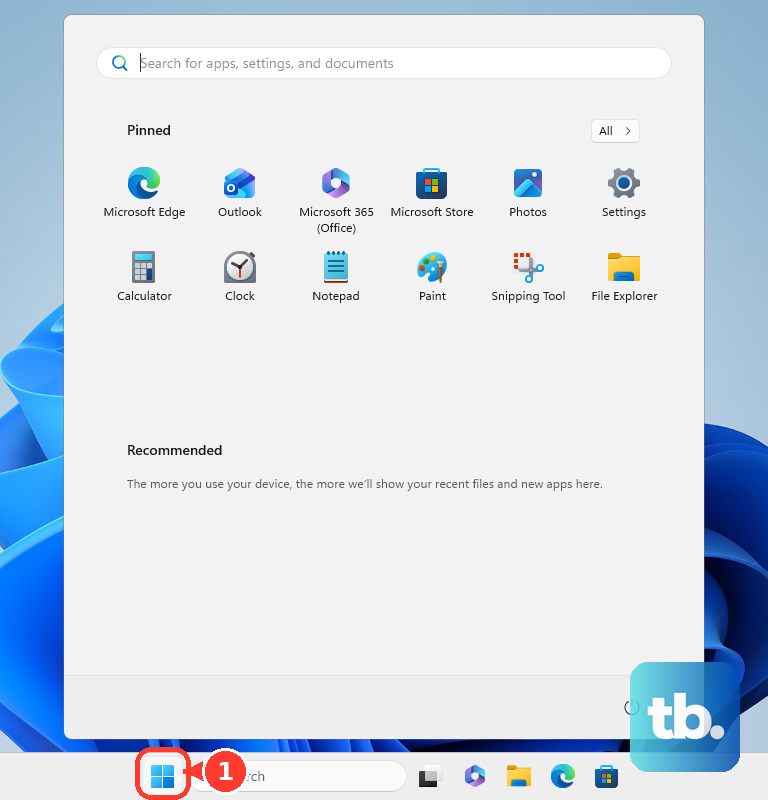
Open the Windows Start menu, then Windows System, then Control Panel. Under Hardware and Sound, click View devices and printers, then double-click your printer to open the print queue. On the Printer menu, click Cancel all documents (or Purge Print Document), then click Yes. If documents remain, restart the computer and try again.
While you are in Devices and Printers, right-click the correct printer and select Set as Default Printer so your jobs are routed to the right machine. The Diagnose & Fix tool in the HP app can also clear stuck or paused jobs and queue errors for you automatically.
Update the Printer Firmware
Outdated firmware can cause connection drops and compatibility issues with newer routers. Updating it can restore a stable link.
Open the HP app, click your printer, then go to Advanced Settings (or scroll to Printer Settings > View All > Advanced Settings). Alternatively, enter the printer's IP address in a web browser to open the Embedded Web Server (EWS) and update from there.
One important warning: do not turn off the printer during a firmware update. Let it finish completely before you do anything else with it.
Restore the Network Settings Only
If the printer is holding onto old or incorrect Wi-Fi credentials, restoring just the network settings wipes those without touching the rest of your configuration. This is a targeted reset, not a full factory wipe.
Open the Dashboard, then touch Setup. Touch Network Setup, then touch Restore Network Settings. Finally, confirm with Yes.
A message states the network defaults will be restored. Previously configured wireless and Ethernet settings (such as link speed or IP address) are removed, and the IP address is set back to Automatic mode. After this, run the Wireless Setup Wizard again to reconnect the printer to your network.
Restore Factory Defaults, Then Reach Out to HP
As a last resort on the printer itself, you can restore its factory defaults and set it up from scratch. This is more thorough than a network-only reset.
Open the Dashboard, then touch Setup. Touch Printer Maintenance, then touch Restore. Touch Restore Factory Defaults, then touch Continue.
After that, set the printer up again using the Wireless Setup Wizard or HP Smart. Note that there is also a separate Cold Reset option under Printer Maintenance > Restore > Cold Reset, but that one removes all user-configured settings, including network configuration, passwords, stored jobs, country/region and language, Address Book, and Web Services info.
The Cold Reset is intended only for when you are selling or giving away the printer, so do not use it for a routine connection fix. If your printer still cannot connect after a factory-defaults reset and a fresh setup, visit HP's support site for further help with your specific printer.
Frequently Asked Questions
Does the HP OfficeJet Pro 9015e work on a 5 GHz Wi-Fi network?
Yes. According to HP's official datasheet, the OfficeJet Pro 9015e supports both 2.4 GHz and 5.0 GHz wireless operations. Just make sure the printer and the device you print from are connected to the same network.
Why does my printer's Wi-Fi turn off when I plug in a network cable?
That is normal behavior. The printer's wireless turns off automatically when an Ethernet cable is connected. If you want to use Wi-Fi, unplug the Ethernet cable and then reconnect wirelessly.
What tool does HP recommend for fixing connection issues automatically?
HP points users to the Diagnose & Fix tool inside the HP Smart app. It checks whether the printer is offline, reconnects it to the network, resumes paused jobs, and clears print-queue errors.
How can I tell which network my printer is actually joined to?
Print a Network Configuration Page or Wireless Test Report from the control panel by touching the Wireless icon, then Settings, then Print Reports. The CURRENT CONFIGURATION section lists the Network Name (SSID) so you can confirm it matches the network your computer or phone uses.
Will a Cold Reset fix my Wi-Fi problem?
A Cold Reset is not meant for troubleshooting. It wipes all personal data, including network settings, passwords, stored jobs, region, language, Address Book, and Web Services info, and is intended for when you sell or give away the printer. For connection issues, use Restore Network Settings or Restore Factory Defaults instead.