Your HP OfficeJet Pro 9015e printed fine on your old router, but ever since you switched to a mesh Wi-Fi system it keeps dropping offline, refuses to be found during setup, or simply ignores the jobs you send. You are not doing anything wrong. The 9015e is a dual-band printer that can use both 2.4 GHz and 5 GHz Wi-Fi, but it connects to only one band at a time, and mesh systems love to steer it onto a band or a node it cannot reliably hold. The good news is that HP has clear, model-specific guidance for exactly this situation, and the fixes below start with the quickest, safest steps before moving to anything that touches your network settings.
Start With a Full Power Cycle of Printer, Router, and Device
HP's first official move when the printer shows offline is a complete restart of everything involved, in the right order. On a mesh network this matters because it forces the printer to re-establish its link to the nearest node instead of clinging to a weak or distant one.
- 1.Turn off your printer and disconnect it from the power supply.
- 2.Restart the device you want to print from and your internet router.
- 3.Turn the printer back on and try to print again.
While you are at it, confirm that the printer and the device you are printing from are on the same network. A surprising number of mesh problems come down to your phone or laptop quietly joining a guest network or a different SSID than the one the printer uses.
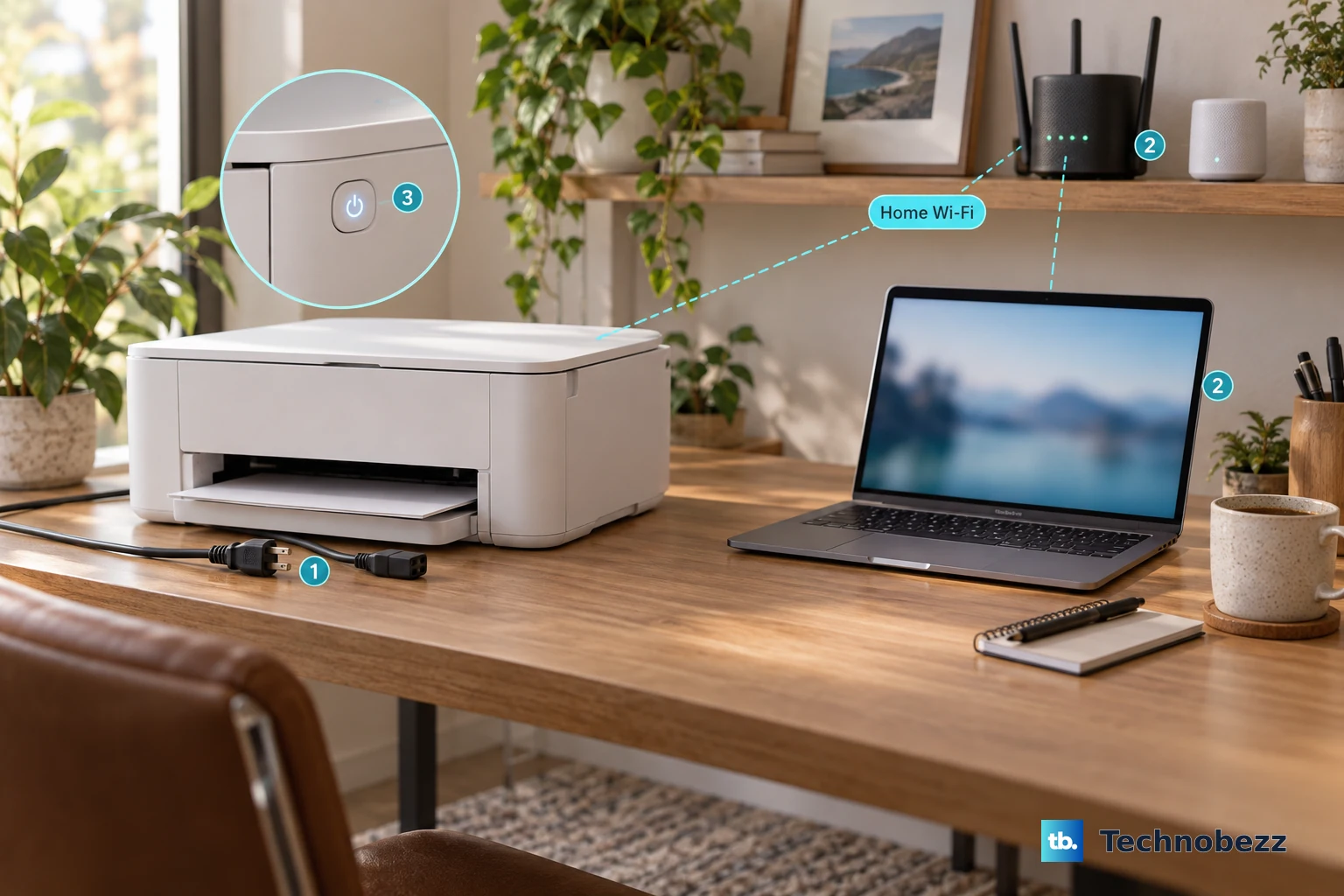
Keep the 9015e on the 2.4 GHz Band of Your Mesh
This is the single most important fix for mesh setups. Because the 9015e connects to only one band at a time, and because mesh systems often combine both bands under one name with band steering, the printer can get pushed onto a band it cannot hold steadily. HP's guidance is direct here.
First, make sure the 2.4 GHz band is enabled and broadcasting in your router settings. Then, if your router broadcasts separate network names (SSIDs) for each band, connect the printer to the 2.4 GHz SSID specifically. The 2.4 GHz band reaches further and passes through walls better, which is exactly what a roaming printer needs.
If your mesh uses one combined SSID for both bands, you have two practical options. Create a separate 2.4 GHz network name for the printer to join, or disable band steering so the printer can settle on 2.4 GHz and stay there instead of being bounced between bands.
Match Network Names and Shorten the Distance
Even after the printer is on 2.4 GHz, your computer or phone needs to be on the same network name, and the signal needs to be strong enough to survive a mesh hand-off. HP recommends a quick reconnect on the device side to rule out any mismatch.
Disconnect your computer or mobile device from its current network name (SSID), then reconnect it to the same network name your printer is connected to. This clears up the common case where your laptop favors the 5 GHz half of a combined network while the printer sits on 2.4 GHz.
Distance counts too. Move the printer within 8 m (26 ft) of the router or a mesh node or range extender so the signal stays strong. When a mesh hands the printer off between nodes, a borderline-weak link is often what tips a working printer into the offline state.
Let Diagnose & Fix in the HP App Do the Heavy Lifting
HP's built-in troubleshooter automates a lot of the connection and driver checks for you. This tool lives inside the HP app (formerly HP Smart and myHP). Download the HP app from hp.com/hp-app if you do not already have it; it runs on Windows 10 (64-bit) and 11, macOS, iPhone and iPad, and Android.
On Windows, open the HP app and select the wrench icon in the bottom-left corner, then follow the onscreen instructions. On Mac, open the HP app and use the printer dropdown in the top menu bar, then follow the onscreen instructions. In both cases, do not close the HP app while it runs.
Clear Stuck Print Jobs and Set the 9015e as Default
Sometimes the connection is fine but a jammed job or a wandering default printer is the real culprit. On Windows, flushing the print queue resolves jobs that hang and never clear.
- 1.Search for and open Services, then right-click Print Spooler and click Stop.
- 2.Open File Explorer and go to C: > Windows > System32 > spool > PRINTERS, then delete all files in the PRINTERS folder.
- 3.Restart the computer and the printer.

While you are in Windows settings, make sure jobs actually route to the 9015e. Open Printers & scanners, uncheck "Let Windows manage my default printer," then click the printer name, click Manage, and click Set as default. This stops Windows from silently switching your default to a different device after a network change.
Remove and Re-Add the Printer to Refresh a Bad Connection
If the printer was added when it had a different address or driver state, removing and re-adding it gives you a clean reconnection. This is one of the most reliable cures for a printer that shows up but will not print.
In the HP app, right-click the printer icon on the home screen, click Hide Printer, then click Hide Printer again to confirm. After that, click Add Printer to re-add it. On Windows you can instead open Printers & scanners, choose Remove device, then Add a printer or scanner.
On macOS, the equivalent step also clears stuck jobs and bad driver setups. Open Printers & Scanners, right-click (or Control-click) in the Printers list and select Reset printing system, then re-add the printer. Be aware that resetting the printing system removes all printers and scanners and clears print jobs and saved print settings, so you will need to add the 9015e back afterward.
Give the Printer a Fixed IP Address So It Stops Vanishing
Mesh routers frequently hand the printer a new IP address, and when that happens a printer you added earlier suddenly shows as offline because your computer is still looking for it at the old address. Locking the address in place is HP's fix for this recurring drop-off.
You have three options. Set a DHCP reservation for the printer in your router so it always receives the same address. Set a manual IP through the printer's Embedded Web Server by typing the printer's IP into a web browser, opening the Networking tab, and setting the IP address, subnet mask, and gateway. Or increase the DHCP lease time so the address changes far less often.
Reconnect Wi-Fi or Restore Wi-Fi Setup Mode From the Touchscreen
If the connection broke after a router or network change, you can reconnect directly from the printer's control panel. Select Wireless Setup Wizard from the Setup, Network, or Wireless settings menu, choose your 2.4 GHz network, then enter the password.
If the printer still is not found, put it back into a fresh setup state. Touch the Setup or Wireless icon, select Network setup or Settings, and select Restore Network Settings. After that, within two hours, return to the HP app to find and add the printer. The two-hour window matters because the printer leaves setup mode after that, so do not delay this step.
Run a Factory Reset Only as a Last Resort, Then Reach HP Support
When nothing above resolves it, a full factory reset clears any corrupted network state. Be aware this erases all network and user settings, so you will need to set the printer up again on your 2.4 GHz network afterward.
- 1.Swipe down on the touchscreen to open the printer Dashboard.
- 2.Touch Setup.
- 3.Touch Printer Maintenance.
- 4.Touch Restore.
- 5.Touch Restore Factory Defaults.
- 6.Touch Continue.
If the problem persists even after a clean factory reset and a fresh 2.4 GHz setup, contact HP Support so they can look at it directly.
Frequently Asked Questions
Does the HP OfficeJet Pro 9015e work on 5 GHz Wi-Fi?
Yes, the 9015e is a dual-band printer that supports both 2.4 GHz and 5 GHz, but it connects to only one band at a time, not both simultaneously. For mesh and dual-band setups, HP directs you to keep the printer on the 2.4 GHz band because it holds the connection more reliably across nodes.
Why does my printer keep dropping offline on my mesh network?
The two most common causes are band steering pushing the printer onto a band it cannot hold, and the mesh router handing the printer a new IP address. Lock the printer to the 2.4 GHz band and give it a fixed IP through a DHCP reservation or the Embedded Web Server to stop the repeated drop-offs.
How do I run Diagnose & Fix for the 9015e?
Open the HP app, which you can download from hp.com/hp-app. On Windows, select the wrench icon in the bottom-left corner and follow the onscreen instructions. On Mac, use the printer dropdown in the top menu bar and follow the onscreen instructions. Do not close the HP app while it runs.
Will a factory reset delete my Wi-Fi setup?
Yes. Restoring factory defaults erases all network and user settings, so the printer will no longer be connected to your network afterward. You will need to run the Wireless Setup Wizard again and reconnect it to your 2.4 GHz network.
How close should the printer be to my router or mesh node?
HP recommends keeping the printer within 8 m (26 ft) of the router or a mesh node or range extender so the signal stays strong. A weak link is often what causes a working printer to drop offline when the mesh hands it between nodes.