
A slow HP Envy x360 15 can turn a great convertible laptop into a frustrating experience. Everything from opening apps to switching between tablet and laptop mode starts to drag. The good news is that most slowdowns are caused by software or settings that you can fix yourself.
Run HP Support Assistant First
HP includes a dedicated tool for this exact situation. Open the HP Support Assistant app from your Start menu. Click Updates and then Check for updates and messages. This tool will scan for and install the latest HP drivers, BIOS updates, and security patches all at once. I've seen it resolve many performance issues related to outdated or conflicting drivers specific to Envy models.
Restart Your Envy x360
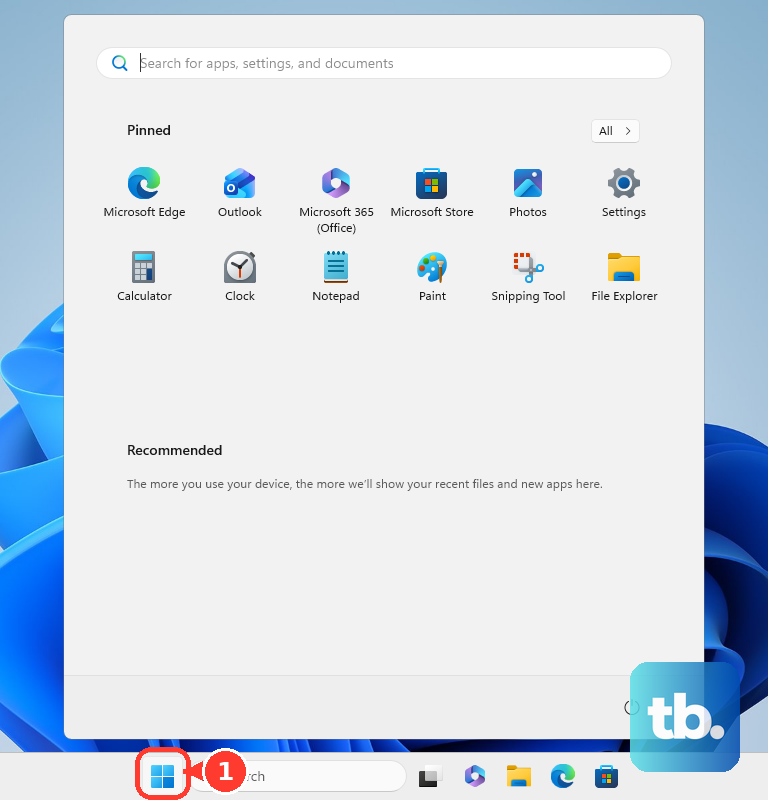
If you mostly close the lid to put it to sleep, your laptop never gets a fresh start. Background processes and memory can get clogged up over weeks. Click Start > Power > Restart. Make sure to choose Restart, not Shut down, because of Windows Fast Startup. A full restart clears out the system memory and stops any stuck processes.
Check for Resource Hogs in Task Manager
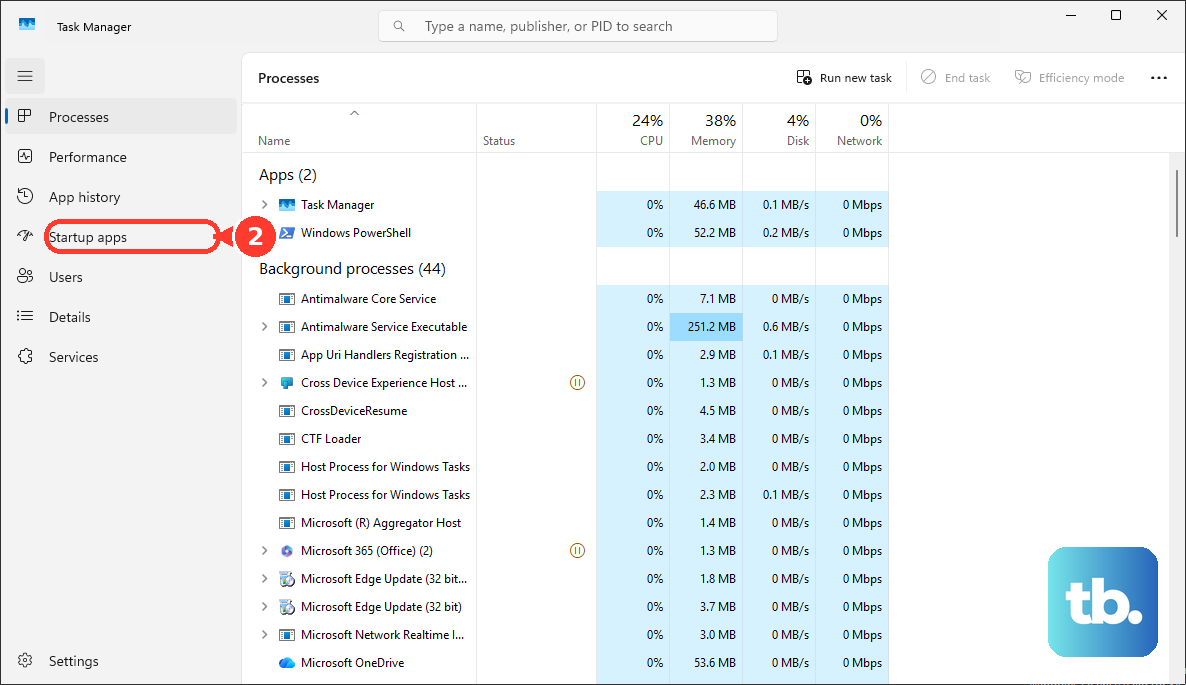
Press Ctrl + Shift + Esc to open Task Manager directly. Click on the CPU, Memory, or Disk column headers to sort by what's using the most. Look for any single process consistently using a high percentage. Right-click on non-essential items and select End task. On the Envy x360, pay attention to audio processes like "Realtek Audio Console," as driver conflicts here are a known issue that can cause high CPU usage.
Disable Unnecessary Startup Programs
Too many apps launching at boot will slow down your startup and run in the background. In Task Manager, click the Startup apps tab. You'll likely see HP utilities, along with things like Spotify or Adobe. Right-click and Disable anything you don't need immediately when Windows starts. You can always open them manually later. This frees up RAM and CPU cycles from the moment you log in.
Free Up Storage Space on Your SSD
Modern SSDs slow down when they get too full. Open Settings > System > Storage. Turn Storage Sense on to let Windows automatically clean temporary files. For a manual clean, click Temporary files and check the boxes for items like "Delivery Optimization Files" and "Windows Update Cleanup." Try to keep at least 20% of your main drive free for optimal performance.
Run a Full Malware Scan
Background malware is a classic culprit for unexplained sluggishness. Open Windows Security from your taskbar or Start menu. Go to Virus & threat protection and click Scan options. Choose Full scan and run it. This will take a while but it's the most thorough check. Your built-in Windows Defender is perfectly capable and won't slow you down like some third-party antivirus software can.
Update Windows and HP Drivers Manually
Go to Settings > Windows Update and install all available updates. For your Envy's specific hardware, also visit the official HP support site. Enter your serial number and download the latest drivers, especially for graphics, chipset, and audio. Installing HP's provided audio driver can often fix the Realtek conflict that causes performance drag.
Change Your Power Plan to Best Performance
Your laptop might be throttling itself to save battery. Click the battery icon in your taskbar and drag the slider all the way to Best performance. For more control, go to Settings > System > Power & battery. If you're plugged in, set the Power mode to Best performance. This ensures your processor runs at its full potential.
Adjust Visual Effects for Speed
Search for "Adjust the appearance and performance of Windows" in the Start menu. In the Visual Effects tab, select Adjust for best performance to turn off all animations. If that's too stark, choose Custom and uncheck items like "Animate windows when minimizing and maximizing" and "Transparency effects." This reduces the GPU workload.
Consider a Hardware Refresh
If your Envy x360 has only 8GB of RAM, upgrading to 16GB can make a huge difference in multitasking. The other major upgrade is ensuring you're using an SSD. All Envy x360 15 models come with one, but if yours is several years old and still feels slow after all the software fixes, the SSD itself might be nearing the end of its life. Replacing it with a new, faster NVMe SSD is a very effective speed boost.
Run HP Hardware Diagnostics
This checks if the slowness is due to failing hardware. Restart your laptop and immediately press the F2 key repeatedly until the HP PC Hardware Diagnostics UEFI menu opens. Run the System Fast Test first. If it finds an issue, note the error code and failure ID. This is a clear sign you might need professional repair.
Reset Windows as a Last Resort
If all else fails, a refresh can wipe away years of software clutter. Go to Settings > System > Recovery. Click Reset PC. Choose Keep my files to reinstall Windows while preserving your personal documents. Remember, this will remove all your installed applications, so you'll need to reinstall them afterward. It's a big step, but it often returns the laptop to its original speed.