
When your HP Envy x360 15 goes silent, it's often a quick software setting or driver conflict, especially with the Realtek audio hardware common in these models. The convertible hinge can sometimes confuse Windows about the audio output, but the fix is usually straightforward.
Run the Windows Audio Troubleshooter
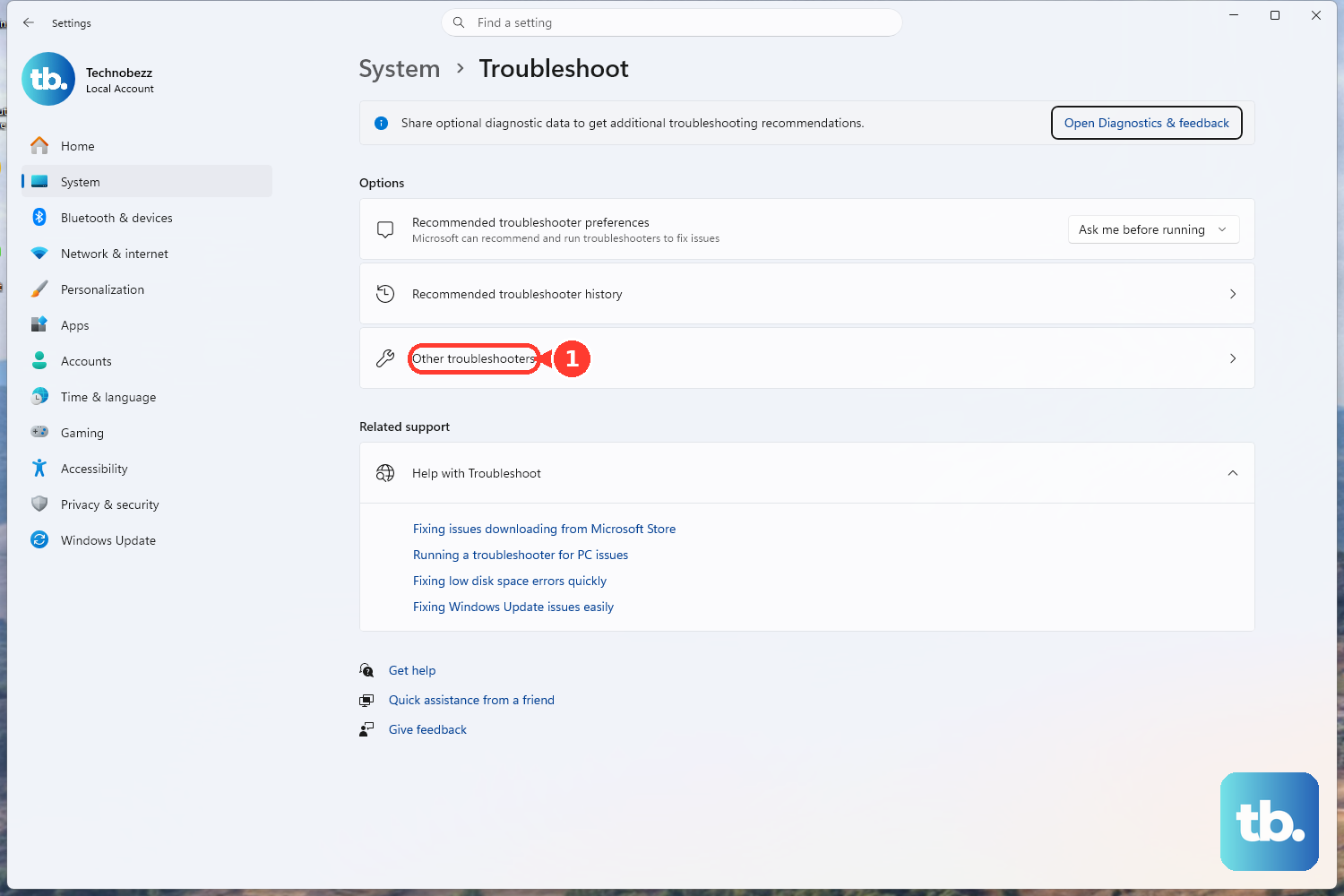
This is the fastest way to fix common glitches. Click the Start menu and go to Settings > System > Troubleshoot > Other troubleshooters. Find and run the Playing Audio troubleshooter. It will automatically check for disabled services, wrong default devices, and other configuration problems that can mute your sound.
Check Your Volume and Output Device
Click the speaker icon in your taskbar. Make sure the master volume slider isn't at zero and that the mute icon isn't highlighted. More importantly, click the small arrow above the slider to see the output device list. If you recently used headphones or an external monitor, Windows might still be trying to send audio there. Select Speakers (Realtek Audio).
You can also go to Settings > System > Sound to verify the correct output device is selected. I've seen the Envy x360 get stuck on a disconnected HDMI or Bluetooth device after switching between laptop and tablet mode.
Update or Reinstall the Audio Driver
Driver conflicts are a frequent cause on this laptop. Press the Windows key + X and select Device Manager. Expand the Sound, video and game controllers section. Right-click on your audio device (it will likely be a Realtek High Definition Audio) and choose Update driver.
Select Search automatically for drivers. If that doesn't work, right-click the device again and choose Uninstall device. Check the box that says "Attempt to remove the driver for this device" and restart your laptop. Windows will install a fresh, generic driver on startup, which often resolves the conflict.
Use HP Support Assistant
HP includes a dedicated tool for these exact issues. Search for "HP Support Assistant" in your Start menu and open it. Go to the Updates or Troubleshooting section. The assistant can scan for all HP-specific driver updates, including critical audio fixes that Windows Update might miss. It can also run automated diagnostics on your audio hardware.
Restart the Windows Audio Services
Sometimes the background services that manage sound get stuck. Press Windows key + R, type services.msc, and hit Enter. In the long list, find Windows Audio. Right-click it and select Restart.
Do the same for the service right below it, called Windows Audio Endpoint Builder. This forces the audio system to reload and can immediately restore sound if the services were hung up, particularly after waking from sleep.
Disable Audio Enhancements
Sound enhancement software can sometimes clash with the Envy's hardware. Go to Settings > System > Sound. Click on your output device (the speakers), then scroll down to find Audio enhancements. Set the drop-down menu to Off. Test your audio immediately afterward.
Check for Physical Mutes and App Volume
Make sure you haven't accidentally pressed the physical keyboard mute key (it usually has a speaker icon with an "X"). Also, some applications control their own volume independently. Right-click the speaker icon in the taskbar and select Open Volume mixer.
Ensure the volume sliders for your web browser, media player, or other apps aren't set to zero. This is a common oversight if sound works in one app but not another.
Roll Back a Problematic Driver Update
If the audio stopped working right after a Windows Update, you might have gotten a bad driver. Go back to Device Manager and double-click your Realtek audio device. Go to the Driver tab and click Roll Back Driver if the button is available.
This reverts the driver to the previous version that was working. After the rollback, restart your laptop to see if sound returns.
Run HP Hardware Diagnostics
If you've tried all the software steps, it's worth checking the hardware. Restart your Envy x360 and immediately press the F2 key repeatedly as it boots. This will launch the HP Hardware Diagnostics from the BIOS. Run the system audio check to see if the laptop can detect a fault with the speakers or audio circuitry itself.