
You hit print, the job appears in the queue, but the HP DeskJet 4255e doesn't move. Or it grabs a sheet, runs it through, and spits out a blank or partial page.
The fastest fix is to clear the print queue and power-cycle the printer. On Windows, open Settings > Bluetooth and devices > Printers and scanners, click the 4255e, and select Open print queue. Cancel all jobs. On a Mac, open System Settings > Printers and Scanners and clear the queue from there. Unplug the 4255e for 30 seconds and plug it back in. Send a fresh job. Most stuck-queue scenarios clear right here.
If the printer still won't print, here's what's actually going on and how to fix it.
Clear the Queue and Power Cycle the 4255e
This is always the first thing to try. A corrupt or stalled job in the queue blocks every new job behind it. Clearing the queue and cutting power forces the printer to dump its volatile memory and start clean.
After you clear the queue on your computer, pull the power cable from the back of the 4255e. Wait a full 30 seconds. Plug it back in and let it boot up completely before sending another test page. This works for most basic software hiccups.
Check Your HP 67 Cartridge Levels
The DeskJet 4255e stops printing cold if an HP 67 cartridge is low or empty. Open the HP Smart app and look at the estimated ink levels for both the black and tri-color cartridges. If either is critically low, the printer won't start a new job.
You'll need a replacement HP 67 (standard), 67XL (high-yield, roughly 240 pages black), or 67XXL (extra-high-yield). Keep in mind that Instant Ink can also cause this. If you're subscribed, a cartridge that has reached its page limit but still has physical ink will stop the printer. Log into your HP account to check the status and request a replacement if needed.
Restart the Print Spooler on Windows
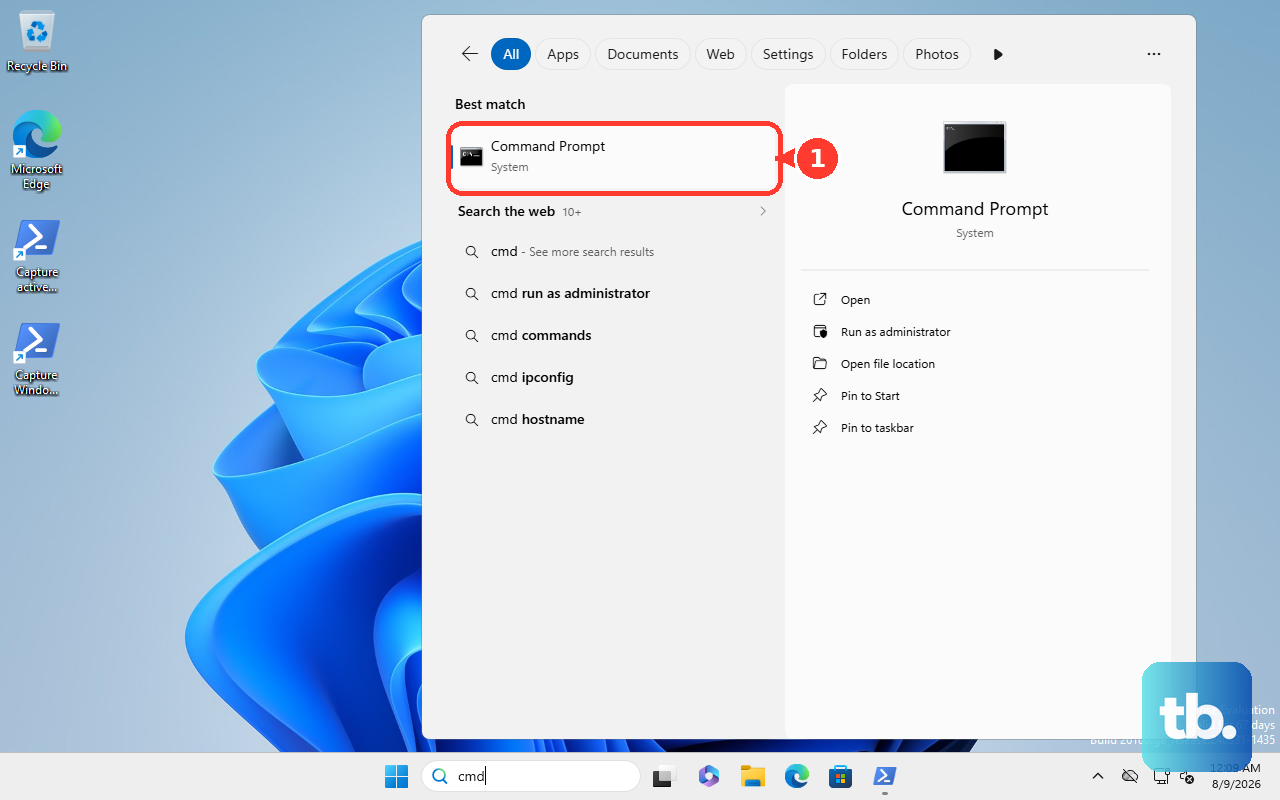
If the queue on your Windows computer won't clear normally, the print spooler is probably hung. Open Command Prompt as Administrator. Run net stop spooler. Wait a moment, then run net start spooler. The spooler resets and the stuck job usually falls away.
If the spooler refuses to restart, a corrupt job file is blocking it. Stop the spooler again with net stop spooler. Open File Explorer and navigate to %windir%\System32\spool\PRINTERS. Delete everything inside that folder, then run net start spooler. This manually removes whatever is stuck.

Reset the Print System on macOS
On a Mac, the printing system cache can hold onto a corrupt job even after you delete it from the queue. Open System Settings > Printers and Scanners. Right-click or Control-click inside the printer list and choose Reset printing system.
This wipes every printer you've configured. You'll need to re-add the 4255e using the + button. It clears out weird queue ghosts that normal deletion can't touch.
Run a Print Head Cleaning Cycle
If the 4255e goes through the motions but prints blank or streaky pages, the print head is likely clogged. The 4255e uses simple buttons instead of a touchscreen, so you'll run this from the HP Smart app or the HP software on your computer.
Open HP Smart, go to your printer settings, and find Print Maintenance or Clean Printhead. Run a standard cleaning cycle. It takes about a minute and uses a little ink. Print a test page after. If it's still streaky, run a Deep Cleaning. Don't run more than one deep cleaning in a row, you'll burn through a noticeable amount of ink.
If You're on Mesh WiFi, Check the Security Mode
The DeskJet 4255e only works on 2.4 GHz WiFi, and it has trouble with WPA3 security. If you're using a mesh system like Eero, Google Nest, Orbi, or Deco, check your router's security settings. If the network is set to WPA3-only or has PMF (Protected Management Frames) enabled, the 4255e probably won't connect or will drop mid-job.
In your router app, switch the security to WPA2/WPA3 transitional or WPA2-only. The 4255e doesn't support the newest WiFi security standards, so this is almost always the fix if the printer keeps disappearing from the queue.
Is the 4255e Set as Your Default Printer?
Windows 11 sometimes changes the default printer without asking. Open Settings > Bluetooth and devices > Printers and scanners. Toggle off Let Windows manage my default printer. Click your HP DeskJet 4255e and select Set as default. Now print jobs will automatically route to the right machine.
Update the Driver or Reinstall HP Smart
HP releases driver updates to fix exactly this kind of stuck-queue bug. The 4255e relies heavily on the HP Smart app for its driver and interface. Make sure you are on the latest version from the Microsoft Store or the App Store. On a Mac, check for updates in the App Store.
Sometimes just uninstalling and reinstalling HP Smart clears up a communication issue that makes jobs hang. It takes about 10 minutes and resolves most software-level mismatches between your computer and the 4255e.
Check the Paper Path for Hidden Scraps
The 4255e has multiple paper sensors that stop printing if they detect even a tiny piece of paper stuck inside. Open the rear access door and the front cartridge access panel. Use a flashlight to look closely at the rollers and the paper path.
Pull out any scraps you find, including small torn strips. Also check the automatic document feeder (ADF) on top if you use it for scanning. A wrinkle or torn edge in the ADF tray can trick the printer into thinking it has a jam, which blocks all printing.
Factory Reset the DeskJet 4255e
If nothing else has worked, a factory reset clears out any weird internal state that is blocking print jobs. On the 4255e, press and hold the Wi-Fi button and the Cancel button at the same time for about 5 seconds. The printer will restart itself.
This resets the network settings and wipes the internal job queue entirely. You will need to reconnect the 4255e to your WiFi through the HP Smart app after the reset. It resolves stubborn queue locks that software resets cannot touch.