You set up a mesh WiFi system at home, and now your HP DeskJet 4255e has gone quiet, refusing to connect or dropping off the network whenever you try to print. The frustrating part is that the printer worked fine on your old single router, so it feels like the mesh upgrade broke something. The real culprit is usually a band mismatch, and the good news is that almost every fix below is something you can do in a few minutes without any special tools.
Here is the technical reason this happens. The DeskJet 4255e uses a Wi-Fi 802.11b/g/n radio that operates on the 2.4 GHz band only, so it physically cannot join a 5 GHz network. Many mesh systems hide both bands behind one network name and "steer" devices toward 5 GHz, which leaves the printer with nowhere to land. The fixes are ordered from easiest and safest to the official network reset, so start at the top and stop as soon as your printer comes back online.
Put the printer on a 2.4 GHz network, the key mesh fix
Because the DeskJet 4255e is single-band and cannot use 5 GHz, this is the first thing to address on any mesh or dual-band setup. According to the official support guidance, you should make sure the 2.4 GHz band is enabled and broadcasting. If your router broadcasts separate network names (SSIDs) for each band, connect the printer to the 2.4 GHz SSID.
If your mesh system uses one combined SSID with band steering, you have a few options inside your router app. Enable the 2.4 GHz band, then temporarily separate the bands into their own SSIDs, or use the router app's "prefer 2.4 GHz" or device-band option so the printer can stay on 2.4 GHz. Once the printer is connected to a 2.4 GHz network, you can usually merge the SSIDs again later if you prefer a single network name.
Move closer to a node, then restart the router and printer
Mesh hand-offs between nodes and simple distance can both cause the printer to drop off mid-job. The official guidance is to move the printer within 8 m (26 ft) of the router or range extender, then check the Wireless light. Keep moving closer until a strong signal displays, since walls, metal, and electronics all weaken the signal.
If the connection is intermittent, restart the router to clear its state. Restart the printer as well so it can clear any lingering error states and rejoin the network cleanly. This combination resolves a surprising number of "won't connect" complaints before you touch any deeper settings.
Run Diagnose and Fix in the HP app
The HP app includes an official self-repair tool called Diagnose and Fix that repairs common print and connection problems automatically, so it is worth running early.
- 1.Open the HP app and click your printer.
- 2.Click Diagnose and Fix.
- 3.Click Start and wait for the analysis to complete.
- 4.Do not close the HP app while the troubleshooter is running.
The tool checks whether the printer is offline and reconnects it to the network if possible, clears stuck print jobs, and resolves print spooler errors. It is available on both Windows and macOS through the HP app.
Clear the offline status and set the printer as default on Windows
Sometimes the printer is connected fine, but Windows has flagged it as offline or pointed jobs at the wrong device. In Windows, search for and open Printers and scanners, then make sure the box next to "Let Windows manage my default printer" is not checked.
- 1.Click your printer name, then click Manage.
- 2.Under "Manage your device," click Set as default.
- 3.Open the print queue and make sure "Use Printer Offline" and "Pause Printing" are not selected.
After making these changes, restart the computer, the printer, and (for a network printer) the router to clear any remaining error states. This makes sure Windows and the printer agree on who is online and which device should receive your jobs.
Clear stuck print jobs or reset the printing system
A single jammed job can stall everything behind it, making the printer look like it has lost its connection. On Windows, turn off the printer first, then clear the spooler manually.
- 1.In Windows search, open Services.
- 2.Right-click Print Spooler and click Stop.
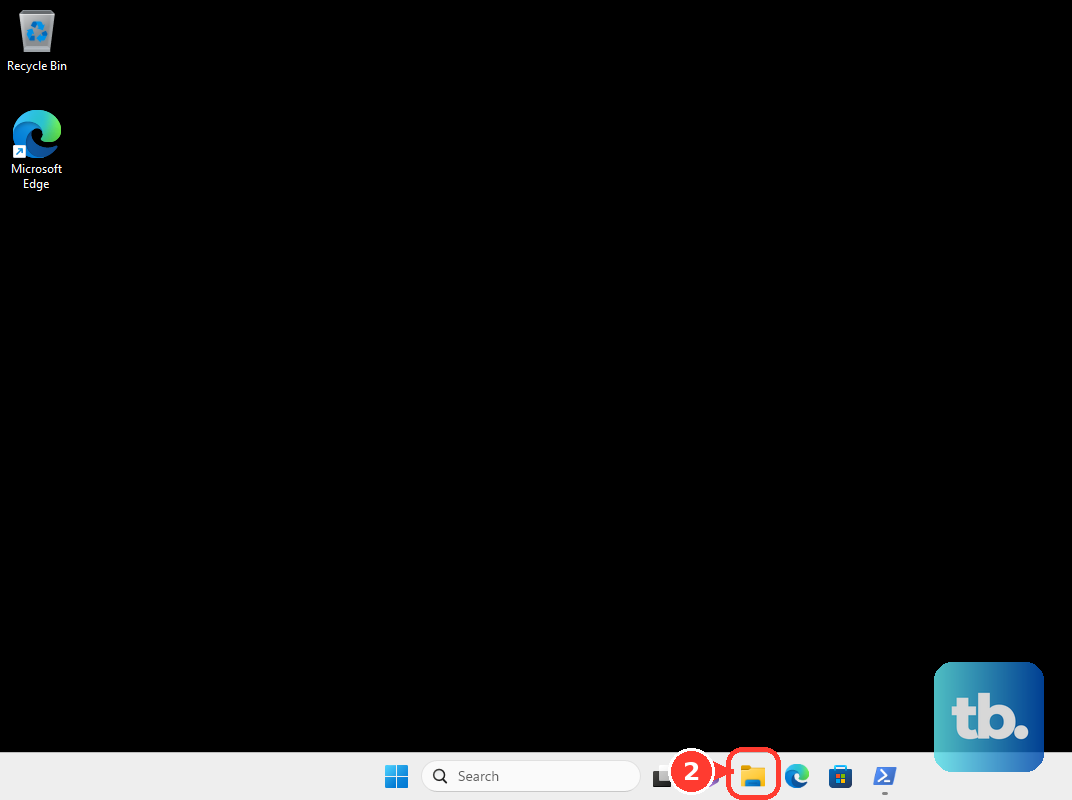
- 3.Open File Explorer and go to C: > Windows > System32 > spool > PRINTERS.
- 4.Delete all files in the PRINTERS folder.
- 5.Turn the printer back on and restart.
On macOS, open Printers and Scanners, then right-click (or hold Control and click) in the Printers list and select "Reset printing system." Be aware this removes all printers, scanners, and queued jobs, so you will need to add the printer again afterward. Once it is reset, re-add the DeskJet 4255e and send a test page.
Reconnect through the HP app after a network change
If you got a new router, switched ISPs, or changed your network name or password, the printer is holding onto credentials that no longer work. The official guidance is to reconnect the printer using the HP app whenever any of those things change, which is exactly what happens when you move to a mesh system.
Place the printer near the router, install or open the HP app, and use it to set the printer up on your network again. If you prefer the router's WPS push button as an alternative join method, put the printer in Wi-Fi Protected Setup (WPS) mode, then within two minutes press and hold the WPS button on the router for three to five seconds, or until the connection process begins.
Update the HP app and drivers, and check your OS version
Outdated software on the host computer can block discovery and printing even when the network is healthy. Install the latest HP app and drivers from HP's official software, or let the HP app handle updates for you. The HP app is the current name for what was previously called HP Smart.
Make sure your device meets the HP app system requirements: Windows 10 (version 1809) or later, macOS 12.0 or later, Android 10.0 or later, or Apple iOS or iPadOS 16 or later. If you are on an older operating system, the app may not run correctly, which can look like a printer problem when it is really a compatibility issue.
Confirm internet and Original HP cartridges for this HP+ printer
The DeskJet 4255e is an HP+ printer, which means it requires an HP account, an ongoing internet connection, and exclusive use of Original HP ink cartridges. HP+ printers rely on an active internet connection for Web Services, so a printer that is technically on WiFi but cut off from the internet can still refuse to print.
If you cannot print, confirm the printer is actually online and reaching the internet, reseat the Original HP cartridges, and check the Web Services status. On a mesh network, it is easy for the printer to be on a 2.4 GHz band that has lost its uplink, so verifying real internet access matters here as much as the WiFi signal itself.
Restore Wi-Fi setup mode as a last resort, then re-add the printer
If nothing above has worked, you can reopen the printer's setup window so the HP app can find it fresh. Restoring Wi-Fi setup mode clears the printer's current network connection, so you will need to add it to your network again afterward. The DeskJet 4255e has no touchscreen, so this is done with the physical buttons. Press and hold the Wireless button and the Cancel button at the same time for five seconds, until the Power button starts blinking, then wait about 60 seconds until the Wireless light blinks blue.
This re-opens the 2-hour Wi-Fi setup window. Within two hours, return to the HP app to find and add the printer and complete setup on your 2.4 GHz network. If the problem still persists after this, contact HP Support for further help.
Frequently Asked Questions
Why won't my HP DeskJet 4255e join my mesh WiFi?
The DeskJet 4255e uses a 2.4 GHz single-band Wi-Fi radio (802.11b/g/n) and cannot connect to a 5 GHz network. Many mesh systems hide both bands behind one name or steer devices to 5 GHz, leaving no 2.4 GHz network for the printer to join. Make sure the 2.4 GHz band is enabled, and if your router uses separate SSIDs, connect the printer to the 2.4 GHz SSID.
How do I reconnect the printer after changing my router or network name?
Place the printer near the router, then open the HP app and use it to set the printer up on your network again. This is the recommended path whenever you get a new router, change ISPs, or change your network name or password. You can also use the router's WPS push button by putting the printer in WPS mode, then holding the router's WPS button for three to five seconds within two minutes.
How do I fix connection issues with the Diagnose and Fix tool?
Open the HP app, click your printer, click Diagnose and Fix, click Start, and wait for the analysis to finish without closing the app. It checks if the printer is offline and reconnects it, clears stuck jobs, and resolves print spooler errors. The tool runs on both Windows and macOS through the HP app.
Does the DeskJet 4255e really need an internet connection to print?
Yes, it is an HP+ printer, which requires an HP account, an ongoing internet connection, and exclusive use of Original HP ink cartridges. HP+ printers rely on an active internet connection for Web Services, so being on WiFi alone is not enough if that network has lost its internet uplink. Confirm the printer is genuinely online and that Original HP cartridges are installed.
How do I reset the WiFi on the DeskJet 4255e?
Because this model has no touchscreen, you restore Wi-Fi setup mode with the buttons. Press and hold the Wireless button and the Cancel button at the same time for five seconds until the Power button starts blinking, then wait about 60 seconds until the Wireless light blinks blue. This clears the current network connection and reopens a 2-hour setup window, so within two hours return to the HP app to find and add the printer on your 2.4 GHz network.