

To superscript in Word, select the character you want raised, such as the 2 in x2, and select Superscript (x²) on the Home tab, or press Ctrl + Shift + +. Subscript (x₂), right beside it, lowers text instead, as in H₂O. An exponent is superscript, so x² and m³ are made the same way.
Two things can catch you out. The Symbol dialog's superscript set had no ² or ³, and Word for the web tucked the Superscript button into a menu.
The short version
- With the mouse: select only the character, then Home > Superscript (x²).
- With the keyboard: Ctrl + Shift + + for superscript, Ctrl + Shift + - for subscript.
- Back to normal: select the raised text and press Ctrl + Space, or click the highlighted x² button.
- Typing ahead: if you switch Superscript on before typing, switch it off again before you carry on.
- Word for the web: if x² is not on the Home tab, look under the three-dot More options button.
- Greyed out: check for Viewing mode, Protected View or editing restrictions.
Superscript and subscript methods at a glance
| Method | What it does | Where it works | Best for |
|---|---|---|---|
| Home > Superscript (x²) | Raises the selected text | Word for Windows and Mac, and Word for the web on the Home tab or under More options | One exponent with the mouse |
| Ctrl + Shift + + | Superscript on the selected text | Word for Windows, and Word for the web lists the same keys | x², m³ and 10⁸ from the keyboard |
| Ctrl + Shift + - | Subscript on the selected text | Word for Windows, and Word for the web lists the same keys | H₂O, CO₂ and x₁ |
| Font dialog, or Alt, H, F, N | Superscript and Subscript boxes with a preview | Word for Windows | Checking the result before you apply it |
| Insert > Symbol > More Symbols | Inserts a character that is already raised, such as ⁴ | Word for Windows, with a smaller gallery in Word for the web | ™, ® and single raised digits |
| Ctrl + Space | Removes superscript along with other manual character formatting | Word for Windows | Text that stays raised |
| Insert > Equation, or Alt + = | A math structure with placeholder boxes | Word for Windows, following Microsoft's instructions | Fractions, roots and full formulas |
The table describes Word with its default settings. The keyboard rows use the key names Microsoft gives for a US keyboard, where Plus shares a key with the equals sign and Minus shares one with the underscore.
Make text superscript from the Home tab
This is the method to learn first, because you can see exactly what changes. Select only the part that should rise. In x2 that is just the 2, so drag across that one character and leave the x alone.
Then select Superscript in the Font group of the Home tab. It is the x² button, just right of the Subscript button (x₂). When we pointed at it, the tooltip read Superscript (Ctrl+Shift++) and Type very small letters just above the line of text.
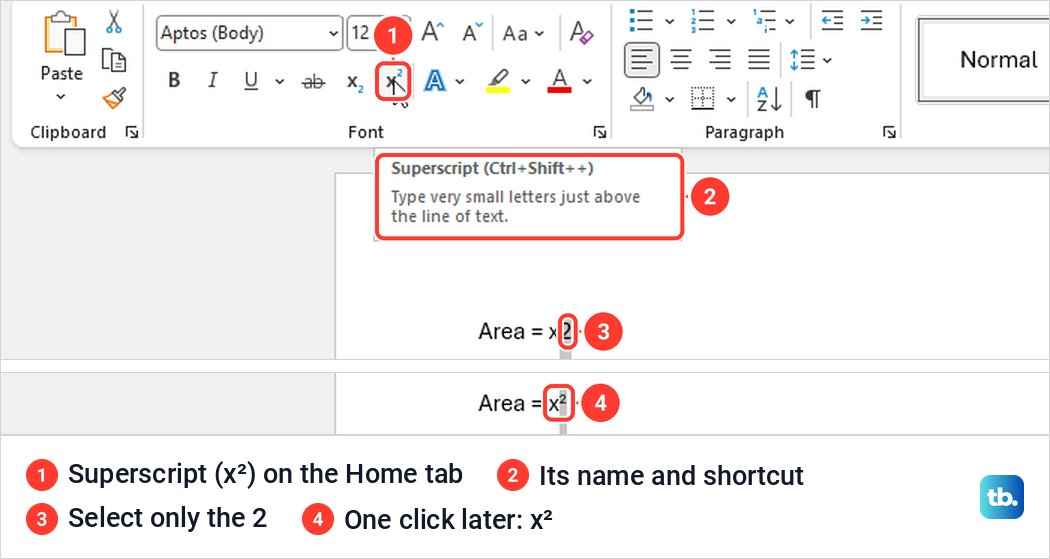
One click raised only the selected 2, and the x stayed on the line. While a raised character is selected, the x² button stays highlighted, which is a quick way to check how a character is formatted. If the ribbon is new to you, our guide to using Microsoft Word shows how its main controls are laid out.
Type a raised character and go back to normal text
You do not have to type everything first and format it afterwards. Put the cursor where the raised part starts, select Superscript, and type. Whatever you type now comes out small and raised.
The catch is that it stays on. With Superscript switched on after the m in our test line, the 3 we typed came out raised as expected. We then selected Superscript again to switch it off, and the + kg we typed next sat on the normal line.
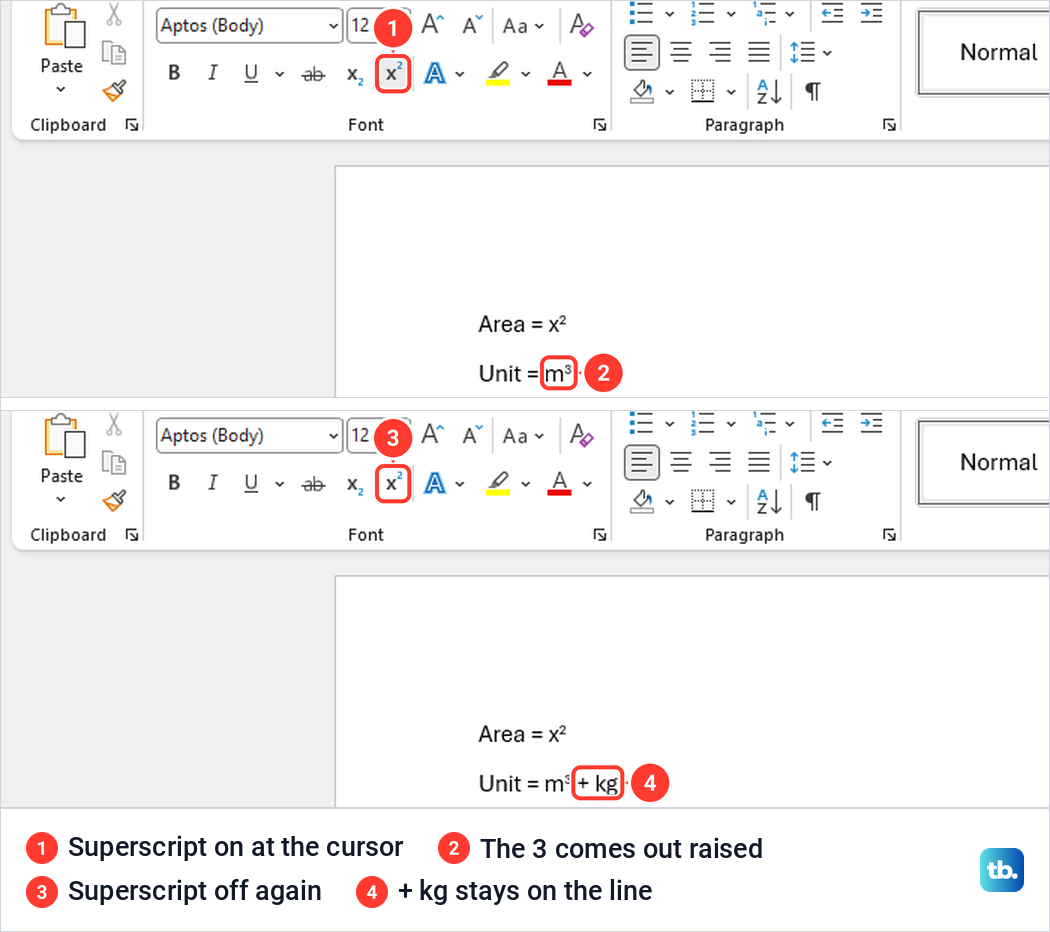
If you forget that second click, everything after the exponent comes out tiny. Select the text that should be normal and switch superscript off, as described in the section on removing it below.
Use the superscript keyboard shortcut
Select the character and press Ctrl + Shift + +. Microsoft names the keys Ctrl, Shift and the Plus sign, and on a US keyboard Plus is the upper symbol on the equals key, so your fingers press Ctrl, Shift and the = key. We did exactly that on the 2 in y2, and only the 2 rose.
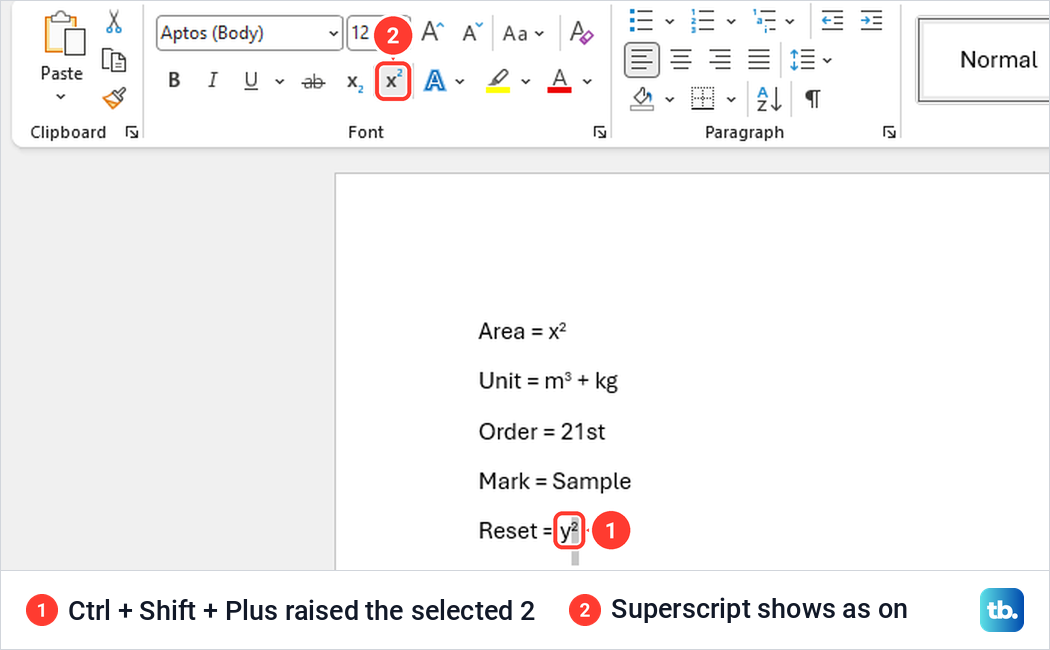
Word's own tooltip writes the shortcut as Ctrl+Shift++, which looks like a typo but means Ctrl, Shift and the Plus key. Microsoft's shortcut lists describe a US keyboard layout, and on other layouts the Plus sign can sit on a different key. If the shortcut does nothing on your keyboard, use the Home button, which works the same on any layout.
Make subscript text in Word
Subscript works the same way in the other direction. Select the character, such as the 2 in H2O, and select Subscript (x₂) in the Font group on the Home tab. Microsoft's keyboard shortcut for it is Ctrl + Shift + -, using the Minus sign. If those keys do something else in your copy of Word, use the Subscript button instead.
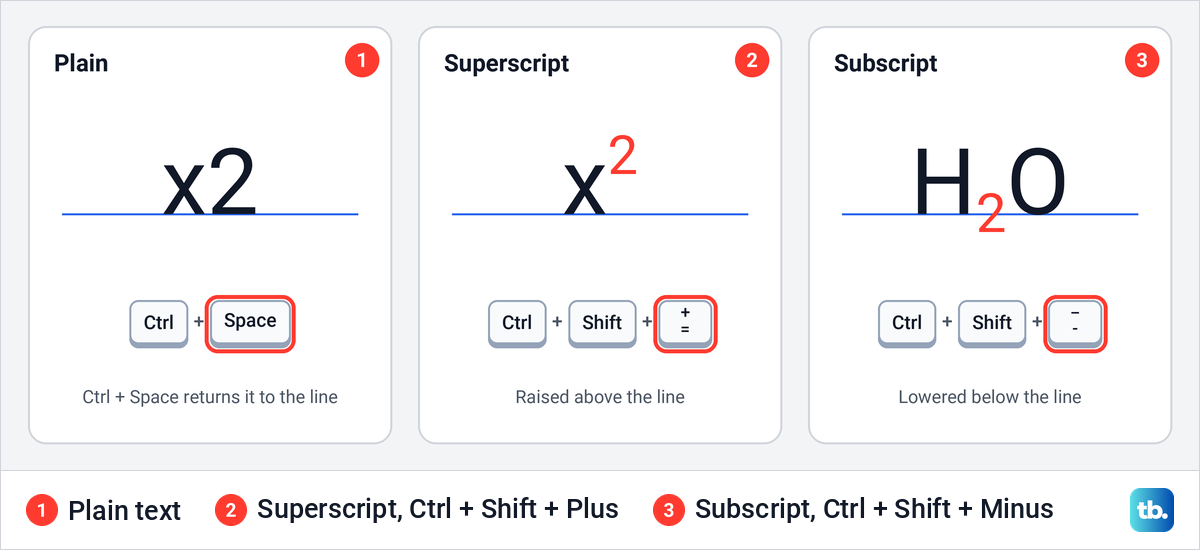
Microsoft describes both as smaller than the normal line of type, set slightly above it for superscript and slightly below it for subscript. Use subscript for chemical formulas such as CO₂ and for numbered variables such as x₁ and x₂.
Use the Font dialog for superscript or subscript
The Font dialog helps when you want to see the change before you apply it, or set several effects at once. Select the text and click the small arrow in the bottom right corner of the Font group. From the keyboard, pressing Alt, H, F, N one after another opened the same dialog for us.
Under Effects, tick Superscript or Subscript. The Preview box moved our 2 up as soon as the box was ticked, and OK applied it to the text. With the dialog open, Alt + P also ticked and cleared the Superscript box.
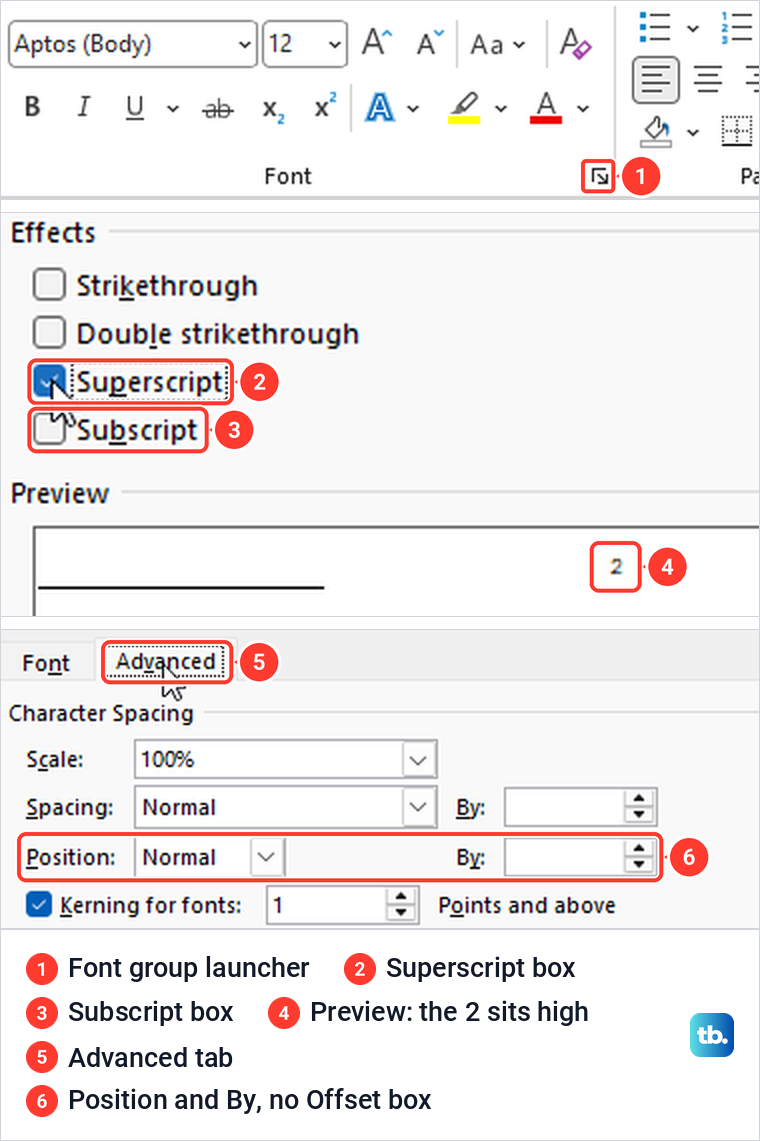
Some instructions, including one of Microsoft's own help pages, mention an Offset box for raising text by a percentage. Our Font dialog had no such box. The nearest control is Position on the Advanced tab, which was set to Normal with a By box next to it, and for ordinary exponents the Superscript box is all you need.
Write exponents in Word
An exponent is superscript, so select the power and raise it with any of the methods above. For x² select the 2, for m³ select the 3, and for a negative power such as 10⁻³ select both the minus sign and the 3 before you apply it. Units such as cm² work the same way.
For scientific notation such as 3 × 10⁸, type the numbers on the line, then raise only the 8. The × sign is in the small gallery under Insert > Symbol, which is covered in the next section.
Superscript is the right tool for a power inside a sentence. For a formula with fractions, roots or several levels, Microsoft's route is Insert > Equation, or Alt + =. You then choose a structure from the Structures group and replace its small dotted placeholder boxes with your own values.
If many exponents in a long document need the same fix, find and replace text in Word to jump to each one. Check every match before you change it, because the same digits can appear in ordinary text too. In a long shared file, make a copy of the Word document first so the original stays untouched.
Insert a ready-made superscript symbol
Word can also insert characters that are drawn raised, rather than normal characters formatted to sit high. Microsoft's route is Insert > Symbol > More Symbols, then (normal text) in the Font list and Superscripts and Subscripts in the Subset list. Our Symbol dialog opened with (normal text) already selected.
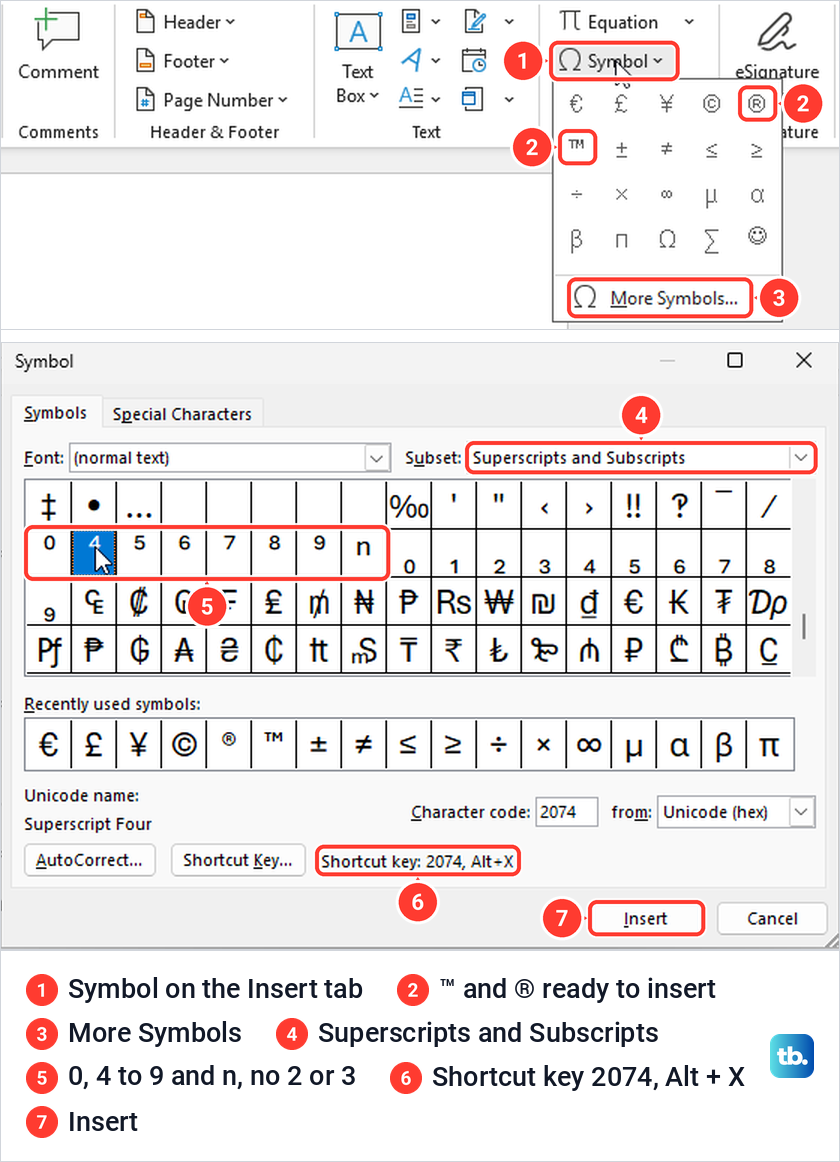
Here is the catch. That subset showed superscript 0, 4 to 9 and n on our PC, but no ² or ³, the two you need most often for areas and volumes. In Unicode those two sit in a different block, Latin-1 Supplement, so for x² or m³ it is quicker to format an ordinary 2 or 3.
We picked superscript 4 and selected Insert, and Word placed a raised ⁴ after our text. The dialog also shows each character's code, 2074 for that one, and Microsoft's instructions are to type such a code and press Alt + X to turn it into the character. Our guide to adding check boxes in Word uses the same dialog and codes for box characters. Microsoft also warns that not all fonts have the same characters, so check the result in the font you use.
For ™ and ®, start with the small gallery that opens from Symbol on the Insert tab, where both sit ready to insert. Microsoft's instructions for Word for Mac say these two are formatted as superscript automatically when you insert them. In Word for the web, the Insert tab has an unlabelled Ω button with a similar gallery, and the ™ we inserted there was small and raised.
Stop Word from raising ordinal endings like 1st
Word raises the letters after ordinal numbers on its own by default. When we typed 21st and pressed Enter, the st jumped up, and typing 31st followed by a space did the same. Microsoft says Microsoft 365 does this automatically, and one check box controls it.
To turn it off, go to File > Options > Proofing, select AutoCorrect Options, and open the AutoFormat As You Type tab. Clear Ordinals (1st) with superscript and select OK twice. With the box cleared, the 32nd we typed next stayed on the line.
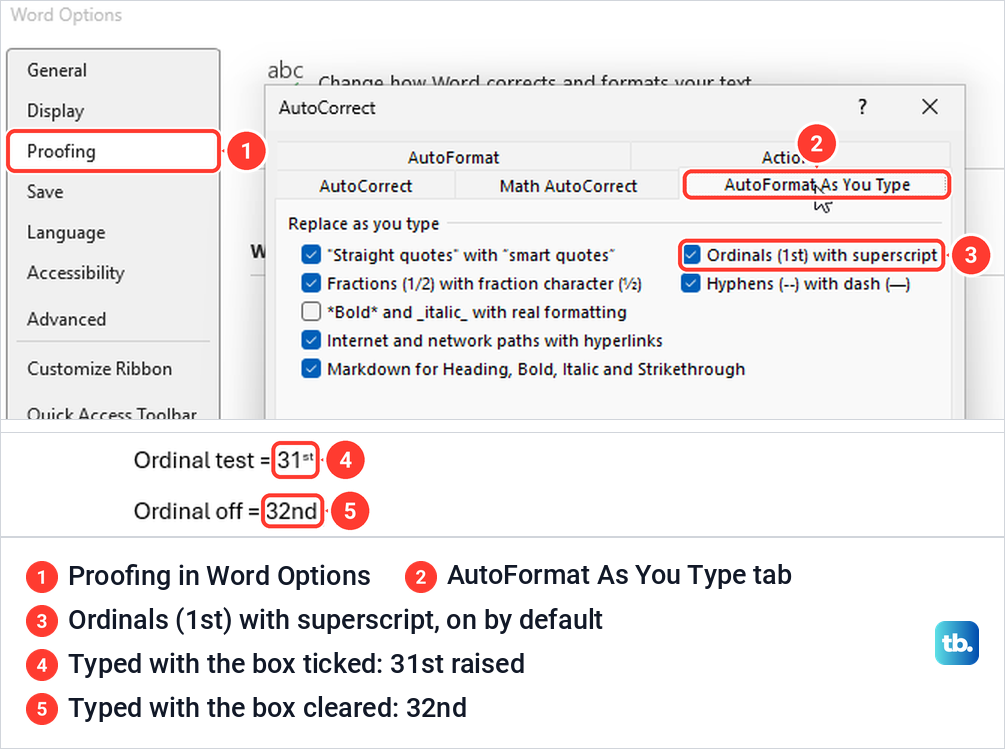
The setting changes only what happens as you type, so ordinals that were already raised stay raised. Select those and press Ctrl + Space, which put our 21st back on the line.
Remove superscript or fix text that stays raised
To lower a raised character, select it and press Ctrl + Space, or click the highlighted x² button to switch it off. Both put our test characters back on the line. The button is the gentler choice, because it changes only superscript.
Ctrl + Space does more than it looks. Microsoft's shortcut list calls it Remove manual character formatting, so it also strips bold, italics, colours and font changes you applied by hand. On plain text you will not notice, but on a formatted heading or a coloured word you will.
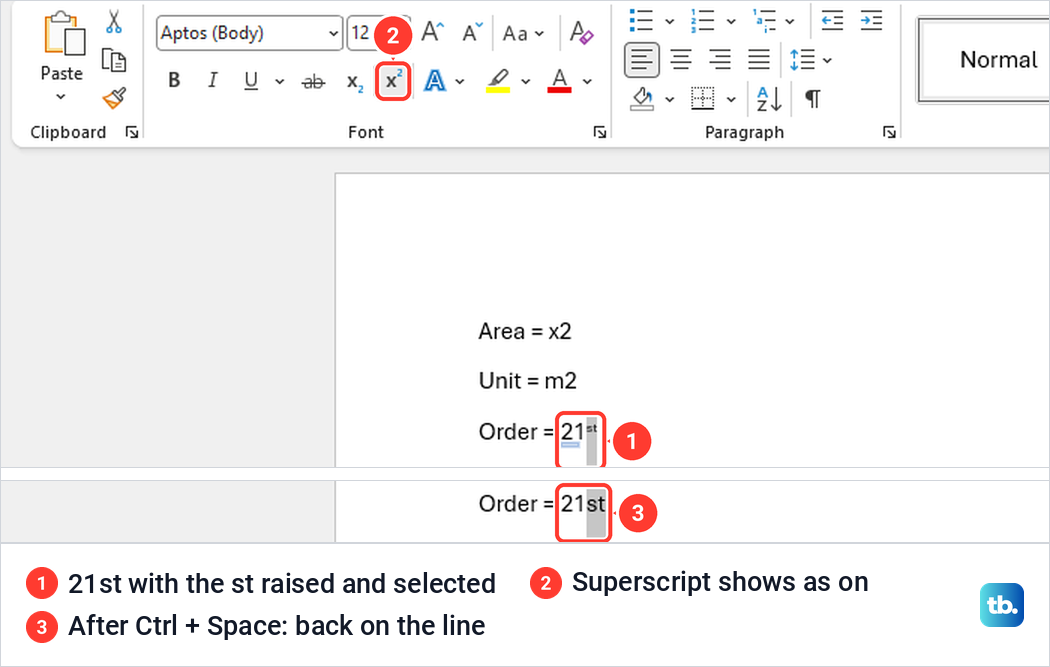
If text keeps coming out raised as you type, Superscript is still switched on at the cursor. Click x² so it is no longer highlighted, then select any text that came out raised by mistake and switch it off. When a passage has several unwanted effects at once, it can be quicker to clear its Word formatting and apply only what you need again.
Superscript in Word for the web
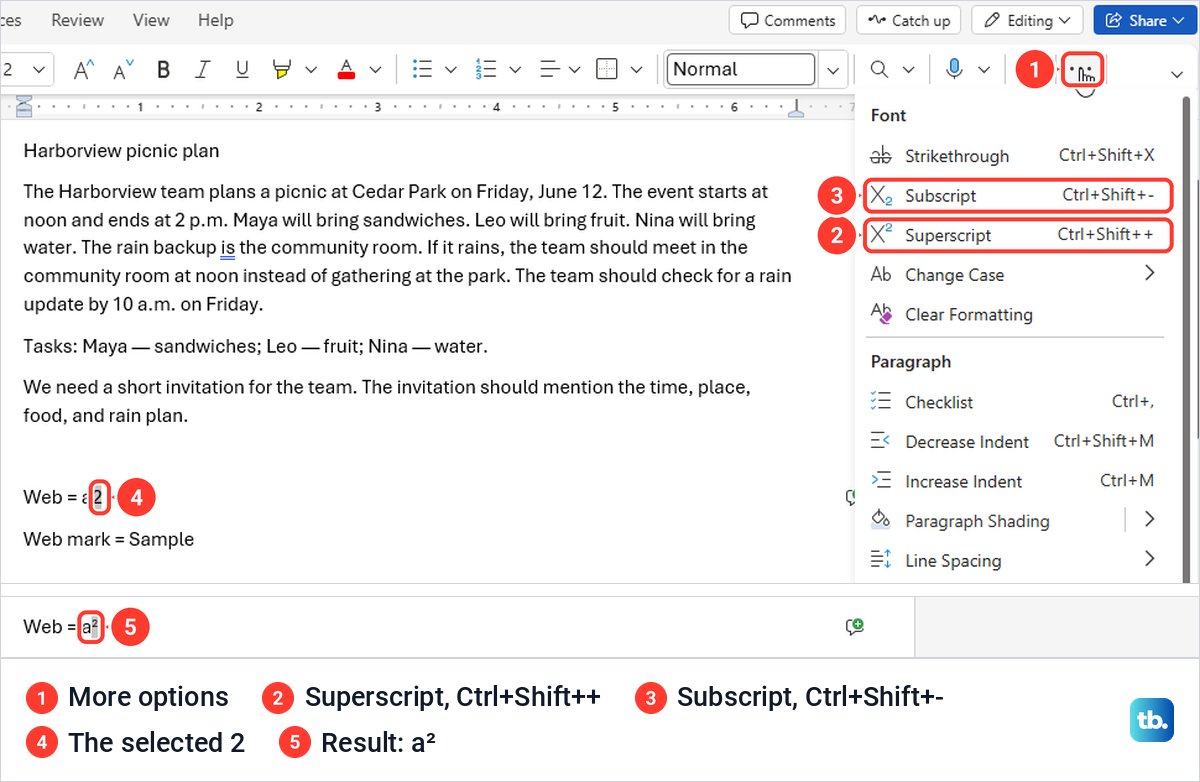
Word for the web can do superscript, but the button was not on its ribbon on our screen. The simplified Home ribbon ended with a three-dot More options button instead. Under its Font heading were Strikethrough, Subscript and Superscript, each with its shortcut.
Select the character first, then choose More options > Superscript. Our selected 2 rose and the a beside it stayed put. The menu lists Ctrl+Shift++ for Superscript and Ctrl+Shift+- for Subscript, the same keys Microsoft gives for Word on Windows.
If the document opens as a plain page with no ribbon, it is in a reading view. Word for the web did this when we switched to Viewing, and the formatting controls disappeared along with the mode button. Select Edit Document at the top, then Edit, and the ribbon comes back.
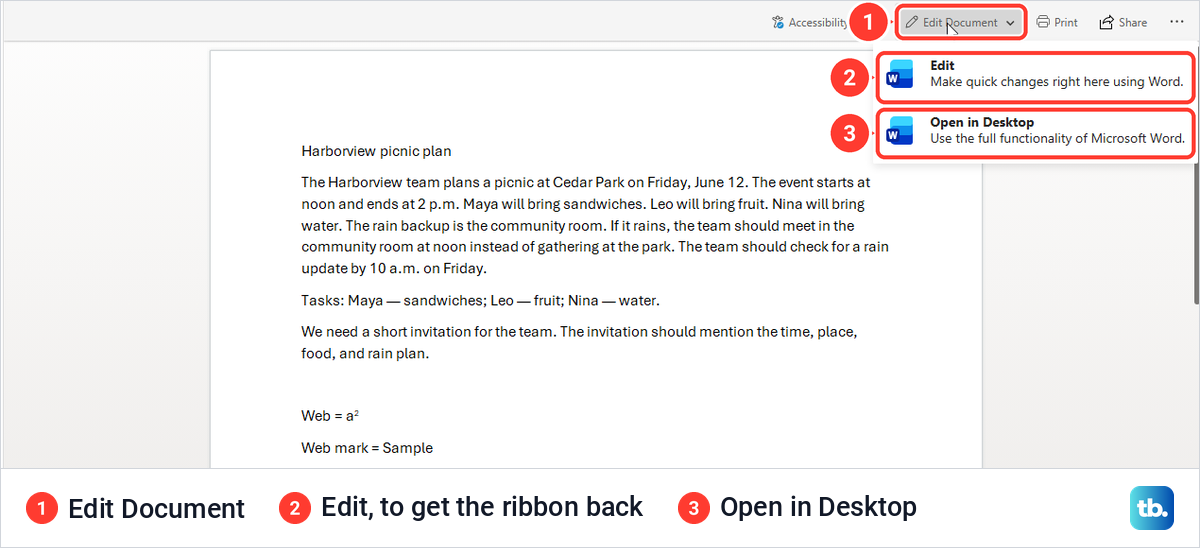
Microsoft's help says to switch to Editing from the mode menu in the upper right corner, which is where it sits while you are editing. If Editing is not offered at all, the file may be shared with you as view only, and Microsoft's advice is to ask for permission to edit it.
Why the Superscript button is greyed out
If x² is greyed out, first check whether the document is open for editing. Microsoft notes that a document you receive may be open for viewing only in Protected View, and that if you cannot leave Protected View, the author or your administrator may have rules that prevent editing.
Next, check the mode button at the top right, next to Comments. If it says Viewing, Microsoft's advice is to switch it to Editing from that menu. If Word opens the file read-only every time, Microsoft's steps are File > Info > Protect Document, then select Always Open Read-Only to clear it.
Protection can lock formatting too. We protected a copy of our test document with Review > Protect > Restrict Editing, chose No changes (Read only), and started enforcing it without a password. The whole Font group went grey, the mode button switched to Viewing, and clicking x² did nothing and showed no message.
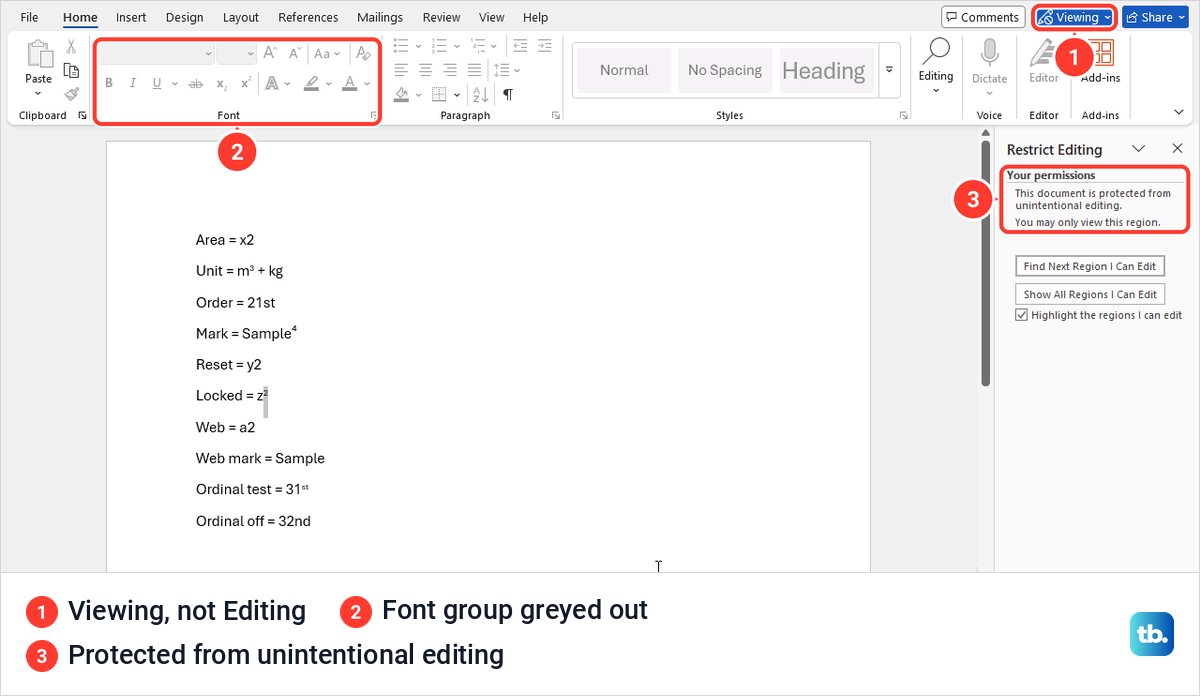
The Restrict Editing pane gives the reason: This document is protected from unintentional editing. If you protected the document yourself, select Stop Protection at the bottom of that pane. On our copy, which had no password, that brought editing back and x² worked again.
If someone else protected the file, ask them for an editable copy. Microsoft notes that some editing restrictions are controlled by the document owner or your organization and cannot be changed locally.
Superscript in Word for Mac and on an Android tablet
In Word for Mac, Microsoft's instructions use the same Home tab buttons: select the text, then Superscript or Subscript in the Font group. The shortcuts use Command instead of Ctrl, so press Command + Shift + + for superscript and Command + Shift + - for subscript.
Microsoft's steps for an Android tablet use taps instead of the Home tab buttons. Select the text, tap the font icon and choose superscript or subscript.
When you need a footnote instead of a raised number
A superscripted number looks like a footnote mark, but it is only formatting. It does not link to a note, and Word will not renumber it if you add another note earlier in the document.
For real notes, use References > Insert Footnote, which places a numbered mark in the text and its note at the bottom of the page. Our guide covers how to add footnotes in Word and format them.
Once the exponents and notes look right, you can save the Word document as a PDF to share a fixed copy. Open the PDF and check the raised and lowered characters before you send it.
How we tested this guide
We tested this in Word for Microsoft 365 on Windows 11, version 25H2, and Word for the web in Microsoft Edge, raising the 2 in x2 with the button, the shortcut and the Font dialog.
Frequently Asked Questions
What is the shortcut for superscript in Word?
On Windows, select the character and press Ctrl + Shift + Plus sign, which on a US keyboard means Ctrl, Shift and the equals key. On a Mac, Microsoft lists Command + Shift + Plus sign.
What is the shortcut for subscript in Word?
Microsoft lists Ctrl + Shift + Minus sign on Windows and Command + Shift + Minus sign on a Mac. Word for the web shows Ctrl+Shift+- next to Subscript in its More options menu.
How do I type squared or cubed in Word?
Type the number, select the 2 or 3, and press Ctrl + Shift + Plus sign or select Superscript on the Home tab. Ready-made ² and ³ were not in the Superscripts and Subscripts subset of our Symbol dialog, so formatting is the quicker route.
Why is the text after my exponent still raised?
Superscript is still switched on at the cursor. Click the highlighted x² button to switch it off, then select anything that came out raised by mistake and press Ctrl + Space.
How do I stop Word from making 1st and 2nd superscript?
Go to File > Options > Proofing > AutoCorrect Options, open AutoFormat As You Type and clear Ordinals (1st) with superscript. Ordinals that are already raised stay that way, so select them and press Ctrl + Space.
Where is superscript in Word for the web?
Select the text and look on the Home tab. If the ribbon has no x² button, open the three-dot More options menu and choose Superscript under Font.
Is a superscript number the same as a footnote?
No. A raised number is only formatting, while References > Insert Footnote creates a numbered mark linked to a note that Word numbers for you.