
Keeping your Moto G Stylus 5G updated is the best way to get the most out of it. With Android 15, you'll get new features, important security patches, and fixes for any bugs that pop up. Motorola releases these updates over the air, so the process is usually pretty straightforward.
Check for an Update Manually
Open your phone's Settings app and scroll down to System. Tap on Software update and then select Check for update. If an update is available, you'll see an option to download and install it.
I'd recommend plugging your phone in before starting, especially for a large OS upgrade. Using Wi-Fi is also a good idea to avoid using your mobile data. The download can take a while depending on the update's size.
Enable Automatic Updates
You can set your phone to handle updates automatically. Go back to Settings > System > Software update. Look for a menu like Advanced or a gear icon, where you'll find options for Auto-download over Wi-Fi.
With this on, your Moto G Stylus will download updates when connected to Wi-Fi without you having to check. You'll still get a notification to approve and schedule the installation, so you're always in control.
Use the Rescue and Smart Assistant Tool
If an over-the-air update fails or your phone is having serious software trouble, Motorola provides a desktop option. You'll need to download the Rescue and Smart Assistant tool on a Windows PC, as it is not available for Mac.
Connect your phone to the computer with its USB-C cable and follow the tool's instructions. It can reinstall the current software or update to the latest official version, which is a solid fix for persistent update errors.
Clear the Update Service Cache
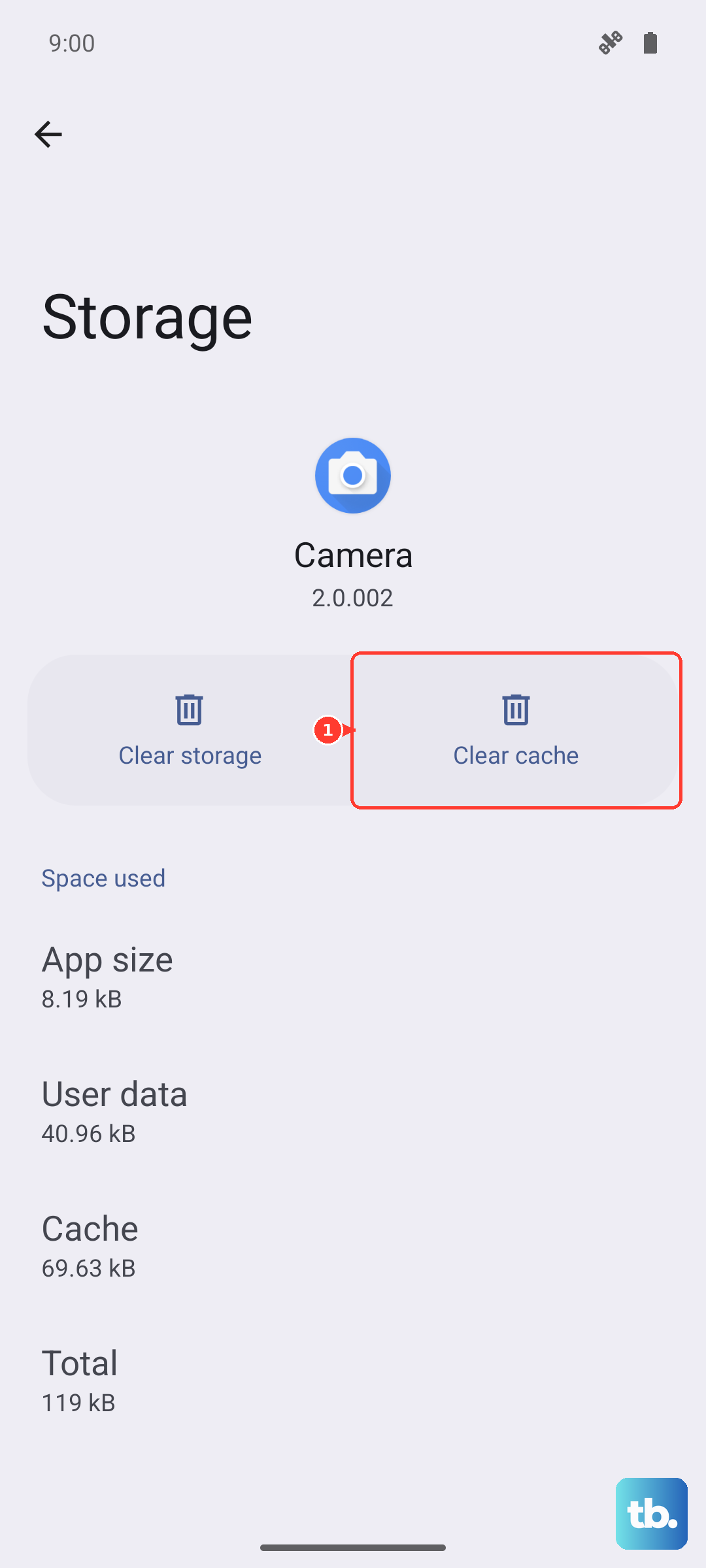
Sometimes the update process gets hung up on cached data. If your download is stuck or failing, go to Settings > Apps. Tap See all apps and find the Software Update app in the list.
Tap on it, then select Storage & cache. Tap Clear cache. This doesn't delete any personal data, it just clears temporary files. After doing this, go back and try checking for the update again.
Force Restart During a Stuck Update
If the screen freezes during an installation, a force restart can often kick it loose. Simply press and hold the Power button for about 10 seconds until you feel the phone vibrate and the Motorola logo appears.
This interrupts the update process, so your phone will likely boot back up and either retry the installation or report that it failed. You can then try the update process again from the Software Update menu.
Verify Your Current Software Version
It's useful to know exactly what's on your phone. Head to Settings > About phone. Here you'll see your Android version, the Android security update level, and the Build number.
This information lets you confirm an update was successful or check if a specific security patch you heard about has arrived for your device yet.
Update All Your Apps via Google Play
System updates work hand-in-hand with app updates. Open the Google Play Store and tap your profile picture in the top right. Go to Manage apps & device and look under the Updates available section.
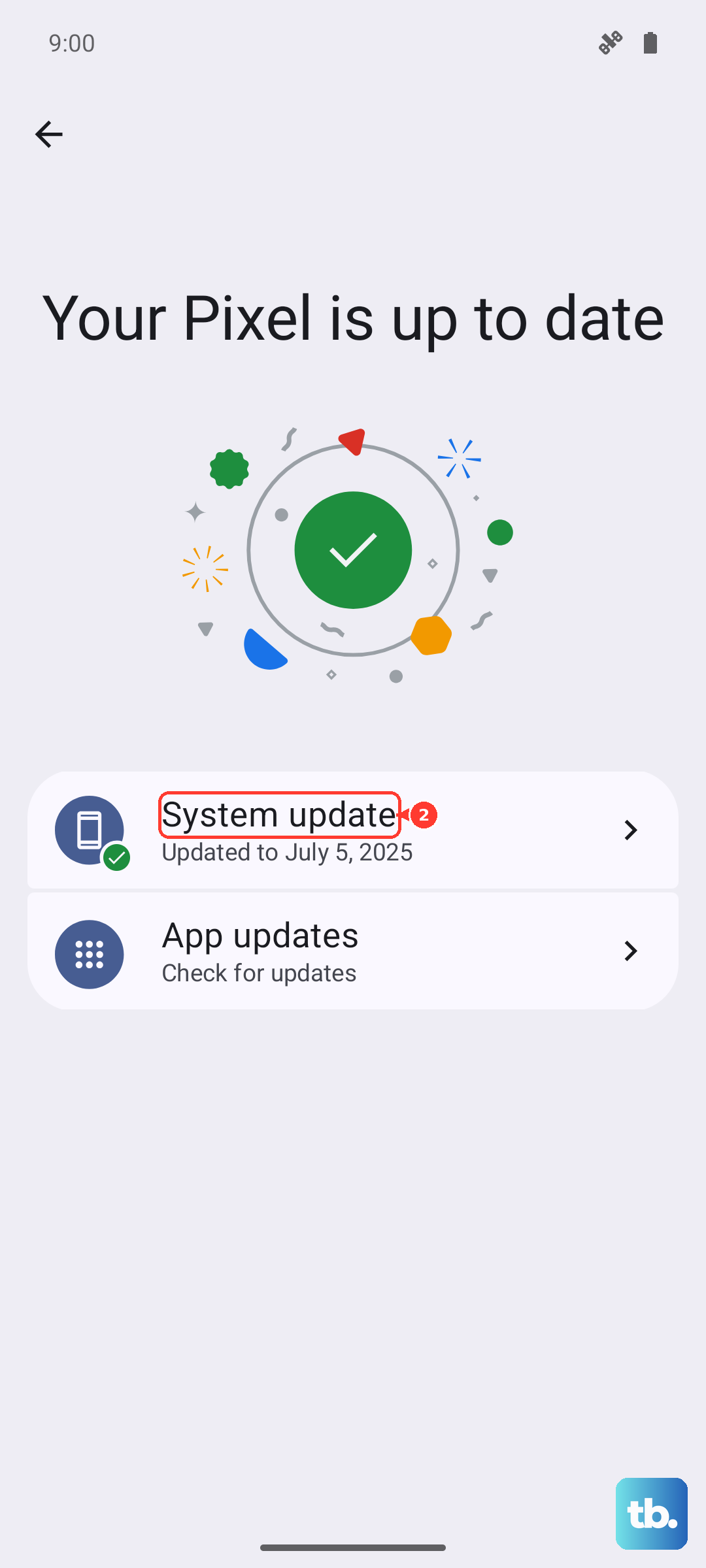
You can tap Update all to get everything current. Keeping apps updated fixes bugs, improves battery life with your Moto G Stylus, and closes security gaps.
Don't Forget Google Play System Updates
These are separate from regular Android updates and come directly from Google. Navigate to Settings > Security & privacy. Scroll to System & updates and select Google Play system update.
Tap Check for update. Installing these ensures core Android services and security modules are up to date, which is crucial for protecting your data and privacy.