
Keeping your iPhone 17 Pro on the latest version of iOS 26 is the best way to ensure it runs smoothly and securely. Updates bring everything from major new features to small bug fixes and critical security patches. The process is straightforward, but there are a few device-specific things to know for the 17 Pro.
Update Directly on Your iPhone 17 Pro
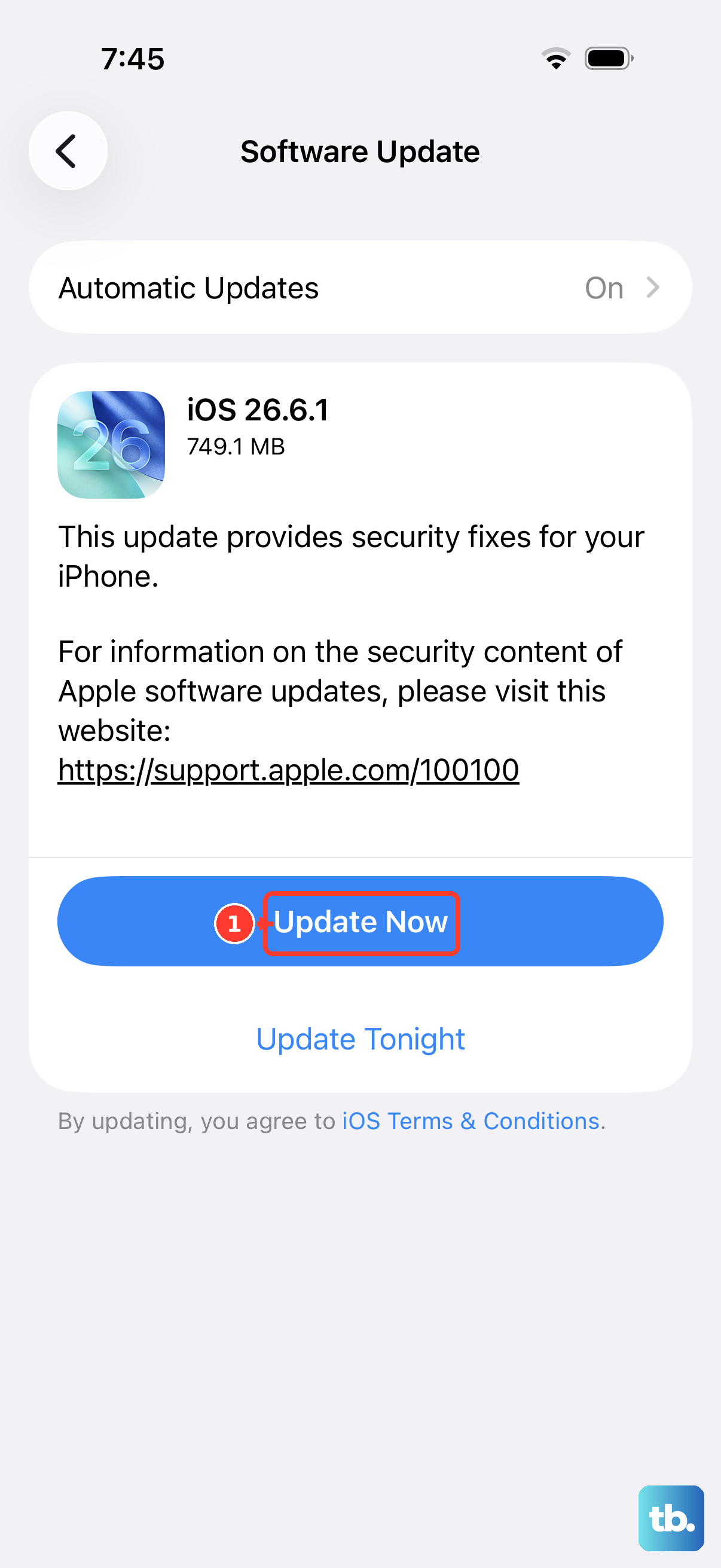
The easiest method is over Wi-Fi. Open Settings > General > Software Update. Your phone will check for any available updates. If one is there, you'll see details about iOS 26.x and what it includes. Tap Download and Install to begin.
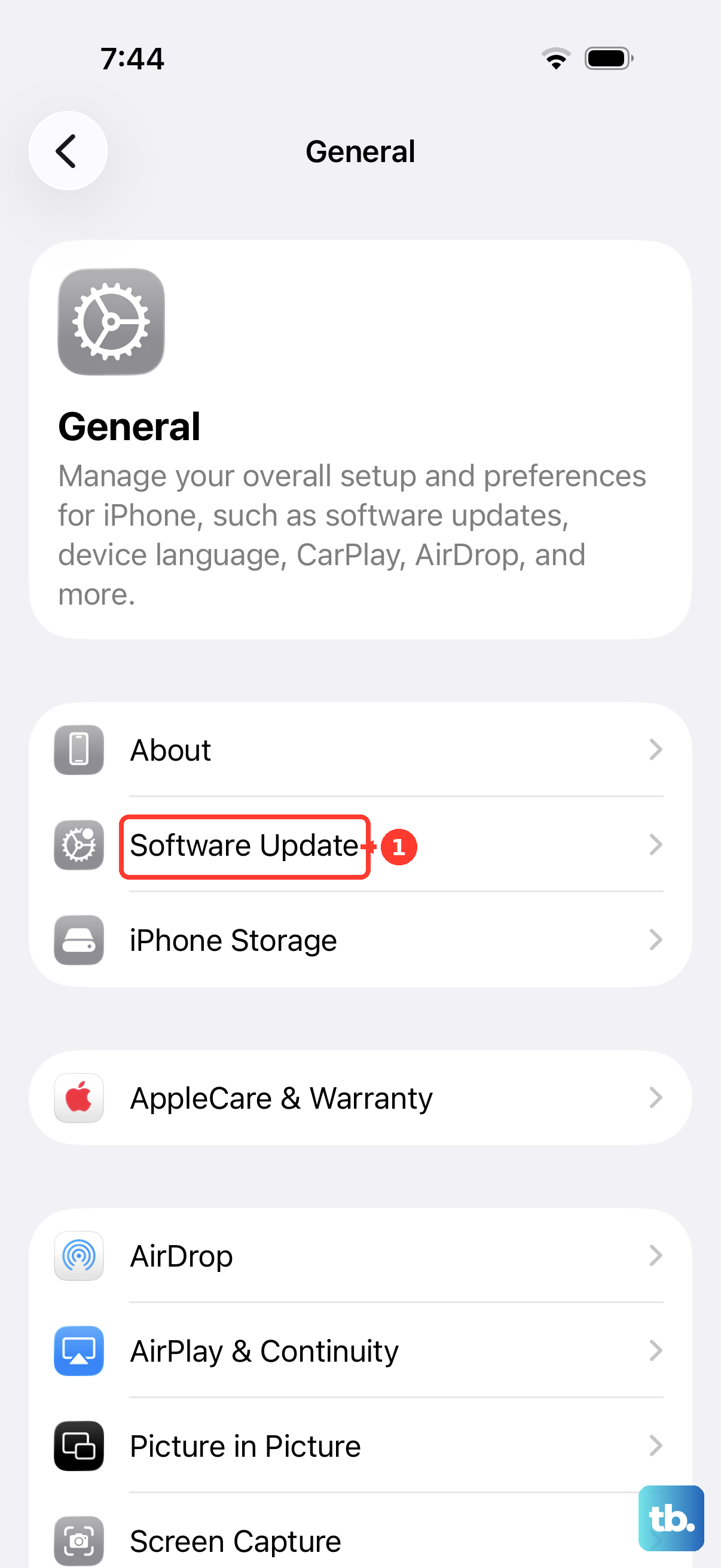
Make sure your iPhone 17 Pro is connected to a stable Wi-Fi network and has more than 50% battery, or better yet, plug it in. I'd recommend using the included USB-C cable and a compatible charger. The download can be large, especially for a major point release, so a good connection is key.
Set Up Automatic Updates
If you don't want to manually check, you can have your phone handle it. Go to Settings > General > Software Update > Automatic Updates. Here, you can toggle on Download iOS Updates and Install iOS Updates.
With both enabled, your iPhone 17 Pro will download updates in the background and install them overnight when it's connected to power and Wi-Fi. You'll still get a notification before the installation happens, giving you a chance to delay it if needed.
Update Using a Mac or PC
Sometimes an over-the-air update can get stuck or fail due to storage issues. Using a computer is a reliable fallback. Connect your iPhone 17 Pro to your Mac or Windows PC using a USB-C cable. On a Mac with macOS or later, open Finder. On a PC, open iTunes.
Select your iPhone from the sidebar, then click Check for Update. If an update is found, click Download and Update. This method is great because the computer handles the download file, bypassing any storage limitations on the phone itself.
If the Update Gets Stuck or Fails
A common hiccup is the update freezing on the Apple logo or progress bar. If this happens, force restart your iPhone 17 Pro. Quickly press and release the Volume Up button, then quickly press and release the Volume Down button. Finally, press and hold the Side button until you see the Apple logo appear.
If you see an error like Unable to Verify Update, check your internet connection first. Try switching to a different Wi-Fi network. You can also go to Settings > General > iPhone Storage, find the partially downloaded update file, delete it, and then attempt the download again from the Software Update screen.
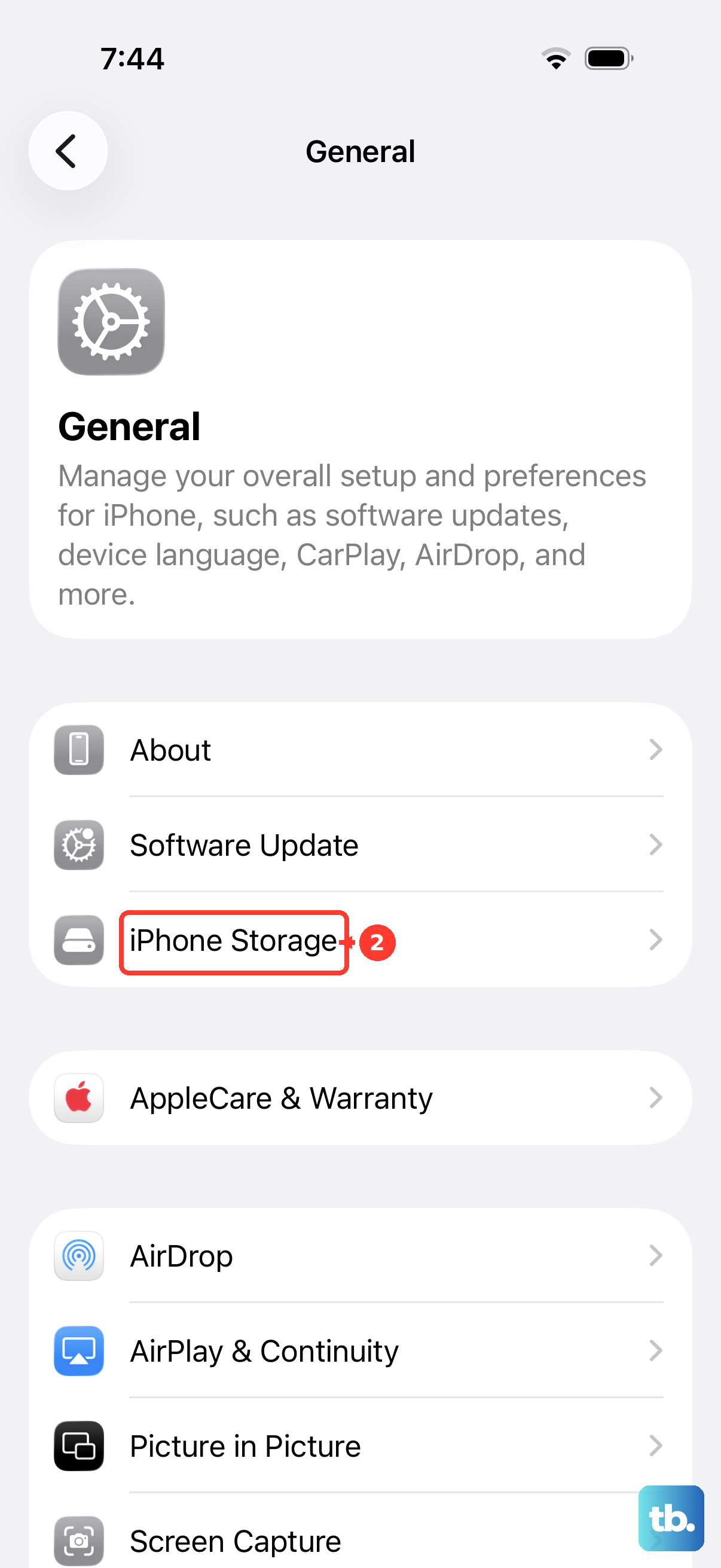
Check Your Current iOS 26 Version
It's useful to know exactly which version you're running. Go to Settings > General > Software Update to see the currently installed version. This tells you your specific build of iOS 26, which is handy for troubleshooting or confirming a new update installed correctly.
Prepare Your Phone Before Updating
Before any significant update, it's a smart habit to create a fresh backup. Go to Settings > [Your Name] > iCloud > iCloud Backup and tap Back Up Now. Ensure your iPhone 17 Pro is connected to Wi-Fi during this process.
Also, make sure you have enough free space on your device for the update to unpack and install. If you're low, the Settings app will usually warn you, and you can manage storage from the same menu.
Why Updates Are Essential for the 17 Pro
Beyond new features, every update contains important security patches that protect your data and device. These patches address vulnerabilities that could otherwise be exploited. Updates also include performance tweaks and battery optimizations specifically tuned for the iPhone 17 Pro's hardware.
Staying current ensures you get the most out of your phone's capabilities and keeps it protected. With automatic updates enabled, it requires virtually no effort on your part.