Your iPhone 17 can look normal and still stay quiet when Silent mode, Focus, volume, or app alerts are blocking sound. Start with the ringer controls that work fastest, then check the settings that keep calls and notifications muted after that. These fixes apply to iPhone 17 models with the Action button.
Turn Silent Mode Off In Settings
This fixes an iPhone 17 that is set to silent instead of ring.
Open Settings.
Tap Sounds & Haptics.
Turn Silent mode off.
Test the ringer with an incoming call or alert.
Use The Action Button
iPhone 17 uses the Action button for Silent mode, not the older Ring/Silent switch. When the Action button is assigned to Silent Mode, pressing and holding it switches between Silent and Ring.
Press and hold the Action button. If Silent mode is still on, press and hold the Action button again to turn Silent mode off.
Ignore older Ring/Silent switch advice for iPhone 17. That switch method only applies to older iPhone models that have the physical switch.
Reset The Action Button To Silent Mode
If the Action button no longer changes the ringer, assign it back to Silent Mode first.
- 1.Open Settings.
- 2.Tap Action Button.
- 3.Swipe to Silent Mode.
- 4.Press and hold the Action button to switch between Silent and Ring.
Switch Silent Mode Off From Control Center
Use Control Center when you want the fastest on-screen ringer toggle. This works on iPhone models with an Action button, including iPhone 17.
Swipe down from the top-right corner to open Control Center.
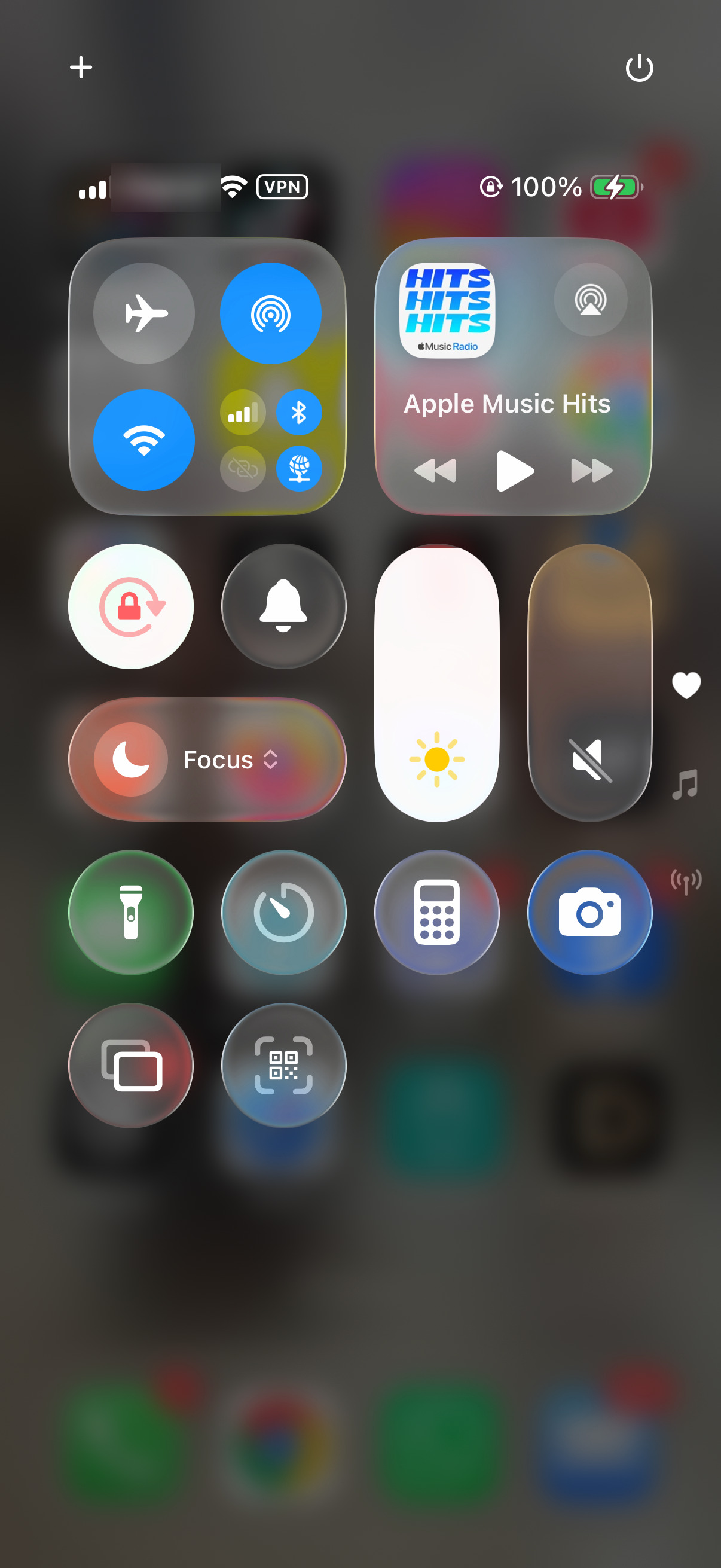
Make sure Silent mode is off.
Raise Ringer And Alert Volume
Silent mode is only one part of the problem. Your iPhone can be in Ring mode while the ringtone and alert volume is still too low to hear.
Open Settings, tap Sounds & Haptics, then drag the Ringtone and Alerts slider to the right.
When you are not listening to media or in a call, press Volume Up to raise ringer volume.
If the buttons do not change ringer volume, open Settings, tap Sounds & Haptics, and turn on Change with Buttons.
If raising the volume fails, check Focus next because it can silence calls and alerts even when ringer volume is high.
Turn Off Do Not Disturb
This fixes calls and alerts being silenced by Do Not Disturb.
Open Control Center.
Tap the Do Not Disturb icon on the Focus button.
Check that the button text changes to Focus.
Disable An Active Focus
Open Control Center.
Tap Focus.
Tap the Focus that is on, such as Personal, Work, Sleep, Reduce Interruptions, or Driving.
From the Lock Screen, touch and hold the Focus icon.
Turn off the active Focus.
Ask Siri to turn off a Focus with a command like Turn off Do Not Disturb or Turn off the Work Focus.
Tip: if the same Focus keeps coming back, check its enabled schedules and any Lock Screen linked to that Focus.
Stop Focus From Turning Itself Back On
Open Settings, tap Focus, then choose the Focus that keeps silencing your iPhone. Under Set a Schedule, tap the active schedule and turn it off or remove it.
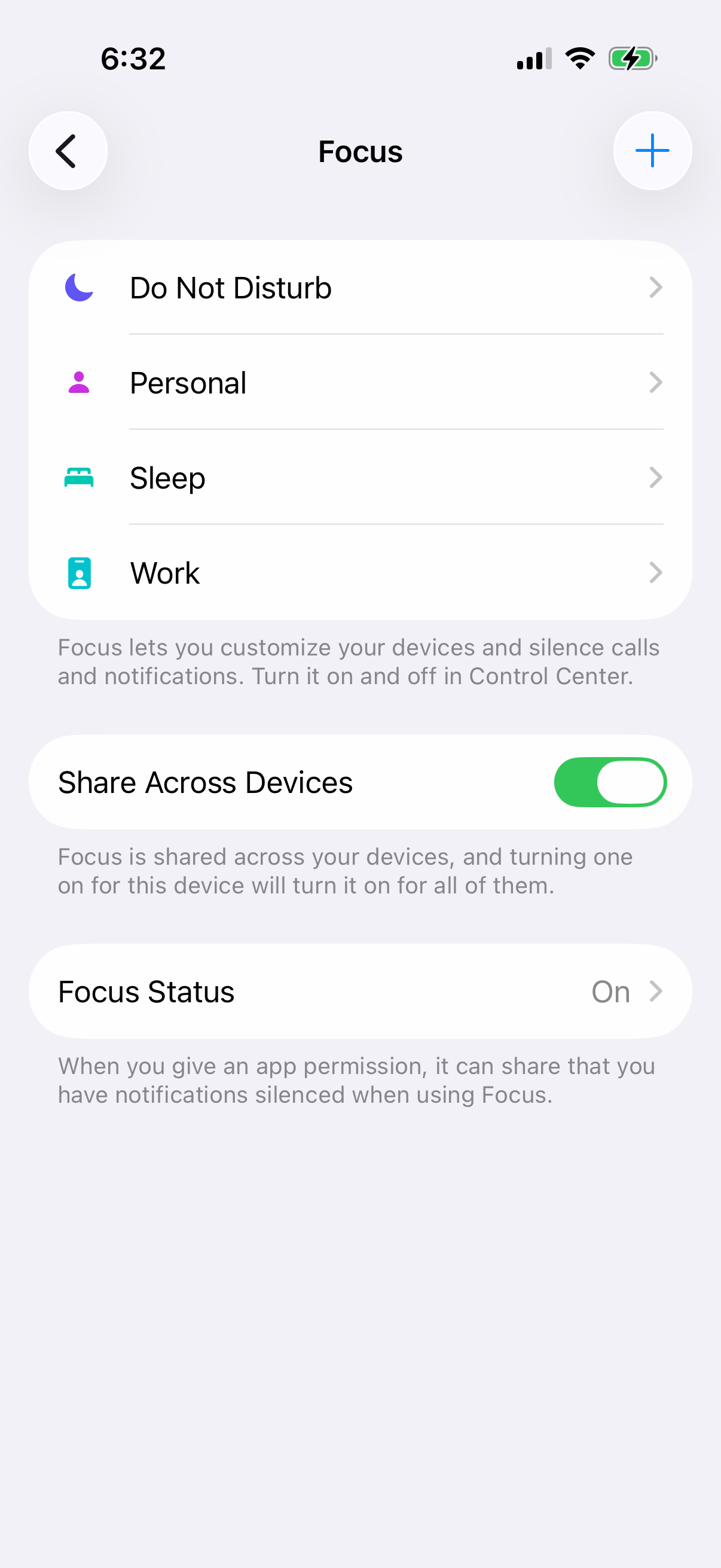
If you do not need that Focus anymore, open Settings, tap Focus, choose the Focus, scroll down, and tap Delete Focus. Provided Focuses can be set up again later from Settings, Focus, and Add.
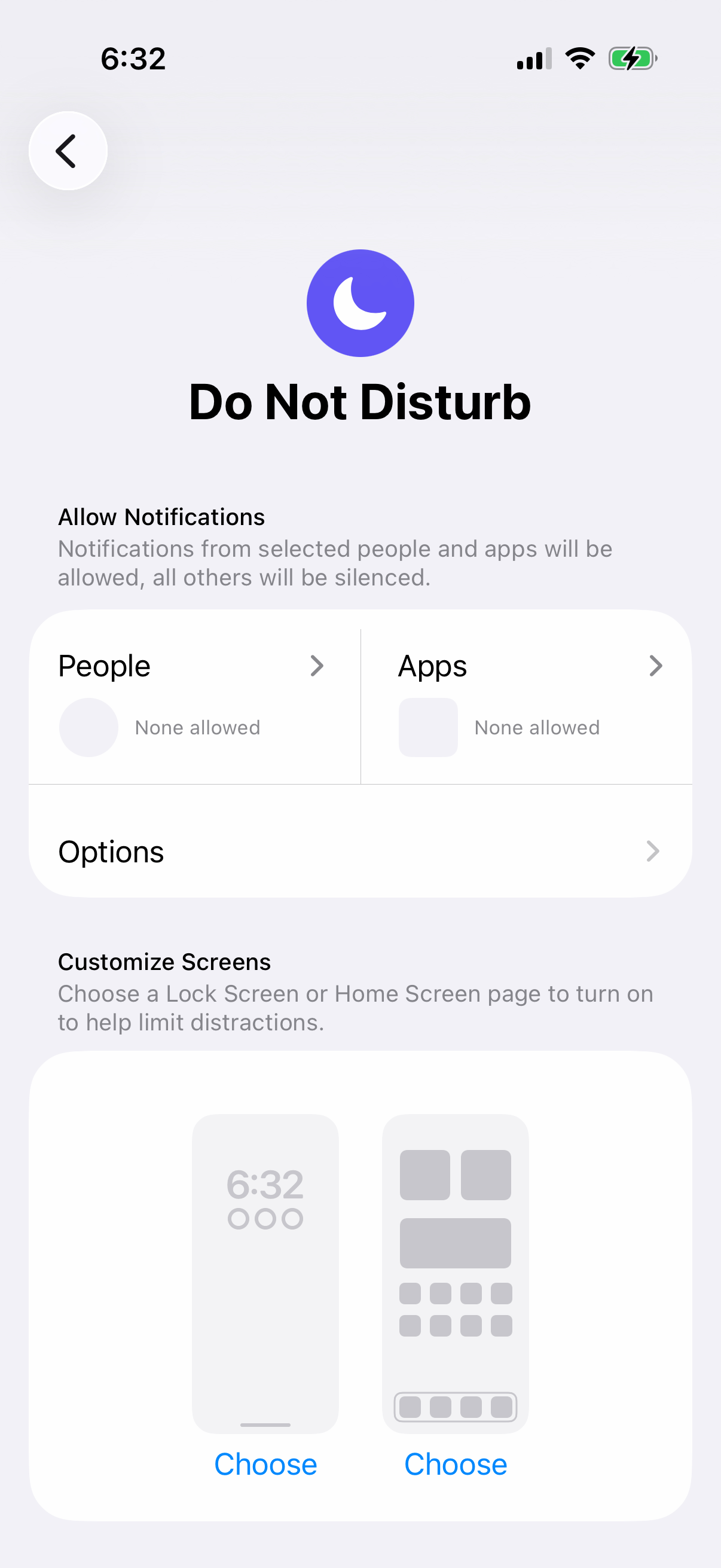
For a Focus you still want to use, allow key people through it instead. Go to Settings, tap Focus, choose a Focus, tap People or Choose People, select Allow Notifications From, then use Add People.
Check Notification Sounds And Managed Profiles
This fixes cases where the ringer works, but certain alerts still stay silent.
Open Settings.
Tap Notifications.
Select the app below Notification Style.
Turn Allow Notifications on.
For apps that offer it, such as Mail, Messages, and Calendar, tap Sounds and choose a sound if any appear.
Tap Back.
For ringtone and text tone choices, open Settings, tap Sounds & Haptics, choose Ringtone, Text Tone, or another option, then pick a tone.
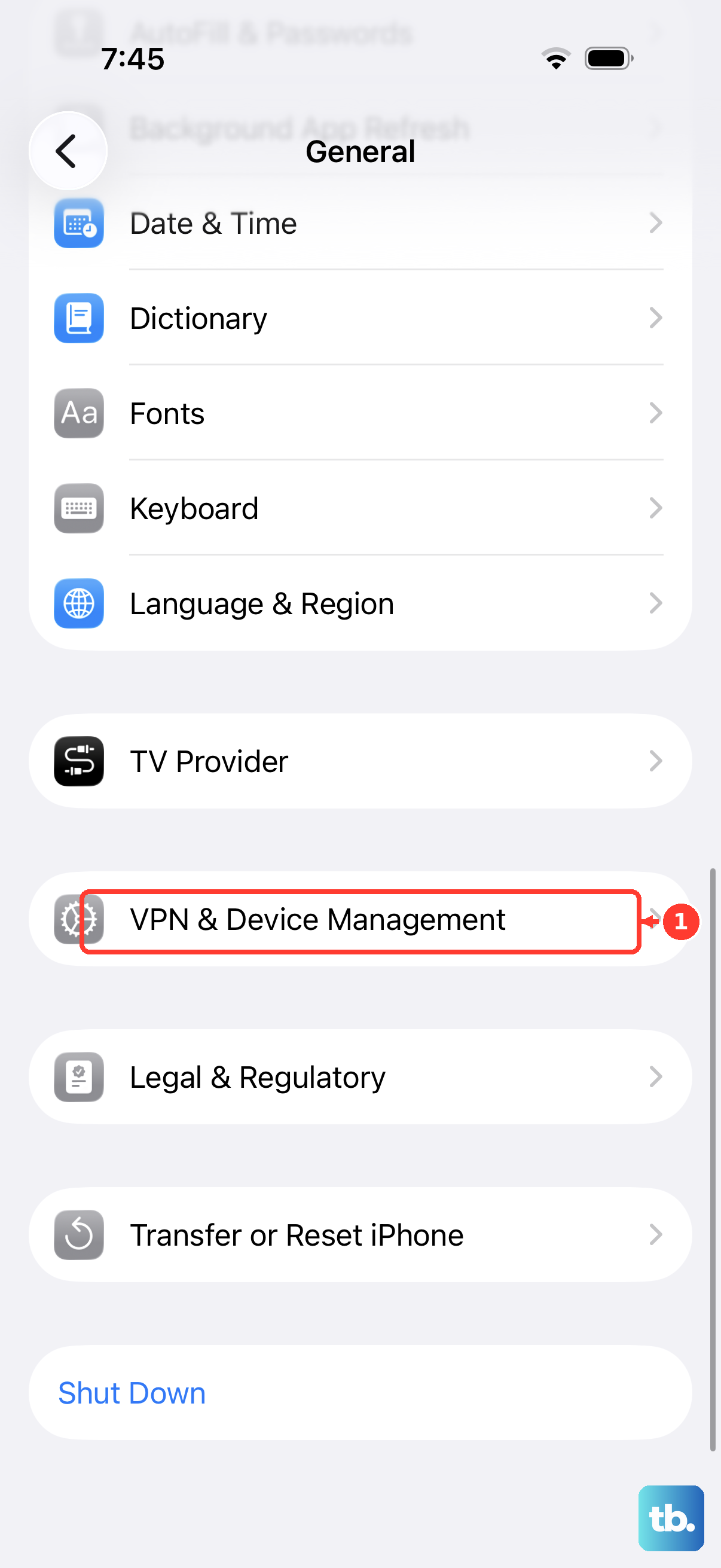
If this is a school or work iPhone, a management profile can control notification behavior. Open Settings, tap General, then tap VPN & Device Management; if a removable profile is present, select it and use Remove Profile or Remove Management.
Frequently Asked Questions
Why is my iPhone 17 not ringing even when the volume is up?
Silent mode or an active Focus can still silence calls and alerts. Turn off Silent mode first, then check Do Not Disturb and any active Focus.
Does iPhone 17 have a Ring/Silent switch?
No. iPhone 17 models use the Action button. Ring/Silent switch steps apply to older iPhones that have that switch.
Can I let one person ring through when Focus is on?
Yes. In Settings > Focus, choose the Focus, open People or Choose People, allow notifications from selected contacts, and add the people you want.
Why does my ringtone get quieter when I look at my iPhone?
Attention Aware Features can lower alert volume when you are looking at the device. Turn it off in Settings > Face ID & Passcode > Attention Aware Features.