Switching to your new Samsung Galaxy S25 Ultra is a big upgrade, and you shouldn't have to leave your photos, messages, or settings behind. Whether you're coming from an older Samsung, another Android phone, or an iPhone, moving everything over is a straightforward process. I'd start with Samsung's own tool, as it's designed to handle the heavy lifting for you.
Start with Samsung Smart Switch
Smart Switch is the official Samsung transfer app and it's pre-installed on your S25 Ultra. The easiest way to launch it is during the initial phone setup. If you've already set up your phone, you can find it by going to Settings > Accounts and backup > Bring data from old device. The app will guide you through the rest.
You'll have three connection options. For most people, the wireless method is the simplest. Just make sure both phones are connected to the same Wi-Fi network and have sufficient battery. The USB cable method is much faster, and using external storage like a microSD card is a good option if your old phone supports it.
Connect Your Phones and Select Data
If you choose wireless, you'll need the Smart Switch app on your old phone too. You can download it from the Google Play Store or the Galaxy Store. On your old device, open the app and tap Send data, then on your S25 Ultra, tap Receive data. The phones will find each other on the network.
You'll then see a list of everything you can transfer. This includes contacts, call logs, messages, photos, videos, audio files, documents, and even your home screen layout. You can select all or pick and choose specific items. The transfer time depends on how much data you're moving, so just let it run until it finishes.
For the Fastest Transfer, Use a Cable
If you have a lot of data, especially high-resolution videos from your old phone, the wireless transfer can take a while. For speed, connect the phones directly with a cable. You'll need a USB-C to USB-C cable if your old phone is modern, or a USB-OTG adapter if it uses an older Micro-USB port.
Smart Switch automatically detects the wired connection. This method bypasses your Wi-Fi network entirely, making it not only faster but also more reliable. It's the best way to ensure a complete transfer without any hiccups, and I've seen it move over 100GB of data in under an hour.
Moving from an iPhone to Your S25 Ultra
Switching from iOS is fully supported. In the Smart Switch app on your Samsung, select iPhone/iPad as your source device. You can transfer directly using a cable (you'll need a Lightning to USB-C cable, which isn't included) or from an iCloud backup.
The iCloud method is often easier. You'll just sign into your Apple ID within Smart Switch, and it will let you choose which backup to restore. Your contacts, calendar events, photos, and even your text messages will come over. Note that paid iOS apps won't transfer, you'll need to find their Android equivalents on the Play Store.
Restore from a Samsung Cloud Backup
If you were using an older Samsung phone and have backups enabled, you can restore directly from Samsung Cloud. This happens during the initial setup of your S25 Ultra. When you sign into your Samsung account, you'll be prompted to restore your data and settings from a previous backup.
This is a great way to get your old home screen layout, app folders, and system settings back exactly as you had them. You can also manually trigger a restore later by going to Settings > Accounts and backup > Restore data and selecting Samsung Cloud.
Let Google Sync Your Essentials
Your Google account is working in the background to sync key information. When you sign into your Google account on your new S25 Ultra, your contacts, calendar, Gmail, and Chrome bookmarks will automatically populate. This happens independently of any other transfer method.
To check what's syncing or to manually trigger a sync, go to Settings > Accounts and backup > Manage accounts. Tap on your Google account and you'll see a list of all the data types, like Contacts, Drive, and Photos, with toggle switches to control their sync.
Transfer App-Specific Data Like WhatsApp
For WhatsApp, you need to use its built-in transfer feature. On your old phone, open WhatsApp and go to Settings > Chats > Chat transfer. Follow the prompts to generate a QR code, then scan it with your new S25 Ultra. Your chat history will move over without needing a separate cloud backup.
For other apps, like note-taking apps or games, check their settings for backup or export options. Many games save your progress through Google Play Games, so simply logging in on the new device will restore your levels and achievements.
Final Steps After Your Data is Moved
Once the transfer is complete, take some time to look around. Open your Gallery to see if all your photos and videos made it, check your Messages app, and scroll through your contact list. Some apps, especially banking and social media apps, will require you to log in again for security reasons.
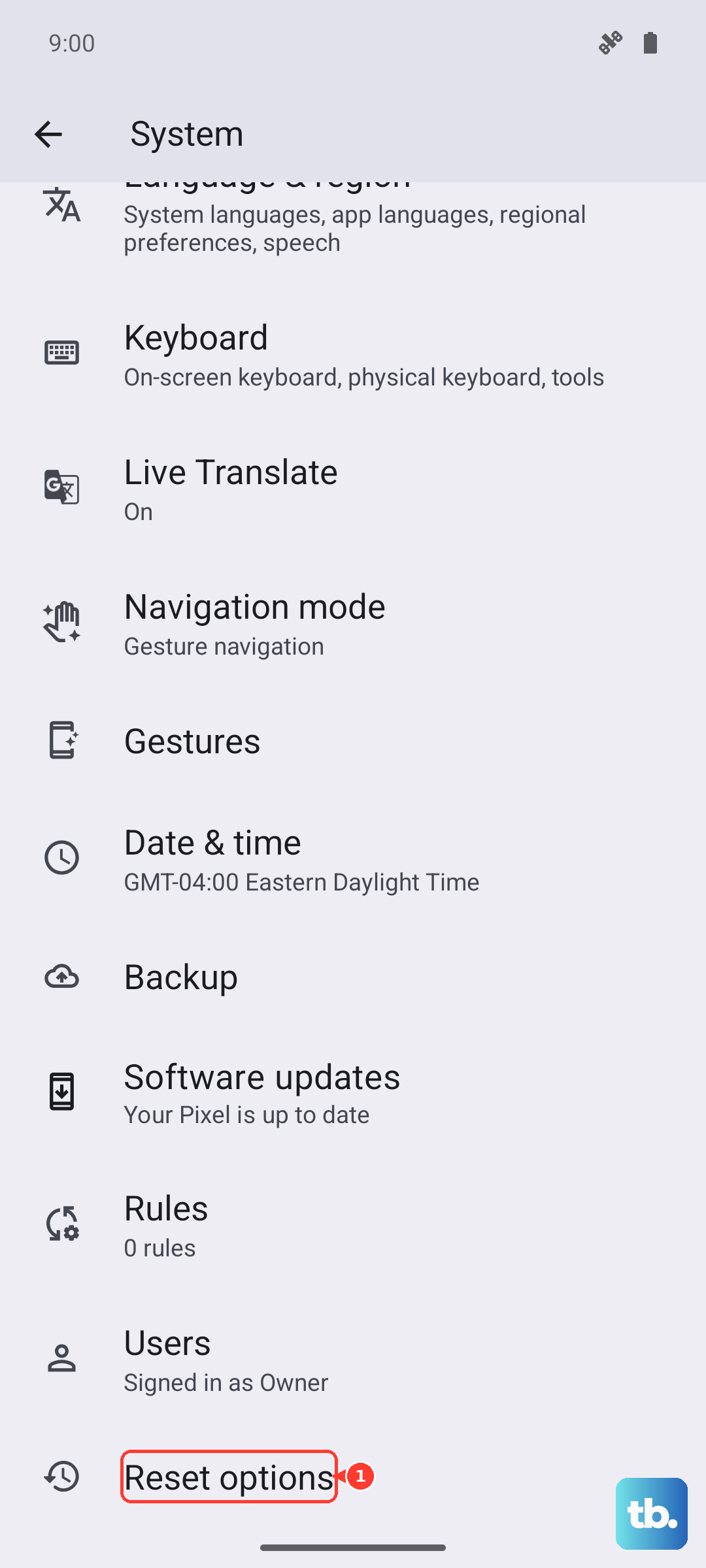
After you're absolutely certain everything is on your new Galaxy S25 Ultra, it's a good practice to wipe your old device. On most Android phones, you can do this by going to Settings > System > Reset options > Erase all data (factory reset). This protects your personal information before you sell, trade, or recycle the old phone.