Getting your new Galaxy A55 set up with all your old stuff should be the easy part. Whether you're upgrading from another Samsung, switching from a different Android phone, or making the jump from an iPhone, you've got a few solid options to move everything over.
Start with Samsung Smart Switch
The absolute best way to move your data is with Samsung's own Smart Switch app. It comes pre-installed on your Galaxy A55. You can find it by going to Settings > Accounts and backup > Bring data from old device. This will launch the app and guide you through the process.
You'll get to choose how to connect your phones. The wireless option is convenient, but for the fastest transfer, I'd recommend using a cable. Since the A55 uses a USB-C port, you'll need a USB-C to USB-C cable or the appropriate adapter for your old phone's port.
Connect Your Phones with a Cable
If your old phone also has a USB-C port, just use a standard USB-C cable. For phones with a different connector, you'll need a USB On-The-Go (OTG) adapter, which you can plug into your A55. Smart Switch will detect the connection automatically once everything is plugged in.
This wired method is much quicker than Wi-Fi and doesn't rely on your network. You can select exactly what to bring over: contacts, messages, photos, videos, apps, and even some device settings. Just tap transfer and let it work.
Move Your Data from an iPhone
Smart Switch handles iPhone transfers really well. On your new A55, open Smart Switch and select iPhone/iPad as your source device. You have two main paths here: a direct cable transfer or a restore from an iCloud backup.
For the cable method, you'll need a Lightning to USB-C cable. The app will walk you through installing a helper app on your iPhone. If you'd rather use iCloud, just sign into your Apple ID directly within Smart Switch on the A55, choose your backup, and select the data to transfer.
Restore from a Samsung Cloud Backup
If you were backing up your old Samsung phone to Samsung Cloud, restoring is straightforward. During the initial setup of your A55, you'll be prompted to sign into your Samsung account. After that, you should see an option to Restore data.
Choose the most recent backup from your old device. This will pull down your contacts, messages, home screen layout, and settings. Keep in mind that app data restoration can be hit or miss, so you may need to log back into some apps.
Let Google Sync Do the Work
Don't forget about your Google account. A ton of your core information is tied to it. When you sign into your Google account on the A55, it will automatically start syncing your contacts, calendar events, Chrome bookmarks and history, and some app data.
You can check what's syncing by going to Settings > Accounts and backup > Manage accounts, then tap on your Google account. Make sure all the relevant toggles, like Contacts and Calendar, are switched on.
Transfer WhatsApp Chats
WhatsApp requires its own transfer process. On your old Android phone, open WhatsApp and go to Settings > Chats > Chat transfer. It will generate a QR code. Then, on your Galaxy A55, install WhatsApp, verify your number, and you'll be prompted to scan that QR code to move your chat history over.
If you're coming from an iPhone, the process is different and uses iCloud. WhatsApp's official guide is the best resource here, as the steps need to be followed precisely to avoid losing messages.
Final Steps After the Transfer
Once the main transfer is complete, take some time to look around. Make sure your photos are in the Gallery app, your texts are there, and your key apps have been installed. You'll likely need to enter passwords for social media, banking, and email apps again.
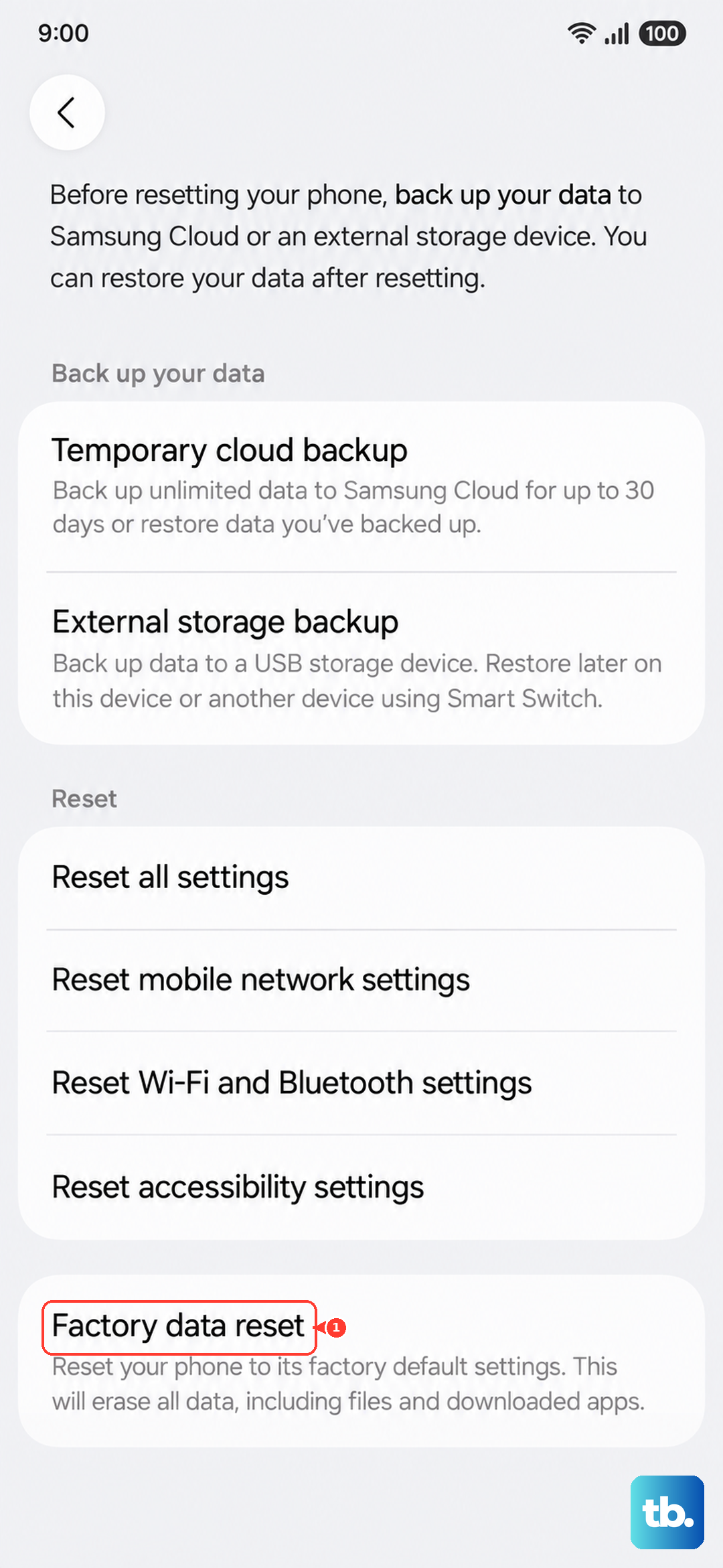
When you're confident everything is safely on your new A55, you should wipe your old phone. On most Android devices, you can find the reset option under Settings > General management > Reset > Factory data reset. This protects your personal information before you sell, trade, or recycle the device.