Switching to your new OnePlus Open is exciting, and you definitely don't want to leave your photos, messages, and app data behind. The good news is, moving everything over is pretty straightforward with the tools built into OxygenOS 14.
Use the Clone Phone App During Setup
The absolute best time to move your data is when you first power on the Open. After selecting your language, you'll hit a "Clone phone" screen. This is your starting point. Tap on it, and you'll see options to copy data from another Android device or from an iPhone.
If you're coming from another Android phone, you'll need to install the "Clone Phone" app on your old device. Your Open will display a QR code to scan, which will take you to the Play Store to download it. Once installed on both, the app will handle the connection and let you pick exactly what to transfer.
Connect Phones with a USB Cable
For the fastest and most reliable transfer, I'd recommend using a cable. You can connect your old phone directly to your OnePlus Open using a USB-C cable and the included OTG adapter. When you choose the cable option in the Clone Phone app, it creates a direct link that doesn't rely on Wi-Fi speed or battery life.
This method is great for moving large amounts of photos and videos. It transfers your app data, call logs, SMS messages, system settings, and even your home screen layout. The whole process usually takes just a few minutes, depending on how much you're moving.
Restore from a Google One Backup
Don't have your old phone handy anymore? You can restore from a cloud backup. During setup, after connecting to Wi-Fi, sign into your main Google account. The phone will then show you a list of available backups from devices linked to that account.
Pick the most recent backup from your previous phone. This will re-download your installed apps and restore many of your settings. Just make sure your old device was backing up properly. You can check by going to Settings > Google > Backup on your old phone to see the last backup time.
Switching from an iPhone
Moving from iOS to your OnePlus Open is handled right in the Clone Phone app. When you select "iPhone" as your source, the app will guide you. You'll need to temporarily connect both phones to the same Wi-Fi network.
The transfer will move your contacts, calendar events, photos, and videos. Your text messages (iMessages) will transfer as standard SMS/MMS messages. Since iOS apps don't work on Android, you'll need to download fresh versions from the Google Play Store. Any app-specific data, like login info, will need to be re-entered.
Let Your Google Account Sync the Rest
A lot of your important information syncs automatically. Once you sign into your Google account on the Open, your contacts, calendar, Chrome bookmarks, and Gmail will populate almost instantly. You can manage what gets synced by going to Settings > Accounts & sync > Google and tapping on your account.
This is also where your passwords saved in Google Password Manager will appear. For other accounts, like Samsung or Microsoft, you can add them in the same "Accounts & sync" menu to pull in their data, too.
Transfer WhatsApp Chats
Moving your WhatsApp history is crucial. On your old Android phone, open WhatsApp and go to Settings > Chats > Chat transfer. Tap "Transfer," then use the QR code scanner on your new OnePlus Open to link the devices. Your chat history will move over your local Wi-Fi network.
If you're coming from an iPhone, the process is different and requires using the "Move chats to Android" option within WhatsApp on iOS, following the prompts during the iPhone data transfer step mentioned earlier.
Set Up and Secure Your Old Device
After you've confirmed everything is working on your OnePlus Open, your photos are in Gallery, your texts are in Messages, and your apps are logged in, it's time to deal with your old phone. Perform a factory reset on it to wipe your personal data before you sell, trade, or recycle it.
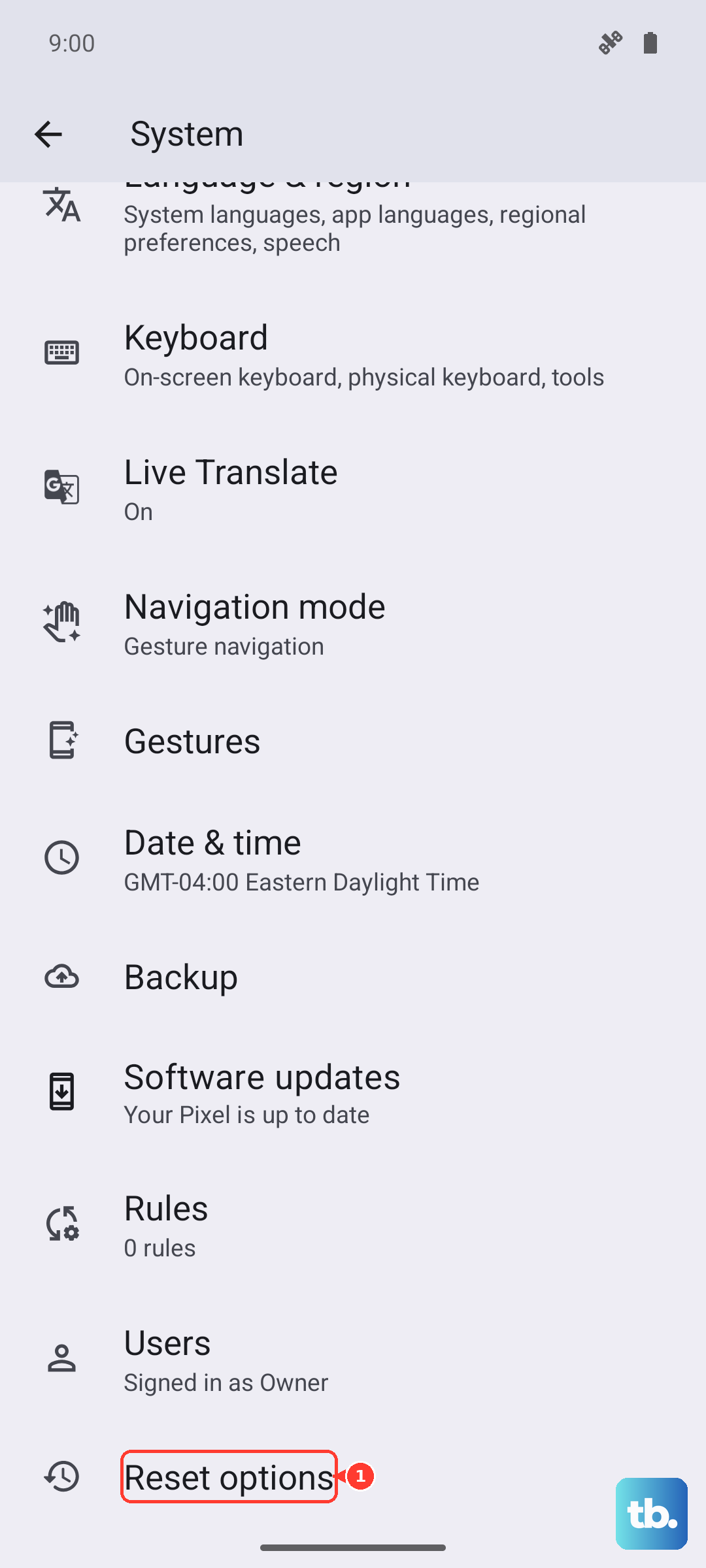
On most Android phones, you can find this under Settings > System > Reset options > Erase all data (factory reset). On an iPhone, it's in Settings > General > Transfer or Reset iPhone > Erase All Content and Settings. This final step protects your information.