Getting your new iPhone 15 set up is the first step to enjoying that USB-C port and improved camera. The process is designed to be smooth, whether you're upgrading from an older iPhone or switching from Android. You can have your apps, messages, and photos moved over in under an hour.
Use Quick Start for a Direct Transfer
This is the fastest method when you have both phones. Turn on your new iPhone 15 and place it near your old iPhone. A "Set Up New iPhone" card should pop up on your old device's screen. Tap Continue and then hold your old phone's camera over the swirling animation on the iPhone 15's screen.
You'll be prompted to enter your old iPhone's passcode on the new one to continue. After setting up Face ID, you'll see an option to Transfer from iPhone. Select it, and keep the two phones near each other and plugged into power. The transfer time depends entirely on how much data you have, but it usually takes between 20 minutes and a couple of hours.
Restore from an iCloud Backup
If your old phone isn't with you or you already wiped it, an iCloud backup is your best bet. First, verify a recent backup exists on your old device by going to Settings > [Your Name] > iCloud > iCloud Backup and checking the timestamp.
On your iPhone 15, proceed through the setup assistant until you reach the "Apps & Data" screen. Choose Restore from iCloud Backup, sign in with your Apple ID, and pick the most recent backup. Your phone will then download your data over Wi-Fi. I'd leave it plugged in and connected to Wi-Fi until everything finishes, as it can take a while.
Transfer Using a Mac or PC
For the most complete and often fastest transfer, use a computer. Connect your old iPhone to your Mac (with Finder) or Windows PC (with iTunes) and create an encrypted backup. Checking the "Encrypt local backup" box is crucial, it saves your passwords and Health data.
Once that backup is done, disconnect the old phone and connect your new iPhone 15 using its included USB-C cable. On the computer, select the option to restore from a backup and choose the one you just made. This cable-based method is typically much quicker than downloading from iCloud.
Moving Data from an Android Phone
Switching from Android? You'll need the "Move to iOS" app, available on the Google Play Store. On your iPhone 15, during the initial setup, tap Move Data from Android when you see the "Apps & Data" screen. A numeric code will appear on your iPhone.
Open the Move to iOS app on your Android phone, enter that code, and select what you want to bring over: contacts, message history, photos, videos, and mail accounts. Keep both phones on the same Wi-Fi network and plugged in until the transfer is complete. The process can take some time if you have a lot of photos.
Manually Moving Specific Items
Sometimes you only need to bring over a few things. For contacts and calendars, ensure they're synced to your iCloud or Google account, then simply sign into that account on your iPhone 15. For photos, iCloud Photos or Google Photos will sync your library automatically once you enable them.
To move your WhatsApp chats, use the app's own "Move Chats to iPhone" feature within its settings. You'll need to be on a relatively recent version of WhatsApp on your old phone for this to work.
What Usually Doesn't Come Over
It's good to know what might not make the jump. Apps that have been removed from the App Store won't reinstall. Any app data or game progress that wasn't backed up to that specific app's cloud service might be lost. Music or podcasts downloaded for offline listening in apps like Spotify or Apple Music will need to be downloaded again on the new device, though your library and playlists will sync.
Final Steps After Your Data Arrives
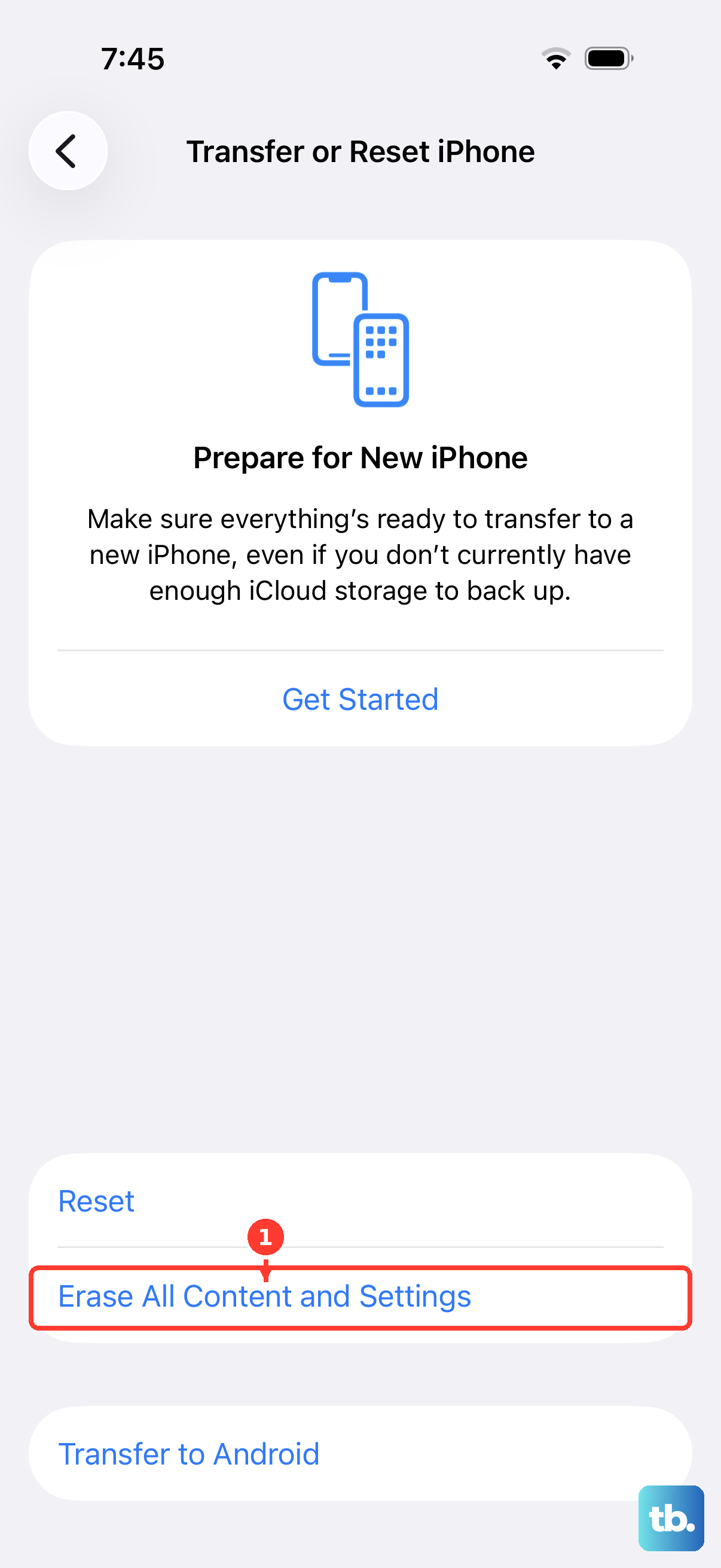
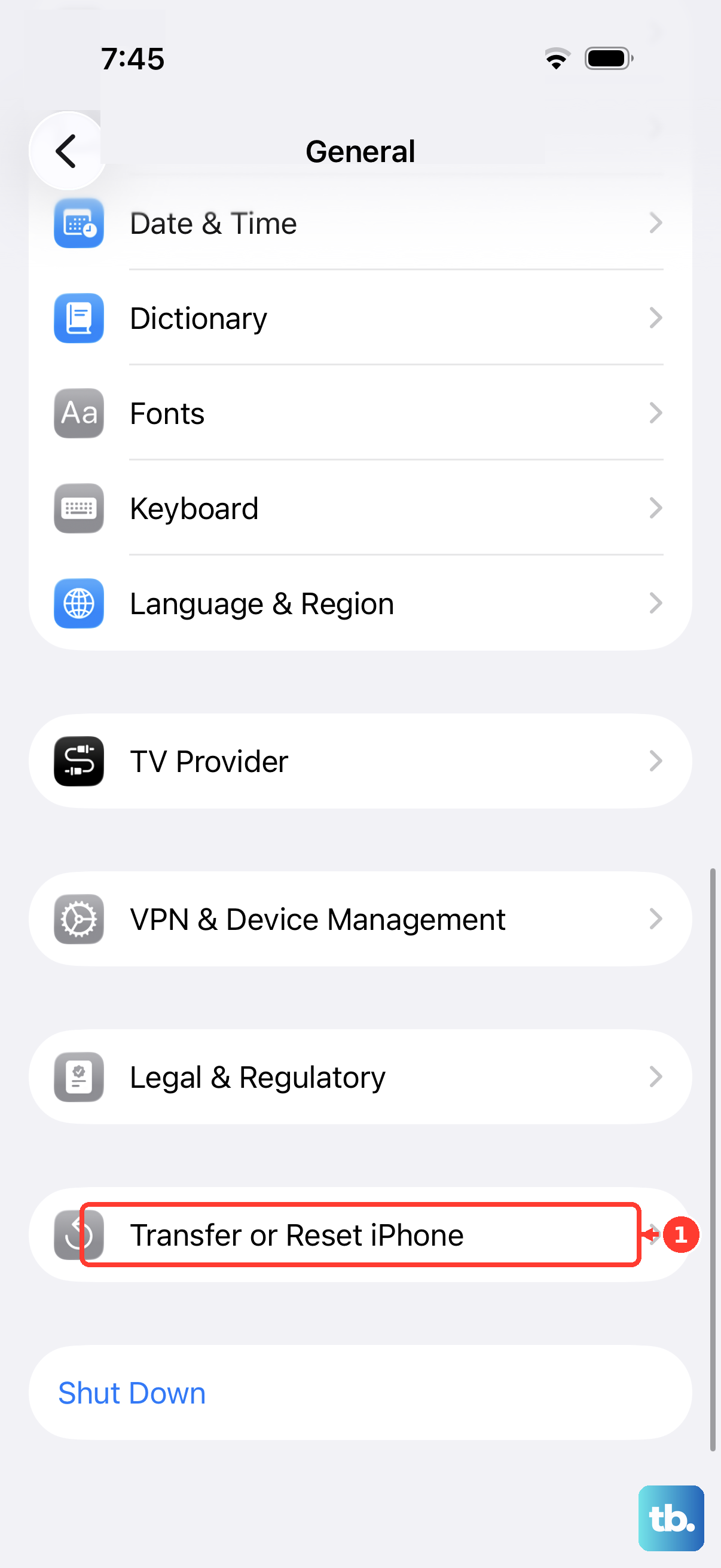
Once the transfer is done, take a few minutes to check that your key apps are present and working. You'll likely need to re-sign into banking apps, social media, and authenticator apps for security reasons. Finally, when you're absolutely sure everything is on your iPhone 15, you can securely erase your old phone by going to Settings > General > Transfer or Reset iPhone > Erase All Content and Settings.