You opened Microsoft Edge to read something, and the ads feel like they have been reading your mind. The same products you glanced at yesterday keep following you around, and the new tab page is stacked with shopping suggestions you never asked for.
The good news is that personalized advertising in Edge is controlled by a handful of toggles, not one. They live in three different places: inside Edge itself, in your Microsoft account, and in Windows. Turning off only one leaves the others feeding your profile.
Below are the verified methods, ordered quickest and most common first. Work down the list and stop when the ads stop targeting you. One important note up front: these settings make ads less relevant, not necessarily fewer in number. You will still see ads, just less tailored ones.
Turn Off Personalization and Advertising Inside Edge
This is the core setting and the first one to change. By default, Edge saves your browsing activity (history, usage, favorites, web content, and other browsing data) to personalize Microsoft services like ads, search, shopping, and news.
- 1.Open Microsoft Edge.
- 2.Select Settings and more, the three-dots menu in the top-right corner, then select Settings.
- 3.In the left pane, select Privacy, search, and services.
- 4.Find the Personalization & advertising section in the right pane.
- 5.Turn OFF the toggle that allows Microsoft to save your browsing activity to personalize Edge and Microsoft services like ads, search, shopping, and news.
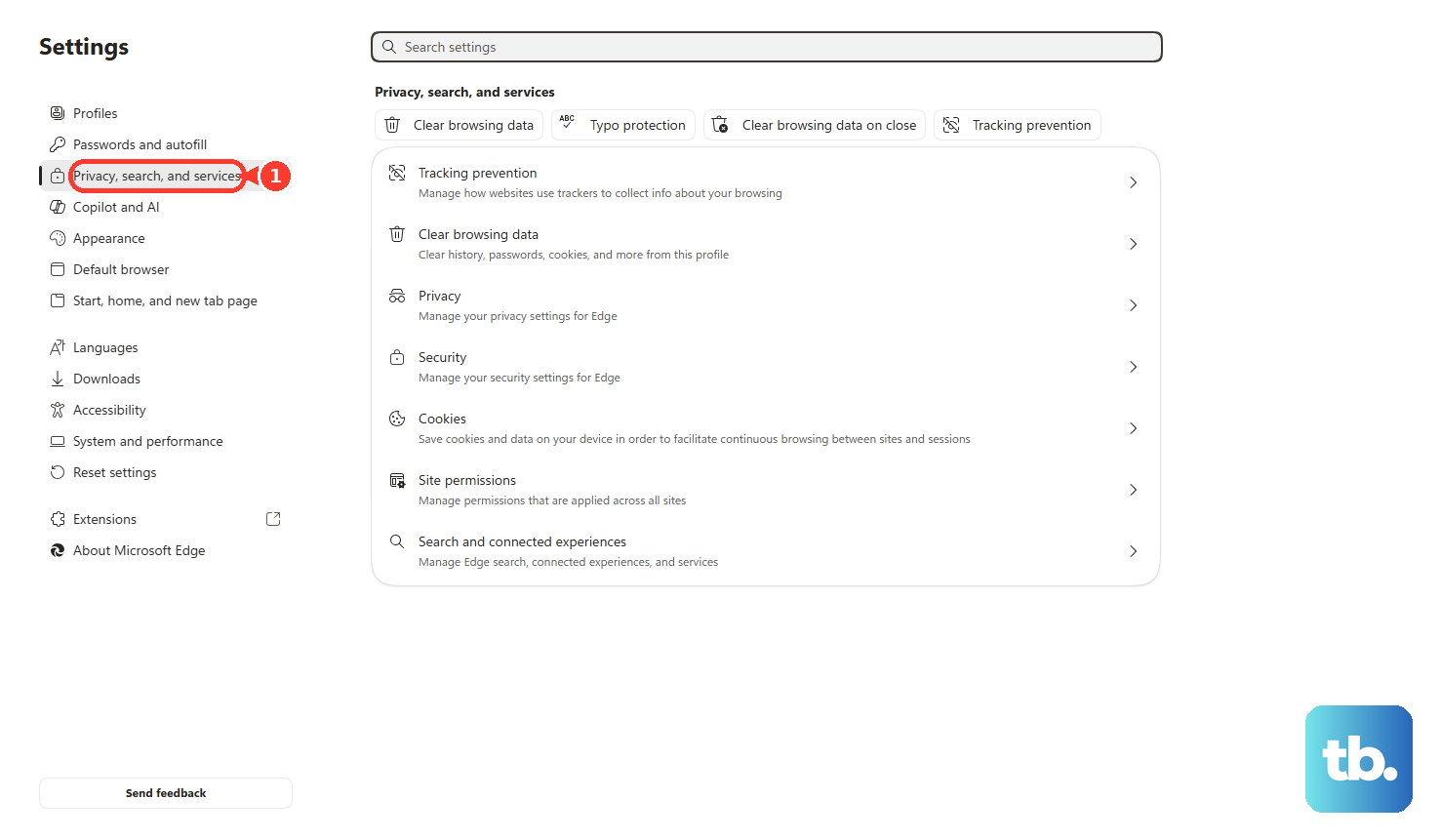
Per Microsoft, once you stop sharing this data, it will no longer collect and use your browsing activity for personalization of advertising or experiences from that point forward.
Switch Off "See Ads That Interest You" in Your Microsoft Account
This is the account-level control, and it is the most powerful single switch. It applies across every device where you are signed in with the same Microsoft account, not just one browser.
Go to the Microsoft privacy dashboard ad settings page at account.microsoft.com/privacy/ad-settings.
Sign in with your Microsoft account if prompted.
Turn OFF the See ads that interest you setting.
Here is how the two settings interact. If this dashboard setting is OFF, Microsoft will not use your data for personalized advertising regardless of whether the in-Edge Personalization & advertising control is on or off. However, turning off only the dashboard setting stops personalized advertising but does not stop the data collection used for search-result and news-feed personalization. For a complete opt-out, turn off both this and the Edge setting above.
One catch worth knowing: if you are not signed in when you set this, the choice is stored only as a cookie on that device and browser profile, and it persists for six months. Clearing cookies erases it, and you must redo it on every device and browser. Signing in saves the choice to your account until you change it.
Set Tracking Prevention to Strict
Tracking prevention controls how much cross-site trackers can personalize the ads and content you see. The default is Balanced, which still allows more personalization than the strictest option.
Go to Settings and more > Settings > Privacy, search, and services.
Under Tracking prevention, make sure it is turned On.
Choose a level. Basic blocks potentially harmful trackers but allows most others, including those that personalize content and ads. Balanced (Recommended) blocks harmful trackers and trackers from sites you have not visited, so content and ads will likely be less personalized. Strict blocks harmful trackers and most trackers across sites, so content and ads will likely have minimal personalization.
Select Strict for the least ad and content personalization.
If Strict breaks a site you trust, you do not have to abandon it globally. Add an exception via Tracking prevention > Exceptions > Add a site, or while on the site, select the lock icon (View site information), open the Tracking prevention dropdown, and set it to Off.
Disable Edge's Privacy-Preserving Ads (Where Available)
Edge has a newer ad system that places you into interest groups for private ad auctions instead of relying on third-party cookies. It is still rolling out, so the toggles may not appear for you. If they do, switch them off.
Go to Settings > Privacy, search, and services > Privacy.
Disable the Interest groups toggle to stop advertisers placing you into interest groups used by private ad auctions.
Turn off Ad measurement.
Per Microsoft, this feature is under development and is not available to all users in all markets, so do not worry if these controls are absent on your build.
Turn Off the Windows Advertising ID
Windows itself hands apps and ad networks a device-wide advertising ID, and this works independently of the Edge browser setting. Turning it off stops apps from using that ID to personalize ads.
Select Start > Settings.
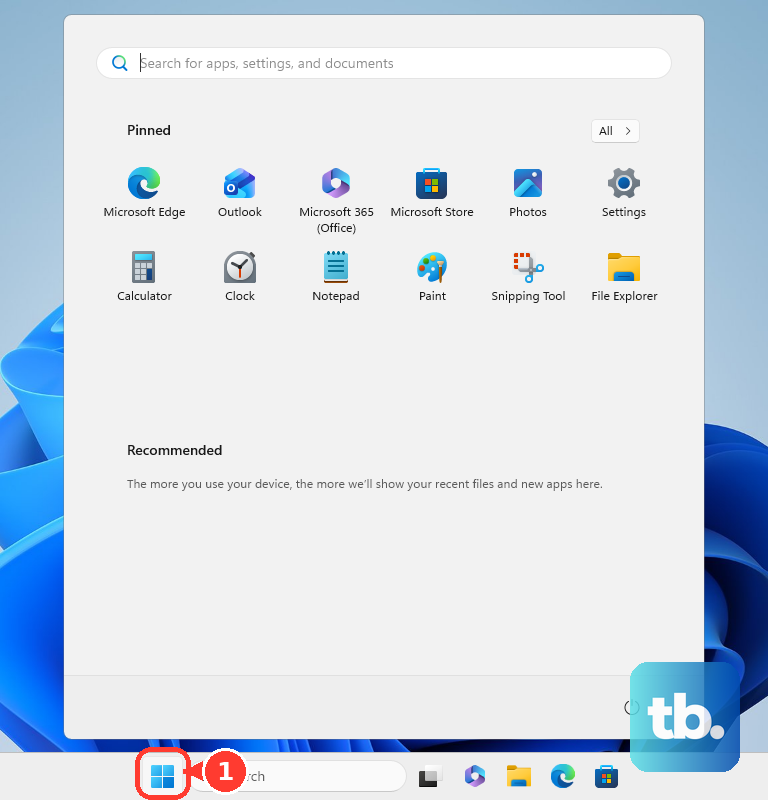
Go to Privacy & security > General.
Turn OFF Let apps show me personalized ads by using my advertising ID.
While you are on this page, consider turning off the other personalization toggles too: Let websites show me locally relevant content by accessing my language list, Let Windows improve Start and search results by tracking app launches, and Show me suggested content in the Settings app. These reduce personalized suggestions and ads at the Windows level, separate from Edge.
Note that in newer Windows 11 versions the General privacy page is being phased out and replaced by a Recommendations & offers privacy settings page; the same advertising-ID and suggested-content toggles live there. Per Microsoft, turning the advertising ID off will not reduce the number of ads you see, but it may mean the ads are less interesting and relevant.
Adjust the Ad and Feed Controls in the Edge Mobile App
On iOS and Android, open the Edge app, tap the three-dot menu (...), and select Settings. From there you can address ads and the personalized feed directly.
To block ads, go to Settings > Content blockers, enable Block ads, and turn off Allow acceptable ads for fully ad-free browsing. The built-in blocker allows "acceptable ads" by default, so this second step matters.
To reduce the personalized news feed on the start page, go to Settings > New tab page and turn off Show my news feed, or change the news source or region.
To block pop-ups, use Settings > Privacy and security > Block pop-ups. To clear stored data, use Settings > Privacy > Clear browsing data.
For account-level ad personalization on mobile, the most reliable step is the same as on desktop: turn off See ads that interest you on the Microsoft privacy dashboard while signed in, since that choice follows your account across devices.
Frequently Asked Questions
I turned the Edge personalization toggle off, but later it was back on. What happened?
Some users have seen the in-Edge toggle revert to On after leaving the settings page. If this happens to you, re-check the toggle after saving or after restarting Edge, and confirm it stuck. Pairing it with the account-level "See ads that interest you" opt-out gives you a more durable result, since that choice is saved to your account when you are signed in.
I disabled everything and added an ad blocker, yet the Edge new tab page is still full of ads. Why?
The ads on the Edge new tab page and feed are a separate surface from interest-based ad targeting, and they persist even after personalization is disabled. On mobile you can turn off the news feed under New tab page > Show my news feed; on desktop, the personalization opt-outs reduce targeting but do not remove every new-tab ad slot.
Will turning these settings off stop ads completely?
No. Per Microsoft, turning off the advertising ID does not reduce the number of ads, only how relevant they are, and the same caveat applies to disabling Edge personalization. You will still see ads; they will just be less targeted to you.
Is one toggle enough, or do I need both the account and the Edge settings?
You generally need both for a full opt-out. Turning off only the dashboard "See ads that interest you" stops personalized advertising but does not stop data collection used for search-result and news-feed personalization. Turn off the in-Edge Personalization & advertising setting as well to close that gap.
I opted out without signing in. Why did the setting disappear after I cleared my browser data?
When you are not signed in, the opt-out is stored as a cookie on that specific device and browser profile, and it lasts six months. Clearing cookies or browsing data erases it, so you must set it again. It is also per device and per browser, meaning you repeat it everywhere you are not signed in. Signing in with your Microsoft account avoids this by saving the choice to the account.
Where are the Interest groups and Ad measurement toggles? I cannot find them.
Those privacy-preserving ad controls are part of a feature Microsoft says is still under development and not available in all markets, so they may simply not appear on your version of Edge. If they are absent, rely on the core Personalization & advertising toggle, the account-level opt-out, and Strict tracking prevention instead.