
To set up parental controls on Hulu, sign in on the web, open your account's Profiles tab, select Add Profile, turn on Kids and select Create Profile, then switch on PIN Protection under Parental Controls on the same tab. With the PIN on, every non-Kids profile on the account asks for a PIN before it opens.
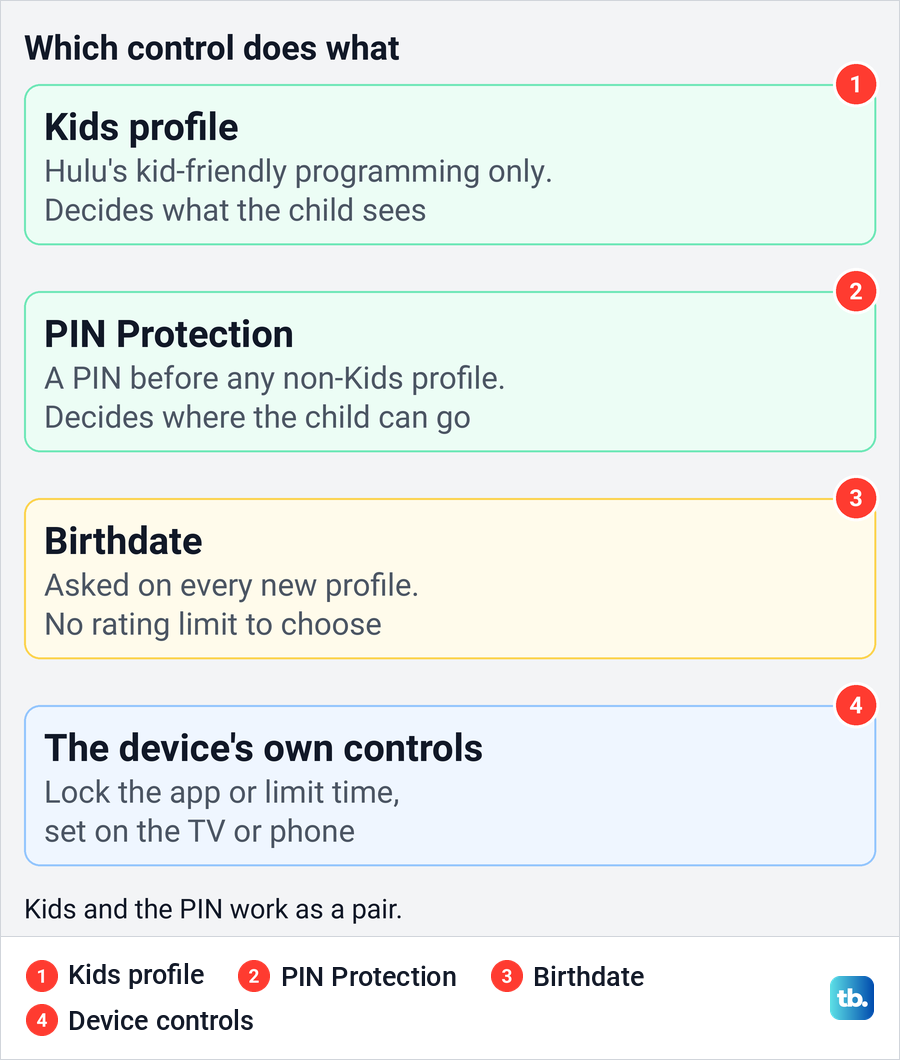
The two settings do different jobs, and a child needs both. The Kids profile decides what the child sees, while PIN Protection decides where the child can go. A Kids profile without the PIN is easy to leave, because nothing stops a child from switching to an adult profile that has no limits.
The short version
- Where: Hulu's Account page on the web, then the Profiles tab.
- For the child: Add Profile, turn on Kids, fill in the name and birthdate, then Create Profile.
- For everyone else: switch on PIN Protection so non-Kids profiles need a PIN.
- Birthdate: enter the real one, but it is not a rating setting you can tune.
- Time limits and app locks: set them on the TV or phone, not in Hulu.
Hulu parental controls at a glance
Hulu keeps its parental controls on one page. The Profiles tab of your account holds the profile list, the Add Profile tile and a Parental Controls section, and that is where both the Kids setting and the PIN live. Anything beyond that, such as screen time or locking the app itself, comes from the device the child watches on.
| What you want | Where to set it | What it does |
|---|---|---|
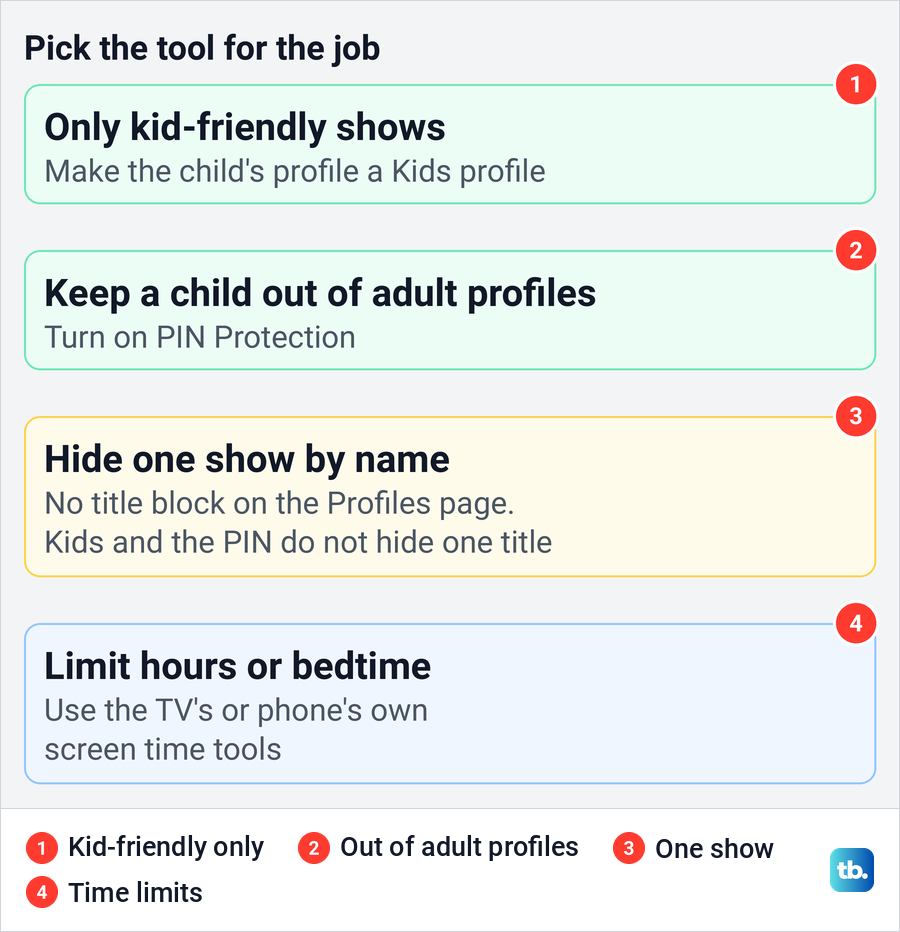
| Only kid-friendly shows for a young child | Account > Profiles > Add Profile > Kids | Limits that profile to Hulu's kid-friendly programming |
| Keep children out of other profiles | Account > Profiles > Parental Controls > PIN Protection | Asks for a PIN before any non-Kids profile opens |
| Tell Hulu the viewer's age | Birthdate in the Create a New Profile form | Recorded on the profile, but not a rating limit you choose |
| Limit hours or lock the Hulu app | The TV's or phone's own parental controls | Controls app access or viewing time outside Hulu, on the devices the maker's settings cover |
None of these settings touches billing. If the real aim is to stop paying for Hulu rather than to manage what a child watches, follow the steps to cancel your Hulu subscription instead.
Open the Profiles tab on Hulu
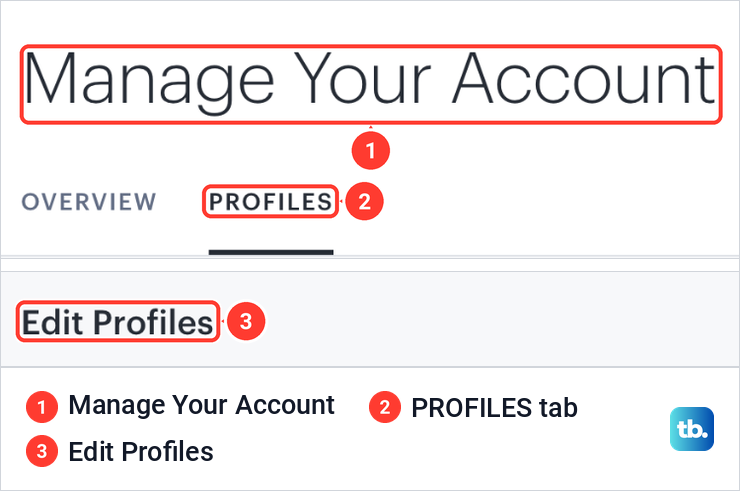
The simplest place to set Hulu's parental controls is the account page in a web browser. On Hulu's website, select your profile icon at the top right and choose Account, or go straight to the Profiles tab of your Hulu account and sign in if Hulu asks.
On Hulu.com in Chrome, the account page we opened was titled Manage Your Account, with two tabs, Overview and Profiles. The Profiles tab opened on an Edit Profiles heading, with a tile for each profile and a pencil button on the tiles.
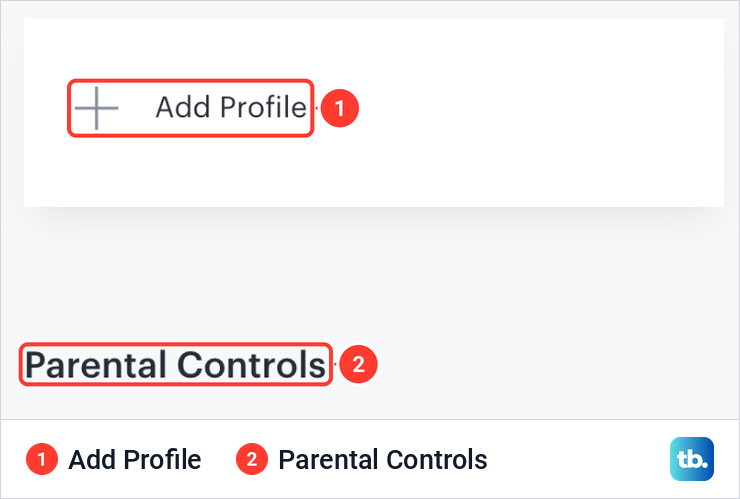
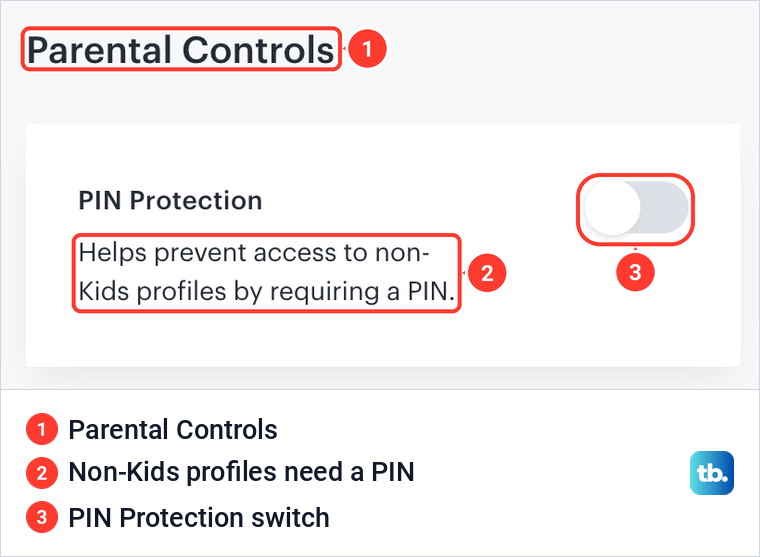
Scroll to the end of the same tab. Below the profile tiles we found an Add Profile tile, and under it a Parental Controls heading with a single card, PIN Protection, and a switch beside it. That one card is the whole Parental Controls section on the web, so there is no rating slider or blocked-titles list to hunt for.
Create a Kids profile for your child
Select Add Profile to start. On our screen it opened a form titled Create a New Profile, with a Profile Name box, a Kids switch labelled "Turn on to watch only kid-friendly programming", a Birthdate picker with Month, Day and Year menus, and a Gender menu.
Type a name the child will recognize on the profile list, then turn on the Kids switch. That switch is the control that matters. When Hulu introduced profiles in 2016, it described the Kids profile as a place where young viewers could browse freely without running into mature content, and the switch's own label still promises kid-friendly programming only.
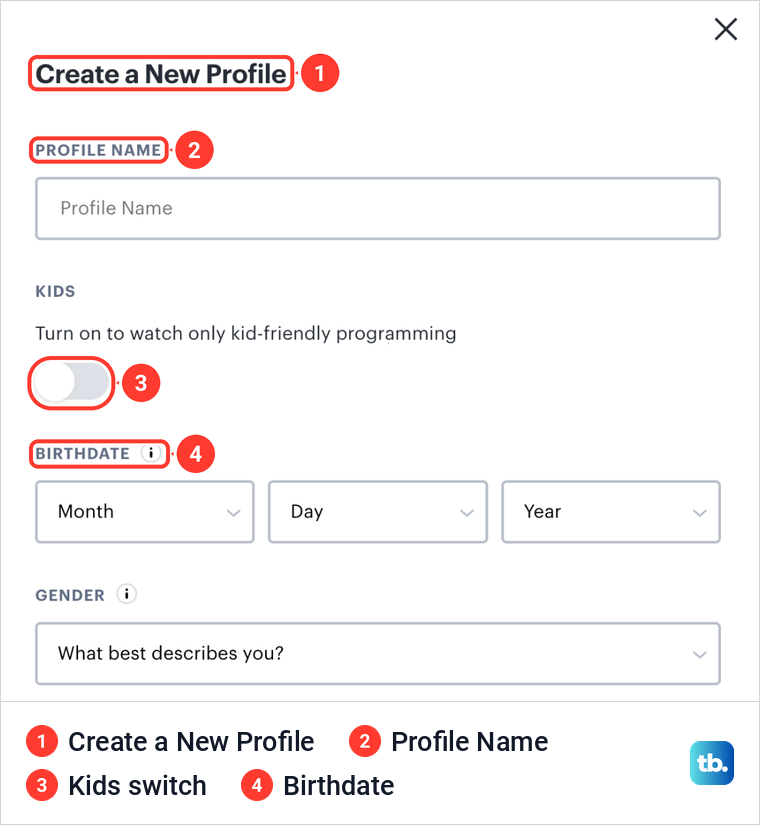
Fill in the child's real birthdate and choose an answer in the gender menu, which asked "What best describes you?" on the form we opened. Lower down, the same form had a Playback Settings section where Autoplay Previews read On, with the line "Automatically play content previews in this browser." Switch it off if you would rather previews did not start by themselves on that browser.
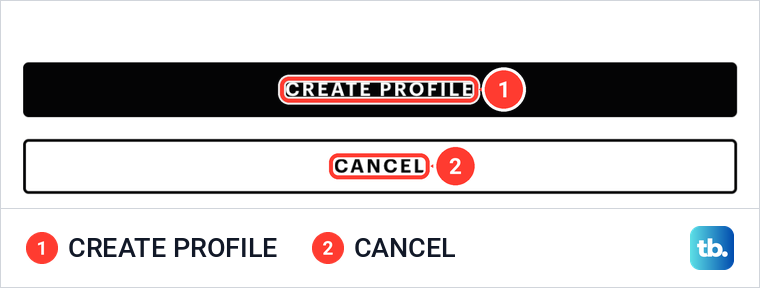
Finish with Create Profile at the bottom of the form. Cancel below it closes the form without adding anything, and when we used it, the Profiles tab was left exactly as it was. Hulu's launch announcement for profiles said each one keeps its own viewing history, recommendations and Watchlist, so a new Kids profile should start without anything an adult has watched.
Change a profile your child already uses
If the child has been watching on an ordinary profile, you have two ways to go. The profile tiles under Edit Profiles carry a pencil, and the same launch announcement said profiles could be edited as well as created, on the web or in Hulu's app. Select the pencil on the child's profile, turn on Kids there if the switch is offered, and save.
The other way is often cleaner. Add a new Kids profile as above and have the child use that one from now on. Their old profile keeps its history and recommendations, which may lean toward shows you would rather they skipped, and once PIN Protection is on, it sits behind the PIN like every other non-Kids profile.
Turn on PIN Protection
PIN Protection is the second half of the setup. Go back to the Profiles tab, scroll past Add Profile to Parental Controls and switch on PIN Protection. Create the PIN when Hulu asks for it, and pick one a child will not guess, so avoid birthdays and 1234. The switch stays on the same card afterwards, so the Profiles tab is where you come back to turn PIN Protection off.
The card states its scope in one line, which on our screen read "Helps prevent access to non-Kids profiles by requiring a PIN." That wording matters. The PIN is not tied to one profile you choose; it stands in front of every profile that is not a Kids profile, while Kids profiles stay open.
The switch lives on the account page, so a child who can sign in to Hulu on the web can reach it too. On a shared computer, sign out of Hulu when you are done, and manage passwords and autofill in your browser so a saved login cannot sign a child back in. Keep the PIN and the account password to yourself.
What the Hulu PIN protects and what it does not
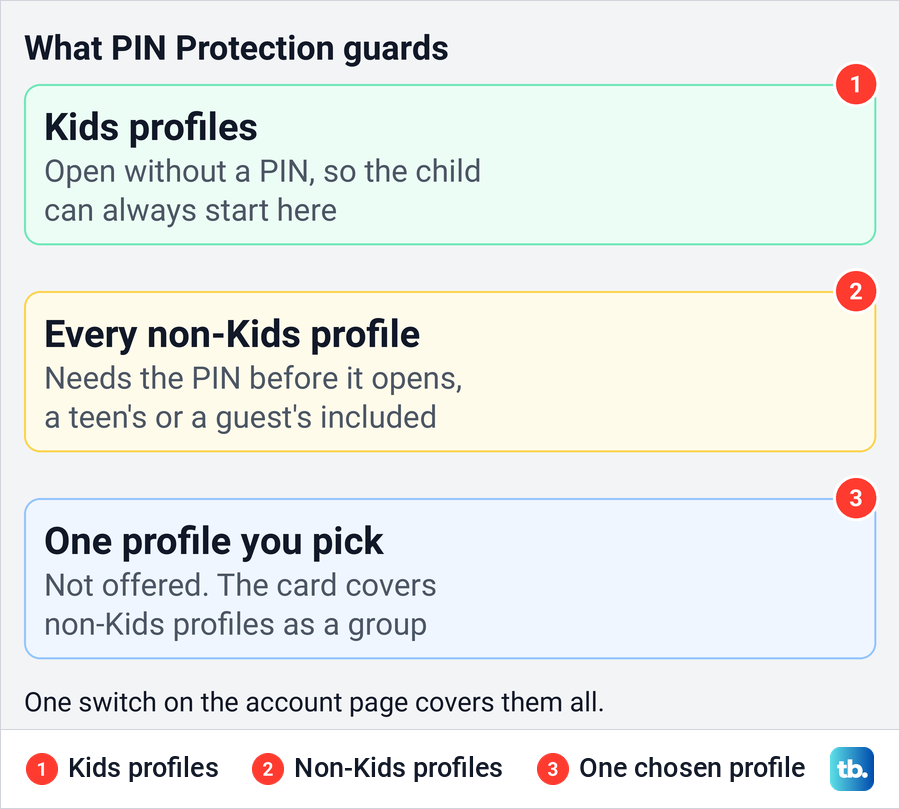
Think of the PIN as a gate between two groups of profiles. Kids profiles sit on one side, and every other profile sits on the other, including a teenager's profile or one a guest made. The gate is the same for all of them, so this card offers no way to lock only your own profile and leave a teen's open.
The PIN controls entry, not content. It does not change what a non-Kids profile can show once it is open. If an older child has a non-Kids profile of their own, they need the PIN to reach it, and sharing the PIN with them opens every other non-Kids profile as well.
The PIN also has two limits. It guards profiles inside Hulu, not the Hulu app or the device, so it does nothing about how long a child watches. It also does not reach the Disney+ app, which has its own profiles and settings, as the section on TVs and phones below explains.
What the birthdate does on a Hulu profile
Every new profile asks for a birthdate, and on the form we opened the label had an information icon beside it. Enter the child's real date, and turn on the Kids switch when you need kid-friendly programming, because that switch is the one the form ties to what the profile shows.
What the date changes is less clear than many guides suggest. Guides online disagree about the age at which a regular profile hides mature titles, and the form itself has no rating limit to choose. Enter the real birthdate, but do not assume a regular teen profile hides mature titles, and use Kids when the goal is to keep mature shows away from a child.
That leaves a gap for teenagers. A profile is either a Kids profile or not, and the form we opened had nothing in between. For a teen who has outgrown Kids, a regular profile with their real birthdate is the option the form gives, and the device's own controls can add limits on top.
Can you block a specific show on Hulu
Not from the Profiles page. The Parental Controls section we found had one card, PIN Protection, and the Create a New Profile form had no field for a show's name or a rating. Hulu's controls work at the level of the profile, so the choice is about which profile a child uses, not which titles that profile can play.
Neither control is a block for one chosen show. A Kids profile limits the catalog to kid-friendly programming, so a show you object to can still appear there if it counts as kid-friendly. PIN Protection only guards entry to non-Kids profiles, so on a regular profile every title that profile can see stays available. If one show is the worry, decide which profile the child uses and stay involved in what they watch.
Hulu profiles on a TV, phone or the Disney+ app
The setup happens once on the web, and the child then picks their profile on whatever device they use. When Hulu launched profiles, it said they could be created, edited and deleted in its app as well as on the web. On the child's TV or phone, open Hulu, choose the Kids profile and leave it there.
If the TV has been signed out, sign it back in first. A TV that shows an activation code can stall at that step, and our steps to fix a Hulu activation code that will not work cover it. If the app opens but will not load the profile list, use the steps to fix Hulu when it is not working on a TV.
Hulu also appears inside the Disney+ app, and there the Disney+ settings apply. Disney's help says Hulu content in Disney+ reflects the Disney+ profile's content rating. If your child watches through Disney+, set up their profile there as well.
On a Disney bundle, both apps need to open before any of this helps. If one of them refuses, our guide to fix Hulu access with the Disney bundle handles the activation side first.
Add device controls where Hulu stops
Hulu's controls work inside Hulu, and the device adds a second layer. That layer matters most for time limits and for locking the app itself. Each maker documents its own tools, and the steps below follow their instructions.
Roku is the trap here. Roku's help says its parental controls apply only to The Roku Channel and Howdy on the device, not to the website, the mobile app or other streaming services. A Roku PIN therefore does not filter Hulu, so set Hulu's own controls even if the Roku already has a PIN.
Google TV can make a kids profile for the TV itself, where Google says you choose which apps the child can use, set bedtime reminders and limit screen time. Google's route for a daily limit is All settings, Accounts & Profiles, the kid's profile, then Screen time and Daily limit. Google also notes that apps may offer their own content restrictions, which for Hulu means the Kids profile.
On a Samsung TV, Samsung's help lets you lock an app behind the TV's PIN through Apps, Settings, the app, then Lock/Unlock. Samsung says the default PIN is 0000 and should be changed. For Apple TV, Apple says to restrict content outside its own TV app inside each app, or in the Apps section of Settings.
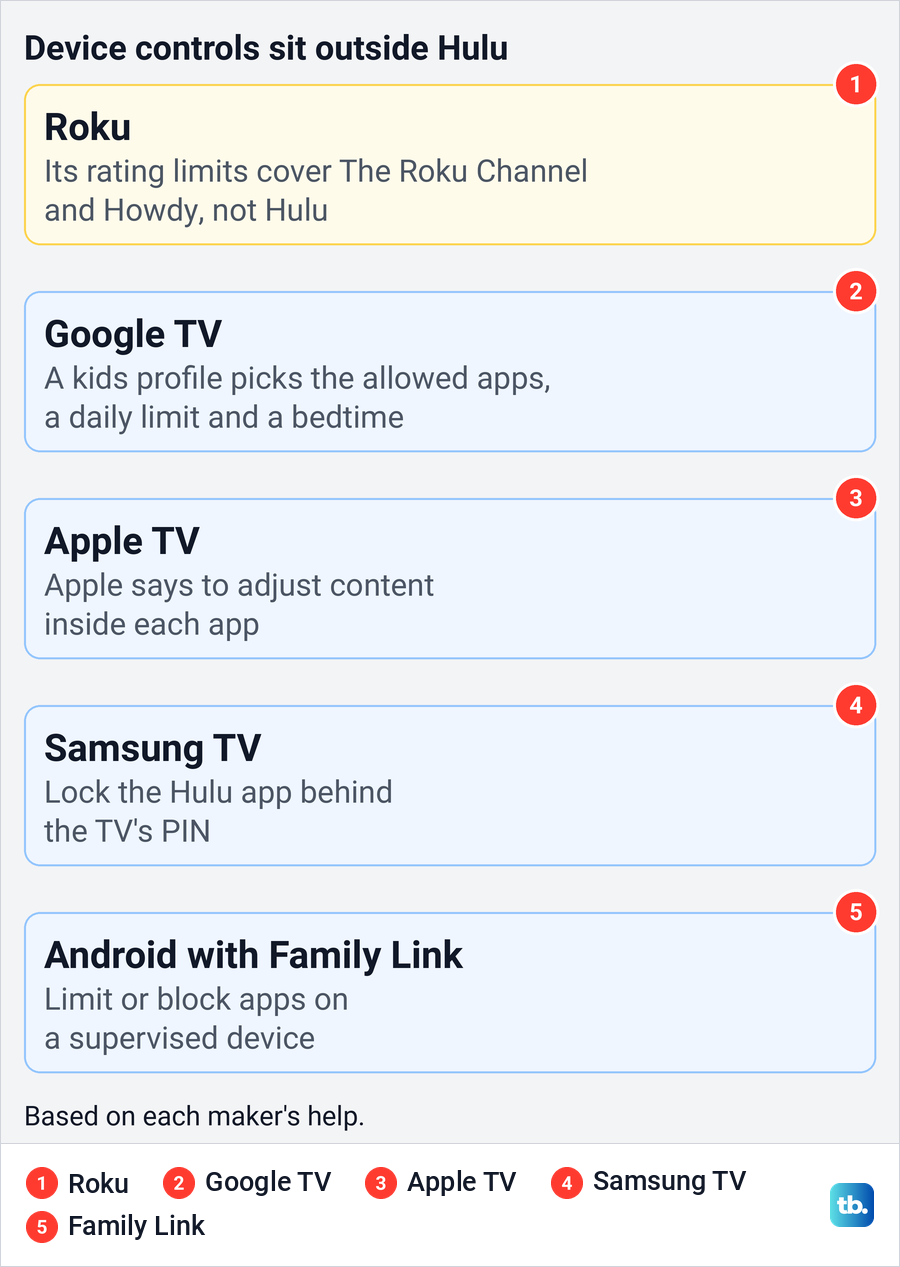
On phones, Google's Family Link lets a parent limit or block the apps a child can use on a supervised Android device, and you can check screen time on Android to see how long Hulu stays open. For an iPhone or iPad, one route is to set up Family Sharing on iPhone and add the child's account. Family Sharing on its own sets no limit; Apple's iPhone guide puts schedules and time allowances under Screen Time.
Check that the setup works
A quick check on the child's own device shows whether the setup took. Open the Kids profile and look through the home rows, then search for a show you know is meant for adults. Hulu limits a Kids profile to kid-friendly programming, so that show should not be offered.
Next, try to switch from the Kids profile to a non-Kids one, which should bring up a request for the PIN. Then, on the web, look over the Profiles tab now and then for any profile you did not add.
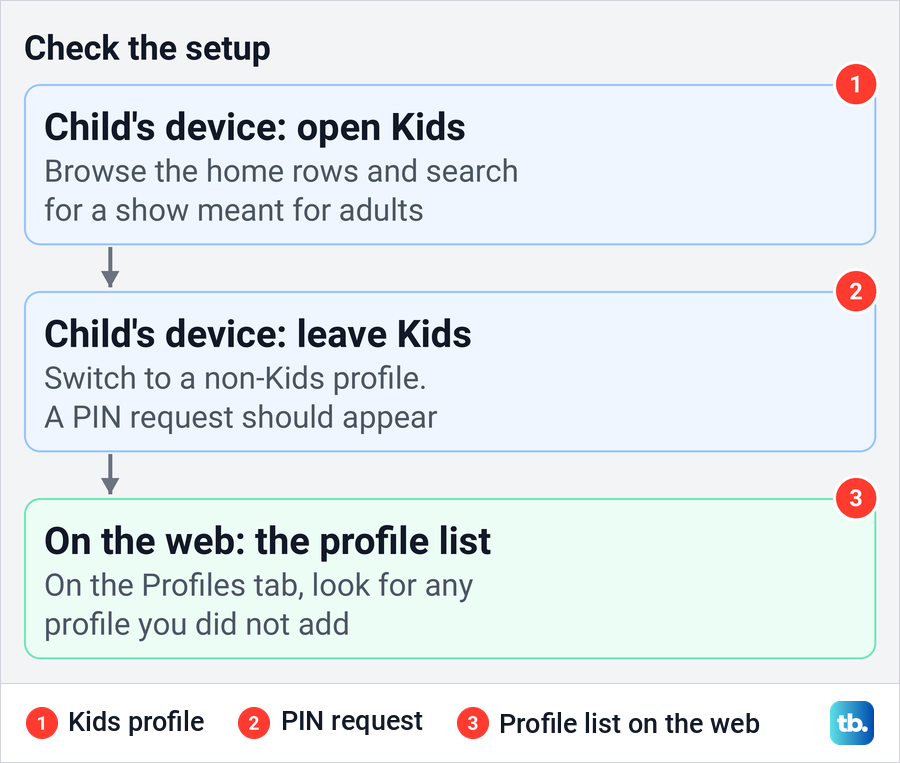
If a profile appears that nobody at home made, or settings change without anyone touching them, treat it as an account problem and recover a Hulu account someone else accessed. For a device the child should no longer use, our guide to sign out of Hulu on all devices also covers removing a single device.
How we tested this guide
We tested this on Hulu on the web in Chrome, going through the account's Profiles tab and the Create a New Profile form up to the Create Profile button and the PIN Protection switch.
Frequently Asked Questions
How do I put parental controls on Hulu?
Sign in on the web, open the Profiles tab of your account and use Add Profile to make a profile with the Kids switch on. Then turn on PIN Protection under Parental Controls on the same tab, so non-Kids profiles need a PIN.
Can I lock just one Hulu profile with a PIN?
No. The PIN Protection card says it helps prevent access to non-Kids profiles, so it covers every profile that is not a Kids profile at once, rather than one you pick.
Can I set a rating limit for a teenager on Hulu?
The Create a New Profile form has a Kids switch and a birthdate, with no rating choice between them. A teen who has outgrown Kids gets a regular profile, so add the device's own controls if you want more than that.
Can I block a specific show on Hulu?
The Profiles page has no field for blocking a title. A Kids profile limits the catalog to kid-friendly programming and PIN Protection guards entry to non-Kids profiles, but neither guarantees that one chosen show is hidden.
Does a Roku PIN stop my child watching Hulu?
No. Roku says its parental controls apply to The Roku Channel and Howdy, not to other streaming services, so set up a Kids profile and PIN Protection in Hulu as well.
Does a Hulu Kids profile work in the Disney+ app?
Inside the Disney+ app, Disney says Hulu content follows the Disney+ profile's content rating. Set up the child's Disney+ profile there too, alongside the Hulu Kids profile.
How do I know PIN Protection is working?
On the child's device, open the Kids profile and try to switch to a non-Kids profile. A request for the PIN should appear before that profile opens.