Forgetting the password to an AOL Mail account feels like getting locked out of your own house, especially when years of messages, contacts, and important attachments sit just behind that login screen. The good news is that AOL Mail still has a working, official recovery path, and you do not need to call anyone or pay for help to use it. As long as you have access to the recovery phone number or alternate email on your account, you can usually be back in within a few minutes.
For the reset itself, a browser based strong password generator builds a long random password in one click. It runs entirely on your device, so the new password is never transmitted anywhere.
This guide walks you through resetting an AOL Mail password from start to finish, covers what to do when the reset will not cooperate, and shows you how to keep this from happening again. The recovery flow centers on confirming you are really the owner of the account.
Start With the AOL Sign-in Helper
The first stop for any locked-out account is the AOL Sign-in Helper, AOL's official password reset and account recovery tool. On the AOL sign-in page at login.aol.com, enter your username or email address and click Next. On the password screen, click 'I forgot my password' and follow the verification steps to set a new password.
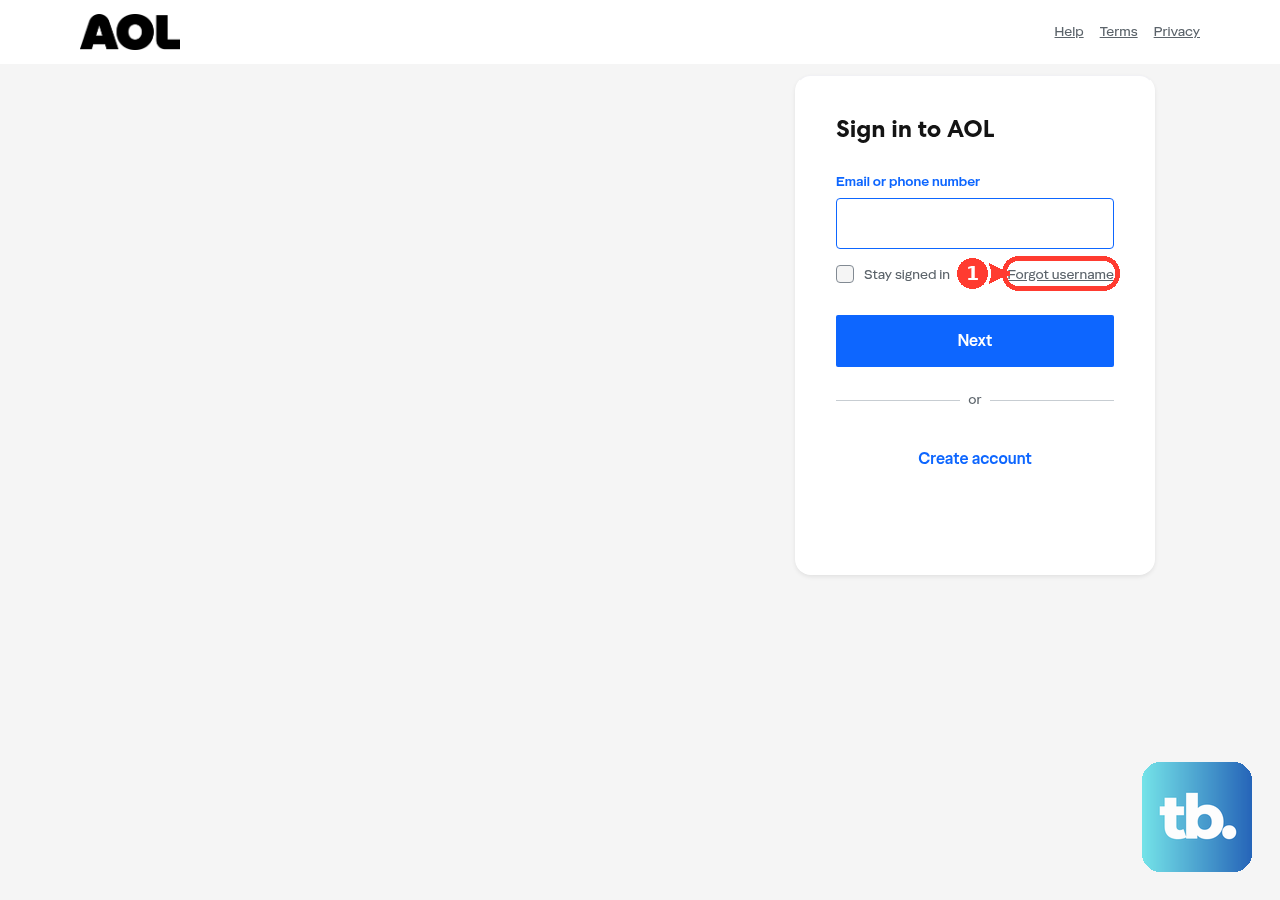
Use the Sign-in Helper rather than guessing your old password over and over. Repeated failed attempts can slow you down and, in some cases, trigger extra security checks. Going straight to the recovery tool is faster and cleaner.
Identify Your Account and Confirm It Is You
Once the Sign-in Helper loads, it needs to figure out which account you are trying to recover and prove that you own it. The process leans entirely on the recovery details already attached to your account, so have them ready before you begin.
- 1.Enter one of your account recovery items, such as your AOL username, your recovery mobile number, or an alternate email address you previously added to the account. Then select Next.
- 2.Make sure you actually have access to the recovery phone number or alternate email on file, because that is how AOL confirms your identity.
- 3.Wait for AOL to send a verification code to the recovery phone number or alternate email address you provided.
- 4.Enter the code to confirm your identity, then follow the remaining on-screen instructions in the Sign-in Helper to regain access and set a new password.
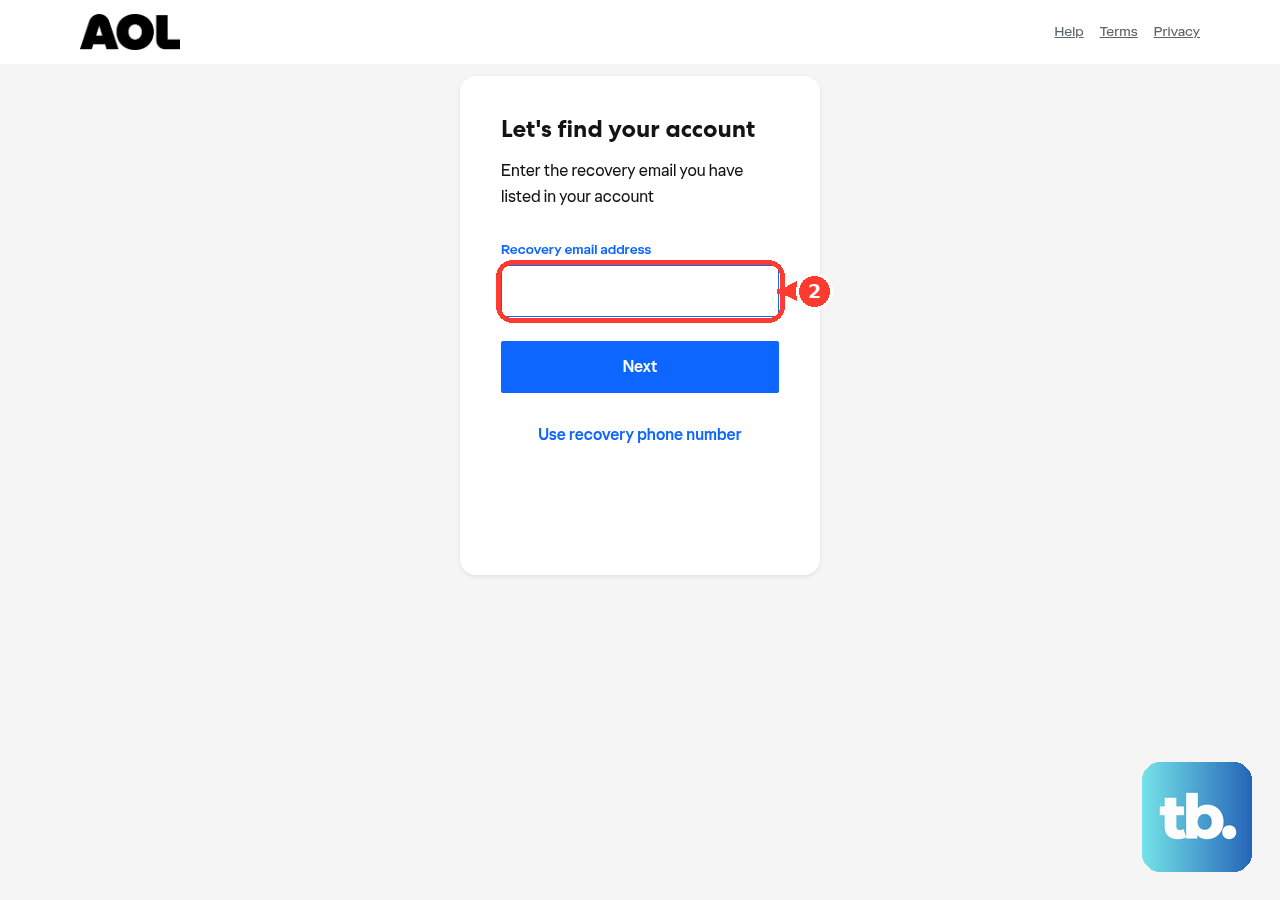
If you have more than one recovery item on file, you can usually pick whichever one is easiest to reach right now. The key point is that the verification code goes to whatever recovery contact AOL has stored, so choose the one you can open immediately.
Set a New Password From the Account Security Page
Once you are back in, you can use the new password you set during recovery. If you want to change it again, you can do that directly from your account settings.
- 1.Open the AOL Account security page in a browser from your account settings after signing in.
- 2.Click Change password.
- 3.Enter a new password.
- 4.Confirm to save the change.
Pick something you have not used on this account before and that you can actually remember or store in a password manager. A fresh, unique password matters most if you suspect anyone else may have touched the account recently.
Change Your Password Inside the AOL Mobile App
If you do most of your email on your phone, you can update the password without ever opening a desktop browser. The path is a little buried, but it works from most AOL mobile apps. Tap the Menu icon, then Manage Accounts, Account info, and Security settings. Enter your security code, then tap Change password.
If the in-app steps do not work for any reason, change your password from a mobile browser instead. In other words, open the AOL Account security page in your phone's web browser and follow the same browser steps described earlier. It reaches the same place by a more reliable route.
When the Reset Will Not Take: Invalid Password and Sign-in Loops
Sometimes the password is correct but the sign-in still refuses to go through. Two of the most common roadblocks are an "Invalid password" error and a frustrating sign-in loop that keeps bouncing you back to the login screen. Each has its own short checklist.
Fixing an "Invalid password" error
An "Invalid password" message often comes down to something small on your end rather than a problem with the account itself.
- 1.Check that Caps Lock and Num Lock are both off, since either one can quietly change what you type.
- 2.Update your browser's autofill or saved password, because an old saved password can keep overriding the new one you just set.
- 3.Try a different supported web browser to rule out a browser-specific glitch.
Breaking out of a sign-in loop
A sign-in loop is when you enter valid credentials but the page sends you right back to sign in again. Work through these steps in order.
- 1.Enter your username on the sign-in page, click Not you?, then enter your username and password and click Sign in.
- 2.If that fails, clear your browser cookies and try signing in again. If it still fails, quit and restart the browser, then try again.
- 3.If it still loops, try a different supported browser.
If you suspect someone else may have changed your password, do not keep guessing. Use the Sign-in Helper again to reset access and secure the account, then update the password to something new.
Lock In Easier Resets for Next Time
The entire Sign-in Helper process depends on having a recovery phone number or alternate email that you can actually reach. If those details are wrong or inaccessible, you may not be able to regain access to your account. The fix takes only a minute while you still have access.
- 1.Open the AOL Account security page in a browser from your account settings.
- 2.Scroll to the bottom of the page.
- 3.Click Add email or Add phone number.
- 4.Follow the on-screen prompts to enter and verify the new recovery info. To replace an old contact, add the new one first, then click remove next to the old recovery option and confirm with Remove email or Remove phone.
Verifying the recovery contact right away is what makes it usable later, so do not skip the confirmation step. With a current phone number and a backup email in place, a forgotten password becomes a quick reset rather than a real crisis. It is the single best thing you can do today to protect tomorrow.
Frequently Asked Questions
Where do I go to reset an AOL Mail password?
Start at the AOL sign-in page at login.aol.com, enter your username or email address, and click Next. On the password screen, click 'I forgot my password' to begin recovery with the AOL Sign-in Helper, AOL's official password reset and account recovery tool.
What do I need before I start the recovery?
You need access to one of the recovery items already on the account, such as your AOL username plus a recovery mobile number or an alternate email address you previously added. AOL sends a verification code to that phone number or email to confirm your identity, so you must be able to open it.
Can I change my AOL password on my phone instead of a computer?
Yes. From most AOL mobile apps, tap the Menu icon, Manage Accounts, Account info, and Security settings. Enter your security code, then tap Change password. If the app steps do not work, change your password from a mobile browser instead.
Why does AOL keep rejecting my password as invalid?
Start by checking that Caps Lock and Num Lock are off, since either can change what you type. Then update your browser's autofill or saved password so an old one is not overriding the new password, and try a different supported web browser if the error persists.
How can I avoid getting locked out again?
Keep your recovery information current. Sign in to the AOL Account Security page, scroll to the bottom, and click Add email or Add phone number. Follow the prompts to enter and verify it. To replace an old contact, add the new one first, then click remove next to the old option and confirm with Remove email or Remove phone.