Pinning a chat on Snapchat keeps your most important conversations locked to the top of your Chat screen so you never have to scroll to find them. A pinned chat stays put even when newer Snaps and messages roll in from other friends, which makes it perfect for a best friend, a partner, or a busy group.
This guide covers the fastest way to pin a chat, how it works on iPhone, what Android users should know, and how to handle the 3-chat pin limit. Every step here matches Snapchat's current chat menus, and we flag anything that depends on your platform.
The Fastest Way to Pin a Chat
The quickest method takes one long-press. Open Snapchat and swipe right from the Camera screen to reach your Chat screen, then press and hold the friend or group you want to keep on top.
When the menu appears, tap Chat Settings, then tap Pin Conversation. The chat jumps to the top of your list with a pin icon next to the name, and it stays there until you unpin it.
That is the entire process. The section below walks through the same flow step by step, with the exact menu path to follow.
Pin a Chat From the Chat List
This is the standard route and the one most people use. It works directly from your list of conversations without opening a chat first.
- 1.Open Snapchat and swipe right to the Chat screen, or tap the Chat icon
- 2.Find the friend or group you want to pin
- 3.Press and hold the conversation until the menu appears
- 4.Tap Chat Settings
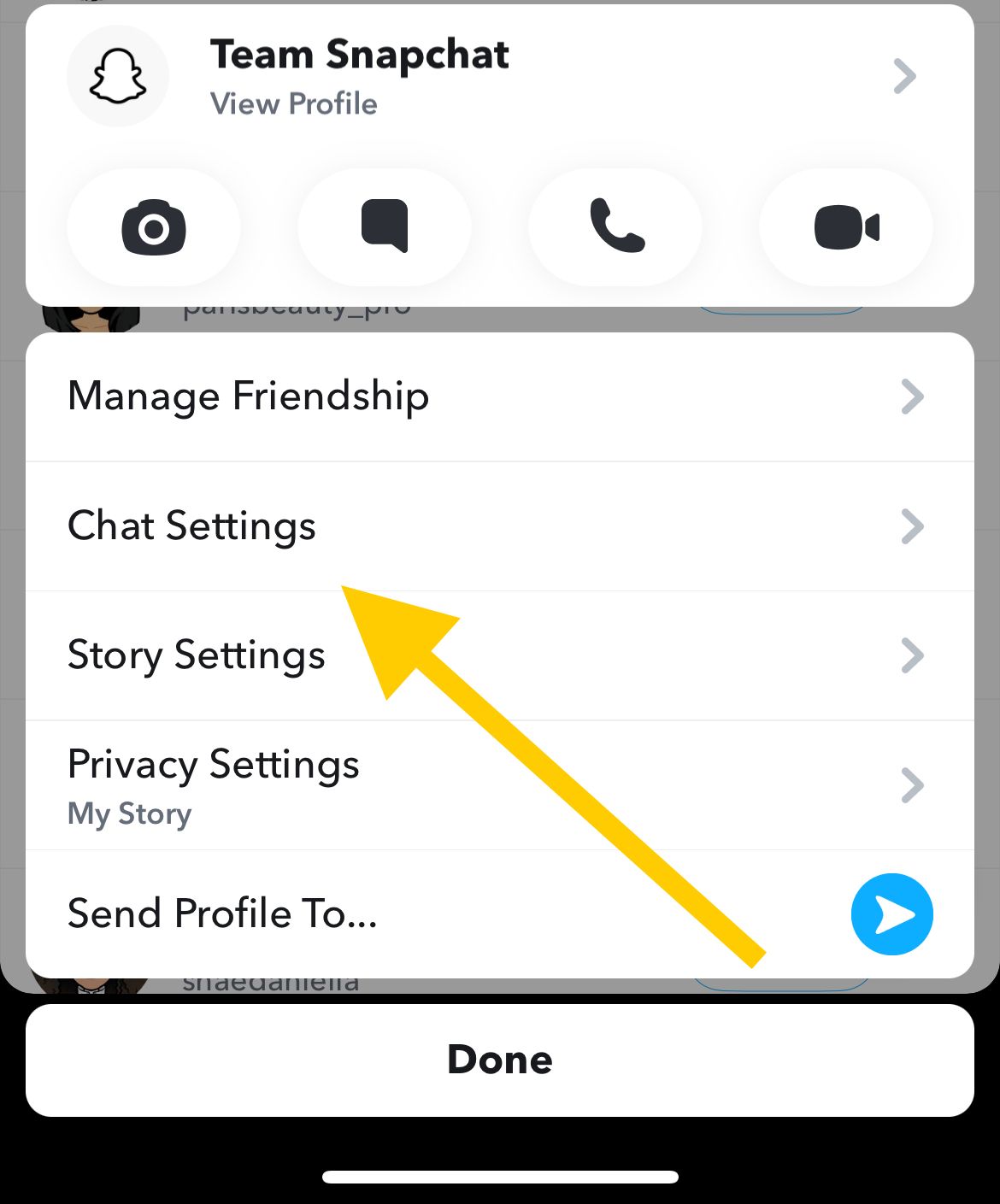
- 1.Tap Pin Conversation
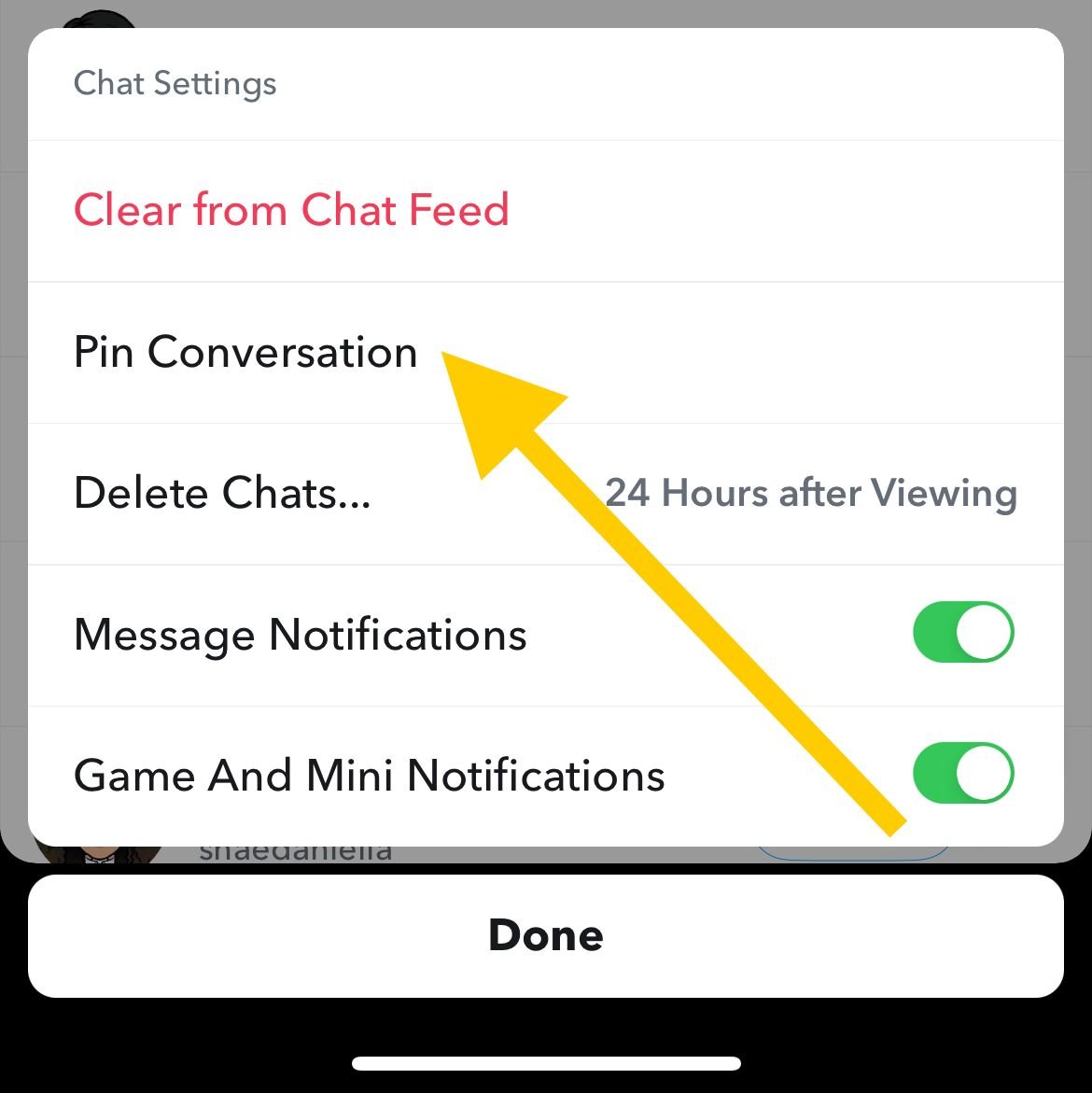
The conversation immediately moves to the top with a pin icon beside the name. The path is Press and hold > Chat Settings > Pin Conversation.
Open Chat Settings From Inside a Conversation
If you already have the chat open, you can reach the same controls without backing out to the list. Snapchat keeps the conversation tools behind the name at the top of the screen.
- 1.Open the chat you want to manage
- 2.Tap the contact or group name at the top of the screen
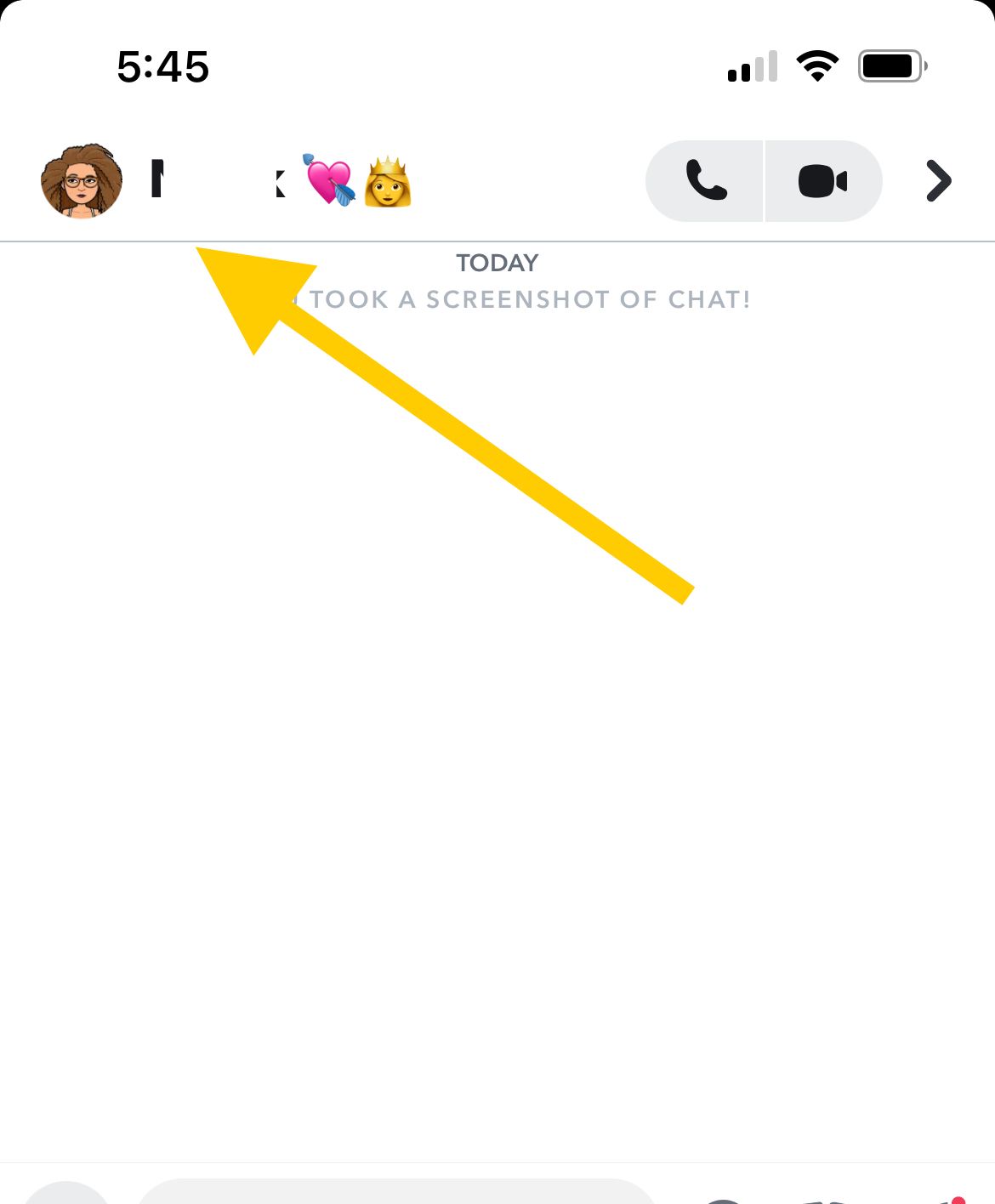
- 1.Open Chat Settings from the menu that appears

From there the controls match the press-and-hold menu. The most reliable way to pin, though, is the long-press route from the Chat list described above, since that is the path Snapchat documents.
How to Pin a Group Chat
Group chats pin exactly the same way as individual friends. Snapchat treats a group like any other conversation, so the long-press menu and settings path are identical.
Press and hold the group on your Chat screen, tap Chat Settings, then tap Pin Conversation. The group moves to the top with the pin icon, and it counts toward the same 3-chat limit as your one-on-one pins.
How Many Chats You Can Pin
Snapchat lets you pin up to three conversations at once. That total is shared across individual friends and group chats combined, so three is the hard ceiling no matter how you mix them.
If you try to pin a fourth conversation, Snapchat blocks it because you have reached the limit. There is no setting or workaround to raise the cap beyond three.
To make room for a new pin, unpin one of your current three first. Once a slot opens up, you can pin the new conversation using the same steps.
How to Unpin a Chat
Removing a pin uses the same menu you used to add it. The unpinned chat drops back into your normal list, sorted by recent activity.
- 1.Go to your Chat screen
- 2.Press and hold the pinned conversation
- 3.Tap Chat Settings
- 4.Tap Unpin Conversation
The pin icon disappears and the chat returns to its usual position. The path is Press and hold > Chat Settings > Unpin Conversation.
Pin and Unpin Quick Reference
Use this table to confirm the exact gesture and menu path for each action. All routes start from the Chat screen unless noted.
| Action | Steps |
|---|---|
| Pin a chat | Press and hold the chat > Chat Settings > Pin Conversation |
| Pin a group | Press and hold the group > Chat Settings > Pin Conversation |
| Unpin a chat | Press and hold the pinned chat > Chat Settings > Unpin Conversation |
| Pin a fourth chat | Unpin one of your three pins first, then pin the new one |
| Reorder pins | Unpin all, then pin again in the order you want them to appear |
What to Do When the Pin Option Is Missing
If you long-press a chat and do not see Pin Conversation, the most common reason is your platform. Snapchat states that pinning conversations is only available on iOS, so the option does not appear in the Android app.
If you are on iPhone and still do not see it, update Snapchat from the App Store, since menus and controls change across releases. After updating, fully close and reopen the app so the new menus load.
For Android users, there is no in-app pin control to unlock. The reliable path is to pin the conversation from an iPhone, or wait to see if Snapchat brings the feature to Android in a future update.
Why a Pinned Chat Can Disappear
A pinned chat can drop off your list if the conversation itself is no longer available to you. The most common cause is that the other person removed or blocked you, which hides the chat entirely, so the pin goes with it.
Hitting the 3-pin limit can also create confusion. If a pin seems to have moved, check whether you accidentally unpinned it or pinned a different conversation that pushed your view around.
If a chat vanished after an app update, reopen Snapchat and check your full Chat screen before assuming the pin was lost. The conversation usually returns to its normal sorted position rather than disappearing for good.
Frequently Asked Questions
Why can't I pin a chat on Snapchat
The usual reasons are platform and limits. Snapchat says pinning is only available on iOS, so the option does not show up on Android. Also confirm you have not already pinned three conversations, then update the app and reopen it.
How many chats can I pin on Snapchat
You can pin up to three conversations at once. That total is shared across individual friends and group chats, so you cannot exceed three without unpinning one first.
Does the other person know if I pin them
No. Snapchatters are not notified when you pin or unpin a conversation with them. Pinning only changes your own Chat screen.
Can you pin group chats on Snapchat
Yes. You pin a group the same way you pin a friend, using press and hold, then Chat Settings, then Pin Conversation. Each pinned group counts toward your three-chat limit.
How do I unpin a chat on Snapchat
Press and hold the pinned conversation on your Chat screen, tap Chat Settings, then tap Unpin Conversation. The chat returns to its normal spot sorted by recent activity.
How do I reorder my pinned chats
There is no drag-to-reorder control for pins. To change the order, unpin the conversations and then pin them again in the sequence you want them to appear at the top.
First published October 15, 2025. Last updated June 4, 2026.