Bluetooth and devices settings in Windows 11 are where you turn Bluetooth on, pair accessories, remove saved devices, and manage related hardware pages. The main path is Start > Settings > Bluetooth & devices.
If you just need the fastest route, start there. If Bluetooth is missing, a device will not appear, or you need a printer, phone, camera, or mouse page, the fixes below keep you inside current Windows 11 controls.
Open Bluetooth and devices from Settings
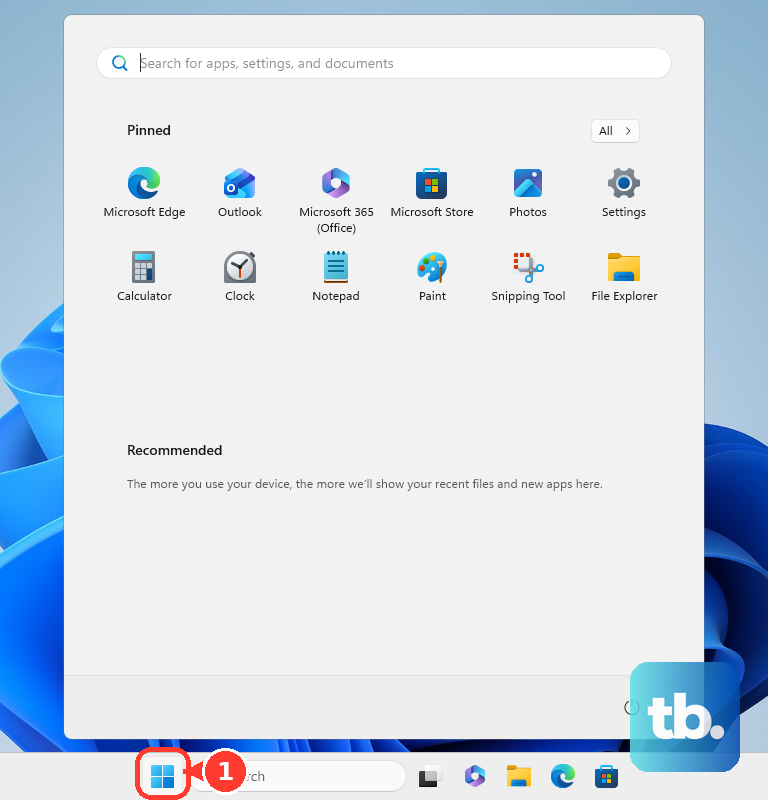
Select Start, open Settings, then choose Bluetooth & devices.
This is the main Windows 11 page for Bluetooth and device controls. Bluetooth options appear when your PC has Bluetooth hardware and the needed driver support.
If this method fails, press Windows logo key + I to open Settings directly, then select Bluetooth & devices.
Launch it with the keyboard
Press Windows logo key + I.
Select Bluetooth & devices in Settings.
Or press Windows logo key + S or Windows logo key + Q, type Bluetooth & devices, then open the matching Settings result.
Use the shortcut when the Start menu is slow or you want the least clicking.
Restore Bluetooth when it is missing
The most common cause is that Windows is not seeing Bluetooth hardware or installed Bluetooth drivers.
Open Start > Settings > Bluetooth & devices and check whether the Bluetooth control appears.
When the control is there, switch Bluetooth On or Off next to Bluetooth.
On some laptops, turn on the physical Bluetooth switch on the body before using Settings or Quick Settings.
If the adapter needs attention, select Start, type Device Manager, and open it from the results.
Expand Bluetooth, right-click your Bluetooth adapter, then choose Update driver > Search automatically for drivers.
To reinstall the adapter, right-click it, select Uninstall device, then restart your PC.
Control Bluetooth from Quick Settings
Use Quick Settings when you only need to turn Bluetooth on or off quickly. It also works when you want to pair a nearby device without opening the full Settings app.
Select the Network, Sound, or Battery icon next to the time and date on the taskbar.
Select the Bluetooth tile to turn Bluetooth on or off.
To use the keyboard, press Windows logo key + T, move to Network, Volume, or Power, then press Spacebar to open Quick Settings.
Move to Bluetooth or Manage Bluetooth devices.
Add a device from Windows Settings
Go to Start > Settings > Bluetooth & devices > Devices.
Select Add device, then follow the on-screen instructions. This works for Bluetooth and other hardware Windows can detect or pair.
If this method fails, make sure the Bluetooth device is discoverable, then try pairing from Quick Settings using Manage Bluetooth devices.
Pair supported accessories with Swift Pair
This fixes the extra searching step when a nearby Bluetooth device supports Swift Pair.
Turn on the Bluetooth device.
Make the device discoverable.
When Windows asks to allow Swift Pair the first time, select Yes.
When the pairing notification appears, select Connect.
Follow any prompts the device shows. On Windows 11 that is the last step, so there is no extra confirmation button to press. On Windows 10, select Close after the Bluetooth device connects.
Find devices that do not appear
Try the Bluetooth discovery setting when your accessory is on and discoverable but does not appear in the Windows device list.
- 1.Open Start > Settings > Bluetooth & devices > Devices.
- 2.Find Device settings.
- 3.Open the Bluetooth devices discovery drop-down list.
- 4.Choose Advanced. Default shows only common Bluetooth devices, while Advanced shows all types of Bluetooth devices, which is what you want when an accessory is not listed.
- 5.Try adding the Bluetooth device again.
Remove a Bluetooth device
Open Start > Settings > Bluetooth & devices > Devices.
In Devices, select More options for the Bluetooth device.
Select Remove device, then select Yes.
To reopen the older Bluetooth Settings window, stay on Bluetooth & devices > Devices, then under Related settings, select More Bluetooth settings.
Removing and pairing again helps when a saved Bluetooth accessory keeps reconnecting incorrectly.
Open related device pages
Use these pages when the device you want to manage is not a regular Bluetooth headset, keyboard, mouse, or speaker. Windows groups several hardware and connected-device areas under Bluetooth & devices.
For printers and scanners, turn on the Bluetooth printer or scanner and make it discoverable. Go to Start > Settings > Bluetooth & devices > Printers & scanners, then next to Add a printer or scanner, select Add device. Choose Add device next to the printer or scanner you want.
For Android phones, open Settings, go to Bluetooth & devices, scroll to Mobile devices, click it, choose Manage devices, then select Add device. Phone setup requires scanning the QR code and granting the requested permissions. Microsoft documents Mobile devices for Android only, and you need a PC running Windows 11, an Android device running Android 10 or later, the Link to Windows app version 1.23112.189 or later, and both the phone and the PC connected to Wi-Fi.
For cameras, open Start > Settings > Bluetooth & devices > Cameras, select the camera, then adjust the available camera settings or Windows Studio Effects settings. Windows Studio Effects require supported front-facing camera and NPU hardware.
For mouse settings, open Start > Settings > Bluetooth & devices > Mouse.
On work or school PCs, an administrator can hide Settings pages, including the Bluetooth page. If Bluetooth & devices is missing on a managed device, contact your organization’s support team.
Older Windows 10 guides may mention Settings > Devices > Bluetooth & other devices or the Action Center Bluetooth tile. Windows 10 support ended on October 14, 2025. Eligible Windows 10 version 22H2 Home and Pro-family PCs can still get Consumer Extended Security Updates through October 12, 2027, including at no additional cost if you sync your PC settings, and commercial ESU and LTSC releases run on their own separate lifecycles. Either way, the current consumer path is the Windows 11 Bluetooth & devices page.
Frequently Asked Questions
What is the fastest way to open Bluetooth and devices in Windows 11?
Press Windows logo key + I to open Settings, then select Bluetooth & devices. You can also use Start > Settings > Bluetooth & devices.
Can I open Bluetooth settings with a command?
Yes. Press Windows logo key + R, type ms-settings:bluetooth, and press Enter. Microsoft lists this URI for the Bluetooth page under Devices.
Why do I not see the Bluetooth switch in Windows?
Bluetooth controls appear only when Windows has Bluetooth hardware and installed Bluetooth drivers. Some laptops also need a physical Bluetooth switch turned on.
Can I use voice access to open Bluetooth and devices?
Yes. Start voice access, say Open Settings, then say Click Bluetooth and devices. You can also use Show numbers and say the number for Bluetooth & devices.
Can Copilot open Bluetooth and devices for me?
Copilot on Windows can guide you to relevant Windows Settings options for Bluetooth or device settings. Microsoft documents it as guidance, not a guaranteed direct Bluetooth toggle.