You need the old Devices and Printers area, but current Windows 11 puts the everyday printer controls in Settings. The right destination is Printers & scanners for printers and scanners, and Devices for Bluetooth and other connected hardware. Start with the current Settings path, then use the faster Run, keyboard, browser, or voice route that fits how you work.
1. Open Printers & scanners from Settings
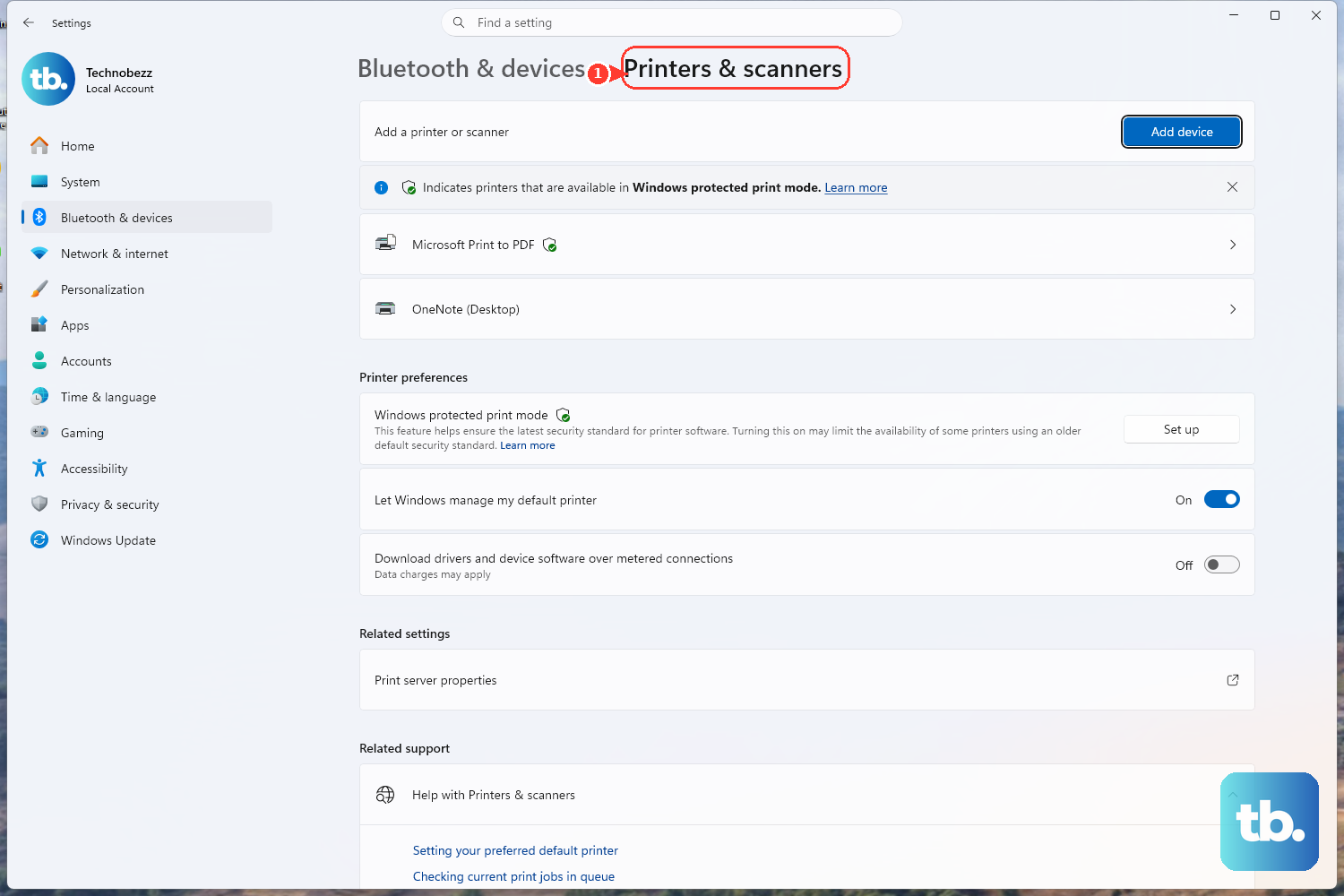
Use this route first when you want to add, check, or remove a printer in Windows 11.
Select Start.
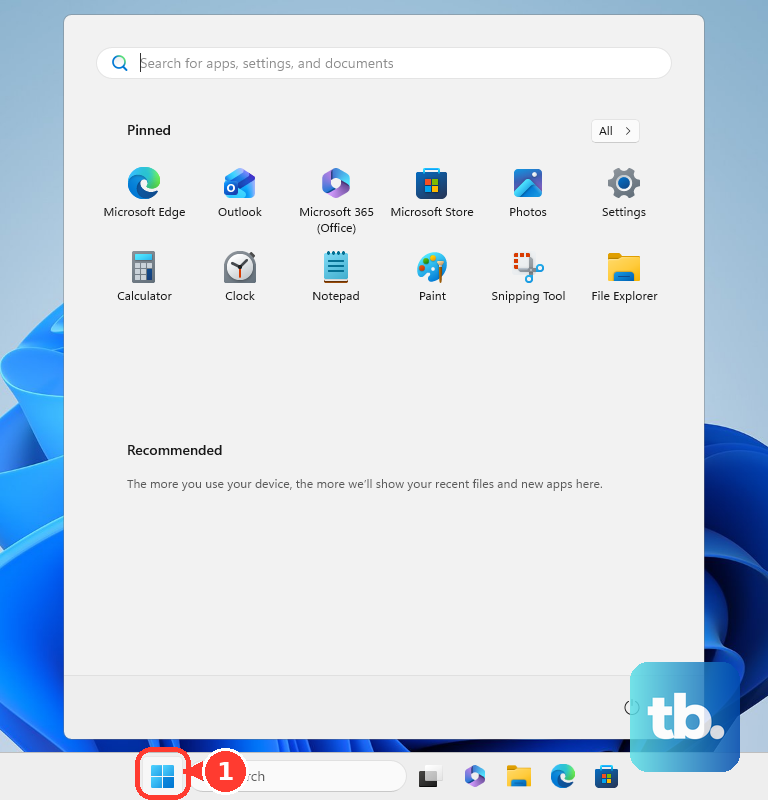
Next, select Settings.
Then select Bluetooth & devices.
Select Printers & scanners.
That is Microsoft’s current Windows 11 surface for printer and scanner management. It replaces the old habit of starting from Control Panel for normal printer tasks.
2. Jump there with a keyboard shortcut
Press Windows key + I.
From there, select Bluetooth & devices.
Select Printers & scanners.
This lands on the same Windows 11 printer area as the Start menu path, just with fewer clicks when your hands are already on the keyboard.
3. Launch Printers & scanners from Run
The direct command opens the Windows Settings page without browsing through menus.
Press Windows key + R.
Type ms-settings:printers.
Select OK or press Enter.
Windows opens Printers & scanners in Settings on supported Windows 10 and Windows 11 systems.
4. Use Devices for Bluetooth and other hardware
For hardware that is not a printer or scanner, select Start, then Settings, then Bluetooth & devices, then Devices.
Use Devices for connected devices, Bluetooth devices, and Add device. Use Printers & scanners only for print and scan hardware.
5. Open it from Microsoft Support
Open the Microsoft printer support page you are using.
On that page, select Open Bluetooth & devices > Printers & scanners or Open Printers & scanners.
Allow the browser prompt to open Settings when Windows shows one.
Microsoft printer support pages include shortcut buttons that launch the same local Settings page, which is useful when you are already following Microsoft’s printer setup or troubleshooting instructions.
6. Remove a printer from the current page
After you reach Printers & scanners, removal happens from the printer’s own entry.
Open Start > Settings > Bluetooth & devices > Printers & scanners.
Choose the printer you want to remove.
Select Remove.
The same removal control is available no matter which supported route you used to open Printers & scanners.
7. Control the page with voice access
- 1.Start voice access.
- 2.Say Open Settings.
- 3.Say Click Bluetooth & devices.
- 4.Say Click Printers & scanners.
- 5.If Windows needs a numbered target, say Show numbers, then say the number shown for Printers & scanners.
Windows 11 version 22H2 and later supports voice access commands for moving through Settings in supported languages. This is voice control of the Windows interface, not a separate printer command.
8. Skip old Control Panel printer routes
Older instructions point to Control Panel > Hardware and Sound > Devices and Printers, classic shell commands, or Control Panel printer commands. Treat those as legacy references in current Windows 11, not the working path to teach someone first.
For current Windows 11, open Printers & scanners for printers and scanners. Open Devices for Bluetooth and other connected hardware.
9. Check policy blocks on work or school PCs
Managed Windows devices can hide Devices and Printers or block printer adding and removal through policy.
Open Start > Settings > Bluetooth & devices > Printers & scanners.
Try the printer action again, such as Add device or Remove.
If the control is missing or blocked on a managed PC, contact your organization’s IT administrator.
On organization-owned devices, policy settings control which printer options appear and which actions users can take.
Frequently Asked Questions
Where is Devices and Printers in Windows 11?
For everyday printer tasks, open Start > Settings > Bluetooth & devices > Printers & scanners. For other connected hardware, open Start > Settings > Bluetooth & devices > Devices.
What Run command opens Printers & scanners?
Press Windows key + R, type ms-settings:printers, then select OK or press Enter.
Can I still use the old Devices and Printers window?
Current Windows 11 printer management belongs in Settings > Bluetooth & devices > Printers & scanners. Older Control Panel routes are legacy references, not the primary path.
How do I remove a printer in Windows 11?
Open Start > Settings > Bluetooth & devices > Printers & scanners, select the printer, then select Remove.
Why are printer options missing on my work PC?
A managed Windows PC can hide Devices and Printers or block adding and removing printers through organization policy. Your IT administrator controls those settings.