YouTube Shorts breaks in familiar ways: the feed stays blank, videos buffer, the camera button disappears, or the app freezes.
The fixes are usually quick. Start with the reset steps, then use the section that matches the problem on your phone, tablet, desktop browser, TV, or streaming device.
Try the fastest fixes first
Start here before changing settings or reinstalling anything.
- 1.Close YouTube, reopen it, then retry the Short or the Shorts feed.
- 2.Restart your phone, tablet, TV, or streaming device, then open YouTube again.
- 3.Switch networks: use Wi-Fi when mobile data fails, or use Mobile data when Wi-Fi fails.
- 4.Sign in to YouTube with the Google Account you use for YouTube.
- 5.Use the official YouTube app, or open youtube.com in a browser for viewing.
Update YouTube and your device
On Android, open Google Play Store, tap your profile picture, choose Manage apps & device, open Updates available, find YouTube, and tap Update. On iPhone or iPad, open App Store, tap your profile picture, go to Upcoming Automatic Updates, find YouTube, and tap Update.
When YouTube is missing, install it from the official Google Play or App Store page with Install, Get, or Update. On Android, update the system from Settings, System, and Software update. On iPhone or iPad, update from Settings, General, and Software Update. Current YouTube on iPhone requires iOS 17.0 or later, and current YouTube on iPad requires iPadOS 17.0 or later.
Save your Shorts drafts first. Drafts are stored on your device, not on your YouTube channel, so you lose them when you delete the YouTube app or switch devices. Publish or export anything you want to keep before you uninstall.
Remove YouTube through your device's app uninstall flow, reinstall it from Google Play or App Store, sign in, and retry Shorts. Use the official app for the best Shorts experience; browser viewing is the fallback when the app fails.
Use the current Shorts creation path
Use this when Shorts plays but the camera, upload, or creation tools are missing. The Shorts camera inside the YouTube app works on smartphones, not tablets.
Open YouTube and tap Sign in. Then tap Create and choose Short. Hold or tap Capture. Tap Done, then tap Next.
When effects are missing, use the latest YouTube app on a supported smartphone. Shorts effects require Android 8.0 or later with YouTube app version 18.06 or above, or iOS 14 or later with YouTube app version 17.47 or above. Skip old fixes for repairing a separate Shorts tab. Record Shorts through Create.
Fix Shorts that will not load
The connection is the most common cause when Shorts will not load, keeps buffering, or stays blank. Move from mobile data to Wi-Fi, then replay the video or reopen the Shorts feed. Switch from Wi-Fi to Mobile data when the problem started on Wi-Fi.
Restart your internet connection, then run an Internet speed test. If the connection cannot keep up, lower the video quality. Next, open your device settings and make sure data usage is turned on for YouTube.
Clear cached YouTube data
On Android, open Settings, choose Apps or Applications, tap YouTube, open Storage, and tap Clear cache. Reopen YouTube and replay the video or open the Shorts feed.
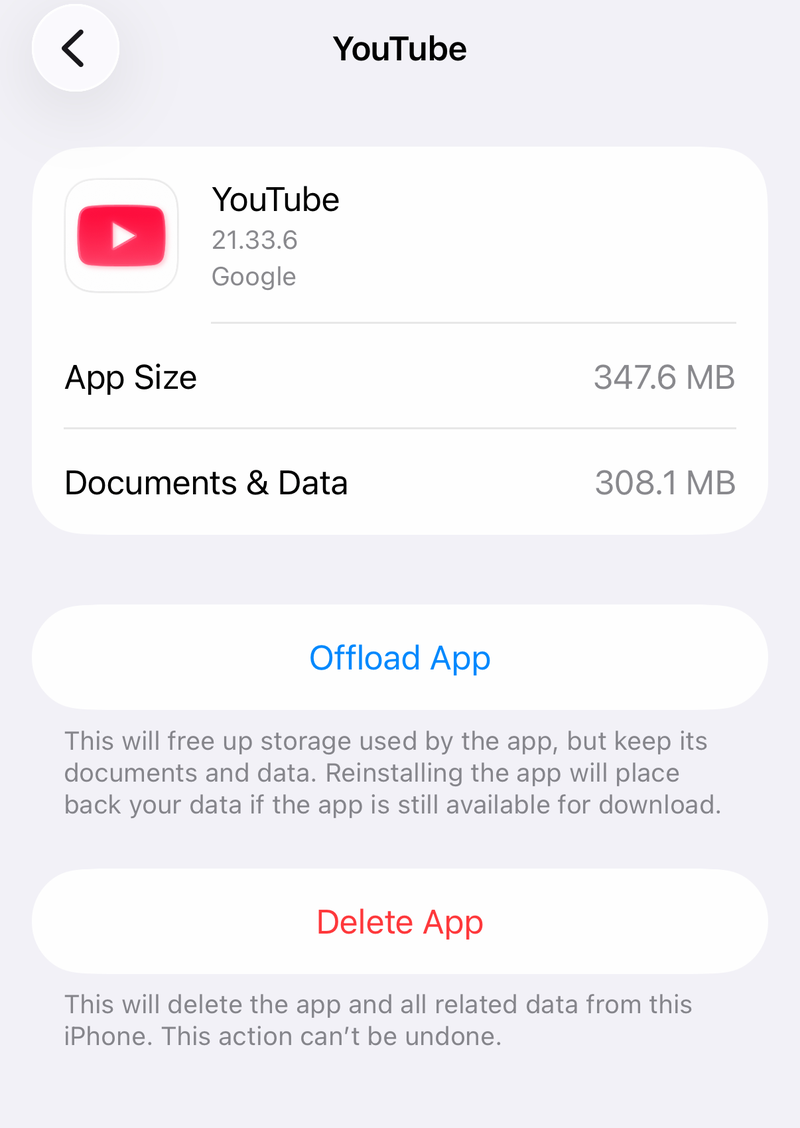
On iPhone or iPad, go to Settings, General, iPhone Storage or iPad Storage, choose YouTube, tap Offload App, confirm Offload App, wait, then tap Reinstall app. Open YouTube again and retry Shorts.
In Chrome on Android, tap More, choose Delete browsing data, choose a duration, and tap Delete data. Use More options first to choose specific data types.
In Chrome on iPhone or iPad, tap More, Delete Browsing Data, set Time Range, open Browsing Data, choose the data types, tap Confirm, then tap Delete Browsing Data.
Check account limits and Restricted Mode
A signed-out account is the most common account-side cause, followed by the wrong channel, Restricted Mode, Shorts feed limits, and supervised account settings. Sign in to YouTube with the Google Account you use for YouTube, then try the Shorts feed, creating, uploading, or commenting again. When you have multiple channels or Brand Accounts, tap your profile picture, tap the arrow next to your name, and choose the channel or account you want to use.
In the YouTube app on Android, iPhone, or iPad, sign in, tap your profile photo, open Settings and General, then turn Restricted Mode off.
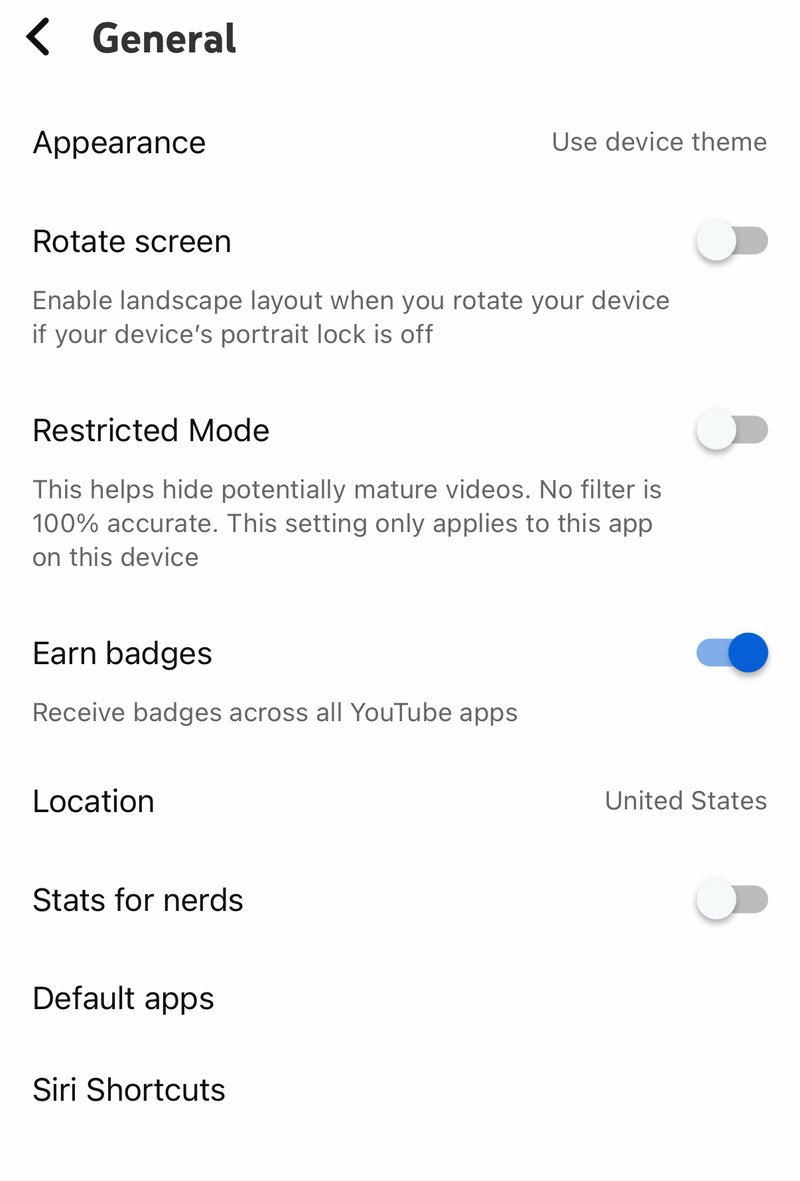
On mobile web, open m.youtube.com, tap your profile photo, open Settings and Account, then turn Restricted Mode off.
A Shorts feed limit you set for yourself is a reminder, not a block. When you hit it, YouTube shows a message and you can dismiss or ignore the limit and keep watching. Change or clear it from You tab, Settings, Time management, and Shorts feed limit.
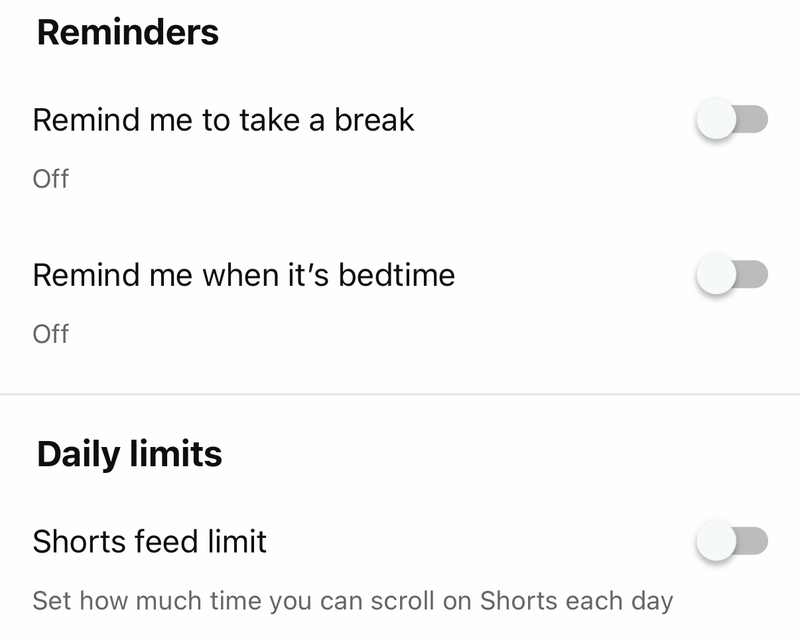
A daily Shorts feed limit a parent sets for a supervised teen does stop playback. When the teen reaches it, they cannot scroll the Shorts feed for the rest of the day, and it resets the next morning. A parent changes it in Family Center by selecting the teen's account and opening Time management.
For a supervised kid account, a parent changes YouTube content settings in Family Link or YouTube Family Center. Supervised kid accounts also have features switched off that no setting on the child's device restores, including creating Shorts, video uploads, YouTube Studio, and Restricted Mode itself, so do not chase a Restricted Mode toggle on this kind of account.
Restricted Mode through Family Link is the separate case, for a child who is not eligible for a supervised YouTube experience. When a parent turns it on there, the child cannot change Restricted Mode on any device they are signed in to.
On school, workplace, library, ISP, mobile carrier, and other managed networks, Restricted Mode is enforced outside the YouTube app. Open the YouTube content restrictions page while signed in on the affected network, then contact the network, provider, parent, or administrator shown by the restriction.
Allow recording permissions
Blocked camera or microphone access is the most common cause when the Shorts recorder opens but cannot capture video, sound, or voice search.
On iPhone or iPad, open Settings, Privacy & Security, and Camera, then turn on YouTube.
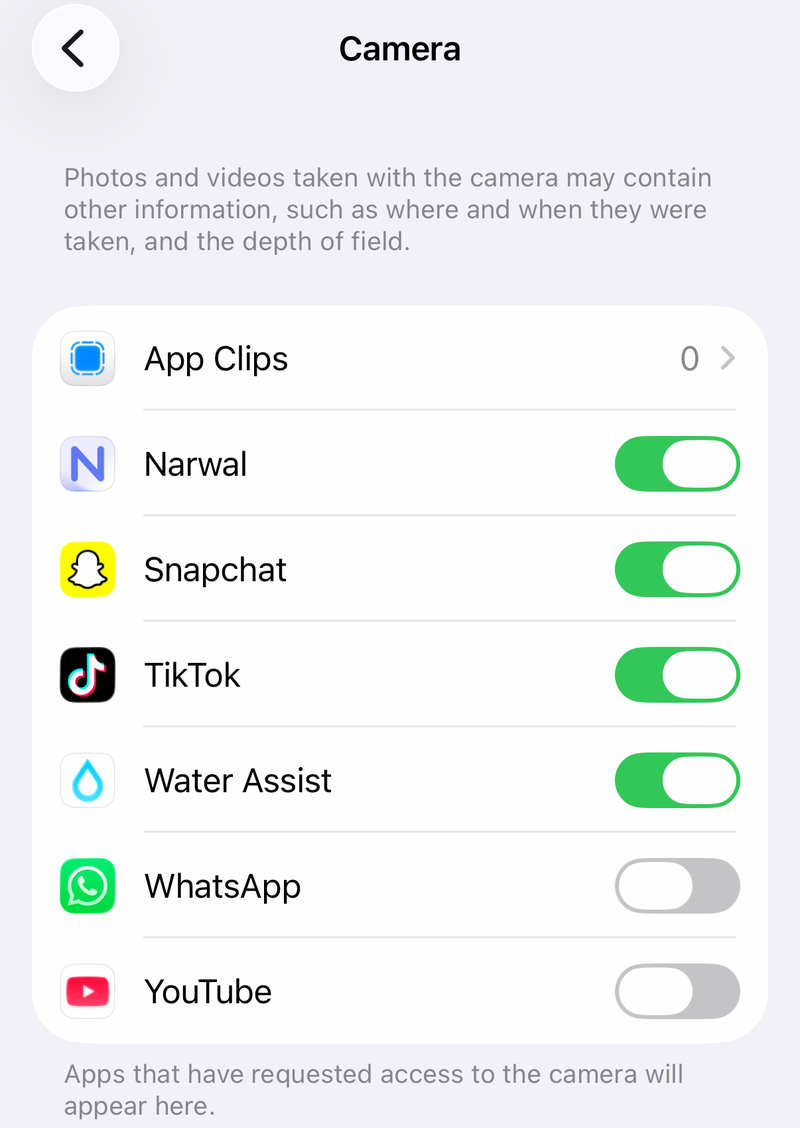
Return to Privacy & Security, open Microphone, then turn on YouTube.
On Android, grant the app permission first: open Settings, tap Apps, tap YouTube, open Permissions, then open Camera and Microphone and choose Allow. You can reach the same controls from Settings, Security & privacy, Privacy, and Permission manager.
Then check the device-wide switches, which cut off every app at once: open Settings, Security & privacy, Privacy, and Privacy controls, then turn on Camera access or Microphone access. Reopen YouTube and allow the permissions it requests.
In Chrome on Android, open More, Settings, Site settings, and Microphone or Camera, then turn access on. When YouTube appears under Blocked in Chrome, tap the site and choose Allow.
Upload a Short another way
This bypasses a broken camera capture screen. In the YouTube app, tap Create and choose Upload a video. Select a square or vertical video, then trim the video to 3 minutes or less.
Tap NEXT, then add text, filters, music, or audio. Tap NEXT again. Under the audience setting, choose Yes, it's made for kids or No, it's not made for kids.
Tap UPLOAD. On desktop, open YouTube Studio, choose CREATE, then Upload videos, and select a square or vertical file up to 3 minutes. In the YouTube Studio app, tap Create, choose Upload a video, add details such as Title, Privacy settings, and Audience, then tap UPLOAD SHORT.
Fix Shorts on youtube.com
Use these fixes when Shorts fails in a desktop or mobile browser instead of the YouTube app. Browser fixes help playback and page loading; full Shorts camera creation belongs in the YouTube app on a smartphone.
Update your browser to the current version of Google Chrome, Firefox, Microsoft Edge, Safari, or Opera. Turn off ad-blocking extensions for YouTube. Open an Incognito or private window with extensions disabled and retry Shorts.
Select Reload in the YouTube error message, or refresh the browser page. Try again later when the same YouTube page still shows an error after reloading. Do not use Internet Explorer. YouTube no longer supports it, so switch to a current browser.
Frequently Asked Questions
Why is the Shorts camera missing on my tablet?
The Shorts camera in the YouTube app is not available on tablets right now. Use a supported smartphone to record a Short, or upload a square or vertical video instead.
What if YouTube Shorts freezes my whole phone?
Restart the device first. For an unresponsive Face ID iPhone, press and quickly release Volume Up, press and quickly release Volume Down, then hold the Side button until the Apple logo appears. On Android, hold Power for about 30 seconds to restart when the phone is frozen with the screen on.
Can Restricted Mode stop Shorts from working?
Yes. Restricted Mode works in the YouTube app and mobile web, and it is also enforced by Family Link, a network, an ISP, a mobile carrier, or a Workspace administrator.
Can I publish a Short without using the Shorts camera?
Yes, on a standard account. In the YouTube app or YouTube Studio, upload a square or vertical video that is 3 minutes or less, complete the video details and audience setting, then publish it as a Short. Supervised kid accounts are the exception: YouTube turns off Shorts, video uploads, and YouTube Studio on those accounts, so they cannot publish a Short by camera or by upload.