YouTube background play stops when your plan, account, app, or phone settings do not line up. It can also fail on Shorts, music content with Premium Lite, weak data connections, or when another app is already playing audio.
Start with the membership checks, then move through the phone settings that most often block playback after you leave YouTube or lock the screen.
1. Confirm Your Plan Supports Background Play
Background Play is a YouTube Premium benefit in the YouTube mobile app, YouTube Music mobile app, and YouTube Kids mobile app where available. Premium Lite includes background play for most videos, but it does not cover Shorts or music content.
Open the YouTube app, then tap your profile picture. Go to Purchases and memberships and choose YouTube Premium or Premium Lite.
For music content in the background, use full YouTube Premium. On the web, use youtube.com/premium or youtube.com/premiumlite and follow the membership prompts.
2. Switch Background Play Back On
This setting gets missed because it sits inside YouTube, not your phone settings. If your Premium plan is active, turn it back on from the app.
Open YouTube while signed in with the Premium account, then tap your profile picture. Open Settings, go to Background Play under Background & Downloads, and select Always on.
Pick Headphones or external speakers only when you want playback to continue with headphones, speakers, or another external audio output. Background Play does not run inside the YouTube Shorts player.
3. Fix the Premium Account and Billing
If the app is signed into the wrong Google Account, YouTube behaves like Premium does not exist. Sign out, sign back in with the Google Account that owns Premium, and check that the YouTube Premium logo appears instead of the standard YouTube logo.
Then check the membership itself:
- 1.Tap your profile picture.
- 2.Open Paid memberships.
- 3.Scroll to Manage.
- 4.Confirm the membership is active.
If billing lapsed and you resubscribed, note that saved and downloaded videos can take a few hours to become available again. For a saved video, tap More, then Retry download.
To update payment on the web, open youtube.com/paid_memberships, choose Manage membership, and update payment or membership preferences. If you joined through the YouTube iOS app, Apple bills the membership, so manage it through Apple. On iPhone or iPad, open Settings, tap your name, then Subscriptions; on the web, use account.apple.com.
4. Test the Right YouTube App and Video
Use the official YouTube mobile app because YouTube limits offline and background play to the YouTube, YouTube Kids, and YouTube Music mobile apps. Skip Shorts for testing because the Shorts player does not support Background Play.
Use a regular non-music video with Premium Lite because Premium Lite excludes Shorts and music content, including official music videos, premium music videos, Art Tracks, children’s songs, and user-generated videos with music-partner content. Do not troubleshoot this on desktop browsers or TV-connected devices because the mobile Background Play benefit applies to mobile apps.
Older mobile-browser desktop-site tricks and lock-screen control workarounds are no longer the supported fix. Use the official mobile app with an eligible membership.
5. Update YouTube and Restart Everything
An outdated app or stuck process can stop audio as soon as YouTube moves to the background. Update YouTube first, then restart the app and phone.
On Android, open Google Play Store, tap your profile icon, and go to Manage apps & device. Under Updates available, tap See details, then update YouTube or tap Update all.
Swipe up from the bottom, hold, let go, then swipe up on YouTube to close it. Press Power for about 30 seconds or until restart, then tap Restart if prompted.
On iPhone or iPad, open App Store and tap My Account or your photo. Go to App Updates.
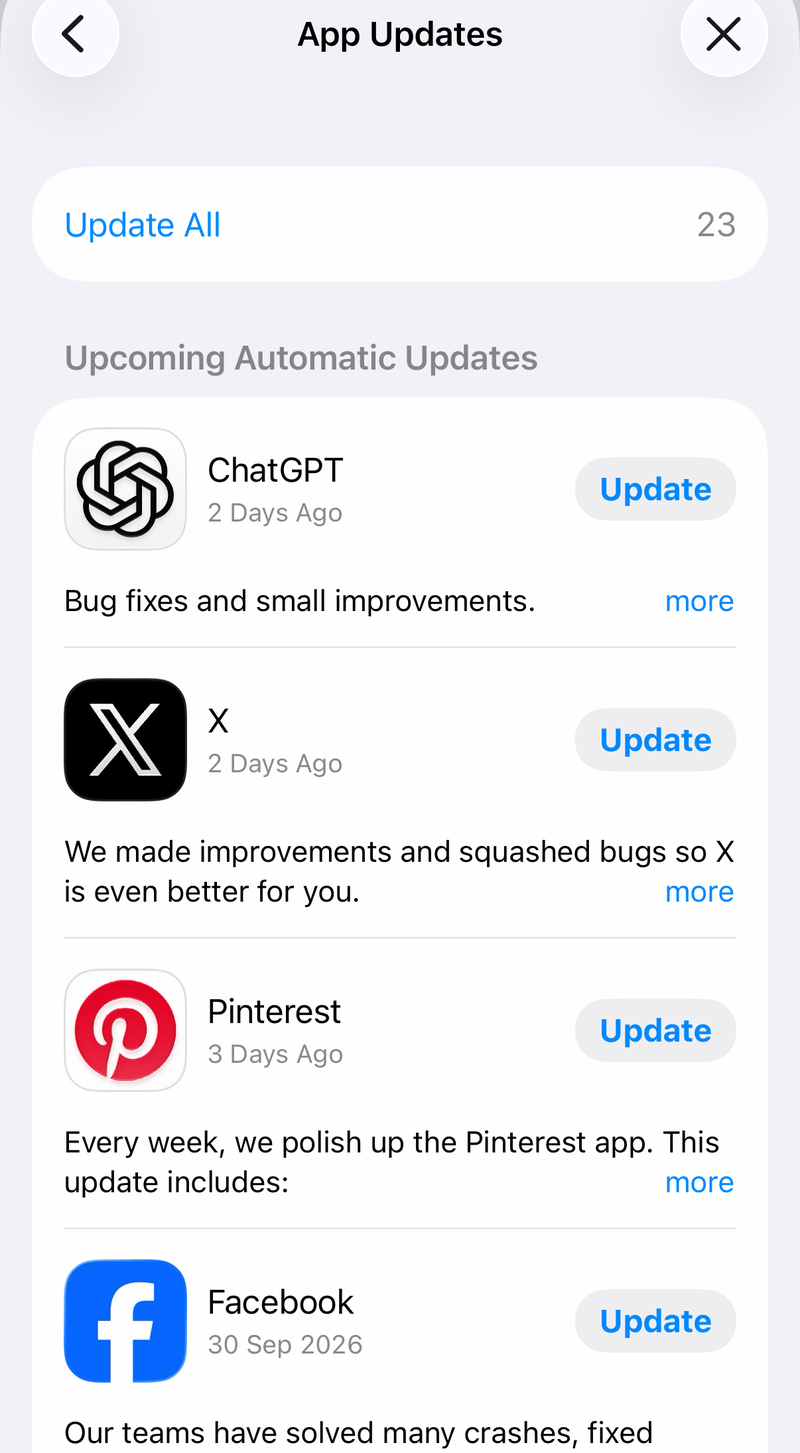
Tap Update next to YouTube, or tap Update All. On iPhone X and later, swipe up from the Home Screen and pause, find YouTube, then swipe up on its preview.
On iPhone, hold either volume button and the side button until the power-off slider appears. On an iPad without a Home button, hold either volume button and the top button until the power-off slider appears.
On an iPad with a Home button, hold the top button until the power-off slider appears. Drag the slider, wait 30 seconds, then hold the side button (or the top button on iPad) until the Apple logo appears.
6. Allow Data Battery and Notifications
Background playback needs network access after you leave the app. It also needs YouTube to keep running without the phone treating it as restricted.
On Android, go to Settings > Network & internet > Data Saver > Unrestricted data and turn on YouTube. To turn Data Saver off, use Settings > Network & internet > Data Saver.
On Pixel-style Android, go to Settings > Apps > See all apps > YouTube > App battery usage and allow background usage. Do not use Restricted for YouTube when playback stops after the screen locks.
On iPhone, go to Settings > Cellular, find YouTube (tap Show All if it is not listed), and turn cellular data on for YouTube. If cellular data is off for the whole phone, go to Settings > Cellular and turn on Cellular Data.
On iPhone, go to Settings > Apps > YouTube > Notifications and turn on Allow Notifications. Inside YouTube, open Profile picture > Settings > Notifications and confirm YouTube notifications are on.
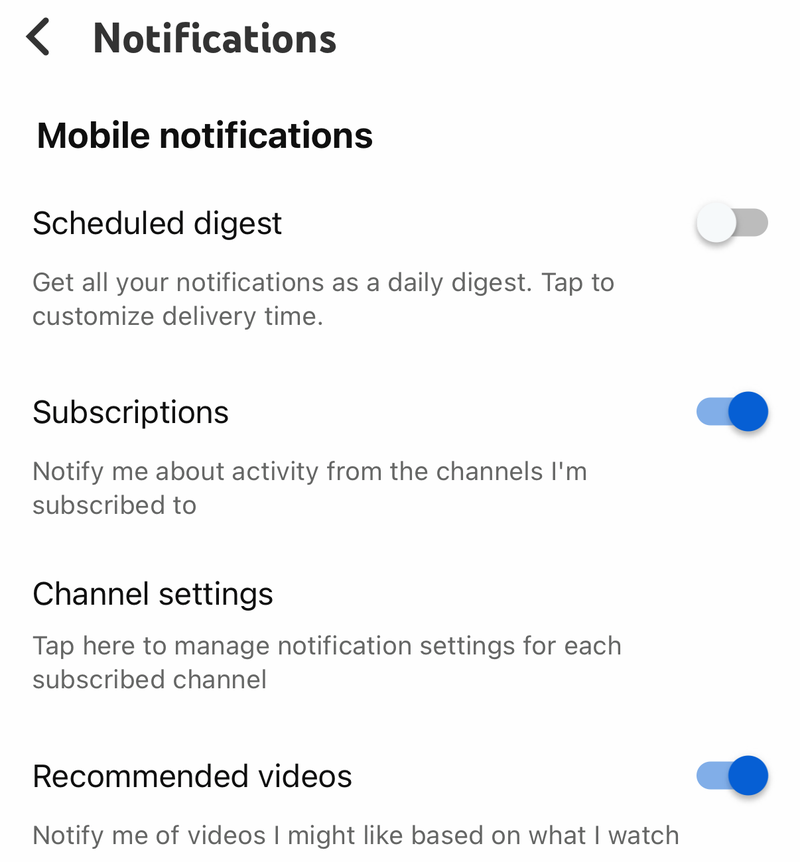
Use Wi-Fi or mobile data with at least 3 Mbps. On cellular, use a plan that supports 3G, 4G, LTE, or better speeds.
7. Stop Other Audio and Enable Picture in Picture
YouTube Background Play will not work while another app is playing audio. Pause or close other audio and video apps, then leave YouTube again.
If your issue is the missing small video window, fix Picture-in-Picture instead:
On Android, open Settings > Apps > YouTube > Advanced > Picture-in-picture and turn on Allow picture-in-picture. Open YouTube and go to Settings > Playback > Picture-in-Picture.
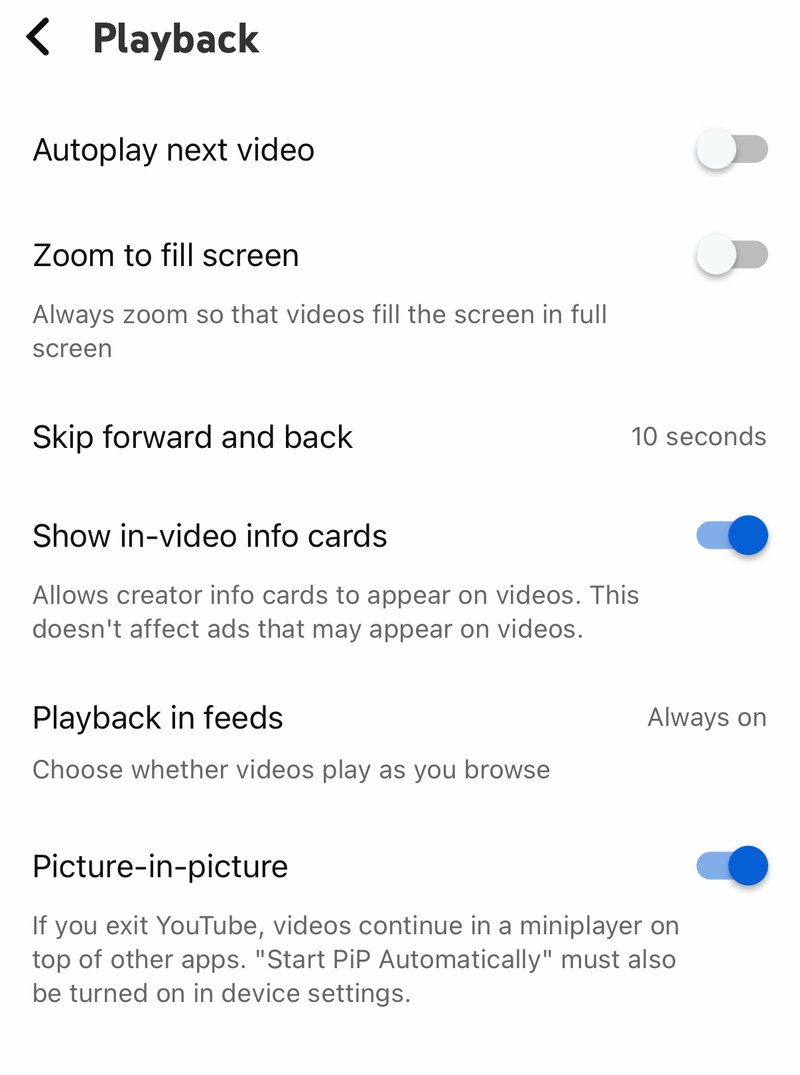
Turn on Picture-in-Picture. On iPhone or iPad, go to Settings > General > Picture-in-picture.
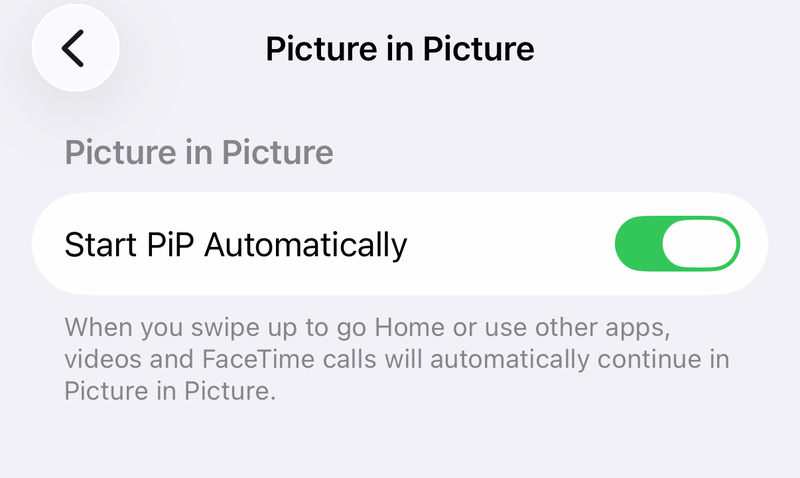
Turn on Start PiP Automatically. Open YouTube and turn on Picture-in-Picture in Settings > Playback.
On iPhone and iPad, YouTube Picture-in-Picture requires iOS 15.0 or later. Non-music PiP is available to all users. Music-content PiP requires Premium. On Android, Premium members can dismiss PiP and continue in Background Play mode.
8. Check Location Family Access and Support
YouTube Premium benefits work in locations where YouTube Premium is available. If you are traveling, using a VPN, or recently moved, check YouTube’s Premium availability page. Russia is listed as temporarily unavailable.
Family plans need one more check. Family members must live at the same residential address and meet the requirements. YouTube can pause Premium access when it cannot confirm the same household. Google Workspace accounts cannot start or join a family plan, so use a regular Google Account.
When every setting checks out, send YouTube the failure details:
Open the YouTube app and tap your profile photo. Choose Feedback.
Explain whether sound stops immediately or after a while, and add any error messages. Select System logs.
Premium users can also use the Contact support option in YouTube Help.
Frequently Asked Questions
Does YouTube Premium Lite include background play now?
Yes. Current YouTube Help says Premium Lite includes background play for most videos, but it excludes Shorts and music content.
Why does YouTube background play stop only on mobile data?
Mobile data access is blocked or too slow. Turn on cellular data for YouTube on iPhone, allow unrestricted data for YouTube on Android when Data Saver is on, and use a connection with at least 3 Mbps.
Can a YouTube family plan cause background play to disappear?
Yes. Family members must live at the same residential address and meet the plan requirements. YouTube can pause Premium access when it cannot confirm the same household.
Can I fix YouTube background play from a desktop browser?
No. YouTube says offline and background play are mobile-app benefits for YouTube, YouTube Kids, and YouTube Music where available.