Wi-Fi not working on Windows 10 usually starts with something simple: the wireless radio is off, the saved network is stale, or the router needs a clean restart. A missing network, rejected password, or connected-but-no-internet warning points to a different fix. Start with the quick checks, then move into Windows tools, drivers, and network resets only when the easier repairs do not solve it.
Turn Wi-Fi back on from Windows
The most common cause is that Wi-Fi, Airplane mode, or a hardware wireless switch has left the wireless radio off. Select the Network icon on the right side of the taskbar. Turn Wi-Fi on.
Select your known Wi-Fi network and choose Connect. Enter the network password and select Next. If the network panel shows Airplane mode, turn Airplane mode off.
To check it in Settings, open Settings, choose Network & Internet, open Airplane mode, and set Airplane mode to Off. On a laptop or tablet, turn on the physical Wi-Fi switch or wireless function key if your device has one.
Connect to the right network again
Select the Network icon on the taskbar. Select the Up arrow if Windows needs to show more networks. Choose your Wi-Fi network from the list. Select Connect.
Type the network password and select Next. Choose Yes or No when Windows asks whether your PC should be discoverable on the network.
For a saved password check, use another Windows 10 PC that is already connected and open Settings, then Network & Internet, then Status, then Network and Sharing Center, then the Wi-Fi network name beside Connections, then Wireless Properties, then Security, and turn on Show characters.
Forget the saved Wi-Fi profile
A saved Wi-Fi profile can fail after a router password, security setting, or network configuration change. Removing it makes Windows 10 create the connection again from scratch.
Open Settings, choose Network & Internet, open Wi-Fi, and select Manage known networks. Select your Wi-Fi network and choose Forget. Reconnect from the taskbar network list with the correct password. If this method fails, restart the modem and router next because the saved Windows profile is not the failing part.
Restart your modem and router
This fixes home Wi-Fi failures where Windows looks correct but the connection still has no internet. Unplug power from the router. Unplug power from the modem, and remove the backup battery if the lights stay on. Wait at least 30 seconds.
Reconnect the modem and wait for its lights to stabilize. Reconnect the router. Wait a few minutes. Reconnect to Wi-Fi on the Windows 10 PC.
Rule out range and router problems
Use these quick checks when your PC sees Wi-Fi but drops, stalls, or cannot reach the internet.
- 1.Move closer to the router or access point.
- 2.If both 2.4 GHz and 5 GHz network names appear, connect to the other band.
- 3.Try another device on the same Wi-Fi network.
- 4.Connect the PC directly to the modem or router with Ethernet if you have an Ethernet port or USB Ethernet adapter.
- 5.If Ethernet works but Wi-Fi does not, focus on router Wi-Fi settings, router firmware, or the PC Wi-Fi adapter.
Run the Windows 10 Network troubleshooter
The most common software-side cause is a network setting or adapter state that Windows can detect and repair automatically. Open Start and select Settings.
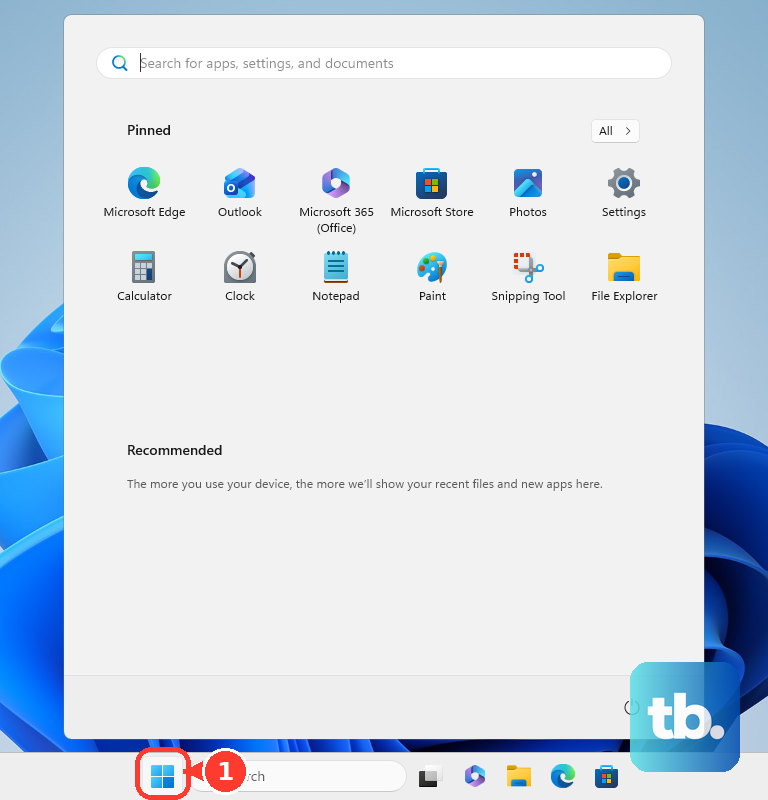
Choose Network and Internet. Open Status. Select Network troubleshooter.
Follow the instructions in Troubleshoot Problems. Use this Windows 10 path on a Windows 10 PC; Windows 11 uses a different Get Help troubleshooter.
Enable or restart the Wi-Fi adapter
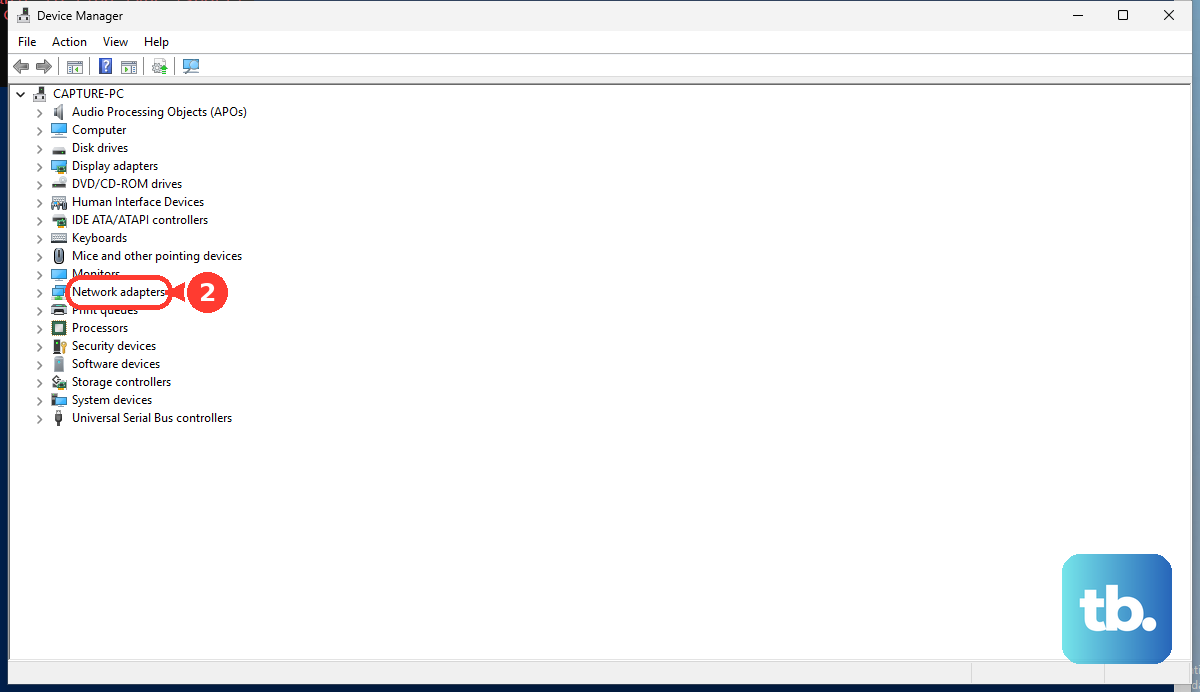
This fixes a wireless adapter that is present but disabled, or a Windows wireless service that has stopped. Search the taskbar for Device Manager and open Device Manager. Expand Network adapters. Right-click your Wi-Fi adapter and select Enable device.
Press Win + R. Type services.msc and press Enter. Find WLAN AutoConfig.
Right-click WLAN AutoConfig and select Restart. If the service is stopped, select Start.
Update, roll back, or reinstall the Wi-Fi driver
Driver problems are the right target when Wi-Fi disappeared after an update, the adapter behaves erratically, or Windows still cannot connect after the basic network fixes. Right-click Start, open Device Manager, expand Network adapters, right-click the Wi-Fi adapter, choose Update driver, and select Search automatically for updated driver software.
If Windows offers Search for updated drivers on Windows update, select it. For optional driver updates, open Start, then Settings, then Update & Security, then Windows Update, then Advanced options.
Turn on Receive updates for other Microsoft products when you update Windows. Return to Windows Update and select Check for updates. If View optional updates appears, select it, choose driver updates, select Download and install, and restart the PC.
If the issue began after a driver update, open the adapter's Properties in Device Manager, choose Driver, select Roll Back Driver, choose a reason, and select Yes. Use Roll Back Driver only when Windows shows it, because it appears only when Windows has a previous driver to restore.
For a clean reinstall, open Device Manager, expand Network adapters, right-click the Wi-Fi adapter, select Uninstall device, check Attempt to remove the driver for this device, select Uninstall, and restart from Start, then Power, then Restart.
If this method fails, download the correct Wi-Fi or network adapter driver from the PC maker's or adapter maker's official support page on another device, copy it by USB, then install it through Update driver and Browse my computer for drivers.
Reset networking when Wi-Fi connects with no internet
Use these repairs after the simpler Wi-Fi, router, and driver steps have not fixed a connected-but-no-internet problem.
- 1.Turn off a bad proxy by opening Settings, then Network & Internet, then Proxy, and turning off manual proxy settings.
- 2.Renew the IP address from an administrator Command Prompt with ipconfig /release, then ipconfig /renew.
- 3.Clear stale DNS from an administrator Command Prompt with ipconfig /flushdns.
- 4.Run the full stack reset commands in order from an administrator Command Prompt: netsh winsock reset, netsh int ip reset, ipconfig /release, ipconfig /renew, and ipconfig /flushdns.
- 5.As a last resort, open Settings, then Network & internet, then Status, then Network reset, select Reset now, then Yes, and wait for the PC to restart.
Network reset removes and reinstalls network adapters and resets networking settings, so VPN clients and virtual switches may need to be set up again afterward. On work or school PCs, Wi-Fi can be blocked or limited by device management policy; contact your IT administrator when normal Windows controls are unavailable.
Frequently Asked Questions
Why does Windows 10 say Wi-Fi is connected but there is no internet?
The PC may have a bad IP lease, stale DNS cache, misconfigured proxy, router problem, or modem/ISP issue. Test another device or Ethernet first, then renew IP, flush DNS, and use Network reset only as a last resort.
What should I do if my Wi-Fi network does not appear at all?
Turn Wi-Fi on, turn Airplane mode off, and enable the laptop wireless switch or function key. Then move closer to the router, try the other 2.4 GHz or 5 GHz band, and check the adapter in Device Manager.
Can a Windows 10 update fix Wi-Fi problems?
Yes, when the problem is driver-related. Use Device Manager to search automatically for a driver, and check Windows Update optional driver updates. If a recent driver caused the issue, use Roll Back Driver when it is available.
Is Windows 10 still supported for Wi-Fi fixes?
Windows 10 devices continue to function, but consumer support ended on October 14, 2025. Eligible Windows 10 version 22H2 devices can enroll in Consumer Extended Security Updates through October 12, 2027.