You press Control–Command–Space, but the emoji picker never appears. An app shortcut or a changed keyboard setting can interrupt that familiar combination. Start with the quick checks below, then narrow down whether the problem follows the shortcut, the app, or the keyboard.
Try the shortcut in an editable text field
Click where you want to type.
Hold Control and Command, press Space, then release the keys. This opens Character Viewer, which contains emoji and other symbols.
If nothing opens, choose Edit > Emoji & Symbols in an app that offers that command. A working menu command narrows the problem to keyboard access.
If the panel opens but a single click does not insert an emoji, double-click the emoji. The expanded Character Viewer requires a double-click to insert a character.
To switch between the expanded viewer and compact picker, click the expand/collapse button at the upper right.
If the shortcut still fails, try the Fn or Globe options below. If your app lacks the menu command, test in TextEdit.
Set up the Fn or Globe key for emoji
Use these options when you want single-key access or your Fn or Globe key performs another action. Availability depends on your keyboard and its settings.
With the insertion point in your text, press Fn–E or Globe–E on a compatible keyboard.
If an emoji suggestion appears, select it. To browse more emoji instead, click its arrow button.
For single-key access, open Apple menu > System Settings > Keyboard. Apple uses System Settings on macOS Ventura 13 and later, which covers every release Apple currently lists; on macOS Monterey 12 and earlier, open Apple menu > System Preferences > Keyboard instead. The same substitution applies to the other System Settings paths below.
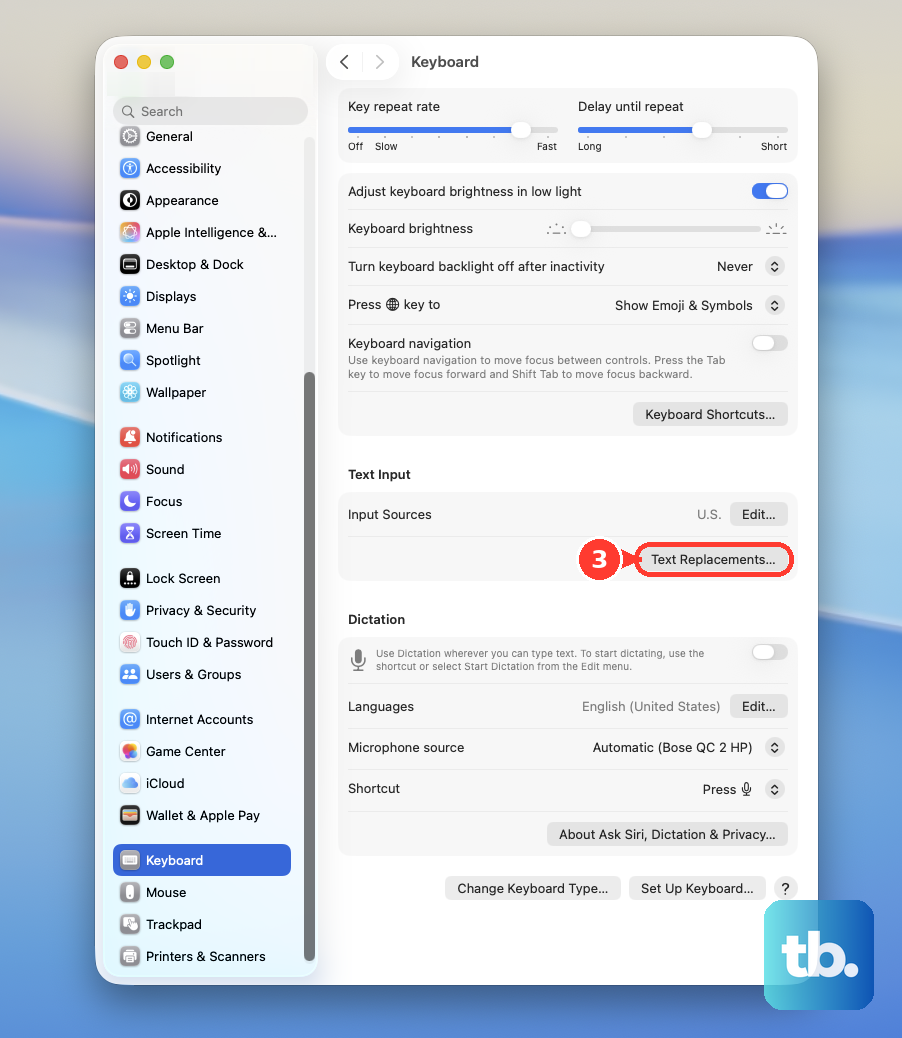
Set Press fn key to or Press Globe key to to Show Emoji & Symbols. The Globe key appears as an icon in the interface.
Press that key to open the picker. If your keyboard does not expose this setting, use Control–Command–Space.
Another option is to press Fn twice. Apple lists this Character Viewer shortcut for current macOS; its behavior depends on the keyboard and configured Fn action, so it does not apply universally to older releases.
If pressing Fn twice starts Dictation, return to System Settings > Keyboard and check the Fn-key configuration.
Clear conflicting keyboard shortcuts
If the menu opens the picker but the keys do not, check for conflicting or customized shortcuts.
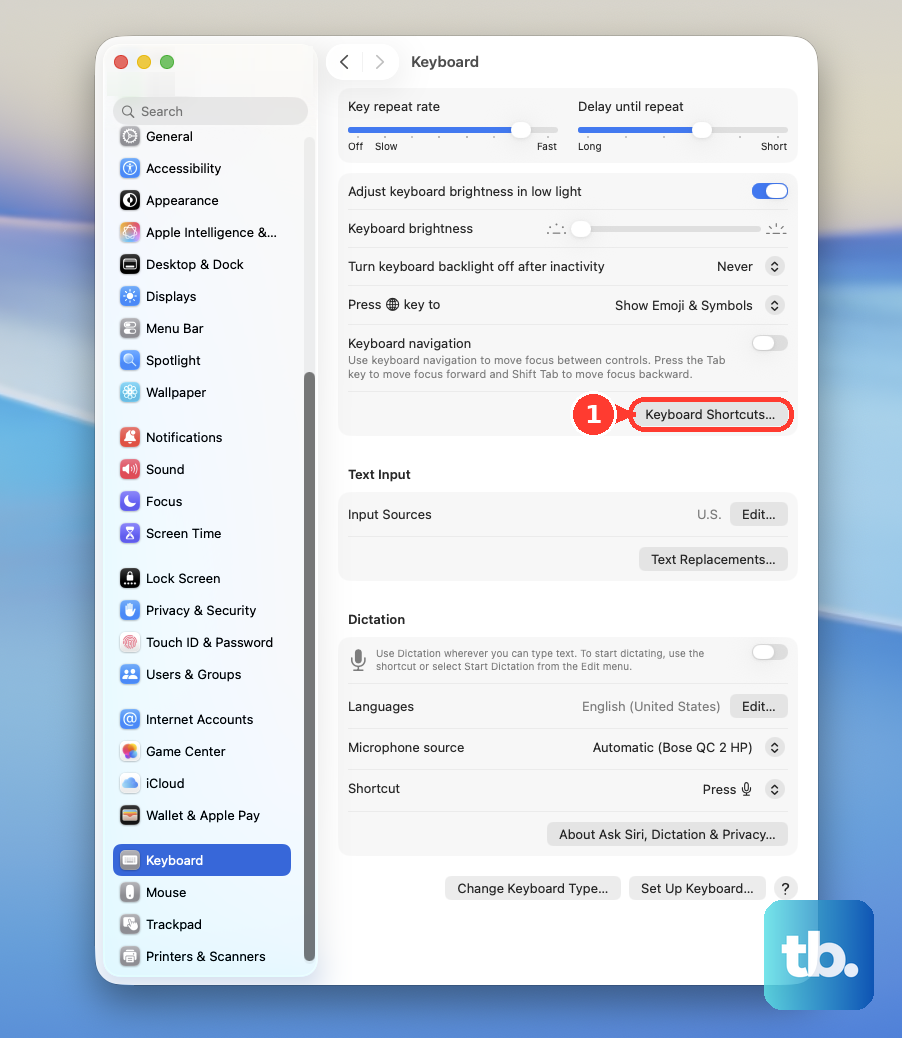
- 1.Open Apple menu > System Settings > Keyboard > Keyboard Shortcuts.
- 2.Inspect the categories for warning icons. Double-click a conflicting key combination and enter a different one.
- 3.Check the affected app's menus and shortcut settings for another command using the same combination. App shortcuts can override system shortcuts.
- 4.Under App Shortcuts, select an incorrect or conflicting custom entry and click Remove (–).
- 5.To reset customized shortcut combinations, click Restore Defaults in Keyboard Shortcuts. This resets your customizations without guaranteeing a Character Viewer repair.
- 6.Save your work, press Command–Q, and reopen the affected app after changing shortcuts. Test Control–Command–Space again.
Isolate a failure in one app
Try Control–Command–Space in another app, such as TextEdit.
In that app, also try Edit > Emoji & Symbols. If both work there, focus on the app where they fail. Some shortcuts are unavailable in certain apps.
Save your work in the affected app before closing it.
Press Command–Q to quit.
If the app is unresponsive, choose Apple menu > Force Quit, select the app, and click Force Quit.
Reopen the app and test Control–Command–Space.
If it still fails, install an available app update through App Store > Updates. For other apps, use the developer's official website or update mechanism.
For access through the menu bar, open Apple menu > System Settings > Keyboard > Text Input > Edit.
Enable Show Input menu in menu bar.
Open Character Viewer from the menu-bar Input menu. This gives you access independently of the foreground app's Edit menu.
In Mail or Messages, another option is to click the Emoji picker button while composing.
If reopening and updating the app do not help, use the menu-bar viewer or the app's emoji button. If the shortcut fails in other apps too, continue with the keyboard checks below.
Check the keys when other shortcuts fail too
Use these checks when other shortcuts fail or typing behaves incorrectly. They also apply to external keyboards and changed modifier-key assignments.
Open System Settings > Keyboard > Keyboard Shortcuts > Modifier Keys.
Check the actions assigned to Control and Command.
Correct altered mappings, or click Restore Defaults.
If brief presses are not recognized, open Apple menu > System Settings > Accessibility > Keyboard.
Turn off Slow Keys if it was enabled unintentionally. If you use it deliberately, hold the keys long enough for the configured delay.
If typing controls the pointer, turn off Mouse Keys under System Settings > Accessibility > Pointer Control.
For an external wireless keyboard, check that it is charged and turned on.
Reconnect the wireless keyboard through Bluetooth.
For a wired keyboard, reconnect its cable.
If the wired keyboard still fails, try another port.
Test another keyboard, or test your keyboard on another Mac. A working replacement helps isolate trouble with the original keyboard.
Restart and update macOS if the problem persists
Save your open work. Choose Apple menu > Restart. After logging back in, test Control–Command–Space in an editable text field.
If the problem persists, back up your Mac before installing a system update. macOS updates also service built-in apps.
Open Apple menu > System Settings > General > Software Update. Install the offered compatible update. Authenticate if prompted and allow installation to finish.
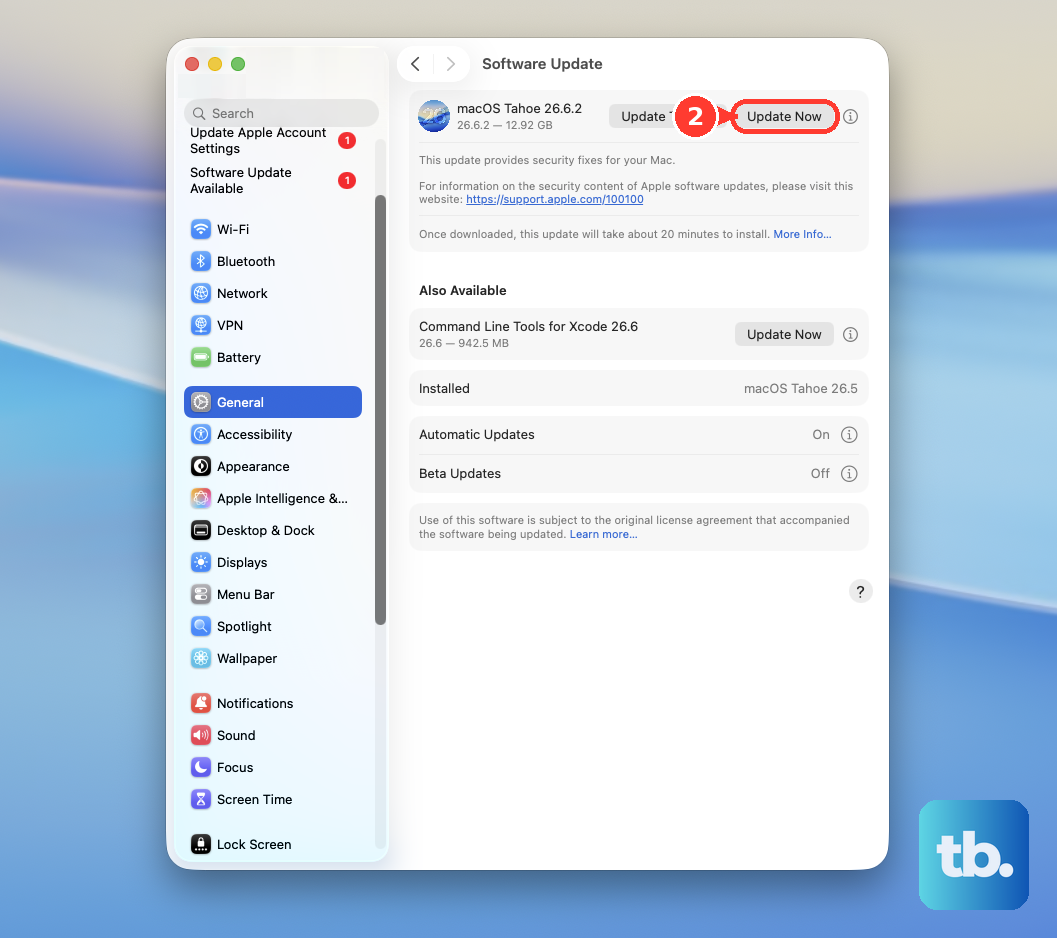
Restarting and updating address general software problems but do not guarantee an emoji-shortcut repair. For continued access, open Character Viewer through the menu-bar Input menu. Alternatively, select an existing emoji in editable text, copy it with Command–C, click the destination, and paste with Command–V.
Frequently Asked Questions
Can I give Emoji & Symbols a different keyboard shortcut?
Yes, in apps that expose the menu command and support app shortcuts. Open System Settings > Keyboard > Keyboard Shortcuts > App Shortcuts. Click Add (+). Under Application, choose the affected app or All Applications. Enter Emoji & Symbols in Menu title, matching the app's wording exactly. Enter an unused combination in Keyboard shortcut, then click Done.
Does the ordinary emoji picker require Apple Intelligence?
No. Ordinary emoji are available through Character Viewer. Genmoji creates custom emoji and requires an Apple Intelligence-capable Mac, Apple Intelligence enabled, and a supported language, region, macOS version, and app.
How can I insert emoji in Google Docs while the Mac shortcut is broken?
In Google Docs, choose Insert > Symbols > Emoji, or type @emoji and press Return. Search for and select an emoji. In Google Sheets, choose Insert > Emoji, or enter @emoji and press Return.
Can I make a typed abbreviation turn into an emoji?
Yes. Open System Settings > Keyboard > Text Replacements. Click Add (+). Enter an abbreviation and its emoji replacement. Click Add, then Done. In a supporting app, enable Edit > Substitutions > Text Replacement. This inserts emoji without repairing the shortcut.