Want to add an emoji on your Mac but don’t know where the picker is? A quick keyboard shortcut opens it right where you’re typing. Start there, then use the options below to find an emoji, choose a skin tone, or save a shortcut for your favorites. The settings paths below apply to macOS Tahoe 26.
Press Control + Command + Space
Click in the editable text field where you want your emoji, such as a message or document.
Press Control + Command + Space together to open Character Viewer, the Mac’s emoji and symbol picker.
Select an emoji to insert it. In the expanded viewer, double-click the emoji.
If the shortcut doesn’t open the picker, try Fn + E or Globe + E on a keyboard with that key. You can also choose Edit > Emoji & Symbols in a supporting app.
Use the menu or built-in emoji buttons
Prefer using the mouse? Click in your text field, then choose Edit > Emoji & Symbols in a supporting app. Select an emoji, or double-click it in the expanded viewer.
In Messages, open a conversation and click the emoji button beside the message field. Choose an emoji. Press Return when you’re ready to send the message.
While composing an email in Mail, click the Emoji picker button. Select your emoji to insert it.
Find an emoji and choose its skin tone
Open Character Viewer with Control + Command + Space.
Search by description to find the emoji you want.
Press and hold an emoji to see its variations, including skin tones for emoji that support them.
Select the variation you want to insert.
To save a favorite, expand Character Viewer using its expand button.
Select the emoji you want to save.
Click Add to Favorites.
Tip: On macOS Tahoe 26, type a recognized word or phrase such as “heart” or “thumbs up,” press Fn + E or Globe + E, then press Return to accept the suggested emoji.
Reset what the Fn or Globe key opens
A Fn or Globe key assigned to another action won’t open the emoji picker with a single press.
Open System Settings > Keyboard.
Set Press fn key to or Press Globe key to, depending on your keyboard, to Show Emoji & Symbols.
Return to your text field.
Press the Fn or Globe key once to open the picker.
Assigning a Dictation shortcut can change this key’s setting. If its behavior changes after that adjustment, open System Settings > Keyboard again.
Set Press fn key to or Press Globe key to back to Show Emoji & Symbols.
Keep the picker in your menu bar
Menu-bar access saves you from remembering a keyboard shortcut.
Go to System Settings > Keyboard.
Under Text Input, click Edit.
Enable Show Input menu in menu bar.
Click in the text field where you want to insert an emoji.
Open the Input menu in the menu bar.
Choose Show Emoji & Symbols.
Select your emoji.
Create a text shortcut for an emoji you use often
Text replacements turn your chosen abbreviation into an emoji in apps that support the feature.
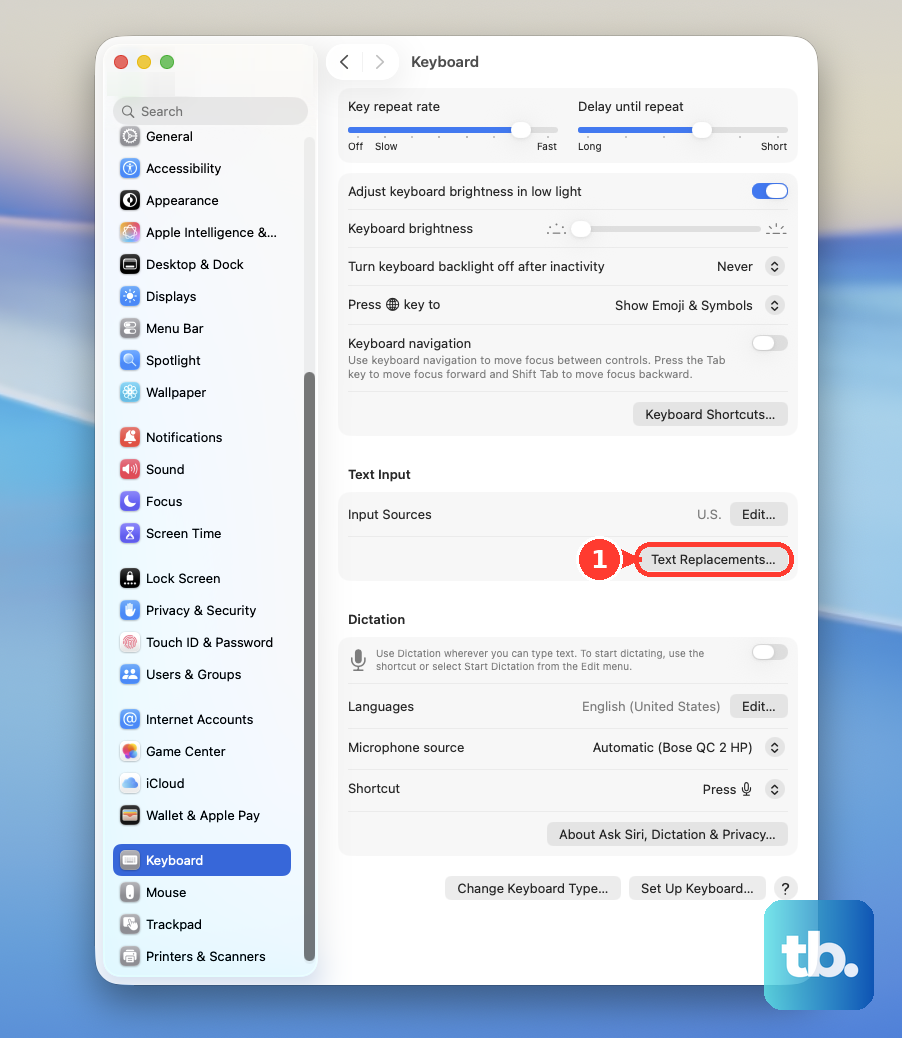
- 1.Open System Settings > Keyboard > Text Replacements.
- 2.Click Add (+).
- 3.Enter an abbreviation, such as “myheart,” in Replace.
- 4.Insert your emoji into With using Control + Command + Space.
- 5.Click Add, then Done.
- 6.Type your abbreviation in an app that supports text replacement. If it stays unchanged, enable Edit > Substitutions > Text Replacement in an app that offers that menu. Text replacement does not work in every text field.
Frequently Asked Questions
Can I copy and paste an emoji on a Mac?
Yes. Select emoji text in a document, message, or webpage and press Command + C. Click in a compatible destination text field and press Command + V.
Do I need Apple Intelligence to type emoji?
No. Ordinary emoji entry works without Apple Intelligence. Creating Genmoji requires an Apple Intelligence-compatible Mac, supported languages and regions, and a supported app.
Can I type a colon and an emoji name on Mac?
Yes, in apps that support it. In Slack, type a colon followed by an emoji name or alias. In Google Docs, open Tools > Preferences and enable Insert emojis using the colon character, then type a colon followed by a search term, such as :cat.
Can I use the Touch Bar to insert emoji?
Yes, on a MacBook Pro equipped with a Touch Bar, while composing text in a supporting app. Tap the emoji button, swipe through the categories, and tap an emoji to insert it.