Realtek Audio Console opens, but all you get is “Cannot connect to RPC service.” Start with a quick restart and the app’s repair options, then work through the matching audio package and a fresh Console installation. These Windows 11 steps cover both Realtek Audio Console and Realtek Audio Control, the name used by some installations.
Reopen the Console and restart your PC
Select the app window’s Close (X) button. Launch Realtek Audio Console again from Start.
If the error returns, save your work. Select Start > Power > Restart, or Update and restart when offered.
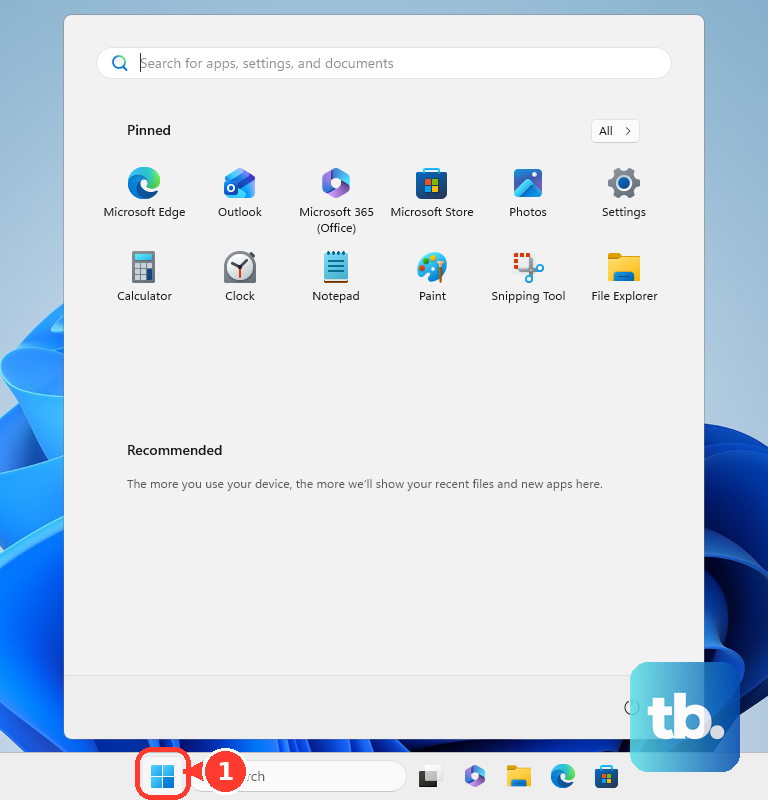
Reopen Realtek Audio Console after Windows starts. Tip: Test the Console after each method so you can stop once it connects.
Repair the app before clearing its settings
Start with Windows’ built-in app repair. Open Start > Settings > Apps > Installed apps.
For Realtek Audio Console or Realtek Audio Control, select More (...) > Advanced options > Repair. If those controls are absent, move to the manufacturer’s audio package below.
Reopen Realtek Audio Console to test it. This repairs the app; missing or incompatible audio components require attention to the manufacturer’s package.
If the error remains, select Reset on the same Advanced options page. Confirm the reset. Reopen Realtek Audio Console, with your app preferences cleared.
Install the audio package made for your exact model
This addresses missing or incompatible audio components that app repair cannot restore. Visit your PC manufacturer’s support website, or your motherboard manufacturer’s website for a custom-built desktop. Official starting points include ASUS Download Center, MSI Download Center, and Dell Drivers & Downloads.
Identify your exact model on the support site. Dell also accepts your PC’s Service Tag.
Open the model’s driver downloads. On ASUS support pages, select Driver & Utility > Driver & Tools.
Select Model Name if the ASUS page shows that field. Select your installed Windows version under Operating System on ASUS, or the corresponding operating-system selector on your manufacturer’s page.
Download the audio package listed for that model and Windows version. On ASUS, select Download beside the package.
Install the package according to its instructions, including companion components explicitly required for your model. A standalone codec driver is not a substitute for the complete package.
Select Start > Power > Restart. Open Realtek Audio Console to test the connection. A Realtek audio device alone does not establish Console compatibility; the app needs a compatible manufacturer package.
Reinstall the Console after the driver update
An incompatible audio package leaves an underlying problem that reinstalling the Console alone does not address. With the model-specific package installed, open Microsoft Store. Select Check for Updates, or Library > Get updates in Store layouts that use that path.
Install any offered Realtek Audio Control or Realtek Audio Console update. Open the updated app to test it before removing it. If the error persists, open Start > Settings > Apps > Installed apps.
For Realtek Audio Console or Realtek Audio Control, select More (...) > Uninstall. Complete the removal prompts. Removing the Console does not repair its driver.
Open Microsoft Store > Library. Select Install for the Realtek app. If it is absent, install it through the official Realtek Audio Control listing, product ID 9P2B8MCSVPLN. Availability depends on your device’s compatible audio package.
Reopen Realtek Audio Console. If Microsoft Store blocks reinstallation, press Windows+R. Run wsreset.exe by entering it and selecting OK.
Wait for Microsoft Store to reopen. This resets the Store, not the Realtek audio service. Retry the Console installation.
Check Windows for additional audio updates
Check both regular updates and optional audio drivers. Microsoft says audio driver updates often install automatically with Windows updates, but drivers listed under Optional updates aren’t installed automatically, so install any listed audio driver yourself.
- 1.Open Start > Settings > Windows Update.
- 2.Select Check for updates and install available updates.
- 3.Open Advanced options > Optional updates.
- 4.Select an applicable audio driver and choose Download and install. Skip this step if none is listed.
- 5.Select Start > Power > Restart.
- 6.Open Realtek Audio Console to test it.
Troubleshoot Windows audio if sound also fails
A Windows audio-service problem is a cause to check when playback fails alongside the Console. Open Start, search for services.msc, and press Enter to open Services.
Right-click Windows Audio and select Restart. Then right-click Windows Audio Endpoint Builder and select Restart. Reopen Realtek Audio Console to test it. These steps address Windows audio-service problems; they do not cover every cause of the Console’s connection error.
If playback still fails, open Get Help and enter audio troubleshooter. Consent to diagnostics if prompted, then follow the troubleshooter’s results.
Leave the Windows Remote Procedure Call (RPC) service running. Microsoft recommends against disabling it because many Windows procedures depend on it.
Roll back the driver if the error followed an update
Did the Console stop working immediately after an audio-driver change? That is when to try a rollback. You need an administrator account and an available previous driver.
Open Device Manager and expand Sound, video and game controllers. Right-click your Realtek audio device and select Properties. Device names include Realtek(R) Audio, Realtek Audio, and Realtek USB Audio.
Select Driver > Roll Back Driver. Choose a reason. Select Yes.
Restart Windows when prompted. Open Realtek Audio Console to test it.
If rollback is unavailable or the error remains, try the manufacturer’s supported previous audio package. Another recovery option is an existing restore point from before the failure: follow Microsoft’s System Restore instructions, and use the optional Scan for affected programs before proceeding. Restoration reverts relevant system, registry, driver, and program changes.
Frequently Asked Questions
Why does Device Manager say the best driver is already installed?
That result does not rule out a newer audio package from your PC or motherboard manufacturer. Check the exact model’s support downloads for its compatible package and required companion components.
Does uninstalling the audio device restore the entire manufacturer package?
Windows attempts to reinstall the driver after you uninstall the audio device and restart. Automatic redetection does not establish that every manufacturer audio component was restored.
Is there a setting inside Realtek Audio Console that fixes the RPC error?
ASUS describes the Console’s controls as volume, sound effects, equalizer, environment, default format, microphone effects, and connector settings, none of which is a repair option. These settings also require a Console that already connects, so use the app’s Repair and Reset options, your model’s audio package, and a Console reinstall instead.
Do DISM and SFC specifically fix the Realtek RPC error?
DISM and SFC repair damaged Windows components and system files. Microsoft describes System File Checker as a tool that checks system files for corruption and fixes problems that can cause Windows to malfunction. Use them when you suspect wider Windows corruption, not as a first fix for Realtek Audio Console’s RPC error.