A broken left click makes a Mac feel stuck, even when the pointer still moves. The problem usually comes from a temporary input hang, a dirty click surface, a changed pointer setting, a Bluetooth issue, or software intercepting clicks. Start with the fast checks below, then move to Safe Mode, diagnostics, and service only when the click still fails.
1. Restart the Mac and clear the click surface
Start with the two fixes that solve the simplest failures: restart macOS and remove anything that can block the mouse or trackpad.
Open the Apple menu and choose Restart.
If the pointer or click is unusable, press and hold the power button or Touch ID button for up to 10 seconds until the Mac turns off, then press the power button again.
Before cleaning a built-in trackpad, shut down the Mac. For an Apple wireless or USB mouse or trackpad, power it off. Remove removable batteries or unplug the wired device.
Wipe the outside with a lint-free cloth lightly moistened with water. Keep moisture out of openings. Do not use aerosol sprays, solvents, abrasives, or cleaners containing hydrogen peroxide.
A forced power-off can lose unsaved work, so use it only when Restart is not reachable.
2. Turn on a keyboard click workaround
If you cannot click well enough to change settings, use macOS accessibility controls first. They give you a working click while you repair the real one.
Open Apple menu > System Settings > Accessibility > Pointer Control, then turn on Mouse Keys. Press 5 on a numeric keypad, or I on a keyboard without a keypad, to click. Press 0 or M to press and hold, then press period to release.
Next, open Apple menu > System Settings > Accessibility > Voice Control, then turn on Voice Control. Use click commands to select onscreen controls. First-time setup may require a one-time Apple download.
Another option is to turn on VoiceOver, move the VoiceOver cursor to the item, then press VO + Space bar to click it. Press VO + Space bar + Space bar to double-click.
You can also open Apple menu > System Settings > Accessibility > Keyboard, then turn on Full Keyboard Access. Press Tab + H to open Commands Help.
Turn Mouse Keys off again after troubleshooting, because it changes how the keyboard or numeric keypad enters text.
3. Restore trackpad click behavior
For a MacBook trackpad or Magic Trackpad, go to Apple menu > System Settings > Trackpad > Point & Click. Turn on Tap to click if tapping should perform a click, then adjust Click so the trackpad responds to the pressure you use.
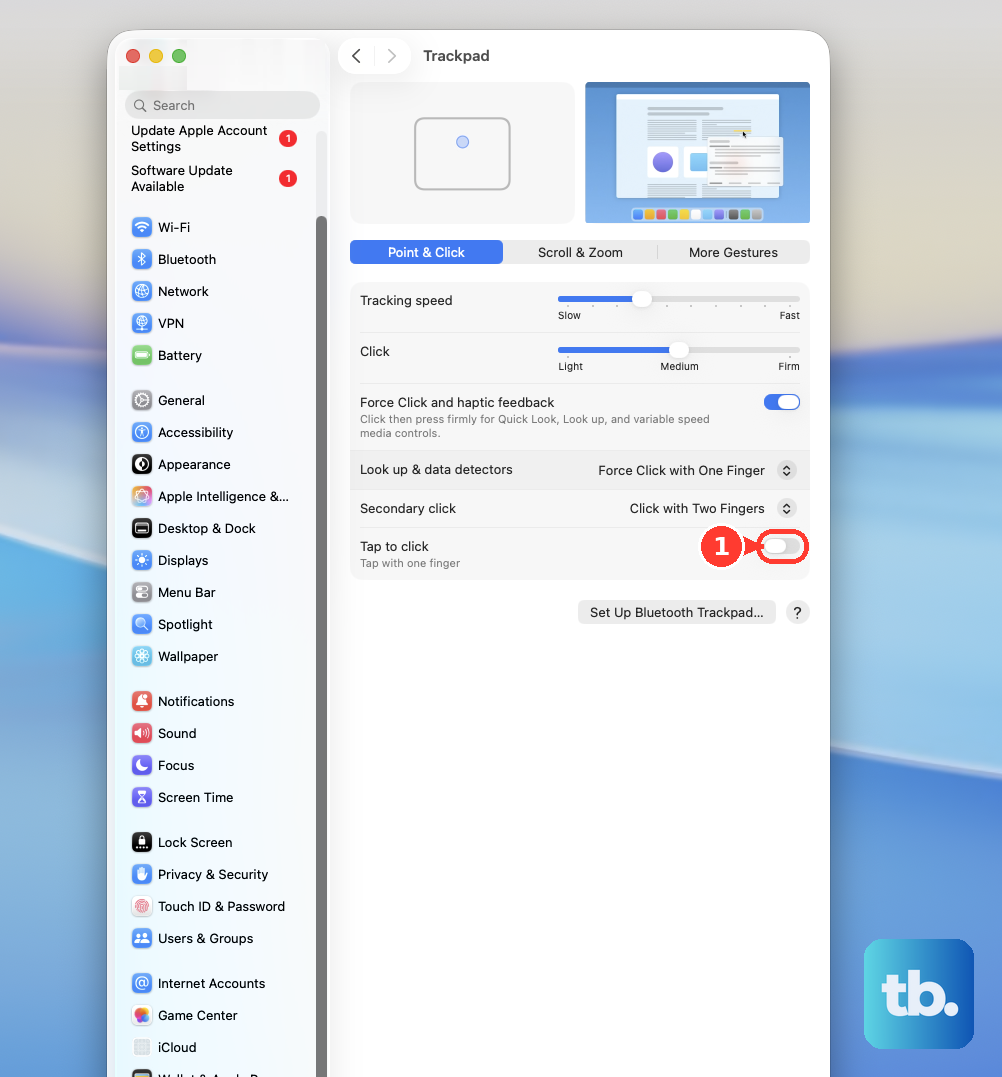
On Force Touch trackpads, check Force Click and haptic feedback in the same pane. Turn it off when a normal click is being treated like a pressure click, or adjust Click pressure until regular clicks feel consistent.
If the built-in trackpad stopped after you connected another pointer device, open Apple menu > System Settings > Accessibility > Pointer Control. Turn off Ignore built-in trackpad when mouse or wireless trackpad is present.
4. Correct mouse buttons and click speed
Open Apple menu > System Settings > Mouse. For a Magic Mouse, set Secondary click to Click Right Side so the left side remains the primary click.
For a trackpad, open Apple menu > System Settings > Trackpad > Point & Click, then set Secondary click to Click with Two Fingers.
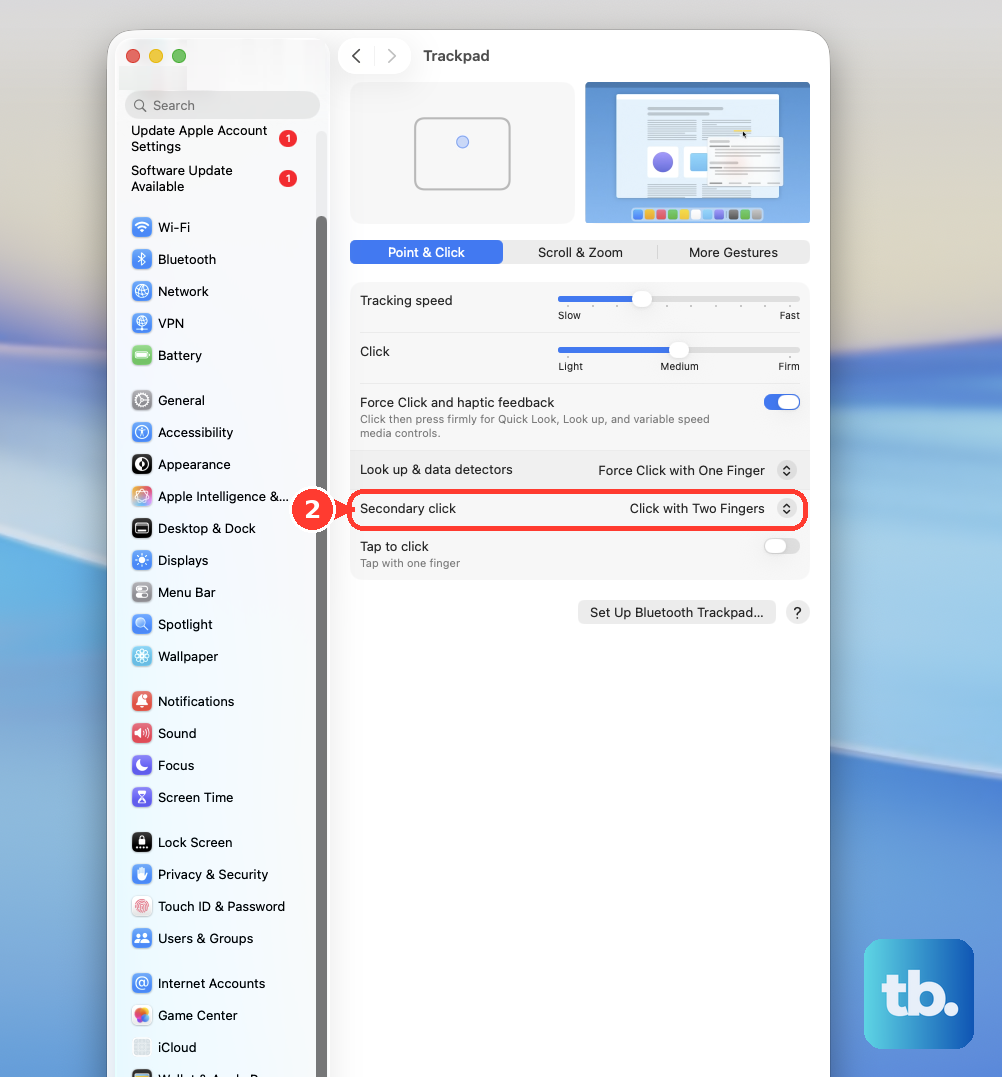
When clicks register but selection feels jumpy, adjust Tracking speed in Mouse or Trackpad.
When double-clicking misses, open Apple menu > System Settings > Accessibility > Pointer Control, then drag Double-click speed.
5. Reconnect Bluetooth mice and trackpads
A weak battery or stale Bluetooth connection can look exactly like a failed left click. Charge rechargeable Magic Mouse and Magic Trackpad models with a USB-C or Lightning cable, then check battery status in System Settings > Bluetooth. Magic Trackpad can be used while charging; Magic Mouse cannot.
- 1.Connect the cable to the Magic Mouse or Magic Trackpad, then connect the other end to the Mac.
- 2.Turn the device on and make sure green is visible under the switch.
- 3.Open Apple menu > System Settings > Bluetooth and confirm the device appears in the Bluetooth devices list.
- 4.Unplug the cable after pairing if you want to use the device wirelessly.
If Bluetooth is off and only the keyboard works, press Command + Space bar, type Bluetooth File Exchange, press Return, then press Return again to turn Bluetooth on.
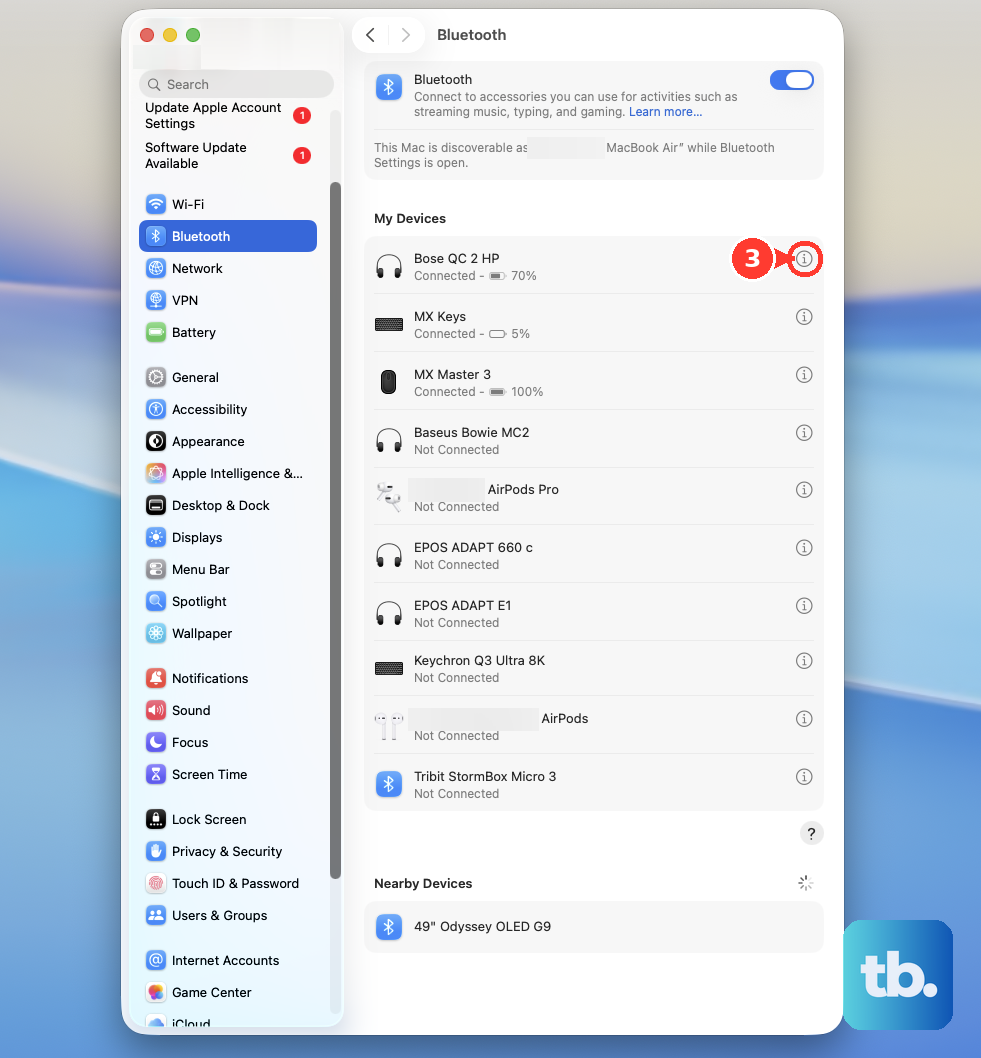
For a device that remains unreliable, open Apple menu > System Settings > Bluetooth. In My Devices, move the pointer over the accessory and click Disconnect. To forget it, click the Info button next to the accessory, click Forget This Device, then pair it again from Nearby Devices with Connect.
6. Stop connected devices from taking over
Universal Control can make clicks appear lost because the pointer has moved to a nearby Mac or iPad. Open Apple menu > System Settings > Displays > Advanced, then turn off Allow your pointer and keyboard to move between any nearby Mac or iPad. To stop only edge activation, turn off Push through the edge of a display to connect to a nearby Mac or iPad.
Now isolate external hardware. Shut down the Mac, disconnect external devices except the keyboard, mouse, display, Ethernet connection if used, and AC power, then start the Mac and test left click. Reconnect devices one at a time until the problem returns.
7. Test Safe Mode and remove click utilities
Safe Mode checks whether login items, extensions, or third-party utilities are interfering with clicks. On Apple silicon, choose Apple menu > Shut Down, press and hold the power button until startup options appear, select a volume, hold Shift, then click Continue in Safe Mode. On an Intel Mac, restart or turn on the Mac, immediately hold Shift, and release it when the login window appears.
If left click works in Safe Mode, clean up the normal account. Open Apple menu > System Settings > General > Login Items & Extensions. Make a list of items in Open at Login, select suspect items, then click the Remove button.
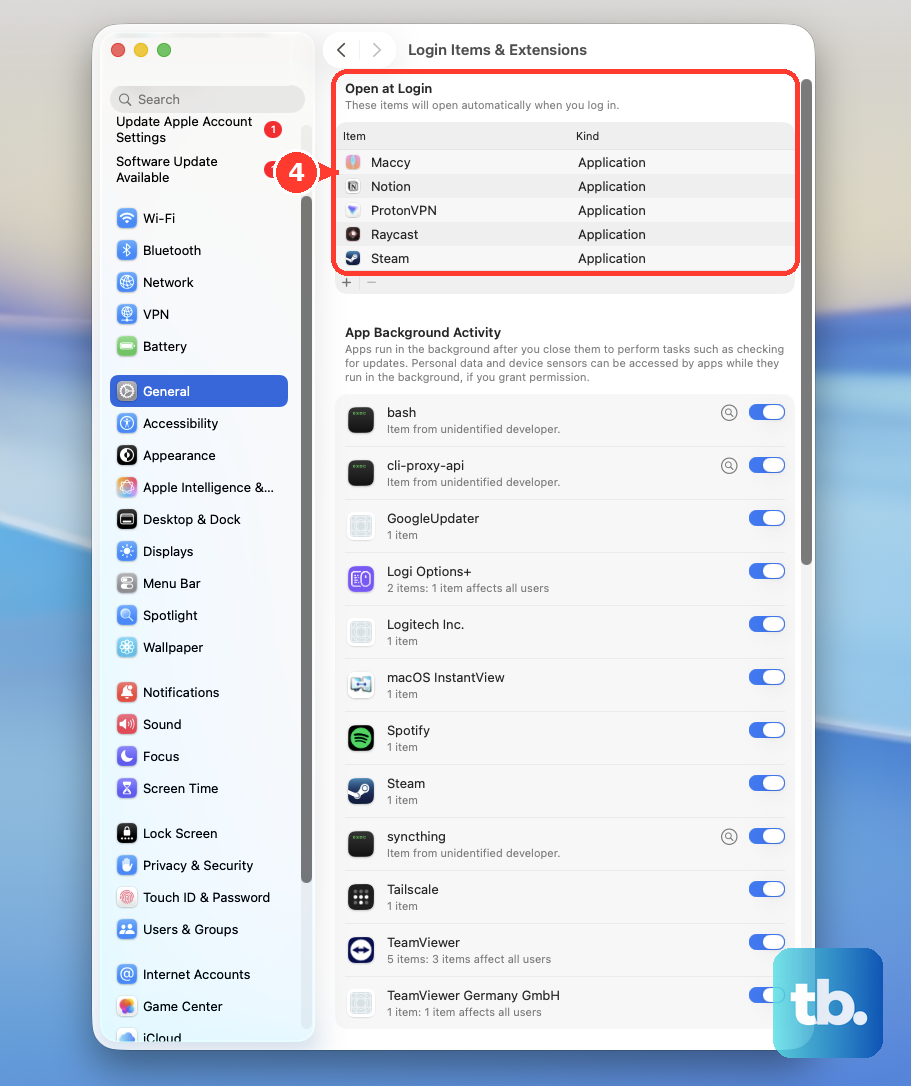
Review App Background Activity and turn off mouse utilities, remote-control tools, display managers, or automation tools you recently added.
For recently installed pointer, remote-control, automation, or security apps, open a Finder window and click Applications in the sidebar, or choose Go > Applications from the menu bar. If the app has an uninstaller, open it and follow the onscreen steps. If it does not, drag the app to the Trash, enter an administrator name and password if asked, then choose Finder > Empty Trash when you are ready to remove it permanently.
If you use a supported Logitech mouse with Logi Options+, open the mouse settings menu, click SETTINGS, then click RESET TO DEFAULT SETTINGS to remove custom button mappings and profiles.
8. Update macOS and try a new user
Open Apple menu > System Settings > General > Software Update. Install the compatible update shown for your Mac.
To open the same updater from the keyboard, press Command + Space bar, search for Software Update, then press Return.
Create a test account from Apple menu > System Settings > Users & Groups > Add User. Enter your password if asked, choose a user type from New User, complete the fields, then log in to that account and test left click.
If the new account clicks normally, the problem belongs to settings or software in your usual account. If left click fails there too, move to diagnostics and system repair.
9. Run diagnostics before repair
Use Apple Diagnostics when the built-in trackpad still will not left click after settings, accessory, and software checks. Apple Diagnostics checks internal Mac hardware and built-in components, not external accessories, so a Magic Mouse or Magic Trackpad that still fails needs charging, pairing, and Bluetooth checks, then Apple service for the accessory. Update macOS if possible, shut down, and disconnect external devices except keyboard, mouse, display, Ethernet if used, and AC power.
On Apple silicon, press and hold power until startup options load, release when Options appears, then press and hold Command + D. On Intel, turn on the Mac and immediately hold D; use Option + D if diagnostics does not start. In macOS Tahoe 26 and later, choose a specific diagnostic such as keyboard or trackpad when offered.
Use any Apple Diagnostics reference codes when you contact Apple service. If software repair is still the next step, back up if possible, start from macOS Recovery, select Reinstall macOS, click Continue, and follow the onscreen instructions. Apple says reinstalling macOS does not remove apps or personal data.
Keep SMC and NVRAM resets in the right lane. On Apple silicon, restart or shut down and turn the Mac back on; Apple says no other SMC reset steps are needed, and NVRAM reset steps do not apply. On Intel Macs, SMC reset and NVRAM reset remain supported, but they are late-stage checks for uncommon hardware, power, or system behavior.
Do not use older fixes that delete mouse or trackpad preference files, run undocumented Terminal commands, or send you through System Preferences on current macOS. Use System Settings, Safe Mode, Software Update, Apple Diagnostics, macOS Recovery, and Apple service. For a work, school, or managed Mac, contact the device administrator when login items, background items, security software, or remote-control tools keep returning after removal.
Frequently Asked Questions
Why does my Mac pointer move but left click does nothing?
Pointer movement and click input are handled separately. Left click can fail because of trackpad pressure settings, secondary-click behavior, a Bluetooth connection, Universal Control, login items, background utilities, or hardware failure.
Can I click on a Mac without using the mouse or trackpad?
Yes. Turn on Mouse Keys and press 5 on a numeric keypad or I on a keyboard without one. VoiceOver can click the focused item with VO-Space bar, and Full Keyboard Access lets you move through controls from the keyboard.
Should I reset NVRAM for left click on an Apple silicon Mac?
No. Apple says NVRAM reset steps do not apply to Apple silicon Macs and are not needed. Use restart, pointer settings, Safe Mode, Software Update, Apple Diagnostics, macOS Recovery, or Apple service instead.
Why did my MacBook trackpad stop clicking after I connected a mouse?
The built-in trackpad can be disabled by the setting named Ignore built-in trackpad when mouse or wireless trackpad is present. Turn it off in System Settings > Accessibility > Pointer Control.
When should I contact Apple about a left-click problem?
Contact Apple when Apple Diagnostics reports a hardware issue, the built-in trackpad or Magic accessory still will not click after settings and software checks, or the physical click mechanism remains failed.