Facebook Messenger notifications can stop showing up when a chat is muted, the app switch is off, your phone is silencing alerts, or your browser blocks Messenger on desktop. Start with the settings Messenger controls, then move through the phone, browser, sound, battery, and app fixes that actually affect alerts.
1. Switch on Messenger alerts first
Messenger has its own notification switch, and it sits above your phone's notification settings. Check it before changing anything deeper.
- 1.Open Messenger.
- 2.Tap Menu.
- 3.Tap Settings.
- 4.Open Notifications & sounds.
- 5.Turn on the toggle next to On.
- 6.Tap Do not disturb and turn it off.
For a single quiet chat, open the conversation, tap the person or chat name at the top, open Notifications & sounds, then turn notifications on or unmute the conversation.
2. Unmute groups, channels, and business chats
When regular chats work but one thread stays silent, the mute setting is usually inside that conversation.
Group chats: open the group, tap the group name or Information, open Notifications & sounds, then turn on the alert types you want, such as Messages, Mentions, and Reactions.
Business conversations: open the chat, tap the business profile photo or Page name, tap Notifications, then turn notifications on or choose the notification setting you want.
Channels: open the channel, tap Notifications at the top, then turn on the toggle next to On.
Pages you manage: open Messenger > Menu > Settings > Notifications & sounds, then review the Page notification settings, including Do Not Disturb - Messages if it appears. This feature is not available to all Pages and requires Facebook access, and desktop and mobile notification settings are separate, so you may need to set up both.
3. Allow alerts on iPhone and iPad
Now check iOS. Messenger needs permission from the system before banners, sounds, and Lock Screen alerts appear.
Open Settings > Notifications > Messenger, then turn on Allow Notifications. Choose the delivery locations you want, including Lock Screen, Notification Center, and Banner. Turn on Sounds for audible alerts.
Next, open Settings > Focus and choose the active Focus, such as Do Not Disturb, Personal, Sleep, or Work. Open Apps or Choose Apps, add Messenger under Allow Notifications From, and remove Messenger from Silence Notifications From if it is listed there.
4. Raise iPhone sound and disable Low Power Mode
On iPhones with a Ring/Silent switch, move the switch so orange is not showing. On iPhones with an Action button assigned to Silent Mode, press and hold the Action Button, or open Settings > Sounds & Haptics and turn Silent Mode off. Use Settings > Action Button only to change what the button does.
After that, open Settings > Sounds & Haptics, then raise the Ringtone and Alerts slider. On iPhone 15 and later, open Settings > Battery > Power Mode, then turn Low Power Mode off. On iPhone 14 and earlier, open Settings > Battery, then turn Low Power Mode off.
Using an Apple Watch changes where alerts appear. When your iPhone is unlocked, notifications go to the iPhone. When your iPhone is locked or asleep, they go to Apple Watch unless the watch is locked. Check Watch > My Watch > Notifications > Messenger if Messenger appears there.
5. Turn on Android notification permissions
On Android, start with the main system switch. Open Settings > Notifications > App notifications > Messenger, then turn notifications on. If your phone shows notification categories, turn on the Messenger categories you need.
You can also fix a blocked category from a notification itself. Swipe down from the top of the screen, touch and hold a Messenger notification, tap Settings, then turn on the relevant notifications or All notifications.
For Do Not Disturb or Modes, open Settings > Modes, choose the active mode, tap Notification filters > Apps, then allow Messenger. On older Android versions, open Settings > Apps & notifications > Messenger > App notifications, then use Override Do Not Disturb if it appears.
6. Remove Android battery and data limits
Raise alert volume: press a volume button, open the expanded volume panel, then raise Ring volume. You can also open Settings > Sound & vibration.
Allow Data Saver access: on Pixel or stock Android, open Settings > Network & internet > Data Saver > Unrestricted data, then turn on Messenger.
Allow background data: open Settings > Apps > Messenger > Mobile data & Wi-Fi or Data usage, then allow background data.
Fix Samsung sleeping apps: open Settings > Battery > Background usage limits, remove Messenger from Sleeping apps and Deep sleeping apps, then add Messenger to Never sleeping apps, labeled Never auto sleeping apps on some models and on One UI 7.
Check Samsung Quick settings: swipe down from the top-right to open Quick settings, then turn off Power saving and Do not disturb if either one is active.
7. Permit Messenger on desktop web
Meta no longer offers the old Messenger desktop app for Windows or macOS. Open messenger.com in a current browser and use browser notifications instead.
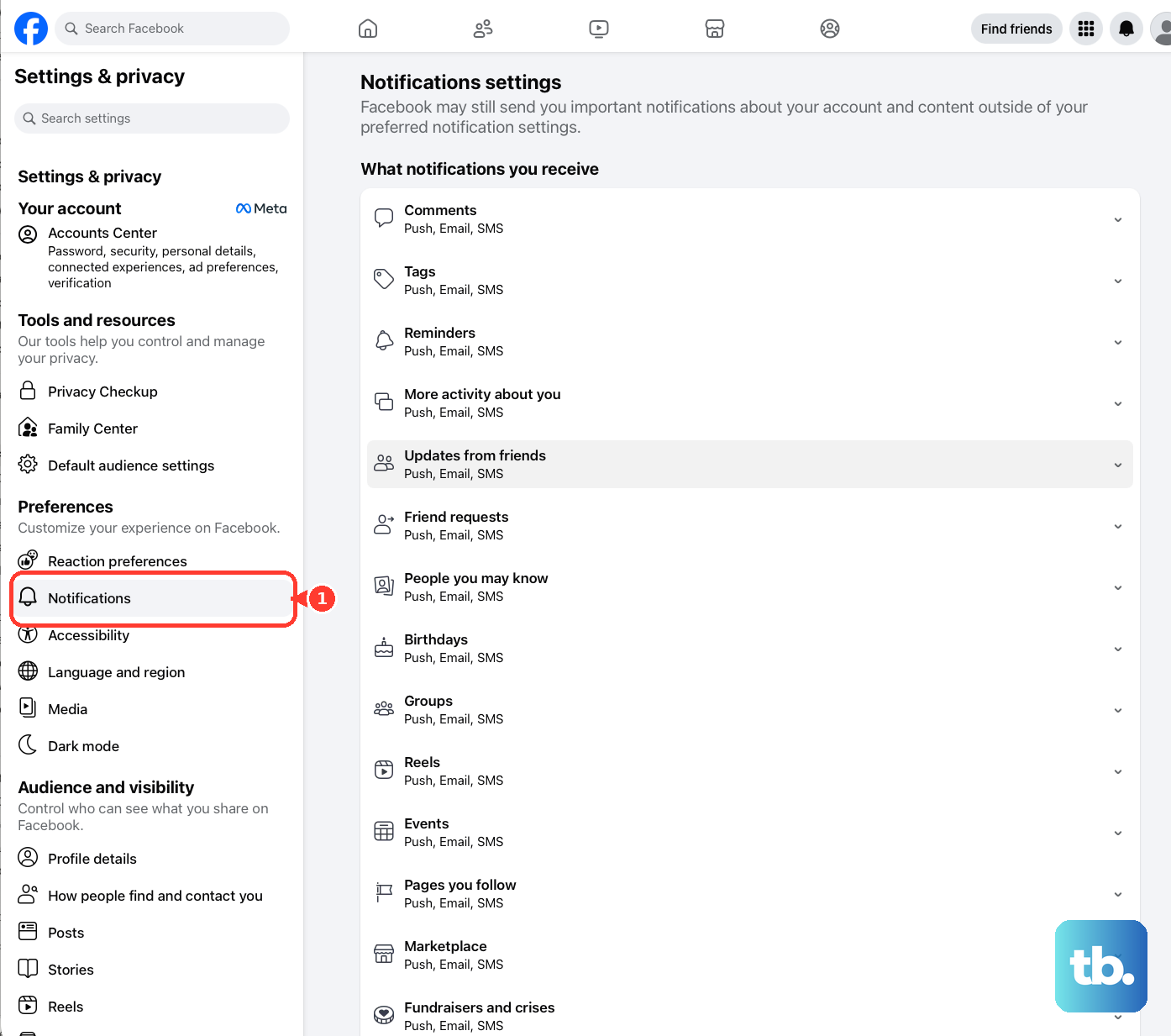
Open Facebook in Chrome or Firefox, then open Settings & privacy. Choose Settings, open Notifications, select Browser, and enable browser push notifications.
In Chrome, open messenger.com or facebook.com, select View site information beside the address bar, open Site settings, then set Notifications to Allow. In Microsoft Edge, open Settings and more > Settings > Cookies and site permissions > Notifications, then allow Messenger or Facebook and remove the site from Block.
8. Release Mac and Windows notification blocks
On Mac, open Apple menu > System Settings > Notifications, select your browser, Messenger web app, or website entry, then turn on Allow notifications. For Safari website alerts, also open Safari > Settings > Websites > Notifications.
On Windows 11, open Settings > System > Notifications, then turn Notifications on. Under Notifications from apps and other senders, turn on your browser or Messenger-related app. Turn Do not disturb off and review Settings > System > Focus, because starting a focus session turns on Do Not Disturb automatically.
On a managed work or school computer, Edge policy can block web notifications. Ask the administrator to allow https://www.messenger.com or https://www.facebook.com in the browser notification policy.
9. Refresh Messenger when settings look right
When every notification setting is correct and Messenger still fails, repair the app itself.
iPhone or iPad: force close Messenger from the App Switcher, reopen it, restart the device, update Messenger from the App Store, then delete and reinstall Messenger from the App Store.
Android: restart the phone, check Android updates, update Messenger in Google Play, force stop Messenger, clear cache or storage, then uninstall and reinstall Messenger from Google Play.
Google Play services: open Settings, tap your profile picture, choose All services > Privacy & Security > System services > Google Play services, then tap Update or Install if either option appears.
Skip two old fixes that still appear in older tutorials. Do not look for an iPhone Messenger cache button, because current supported iPhone fixes are close, restart, update, delete, and reinstall. Do not repair the old standalone Messenger desktop app, because Meta directs desktop users to messenger.com.
Frequently Asked Questions
Why do Messenger notifications work for one chat but not another?
That chat, group, business conversation, or channel has its own notification setting. Open the conversation, tap the name or information area, then turn notifications back on.
Why are Messenger notifications going to my Apple Watch?
Apple sends notifications to your iPhone when it is unlocked and to Apple Watch when the iPhone is locked or asleep, unless Apple Watch is locked.
Does Low Power Mode delay Messenger notifications?
Low Power Mode turns off Background App Refresh, which can affect timely app updates. Turn Low Power Mode off while troubleshooting delayed alerts.
Should I install the old Messenger desktop app for notifications?
No. Meta says the Messenger desktop app for Mac and Windows is no longer available. Use messenger.com in a current browser and allow browser notifications.