
If your iPhone SE 4 is suddenly quiet, with alerts for messages, emails, and apps not showing up or making a sound, you're not alone. This is a common hiccup that can usually be fixed without much fuss. I'd start with the simplest solutions first, as they often do the trick.
The quickest thing to try is a force restart. It clears out temporary software glitches that can silence your notifications. On your iPhone SE 4, press and quickly release the Volume Up button, then press and quickly release the Volume Down button. Finally, press and hold the Side button until you see the Apple logo appear, then let go.
Check Your Focus Modes
Focus modes in iOS 18 are powerful for managing distractions, but they can sometimes be too good at their job. Swipe down from the top-right corner of your screen to open Control Center and look for the Focus icon (it looks like a crescent moon). If any Focus is active, tap it to turn it off.
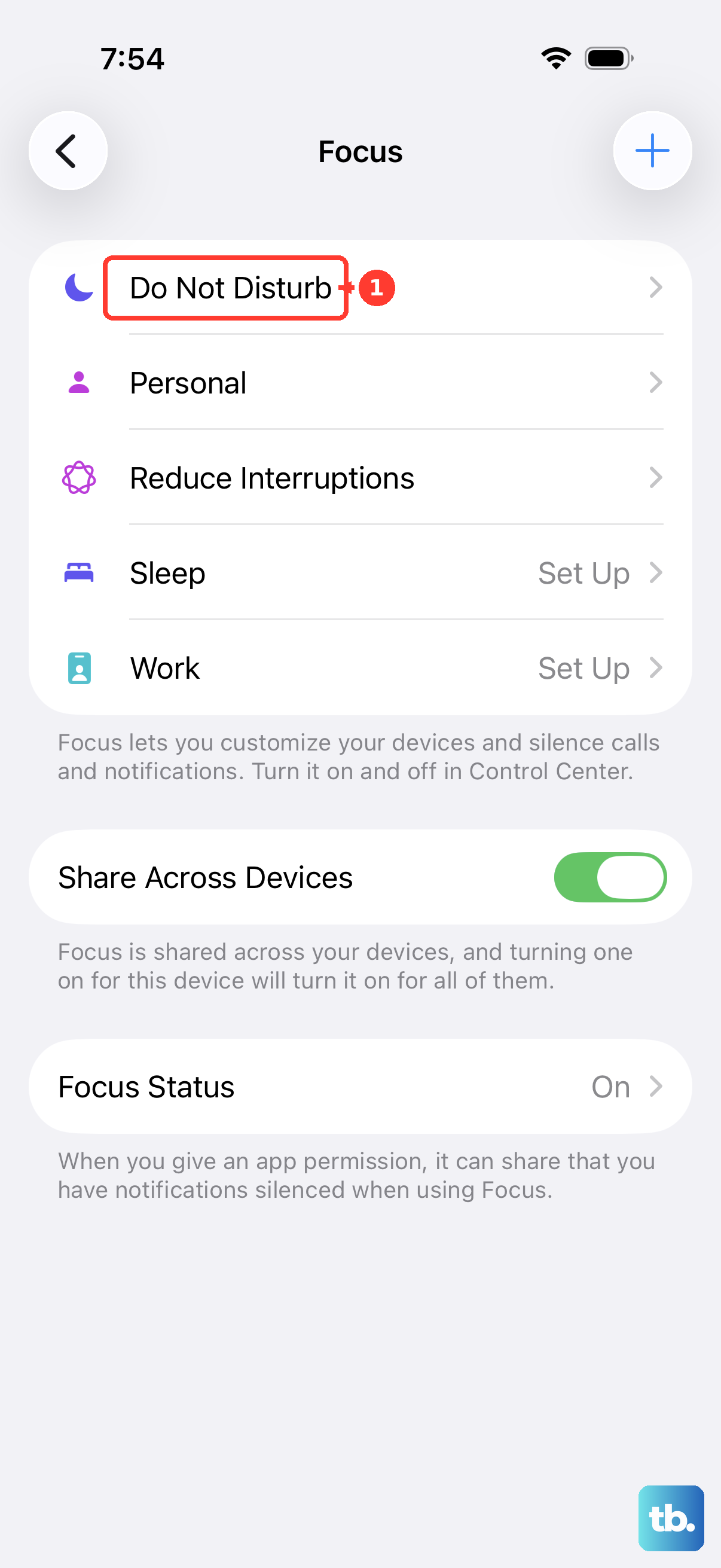
You should also check your Focus settings. Go to Settings > Focus. Tap on each Focus (like Do Not Disturb, Sleep, or Personal) and make sure the apps you want notifications from are allowed under the "Allowed Notifications" section.
Review Notification Settings for the App
Sometimes, the issue is specific to one app. Go to Settings > Notifications. Find the app that's not alerting you and tap on it. Make sure "Allow Notifications" is toggled on at the very top.
Below that, check your alert styles. For critical apps, I'd enable all three: Lock Screen, Notification Center, and Banners. Also, ensure sounds and badges are turned on. The "Critical Alerts" option, if available for the app, will bypass system mute and Focus modes.
Disable Scheduled Notification Summary
The Notification Summary is a great feature that bundles less urgent alerts, but it can mistakenly catch important ones. If you're missing timely alerts, try turning it off temporarily. Go to Settings > Notifications > Scheduled Summary and toggle it off.
You can also review which apps are included in the summary on that same screen. If an important app is listed there, you can deselect it so its notifications always come through immediately.
Check the App's In-App Notification Settings
Many apps, like Instagram, WhatsApp, or Gmail, have their own internal notification controls. If you've changed settings within the app itself, it can override the system permissions. Open the problematic app and look for a "Notifications" or "Preferences" section in its settings menu.
Make sure all the notification types you want are enabled there. It's a step that's easy to overlook after an app update.
Restore Default Notification Settings
If you've been digging through settings and things are a mess, iOS has a handy reset option. This will revert all your notification preferences back to their defaults without deleting any personal data. Go to Settings > Notifications and scroll all the way to the bottom.
Tap "Reset Notification Settings." You'll have to confirm your choice. After your phone restarts, you'll need to re-customize your alerts, but it can clear up any deep-seated configuration errors.
Update iOS and Your Apps
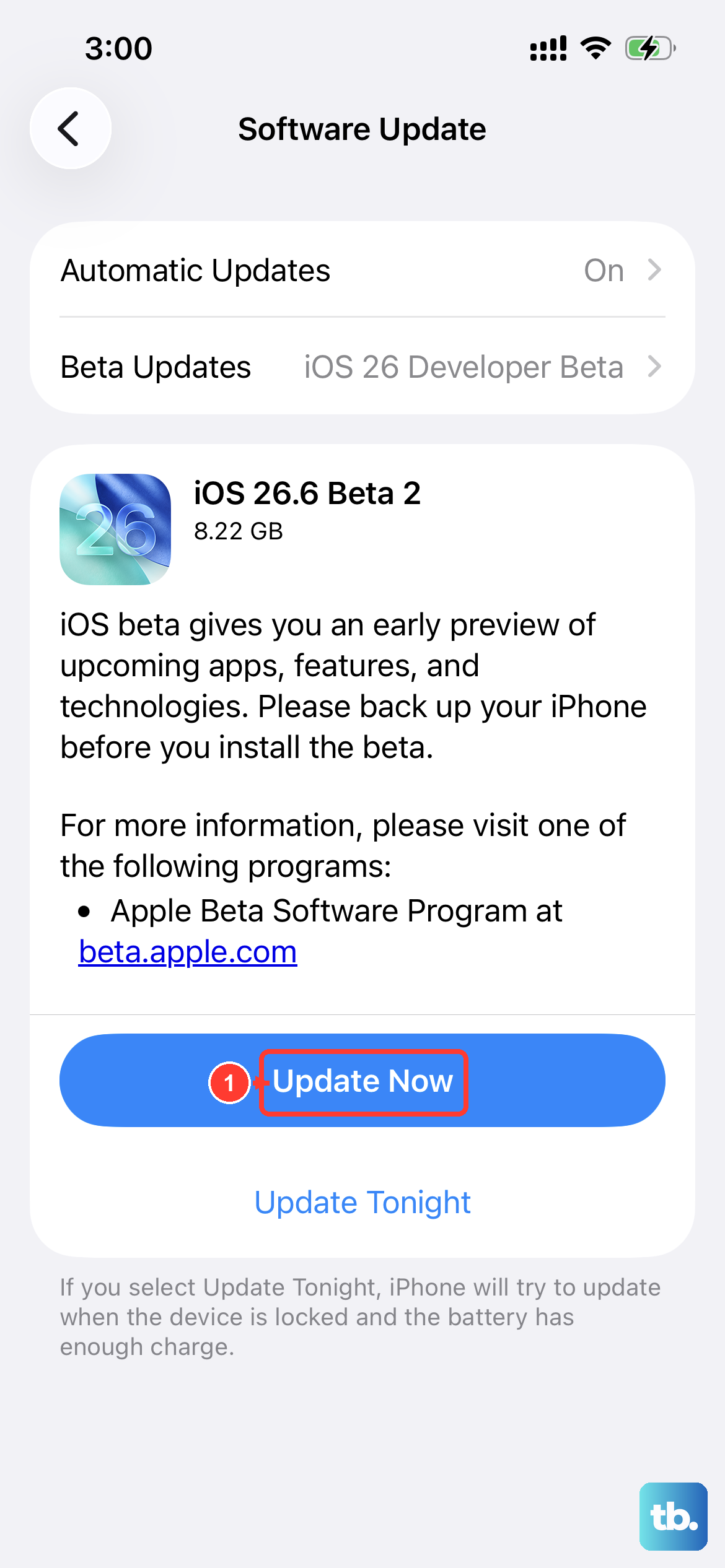
Software bugs are a common culprit for notification failures. Apple and app developers regularly release updates with fixes. First, check for an iOS update by going to Settings > General > Software Update.
Next, open the App Store, tap your profile icon in the top right, and scroll down to see pending updates. Update all your apps, especially the ones giving you notification trouble. A fresh install of the latest code often solves the problem.
Check for Physical Interruptions
This sounds simple, but make sure the ring/silent switch on the left side of your iPhone SE 4 isn't flipped down, showing an orange stripe. When it's in silent mode, most notifications will vibrate only. Also, ensure your volume is turned up by pressing the Volume Up button on the side.
If you use a case, especially a thick one, try removing it to see if the side switch is being held in an odd position. A case can sometimes prevent the buttons from registering presses correctly.
Sign Out and Back Into Your Apple ID
Notifications for system services like iMessage, FaceTime, and iCloud are tied to your Apple ID. A glitch in this connection can disrupt alerts. Go to Settings and tap your name at the top. Scroll down and tap "Sign Out."
You'll be asked to keep a copy of your keychain, contacts, and health data on the iPhone, that's fine. After signing out, restart your phone, then go back to Settings and sign in again with your Apple ID. This refreshes your account's connection to Apple's notification servers.
Reset All Settings
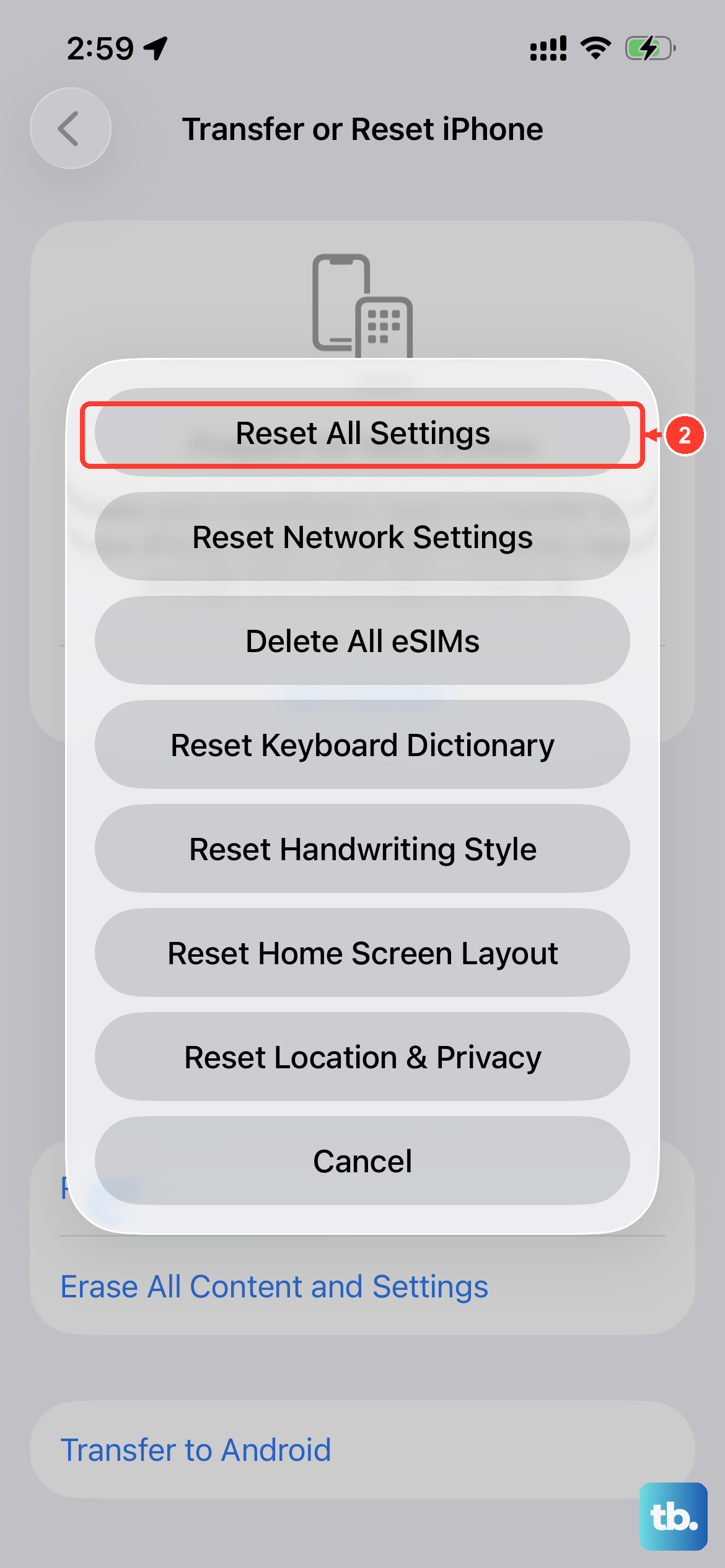
This is a more comprehensive reset if nothing else has worked. It will wipe all your system settings back to factory defaults. This includes network settings, wallpaper, privacy permissions, and, of course, notifications. Your personal data, photos, and apps remain untouched.
To do this, go to Settings > General > Transfer or Reset iPhone. Tap "Reset" at the bottom, then choose "Reset All Settings." You'll need to enter your passcode. After the phone restarts, you will need to reconnect to Wi-Fi and re-customize your preferences, but it often resolves persistent software issues.
Check Background App Refresh
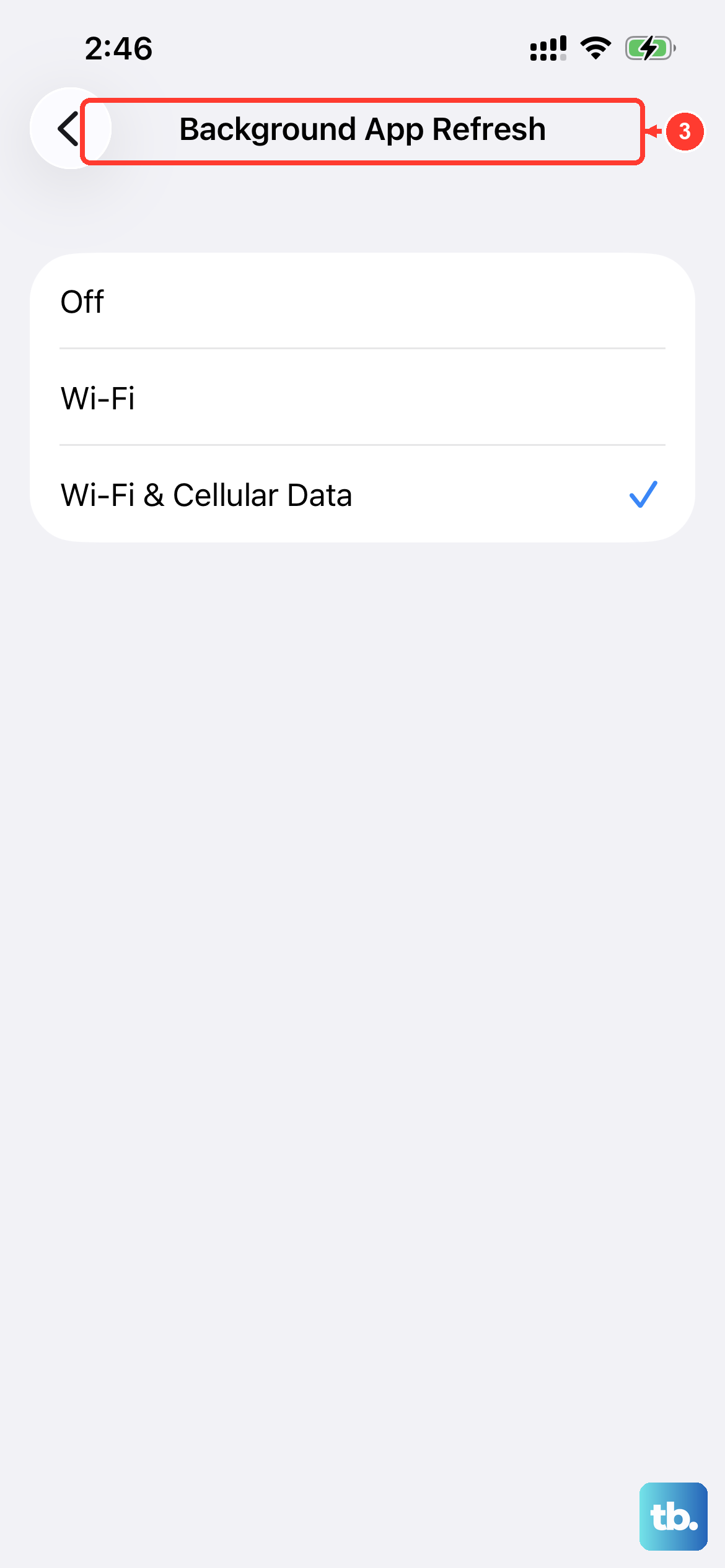
While not directly a notification setting, Background App Refresh allows apps to check for new content in the background. If it's off globally or for a specific app, notifications can be delayed. Go to Settings > General > Background App Refresh.
You can set it to "Wi-Fi & Cellular Data" or just "Wi-Fi." I'd recommend leaving it on for the apps where you need instant alerts, like messaging or email clients. For the iPhone SE 4, managing this can also help with battery life, so find a balance that works for you.