So Facebook won't load. You're staring at a blank screen, an error message, or a feed that just spins forever. It's one of the most common tech frustrations out there, and the good news is it's almost always fixable.
Whether you're on a phone, tablet, or computer, this guide walks you through every fix that actually works in 2026. We'll start with the fastest solutions and work our way to the deeper stuff.
Quick Fix: Try This First
Close and reopen the app (or browser tab), then toggle Airplane Mode on for 30 seconds and turn it off. This forces your device to grab a fresh internet connection and clears any temporary glitch in the app. It sounds too simple, but it fixes the problem for a surprising number of people.
If that didn't do it, keep reading. We've got plenty more solutions below.
Check if Facebook Is Actually Down
Before you start troubleshooting your own device, make sure Facebook itself isn't the problem. Meta's servers go down more often than you'd think. Just this month (March 2026), thousands of users got hit with login errors, broken feeds, and "temporarily unavailable" messages during a multi-hour outage.
Head to Downdetector or Technobezz and search for Facebook. If you see a huge spike in reports, that's your answer. You can also search "#facebookdown" on X (formerly Twitter) to see if other people are complaining.
If it's a server-side issue, there's nothing to fix on your end. Just wait it out.
Restart Your Device
The classic fix that works way more often than it should. A quick restart clears out temporary files, resets network connections, and kills any background processes that might be interfering with Facebook.
On iPhone, hold the side button and volume button, then slide to power off. On Android, hold the power button and tap Restart. Give it a minute, then open Facebook again.
Clear Cache and Cookies
Corrupted cache files are one of the biggest reasons Facebook stops loading properly. Clearing them gives the app (or your browser) a clean slate to work with.
On Android: Go to Settings, then Apps, find Facebook, tap Storage, and hit Clear Cache. You can also tap Clear Data if the cache alone doesn't help.
On iPhone: iOS doesn't let you clear app cache directly. Instead, go to Settings, then General, then iPhone Storage, find Facebook, and tap Offload App. Reinstall it from the App Store after.
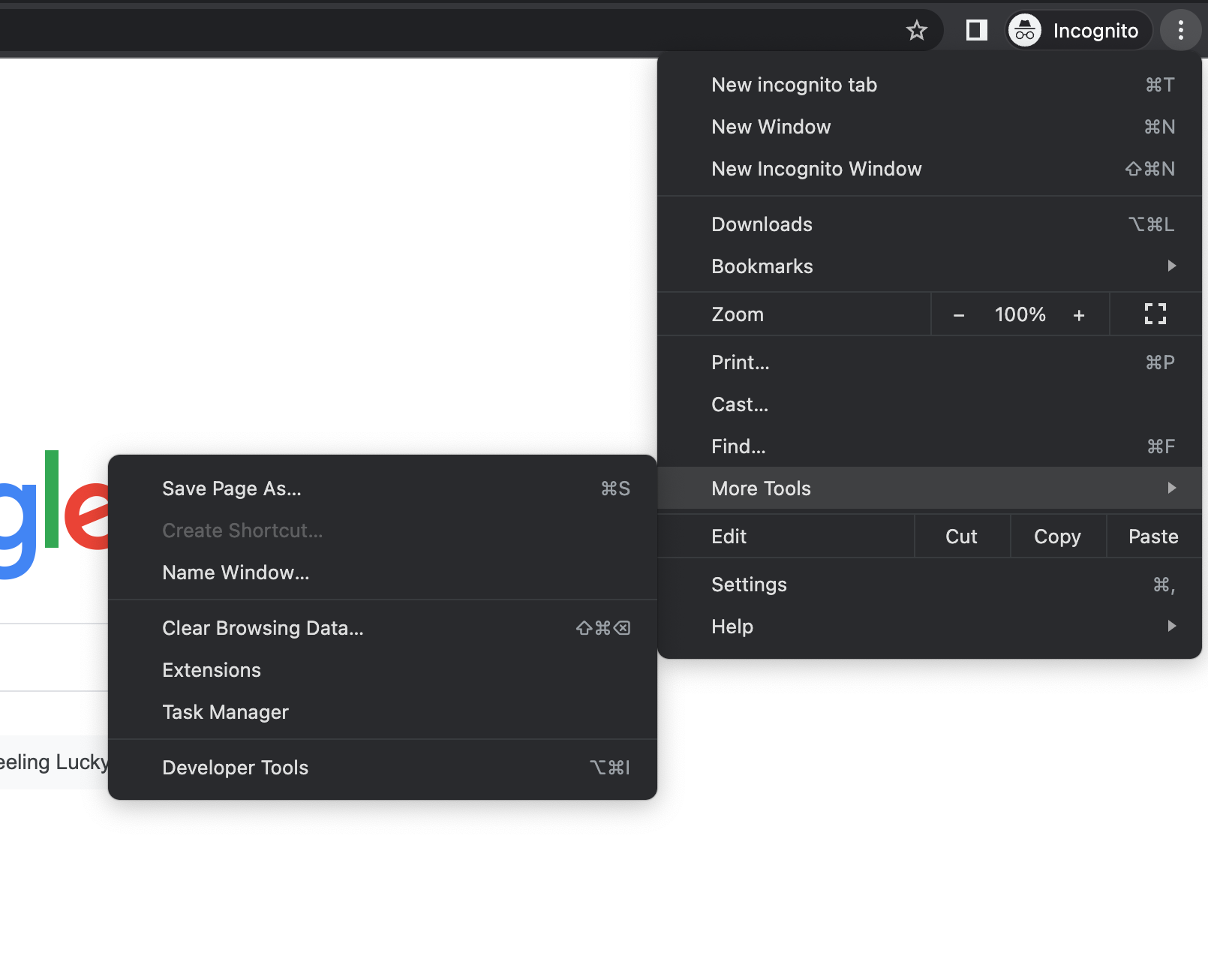
On Chrome: Click the three-dot menu, go to More Tools, then Clear Browsing Data. Check "Cookies and other site data" and "Cached images and files," then hit Clear.
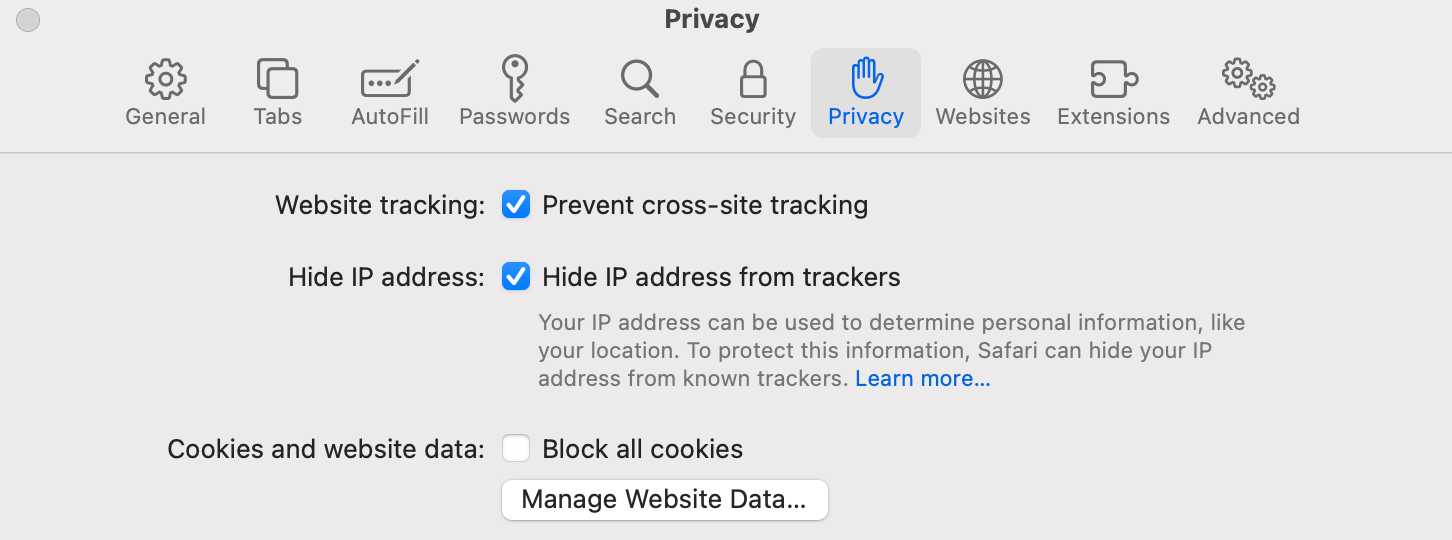
On Firefox: Open the menu, go to Settings, then Privacy & Security, and click Clear Data. Select Cookies and Cached Web Content.
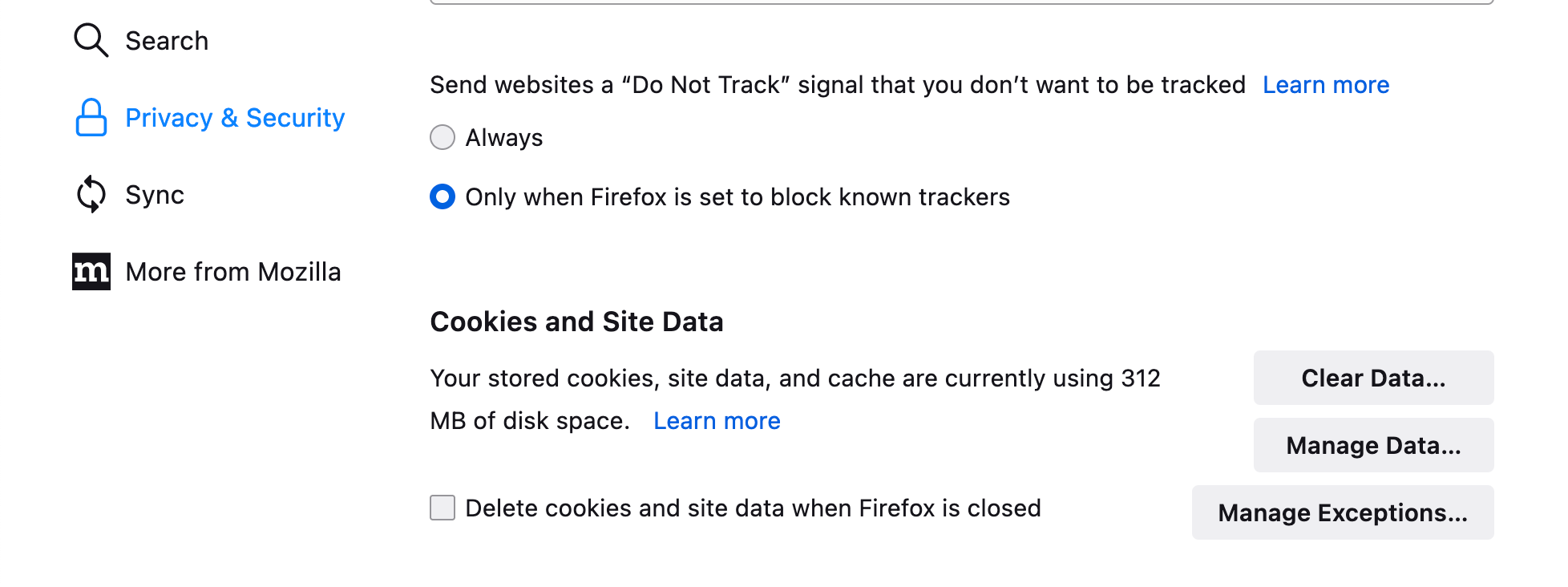
On Safari: Open Safari, click the Safari menu, then Settings (or Preferences), go to the Privacy tab, and click Manage Website Data. Hit Remove All.
Check Your Internet Connection
This sounds obvious, but a flaky connection is the most common cause of Facebook not loading. Try opening another website or app. If nothing else loads either, the problem is your internet, not Facebook.
Try switching from Wi-Fi to cellular data (or the other way around) to narrow it down. If you're on Wi-Fi, try moving closer to your router or switching between the 2.4 GHz and 5 GHz bands.
If your Wi-Fi is the culprit, restart your router. Unplug it for about 60 seconds, plug it back in, and give it a couple minutes to reconnect. This clears the router's temporary memory and often fixes connectivity issues.
Update the Facebook App
Running an outdated version of Facebook can cause all sorts of loading problems, especially after Meta pushes server-side changes. Facebook rolled out a major UI overhaul in early 2026, and older app versions don't always play nice with the new backend.
Open the App Store (iPhone) or Google Play Store (Android) and search for Facebook. If there's an Update button, tap it. While you're at it, make sure your phone's operating system is up to date too.
Try a Different Browser
If Facebook won't load on your computer, open it in a different browser. Try Chrome, Firefox, Brave, or Edge. If it works in one browser but not another, the issue is with your primary browser (probably an extension or cached data causing trouble).
You can also try opening Facebook in a private/incognito window. This loads the page without any extensions or cached data, which is a quick way to rule out browser-specific problems.
Disable Browser Extensions
Ad blockers, privacy tools, and security extensions are notorious for breaking Facebook. Extensions like uBlock Origin, Bitdefender Anti-Tracker, and AdBlock Plus can all interfere with how the page loads.
Try disabling your extensions one by one to find the culprit. In Chrome, go to the three-dot menu, then More Tools, then Extensions. In Safari, go to Safari menu, then Settings, then Extensions.
Check Your Date and Time Settings
This one catches people off guard, but incorrect date and time settings can prevent Facebook (and many other sites) from loading. It messes with security certificates, which makes your browser think the connection isn't safe.
On Mac: Open System Settings, click General, then Date & Time, and make sure "Set date and time automatically" is turned on.
On Windows: Right-click the clock in your taskbar, select Adjust Date/Time, and toggle on "Set time automatically."
On phones: Go to Settings, find Date & Time, and enable automatic time.
Check Security Software and VPNs
Your antivirus, firewall, or VPN might be blocking Facebook without you realizing it. This is especially common with aggressive security suites that flag social media traffic.
Try temporarily disabling your security software and loading Facebook again. If it works, add Facebook to your security software's allowlist so it doesn't get blocked in the future. Same goes for VPNs. Try disconnecting yours to see if that's the issue.
Enable JavaScript
Facebook relies heavily on JavaScript to function. If it's disabled in your browser, you'll get a blank page or a broken layout every time.

In Chrome: Go to Settings, then Privacy and Security, then Site Settings, and make sure JavaScript is set to "Sites can use JavaScript."
In Safari: Go to Safari menu, Settings, then Security tab, and check "Enable JavaScript." Also make sure cookies aren't fully blocked under the Privacy tab.
Clear Your DNS Cache
Your device stores DNS lookups to speed things up, but sometimes that cache gets stale or corrupted. Flushing it forces your device to look up Facebook's address fresh.
On Mac: Open Terminal and type sudo dscacheutil -flushcache; sudo killall -HUP mDNSResponder then hit Enter.
On Windows: Open Command Prompt as admin and type ipconfig /flushdns then hit Enter.
In Chrome: Type chrome://net-internals/#dns in the address bar and click "Clear host cache."
Reset Proxy Settings
If you're using a proxy (or one got set up without you knowing), it could be blocking your connection to Facebook.
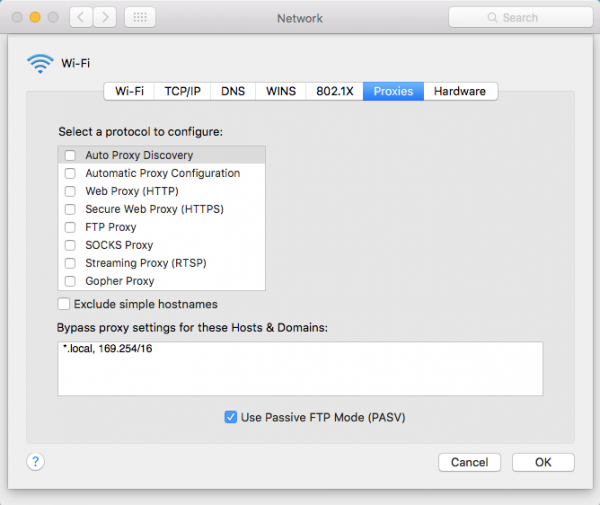
On Mac: Go to System Settings, then Network, select your connection, click Details, then Proxies. Make sure nothing is checked unless you intentionally use a proxy.
On Windows: Open Settings, go to Network & Internet, then Proxy. Turn off "Use a proxy server" unless you need it.
Check Cellular Data Permissions (Mobile)
If Facebook loads fine on Wi-Fi but not on mobile data, the app might not have permission to use cellular data.
On iPhone: Go to Settings, then Cellular, scroll down to Facebook, and make sure the toggle is on.
On Android: Go to Settings, then Apps, find Facebook, tap Mobile Data, and make sure background data is enabled.
Reinstall the Facebook App
If nothing else has worked, delete the Facebook app and reinstall it from scratch. This gives you a completely clean installation with no corrupted files or outdated cached data hanging around.
On iPhone, long-press the Facebook icon and tap Remove App. On Android, go to Settings, then Apps, find Facebook, and tap Uninstall. Then head to your app store and download it fresh.
Frequently Asked Questions
Why does Facebook show a blank white screen?
A blank white screen usually means corrupted cache data or a JavaScript issue in your browser. Start by clearing your browser cache and making sure JavaScript is enabled. If you're on a phone, try force-closing the app and reopening it.
Is Facebook down right now in 2026?
Facebook has had several outages in 2026, including a major one in early March that affected thousands of users. Check Technobezz Status (Gamebezz) for real-time status updates. If lots of people are reporting issues at the same time, it's likely a server problem on Meta's end.
Why does Facebook load on Wi-Fi but not on mobile data?
Your phone's cellular data permissions for Facebook might be turned off. On iPhone, check Settings then Cellular and make sure the Facebook toggle is on. On Android, check the app's Mobile Data settings. A VPN or your carrier's network restrictions could also be the cause.
Will reinstalling Facebook delete my account or messages?
No. Reinstalling the app only removes the local files from your device. Your account, messages, photos, and everything else are stored on Facebook's servers. Just log back in after reinstalling and everything will be right where you left it.