You tap Add friend, but Facebook hides the button, leaves the request pending, or refuses to send it. The fix depends on whether Facebook is stopping your account, the other profile is blocking requests, or the app/browser is failing.
Start with the fastest checks, then move into account notices and app troubleshooting. Each path below uses current Facebook, Apple, Google, Android, or official app-store steps.
Wait out temporary request blocks
If Facebook says you are temporarily blocked from sending friend requests, stop sending requests until Facebook removes the block.
After the block lifts, send requests only to people you know. Avoid sending many requests quickly, especially to people who could mark them as unwanted.
Use the pause to clean up outgoing requests. Open Friends > Friend requests > Options > View sent requests, then choose Cancel below requests that are still waiting.
Check pending requests and existing friends
Open the person’s profile and check the friend button. If it shows a pending request state instead of Add friend, wait for the person to respond.
To cancel the request, go to Friends > Friend requests > Options > View sent requests, then choose Cancel below the person’s name. You can also cancel from the person’s profile.
If the profile already shows Friends, no new request exists to send.
If this does not explain the problem, check friend-request privacy next.
Ask the other person to add you
The most common privacy-related cause is that the other person only accepts friend requests from Friends of friends, and you share no mutual friends.
Ask the person to open your profile and select Add friend.
If they cannot see Add friend on your profile, open the Facebook app and go to Menu > Settings & privacy > Settings > Audience and visibility > How people find and contact you > Who can send you friend requests? > Everyone.
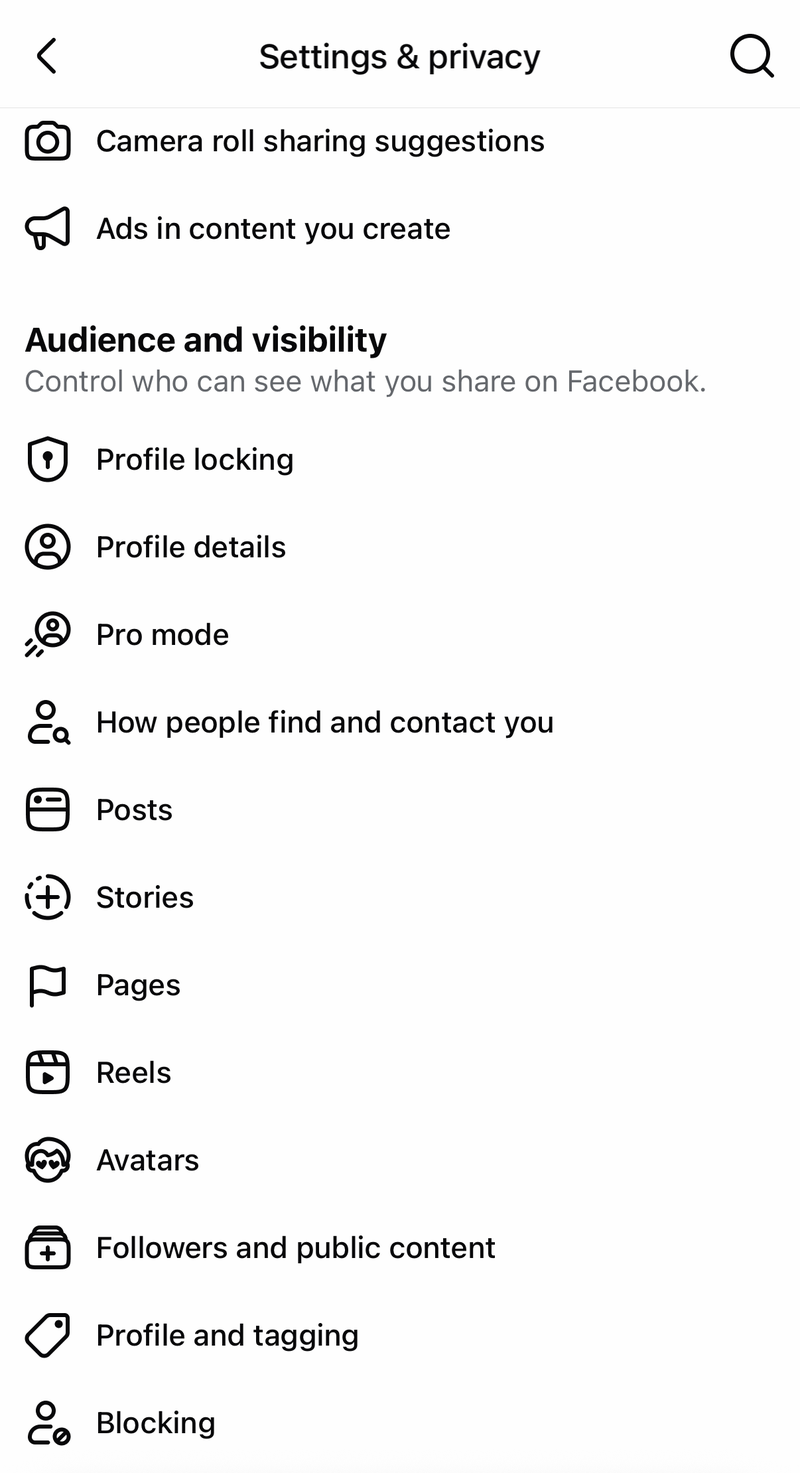
This setting controls who can send requests to you. The other person must use Everyone on their account if their profile blocks requests from non-mutual contacts.
Fix the 5000 friend limit
Personal Facebook profiles have a 5,000-friend limit. If your profile has reached that limit, remove someone before sending a new request.
Open the profile you want to remove, select Friends, choose Unfriend, then select Confirm. Return to the new person’s profile and select Add friend.
If the other person has reached 5,000 friends, Facebook will not force the request through. Open their profile and select Follow if the button appears.
If Follow does not appear, the other person has to allow followers or use professional mode. On your own eligible profile, open the profile Menu or three-dot profile menu, then choose Turn on professional mode > Turn on so people can follow public updates even when they cannot become friends.
Unblock the profile first
A previous block stops a normal friend request. In the Facebook app, go to Menu > Settings & privacy > Settings > Audience and visibility > Blocking, find the person, and choose Unblock.
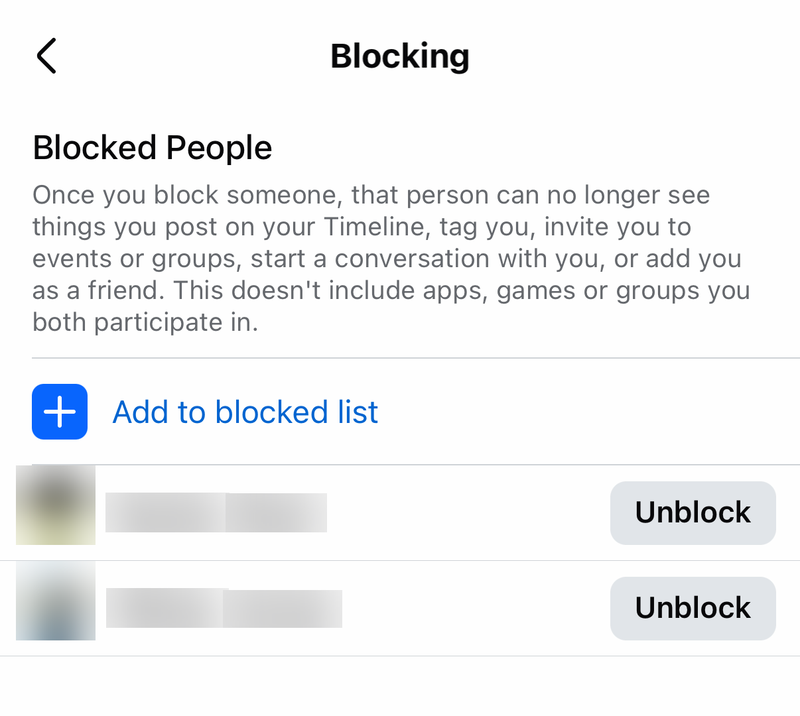
After unblocking, open their profile and send a new friend request. Facebook requires a new request after blocking and unblocking.
If the other person blocked you, only they can unblock you.
If blocking is not the issue, check account restrictions and support messages next.
Review Account Status and Support Inbox
Facebook restricts account actions after some reports, limits, or Community Standards issues. Check the account notice area before troubleshooting the app.
In the Facebook app, open Menu > Help and support > Support, tap your name, and review Account Status. If Facebook shows See Details or Request Review on a restriction, use that in-product flow.
Next, open Menu > Help & support > Support inbox. Review messages from Facebook about account limits, reports, or review responses.
When the option appears, open the Facebook Help Center or the app’s Help area and choose Chat with Meta AI support assistant. Ask about the friend-request error and follow the account-specific prompts.
Find the correct profile again
Use a fresh search when you could be looking at the wrong account.
- 1.Tap Search at the top of Facebook.
- 2.Enter the person’s name and choose Search.
- 3.Open the correct profile.
- 4.Select Add friend.
- 5.From People You May Know, choose Add Friend on the correct suggestion.
Clear browser and app glitches
The most common local cause is stale cache, an outdated page, or a Facebook app screen that is not loading correctly.
On desktop web, refresh the page, close and reopen it, clear cache in your browser settings, restart the computer, then try Add friend again.
In Chrome, open More > Delete browsing data, choose a time range, select Cookies and other site data, then choose Delete data. Sign back in to Facebook and try again.
On iPhone or iPad using Facebook in Safari, go to Settings > Apps > Safari > Advanced > Website Data > Remove All Website Data > Remove Now. Reopen Safari, sign in to Facebook, and try again.
On Android, clear the Facebook app cache at Settings > Apps or Applications > Facebook > Storage > Clear cache. Reopen Facebook and test the request from the person’s profile.
Update or reinstall Facebook
Use this when privacy, limits, blocking, and account-status checks look normal, but Add friend still fails in the app.
On Android, open Google Play Store > profile icon > Manage apps & device > Updates available > See details, then tap Update next to Facebook. You can also use Update all, or install/update Facebook from the official Google Play listing.
On iPhone or iPad, open the official App Store Facebook listing and choose Get, Open, or Update. Use the App Store or Google Play instead of third-party APKs or download portals.
If updating does not help, remove Facebook, restart the device, then reinstall it from the official app store.
Android users can also install Facebook Lite from the official Facebook Lite page or Google Play, sign in, then use Search or People You May Know and select Add friend.
When the failure happens again in the mobile app, return to the screen where it failed, shake your phone, choose Report a problem, select Include in report or the equivalent prompt, and describe that friend requests cannot be sent.
Facebook does not offer a current setting to disable friend requests entirely; the current choices are Everyone and Friends of friends. Facebook also does not support bypassing request limits with third-party tools, browser extensions, scripts, unofficial APKs, or download portals.
Frequently Asked Questions
Why can’t I send a friend request on Facebook even though the button is visible?
Facebook is usually stopping the action because of a temporary request block, a pending request, an existing friendship, the 5,000-friend limit, an account restriction, or a local app/browser problem.
Why is Add friend missing on someone’s Facebook profile?
Their request privacy can be set to Friends of friends, they can be at the 5,000-friend limit, or one of you blocked the other account.
Can I send a friend request after canceling a pending one?
Yes. Cancel it from View sent requests or from the person’s profile, then send another request later if the Add friend button is available.
Can someone add me if I cannot add them?
Yes. Ask them to open your profile and choose Add friend. If they cannot see the button, set Who can send you friend requests? to Everyone.