You open Device Manager to fix Bluetooth, and the Bluetooth section is gone. Windows either cannot see the adapter, the radio is turned off, the driver is damaged, or the PC does not include Bluetooth hardware. Start with the fast checks first, then move through Device Manager, driver repair, manufacturer tools, BIOS settings, and Windows repair.
1. Verify the PC actually has Bluetooth
Start with the part Windows cannot fix in software. Microsoft says some devices do not include Bluetooth, so check the PC, laptop, motherboard, or adapter specifications before spending time on driver repair.
If the specs do not list Bluetooth, Device Manager has nothing to restore. Add supported Bluetooth hardware, then use Start > Settings > Bluetooth & devices > Devices > Add device to pair accessories after the adapter is installed.
On laptops, inspect the body for a physical Bluetooth or wireless switch. Turn that switch on before checking Windows again.
2. Turn on Bluetooth and disable Airplane mode
- 1.Open Start > Settings > Bluetooth & devices.
- 2.Next to Bluetooth, set the switch to On.
- 3.Select the Network, Sound, or Battery icon next to the time and date.
- 4.Set Airplane mode to Off.
- 5.Select the Bluetooth tile in Quick Settings to turn Bluetooth on.
When Bluetooth exists but nearby accessories do not appear, open Start > Settings > Bluetooth & devices > Devices. Under Device settings, set Bluetooth devices discovery to Advanced. That fixes discovery, not a completely missing adapter.
3. Run Microsoft Get Help before deeper changes
Microsoft directs Windows 11 Bluetooth troubleshooting through Get Help. Open the Run the troubleshooter in Get Help link from Microsoft’s Bluetooth support page, then follow the prompts.
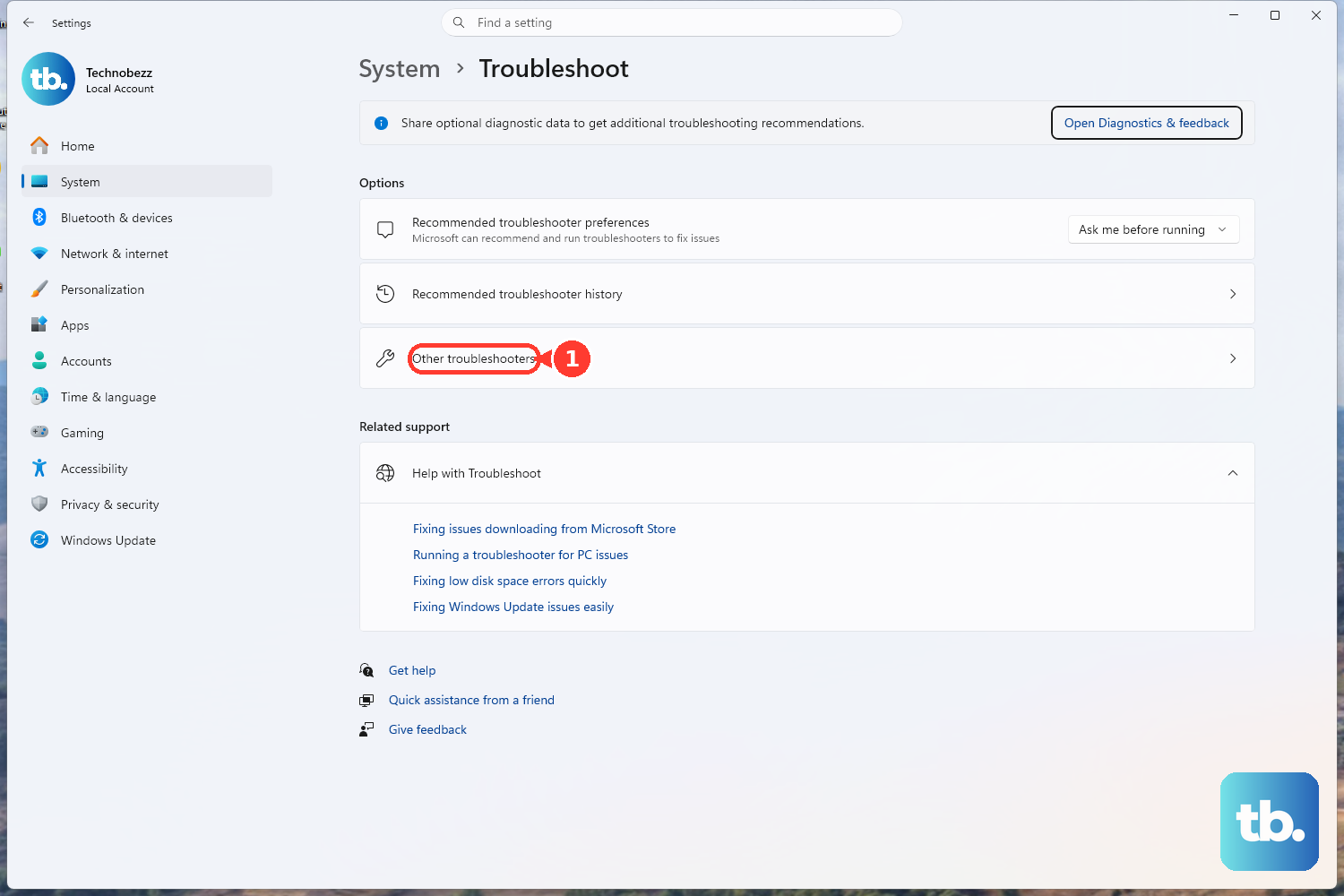
Check the Settings route as well: open Start > Settings > System > Troubleshoot > Other troubleshooters. Next to Bluetooth, select Run, then follow the instructions. Newer Windows builds redirect the old troubleshooter surface to Get Help.
4. Rescan and enable Bluetooth in Device Manager
Right-click Start, or press Windows + X, then select Device Manager.
Expand Bluetooth.
If the adapter has a down-arrow icon, right-click it and select Enable device.
After that, expand Other devices and look for the Bluetooth adapter there.
Select Action > Scan for hardware changes.
For stale entries, select View > Show hidden devices. Expand Bluetooth or Other devices, right-click non-present Bluetooth entries, select Uninstall device, then restart the computer.
Advanced users can force the same Plug and Play rescan from an elevated command line. Open Windows Terminal or Command Prompt as administrator, run pnputil /scan-devices, then run pnputil /enum-devices /connected to verify detected hardware.
5. Repair the Bluetooth driver
Use driver repair when Windows still detects the adapter under Bluetooth or Other devices.
Select Start, type Device Manager, then open Device Manager.
Expand Bluetooth, or check Other devices.
Then right-click the Bluetooth adapter, then select Update driver > Search automatically for drivers.
Follow the on-screen instructions, then restart the PC.
Next, check optional driver updates in Windows 11. Open Start > Settings > Windows Update > Advanced options > Optional updates, then expand Driver updates, select the updates you want, and select Download and install.
If Windows does not install the right driver, download the current Bluetooth or wireless driver from the PC maker or adapter maker. Then open Device Manager, right-click the adapter, select Update driver > Browse my computer for drivers, choose the driver folder with Browse, select OK > Next, and restart when prompted.
When Bluetooth disappeared right after a driver or Windows update, open the adapter’s Properties, select the Driver tab, then select Roll Back Driver when that button is available.
6. Reinstall the adapter and power cycle Windows
Open Device Manager.
Expand Bluetooth.
Right-click the Bluetooth adapter, then select Uninstall device > Uninstall.
Next select Start > Power > Shut down.
Wait a few seconds after shutdown, then turn the PC back on.
If Windows does not reinstall the adapter, open Device Manager and select Action > Scan for hardware changes.
On ASUS PCs, use the full shutdown method ASUS documents: select Start, select Power, hold Shift, then select Shut down. After the device turns off completely, restart it.
If Bluetooth is visible but disconnects or disappears after sleep, press Windows + R, type services.msc, select OK, right-click Bluetooth Support Service, then select Restart. In Device Manager, open the Bluetooth device, select the Power Management tab, and clear Allow the computer to turn off this device to save power.
7. Use manufacturer diagnostics and BIOS settings
If Bluetooth is absent from both Device Manager and Settings, move to the PC maker’s tools.
On Dell PCs, go to the Dell Support website, identify the computer, select DIAGNOSTICS > Visit Advanced Troubleshooting > Full list of components. Under System Devices, select Bluetooth Device > Continue > Run Hardware Scan.
On ASUS devices with MyASUS, search for MyASUS, select Open, then go to System Diagnosis. If MyASUS does not show a System Diagnosis page, ASUS says the device does not support that feature. Under Diagnostic Tool, select Bluetooth under Customized diagnosis, select Checkup, then open Results.
Use the official support page for your exact model when installing drivers. Dell lists Bluetooth under Drivers & Downloads with Network, Ethernet & Wireless. ASUS, HP, and Lenovo provide model-specific driver pages. Intel provides Wireless Bluetooth drivers for supported Intel adapters on 64-bit Windows 10 and Windows 11.
Enter BIOS or UEFI using the manufacturer’s instructions. Confirm Bluetooth or wireless is enabled, or load BIOS defaults where the vendor instructs it.
8. Restore or repair Windows as the last step
Use Windows repair only after hardware, driver, BIOS, and manufacturer checks fail.
System Restore: Open Control Panel > Recovery > Open System Restore, select Next, choose a restore point, select Next, then select Finish.
Fix problems using Windows Update: In Windows 11, open Start > Settings > System > Recovery. Under Fix problems using Windows Update, select Reinstall now. If the option is missing, Microsoft says it can be unavailable on managed PCs or on Windows versions earlier than Windows 11, version 22H2 without the February 2024 optional update or a later update.
Reset this PC: Open Start > Settings > System > Recovery, then under Recovery options select Reset PC. Back up important files first and have the BitLocker recovery key ready.
For work or school PCs, ask IT to check Bluetooth policy. Managed Windows devices can gray out or block Bluetooth through AllowBluetooth, Bluetooth profile restrictions, or device-installation restriction policies.
Skip the old Hardware and Devices MSDT command and Device Manager > Action > Add legacy hardware. Microsoft says MSDT troubleshooters are deprecated, and current Bluetooth adapter recovery relies on Get Help, Plug and Play detection, driver installation, and manufacturer support.
Frequently Asked Questions
Why is Bluetooth not showing in Device Manager at all?
The PC either lacks Bluetooth hardware, has the radio disabled by a physical switch or BIOS setting, or has a driver problem that prevents Windows from listing the adapter correctly.
What should I do if Bluetooth appears under Other devices?
Treat it as a driver issue. Right-click the adapter in Device Manager, use Update driver, check Windows Update optional drivers, or install the exact driver from the PC or adapter maker.
Should I use Add legacy hardware to restore Bluetooth?
No. Current Microsoft Bluetooth guidance does not use Add legacy hardware for missing Bluetooth adapters. Use Get Help, Scan for hardware changes, current drivers, and manufacturer diagnostics.
Can my workplace laptop block Bluetooth?
Yes. Managed Windows devices can restrict Bluetooth through organization policy, Bluetooth service allow lists, or device-installation rules. Ask the IT admin to check those settings.