Apple CarPlay in a Kia Telluride can fail at the USB port, the cable, the phone permissions, the saved pairing, or the infotainment software. Start with the checks that match how Telluride owners actually run into this problem: the right port, a real data cable, then the phone and Kia settings that allow CarPlay to launch. By the end, you will know whether the fix is on the iPhone, the Telluride screen, or the vehicle software.
Start With The Right Port
Check the vehicle first. Apple’s public compatibility page lists Kia Telluride entries for 2020 through 2025, while Kia product information advertises Wireless Apple CarPlay for the all-new 2027 Telluride.
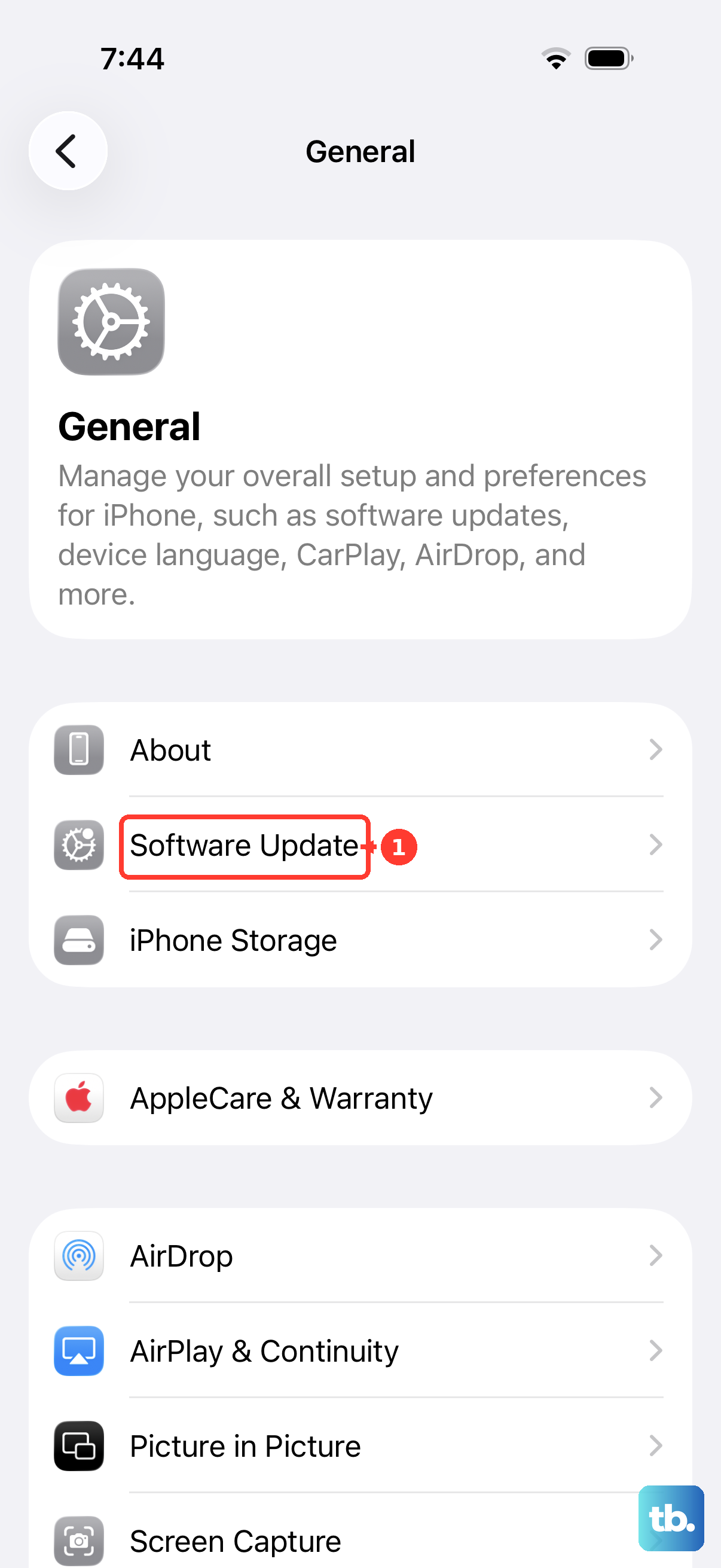
Open Settings, then General, then Software Update on the iPhone. Install the latest iOS update before deeper troubleshooting.
Start the vehicle before connecting the phone. Plug the iPhone into the Telluride USB port marked with the CarPlay icon or smartphone icon. Use the USB data port, not a charge-only port. Exact port location changes by model year and trim, so follow the port labeling in your vehicle.
If the CarPlay tile does not open by itself, select the CarPlay logo or Apple CarPlay on the Kia screen. For most 2020 through 2026 Telluride owners, use wired CarPlay unless the owner’s manual for that exact vehicle shows wireless CarPlay.
Swap The Cable And Adapter
The most common cause is a cable or adapter that charges the iPhone but does not maintain the data connection CarPlay needs. Use an Apple USB cable or a direct USB cable connection between the iPhone and the vehicle USB port. Remove USB-C-to-Lightning adapter chains when CarPlay drops or never appears.
Try a second USB cable. Try another data-capable USB port in the Telluride. Change one connection piece at a time so the failed cable, adapter, or port is clear.
Approve The First Connection
This fixes CarPlay failures right after setup, after a reset, or after deleting the old pairing. Connect the iPhone to the Telluride by USB. Unlock the iPhone while it is connected.
On the Kia screen, choose the confirmation shown, such as Yes, Next, or OK. On the iPhone, approve Enable Apple CarPlay.
Return to the Kia home screen. Open Apple CarPlay from the CarPlay tile or phone projection area.
Turn On CarPlay In Kia Settings
Some Telluride systems need CarPlay enabled in the infotainment settings before the iPhone connection launches. On older Kia Display Audio or Gen-style systems, go to Home screen, then All Menus, then Setup, then Device Connections, then Apple CarPlay, then enable Apple CarPlay.
On ccNC or Gen5W-style Kia systems, open Home screen, then Setup, then Device Connections, then Phone Projection, then Apple CarPlay Options. Connect the iPhone with the provided USB cable, press Yes on the Kia prompt, approve Enable Apple CarPlay on the iPhone, then choose Apple CarPlay from the home screen.
If this method fails, repeat the cable and USB data-port check, then delete the old phone connection and pair it again.
Make Siri And Screen Time Allow CarPlay
Open Settings on the iPhone. Go to Apple Intelligence & Siri (listed as Siri on iPhones without Apple Intelligence, and as Siri & Search on older iOS versions), open Talk & Type to Siri or Talk to Siri, and turn on the Siri options shown for your current iOS version, because CarPlay requires Siri.
Open Settings again. Tap Screen Time. Tap Content & Privacy Restrictions.
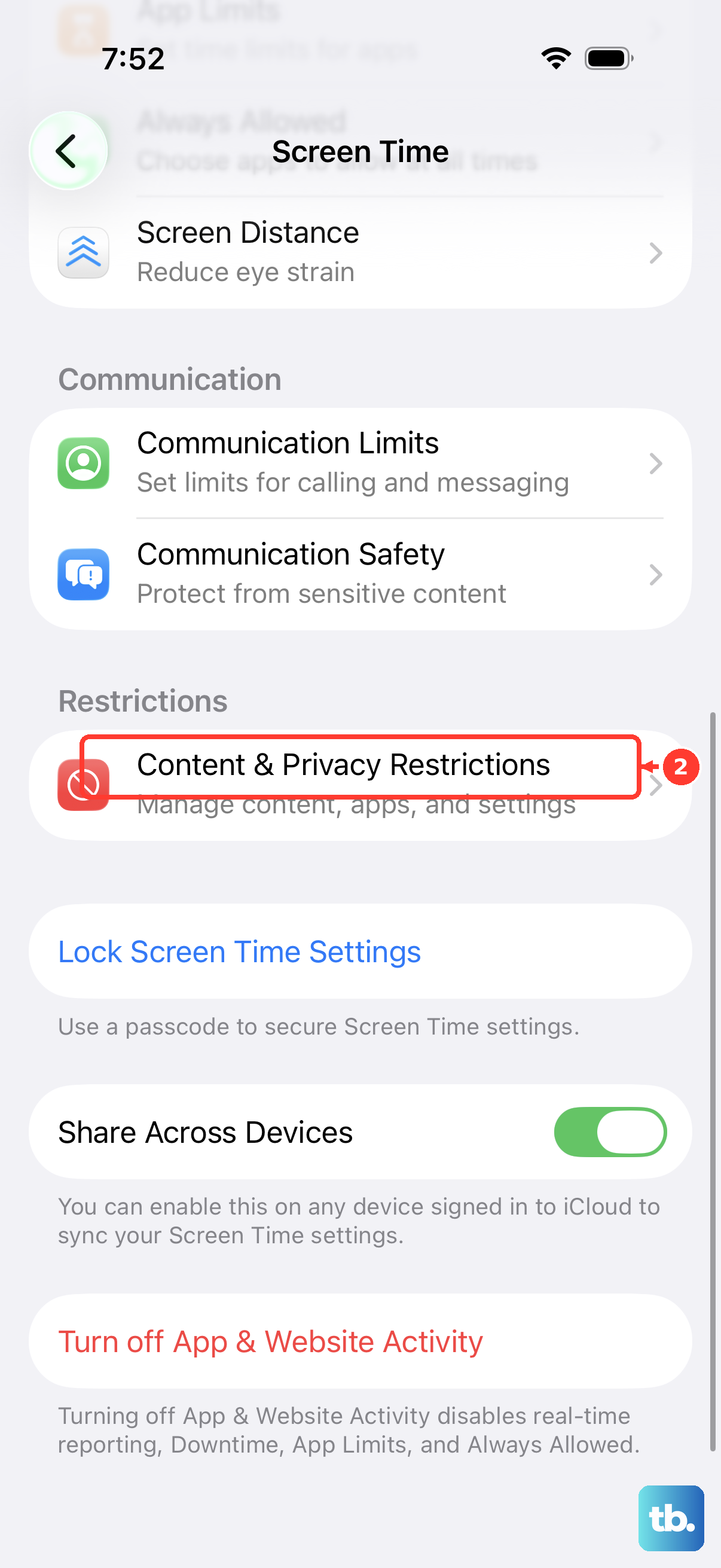
If Content & Privacy Restrictions is on, tap Allowed Apps. Turn on CarPlay. A missing CarPlay icon often returns after Siri and Screen Time restrictions are corrected.
Forget The Kia And Pair Again
Bad saved pairings survive cable swaps and restarts. On the iPhone, open Settings, then General, then CarPlay, tap your Kia, and choose Forget This Car.
If Bluetooth is involved, open Settings, then Bluetooth, tap the information button next to the Kia or vehicle device, then tap Forget This Device. Re-pair the phone from the Kia device connection screen.
Delete the phone from the Kia system too. On supported Kia systems, use Home screen, then Setup, then Device Connections, then Device Connections, then Delete Device(s), select the iPhone, then choose Delete and Yes. Add it back from Add New. If this method fails, restart the iPhone and the Telluride head unit before trying the setup again.
Set Up Wireless CarPlay
The most common cause on wireless-capable Tellurides is Bluetooth, Wi-Fi, or Auto-Join being off during pairing. On current ccNC systems, including the all-new 2027 Telluride, go to Home screen, then Setup, then Device Connections, then Device Connections, then Add New.
On older Kia Display Audio systems that show the Wi-Fi toggle, first open Home screen, then All Menus, then Setup, then Wi-Fi, and turn on Use Wi-Fi for Phone Projection; then go to Home screen, then All Menus, then Setup, then Device Connections, then Phone Projection, then Add New.
On the iPhone, turn on Bluetooth and Wi-Fi. Select the vehicle system from Bluetooth devices. Confirm the matching passkeys. Approve the connection.
Press OK on the Kia popup. Open Apple CarPlay or Phone Projection. For Apple’s wireless setup path, hold the steering wheel voice command button, keep the Kia stereo in wireless or Bluetooth mode, then use Settings, Wi-Fi, the CarPlay network, Auto-Join, then Settings, General, CarPlay, and select the car.
Check Work Or School Restrictions
A managed iPhone can have restrictions that block CarPlay, Siri, Bluetooth, Wi-Fi, or accessory behavior. Open Settings, then General, then VPN & Device Management. If a profile is installed on a personal iPhone, select the profile, tap Delete Profile, follow the onscreen instructions, then restart the iPhone.
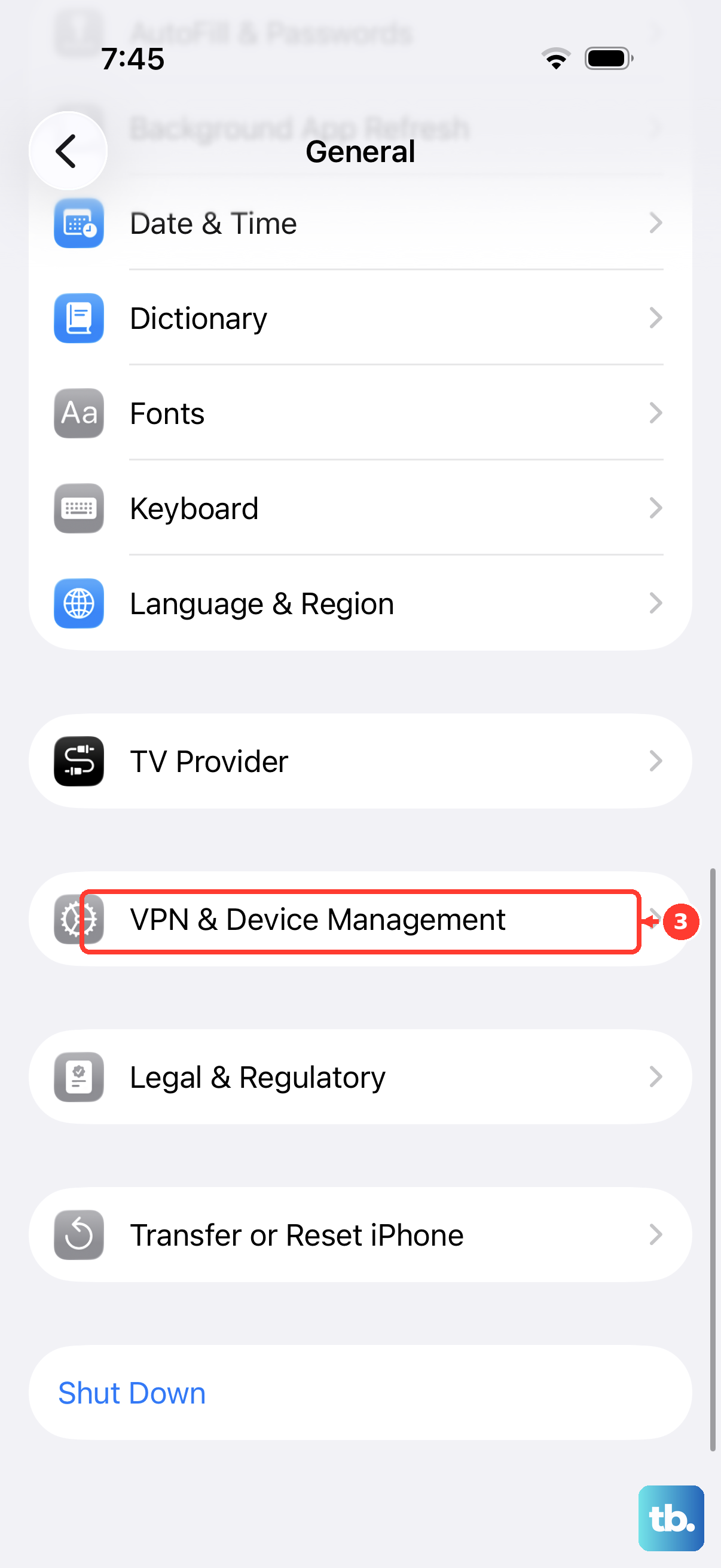
If the phone belongs to work or school and the profile cannot be removed, ask the organization administrator to change the restriction.
Update Or Reset The System
If CarPlay opens to a black screen or phone projection malfunctions, disconnect the USB cable from the iPhone and connect it again. Unlock the iPhone after reconnecting.
Restart the iPhone, then turn the vehicle off and back on. For a Kia head-unit reset, turn on the vehicle, find the small pinhole reset button usually near the volume knob, press and hold it with a paperclip for about 5 to 10 seconds, and release when the screen goes black or begins rebooting.
Update the Kia infotainment software from Kia’s official update site. Use VIN or vehicle-type lookup, install Navigation Updater when required, download the available update, copy it to USB when prompted, then use the vehicle path Settings, General, SW Info/Update, and Update. On Standard Gen5W systems, use Setup, General, SW Info/Update, and Update; on ccNC systems, use Setup, General, Software Info/Update, and Update.
Do not use an aftermarket wireless CarPlay adapter as the official fix for a wired-only Telluride. The supported path is the Telluride’s built-in USB connection or built-in wireless CarPlay capability, and Apple recommends a direct USB cable connection for cars that support only wired CarPlay.
If this method fails, use Kia’s VIN-based update lookup and the owner’s manual for your exact Telluride year, then contact Kia service for the head unit or Apple support for the iPhone.
Frequently Asked Questions
Why does my Kia Telluride charge my iPhone but not open CarPlay?
The USB port or cable is carrying power without a stable data connection. Use the Telluride USB port marked with the CarPlay or smartphone icon and connect with an Apple USB cable or direct USB cable.
Does the Kia Telluride support wireless Apple CarPlay?
Apple’s public compatibility list checked in August 2026 listed Telluride entries through 2025, while Kia product information advertises Wireless Apple CarPlay for the all-new 2027 Telluride. Treat 2020 through 2026 Tellurides as wired unless your exact owner’s manual shows wireless CarPlay.
What iPhone setting can block CarPlay completely?
Screen Time restrictions can block CarPlay. Open Settings, then Screen Time, then Content & Privacy Restrictions, then Allowed Apps, and turn on CarPlay.
Should I reset the Kia head unit for CarPlay problems?
Yes, after cable, permission, and pairing checks. Turn the vehicle on, press and hold the small pinhole reset button usually near the volume knob for about 5 to 10 seconds, then release when the screen goes black or starts rebooting.