Your old iPad won't connect to Wi-Fi, and entering the password again hasn't helped. Start with the connection settings, then check the saved password, router compatibility, and available software updates. These six fixes help you narrow down the trouble before resetting network settings.
Check which network your iPad has joined
Open Settings > Wi-Fi and turn on Wi-Fi. Tap your network's name to connect manually. A blue checkmark means the iPad has joined that network.
If Airplane Mode is on, turn it off in Settings > Airplane Mode. Return to Settings > Wi-Fi and select your network again.
That checkmark confirms a connection to the network, but internet access is a separate check. Test another device on the same network.
If several devices can't get online, focus on the router and your internet service. If only your iPad has trouble, continue below.
Restart the Wi-Fi connection and your iPad
In Settings > Wi-Fi, turn Wi-Fi off.
Turn Wi-Fi back on.
Tap your network's name to reconnect.
If it still won't connect, bring up the power slider: on an iPad with a Home button, hold the top button; on an iPad without a Home button, hold the top button and either volume button.
Drag the power slider to shut down.
Wait 30 seconds.
Hold the top button until the Apple logo appears.
Try joining your network through Settings > Wi-Fi.
Use Settings for this Wi-Fi restart because the Wi-Fi button in Control Center ordinarily disconnects from networks without fully turning Wi-Fi off.
Replace a saved password that no longer works
An outdated or incorrect password stops your iPad from joining a saved network.
Check the current password with the network owner, on the router label, or in its documentation.
If you can't recover it, ask the network administrator or internet provider to recover or reset it.
To look up a saved password on a current iPhone, open Passwords > Wi-Fi.
Select the network.
Tap Password to view the password for manual entry on your iPad.
Once you have the current password, forget the saved network on your iPad. Forgetting also affects devices that share the network through iCloud Keychain.
On current iPadOS, open Settings > Wi-Fi > Edit.
Tap the network's More Info button.
Tap Forget This Network.
Confirm with Forget. Older releases don't all include Edit, so this path depends on your installed version.
Select the network again in Settings > Wi-Fi.
Enter its current password.
If your iPad keeps choosing the wrong saved network, open Settings > Wi-Fi > Edit.
Tap the unwanted network's More Info button.
Turn off Auto-Join. On some supervised devices and managed networks, that option isn't available—ask whoever manages the iPad to change it.
Disconnect through the Wi-Fi button in Control Center.
Select the intended network in Settings > Wi-Fi.
Give your older iPad a compatible router connection
Move the iPad closer to your router. Metal and concrete obstructions, microwaves, cordless phones, wireless cameras, and unneeded USB 3 equipment interfere with wireless connections.
Disconnect your home router and modem from power.
Reconnect their power.
Retry Wi-Fi after both finish restarting. There's no need to factory-reset them for this step.
If your router shows separate networks for different bands, select another band your iPad supports in Settings > Wi-Fi.
An older iPad that doesn't support WPA3 needs compatible router security. Open your router manufacturer's configuration app or webpage; menu names depend on the router.
Set its security to WPA2/WPA3 Transitional, or WPA2 Personal (AES) when necessary. Avoid WEP, TKIP, WPA, and unsecured operation—keep the network password protection in place.
Back up the router's settings before installing firmware updates.
Install available firmware updates through the manufacturer's app or configuration webpage.
If these changes don't help, test the iPad on another Wi-Fi network. If it connects there, continue troubleshooting the original network. Contact your internet provider if multiple devices on that network can't get online.
Install the software update your iPad supports
Back up your iPad before updating. Install the update offered for your model; older iPads don't all support the newest iPadOS generation.
Connect the iPad to power.
Join another working Wi-Fi network if your iPad connects to one.
Open Settings > General > Software Update.
Tap Download and Install when an update is offered.
Follow the onscreen prompts.
If Wi-Fi isn't working, connect the iPad by cable to an internet-connected Mac or Windows PC running Apple Devices.
On a Mac with macOS Catalina or later, open Finder; on Windows, open Apple Devices.
Select your iPad in the sidebar.
Choose General.
Select Check for Update if needed to check for compatible software.
On the Mac, select Download and Update; in Apple Devices, select Update.
Follow the onscreen prompts.
Enter your iPad passcode if requested.
A cable connection lets you install an update even when the iPad's own Wi-Fi isn't working.
Reset network settings after the simpler fixes
Before resetting anything, check installed VPN, firewall, parental-control, antivirus, or content-blocking apps. Their network features can interfere with your connection.
Open the relevant app.
Temporarily turn off its network features using the app's own controls. Button names vary by app.
Test the Wi-Fi connection again.
For a work or school iPad, ask IT to correct the network configuration before changing organizational settings. Some managed networks cannot be forgotten.
If the connection still fails, have your Wi-Fi password ready. A network reset removes saved Wi-Fi passwords and other network settings.
On iPadOS 15 or later, open Settings > General > Transfer or Reset iPad > Reset.
Tap Reset Network Settings.
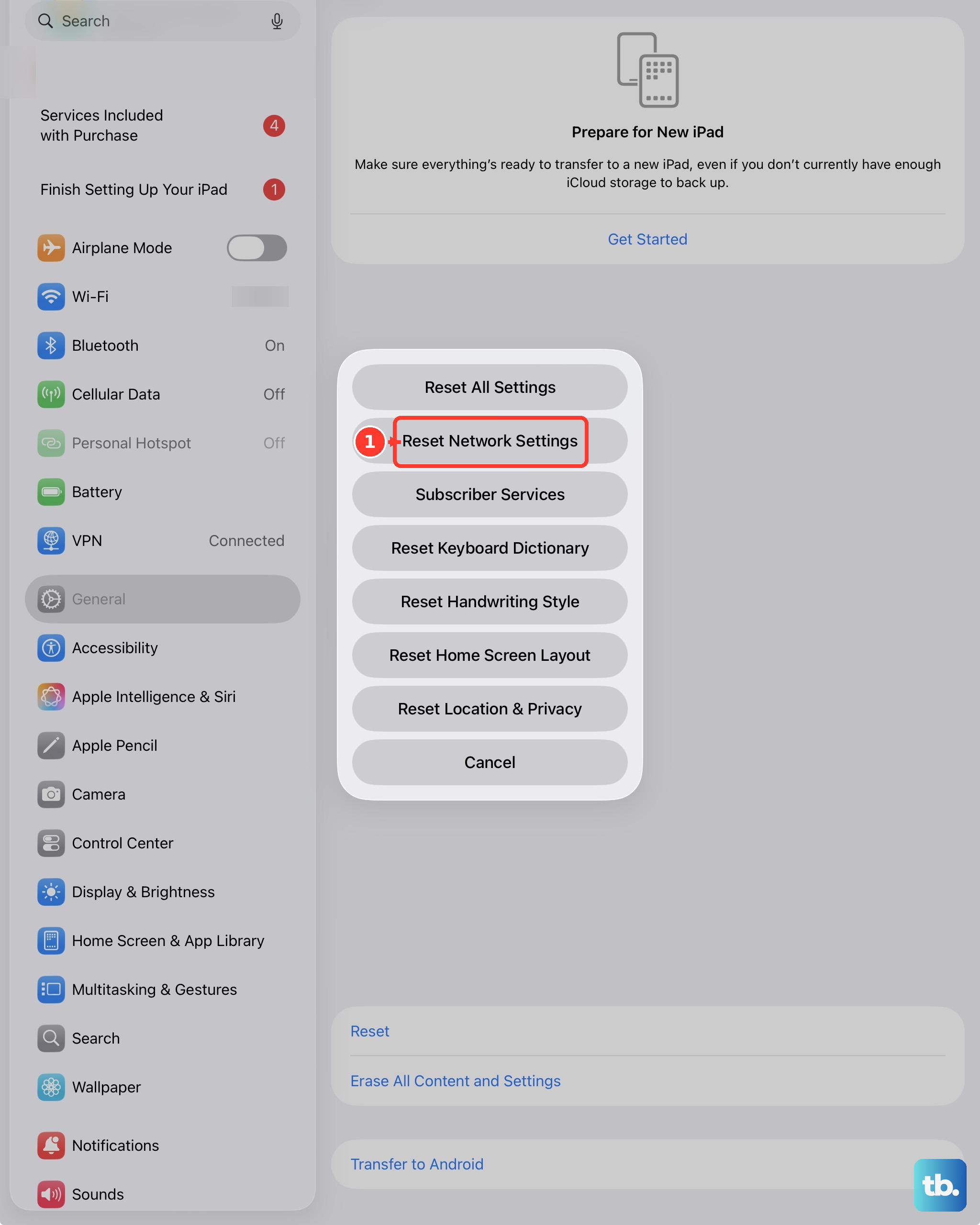
After the reset, select your network in Settings > Wi-Fi.
Enter the network password to rejoin.
If resetting doesn't help and your iPad cannot join any Wi-Fi network, contact Apple. If several devices cannot get online through your home network, contact your internet provider.
Frequently Asked Questions
Why does hotel or café Wi-Fi connect without giving me internet access?
Public Wi-Fi often requires a separate login. Select the network in Settings > Wi-Fi and wait for its login page. Enter the requested credentials or accept the terms. To reopen the login, tap the network's More Info button, then Join Network. Choosing Without Internet keeps the network connection but does not provide internet access.
Can I use my phone's hotspot to test an old iPad?
Yes, with carrier hotspot support. On the supplying iPhone, open Settings > Personal Hotspot. Enable Allow Others to Join. On iPhone 12 or later, enable Maximize Compatibility only if your iPad can't join the hotspot without it, because it can reduce internet performance and Wi-Fi security for devices on the hotspot. Keep that screen open. On your iPad, select the hotspot in Settings > Wi-Fi and enter the displayed password.
Should I change DNS if my iPad won't join Wi-Fi?
No. Changing DNS cannot fix a failure to join the wireless network. DNS troubleshooting applies when your iPad has already joined Wi-Fi but cannot resolve website names.
Should I erase my iPad to fix Wi-Fi?
Erasing your iPad is not a routine Wi-Fi troubleshooting step. Apple's recovery-mode workflow addresses startup or update failures. Its Restore option erases data, so back up before using it for those problems.