Your HP laptop has no Wi-Fi option, so you cannot even choose a network. The first checks are the wireless controls, the adapter, and the Windows service that manages wireless connections. Start with these Windows 11 fixes, then move to driver repairs and hardware testing if the option stays missing.
Look for Wi-Fi in Windows Settings
Press Windows+A to open Quick Settings. Scroll through the panel to find Wi-Fi. The scrollable interface introduced in Windows 11 24H2 includes actions beyond the initially visible area.
Open Start > Settings > Network & internet > Wi-Fi to check the main wireless setting. If the Wi-Fi page is missing, continue with the wireless key and adapter checks below. Switch Wi-Fi on if the page is present.
Open Settings > Network & internet > Airplane mode, then switch Airplane mode to Off. Check Wi-Fi again afterward, because Windows remembers individual radio settings. Tip: drag the Wi-Fi action to a convenient position in the scrollable Quick Settings panel once you find it.
If your HP has a wireless key or switch
Use this check on HP laptops equipped with a wireless button, switch, or airplane-symbol key. Its position varies by model; F12 is not a universal shortcut.
Check your model’s keyboard diagram to identify its wireless control and whether it requires Fn, then press the wireless or airplane-symbol button once, holding Fn if your model requires it. Wait 10 seconds and check whether wireless is enabled.
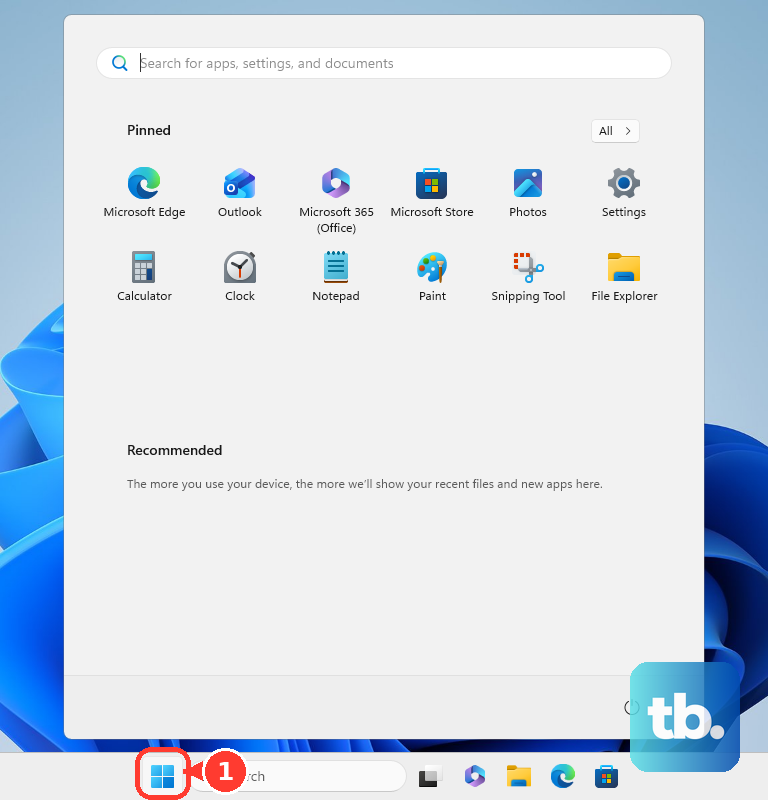
Press the button again if the first press disabled wireless. Save your open work before restarting Windows, then select Start > Power > Restart.
Check for Wi-Fi again after Windows starts.
Enable the adapter and restart its Windows service
If the option is still missing, check the adapter and WLAN AutoConfig.
- 1.Open Device Manager and expand Network adapters.
- 2.Right-click your wireless adapter and select Enable device if it is disabled. If no wireless adapter is listed, continue to the driver section below.
- 3.Press Windows+R, type
services.msc, and press Enter. - 4.Right-click WLAN AutoConfig and select Restart. If Windows requests administrator permission, use an administrator account or ask the device administrator to complete this step.
- 5.Return to Settings > Network & internet and check for Wi-Fi.
Let Windows diagnose the missing connection
Open Start > Settings > System > Troubleshoot > Other troubleshooters. Under Network and Internet, select Run.
Complete the diagnostics in Get Help, following the recommendations it displays. This is the current Windows 11 network troubleshooting route.
For direct access, open Get Help. Search for connect to network and internet. Select Run network diagnostics.
On a managed work or school laptop, an administrator’s policy can block Wi-Fi. Contact your organization’s IT team if wireless access is restricted or you cannot make the required changes.
Repair the wireless driver
This addresses driver problems that stop Windows from operating the wireless adapter. If Wi-Fi disappeared immediately after a driver update, start with the rollback instructions below; otherwise, check for updates first.
With a working internet connection, open Settings > Windows Update > Check for updates, then open Windows Update > Advanced options > Optional updates to check for a wireless driver. Select the applicable driver if one is listed, then select Download and install. Restart the laptop after installation.
Without internet access on the laptop, open HP Software and Drivers on another computer. Select Laptop, identify your exact HP product on the page, and download the wireless driver matching your laptop model, operating system, and architecture. Transfer the download to the HP laptop using a USB drive. Keep this compatible driver available offline before uninstalling the adapter.
To undo a driver update, open Device Manager > Network adapters. Right-click the wireless adapter to open its context menu, then select Properties > Driver > Roll Back Driver. Rollback requires administrator access and an available previous driver; if it is unavailable, continue with reinstallation below. Choose the reason for rolling back, select Yes, and restart when prompted.
To reinstall a detected adapter, open Device Manager > Network adapters. Right-click the wireless adapter to open its context menu, then select Uninstall device. Select Uninstall to confirm, then restart Windows. Windows attempts to reinstall the adapter driver during startup.
If Windows does not restore the driver, extract the compatible HP driver package you saved if it requires extraction. Open Device Manager > Network adapters, right-click the adapter to open its context menu, then select Update driver > Browse my computer for drivers > Browse.... Select the extracted driver folder, select OK, then select Next to install the driver.
For an adapter that remains missing after removal, select Action > Scan for hardware changes in Device Manager. Restart after the adapter reappears.
When the Wi-Fi option still will not return
A network reset is a late-stage software repair; afterward, check whether your VPN software or virtual switches need reconfiguration. Open Settings > Network & internet > Advanced network settings > Network reset.
Select Reset now. Confirm with Yes. Restart the laptop afterward.
If the wireless adapter remains undetected, start the laptop while repeatedly pressing Esc, then press F2 to open HP’s diagnostics outside Windows. On models offering the wireless test, select Component Tests > Network > Wireless Module > Run once. Available tests vary by model.
Record any failure ID for HP support. Use the failure-ID repair workflow on HP’s PC Hardware Diagnostics page. If your model lacks the wireless test or the Wi-Fi option stays missing after these repairs, select Contact us on that page for model-specific help.
Frequently Asked Questions
Why can I see Wi-Fi but not my home network?
If the Wi-Fi control exists but your network name is missing, restart the router, move the laptop closer, and check that the router offers a frequency band your laptop supports. For a saved connection problem, open Settings > Network & internet > Wi-Fi > Manage known networks. Select your network and choose Forget, then reconnect through the network panel using its password.
What can I try when Wi-Fi disappears after sleep?
Open Device Manager > Network adapters, right-click your wireless adapter, and select Properties. If it has a Power Management tab, open it and clear Allow the computer to turn off this device to save power. Select OK. This setting is available only on adapters that expose the tab.
Do these steps apply to an HP Chromebook?
An HP Chromebook uses ChromeOS and has different controls. Select the time, choose Not Connected, and turn on Wi-Fi. For connection diagnostics, open Settings > About ChromeOS > Diagnostics and inspect Connectivity.
Can a USB Wi-Fi adapter get the laptop connected again?
Yes, a compatible USB Wi-Fi adapter provides a separate wireless radio. It does not repair the internal adapter. Confirm that the USB adapter and its driver support your Windows version and system architecture, then follow that model’s installation instructions.