Your Mac is plugged in, but the battery percentage will not move, the charger light looks wrong, or macOS says the battery is not charging. Most cases come down to power at the wall, the cable, the port, the adapter wattage, a battery setting, heat, or a failing part. Start with the quick checks, then move through the Mac-specific fixes that Apple currently supports.
1. Refresh the power connection
Start with the reset that clears basic USB-C power delivery problems.
- 1.Unplug the power adapter from the wall outlet.
- 2.Wait a few seconds.
- 3.Plug the power adapter back into the wall outlet.
- 4.Choose Apple menu then Restart.
- 5.Click Restart.
If the outlet works but charging still does not start, choose Apple menu then Shut Down.
Close the display for 30 seconds, open it again, and try charging once more.
2. Prove the outlet is working
Unplug the Mac power adapter from the wall outlet.
Next, plug a known-good device, such as a lamp, into the same outlet.
Confirm the device powers on.
Then reconnect the Mac power adapter and try charging again.
If charging returns only after the adapter has been unplugged and reconnected, line-noise protection may have shut the adapter off.
For a USB-C power adapter, Apple says to wait 30 seconds before plugging it back in; for MagSafe or general battery troubleshooting, Apple says to wait 60 seconds.
Move the adapter to a different circuit or use an uninterruptible power supply.
If the adapter keeps turning itself off on a known-good outlet, take it to an Apple Store or Apple Authorized Service Provider.
3. Swap the cable and clear the port
A Mac can look like it has a dead charger when the cable is the real failure point.
Try another USB-C cable that supports charging, because not every USB-C cable does.
If the Mac charges with a different cable, stop using the cable that failed the test and get the cable and power supply evaluated.
Check the USB-C ports on the Mac and make sure they are clean and free of debris.
Use compressed air when needed.
For MagSafe, inspect the power port too, because the magnetic connector can collect metal objects.
4. Match the charger to your Mac
Use a USB-C power adapter with equal or greater wattage than the adapter that came with your Mac.
If macOS Tahoe 26.4 or later shows Slow Charger, use a charging setup that provides more watts and make sure the adapter and cable meet the minimum wattage recommended for your Mac model.
MacBook Pro models introduced in 2016 or later support USB-C charging.
MacBook Air models introduced in 2018 or later support USB-C charging.
MacBook models introduced in 2015 or later support USB-C charging.
MacBook Neo supports USB-C charging.
MacBook Pro models introduced in 2021 or later support MagSafe 3, except MacBook Pro 13-inch M2 2022.
MacBook Air models introduced in 2022 or later support MagSafe 3.
On supported Macs, any USB-C charging port can charge the computer.
Plugging in more than one charging source does not speed things up; the Mac uses the source that provides the most power.
5. Clean up a flashing amber MagSafe light
Disconnect the USB-C to MagSafe 3 Cable from the Mac and from the power adapter.
After that, disconnect the USB-C power adapter from the wall outlet.
Use a dry cloth to wipe the MagSafe 3 port and the MagSafe 3 connector.
Make sure the MagSafe 3 port, MagSafe 3 connector, USB-C port on the adapter, and USB-C connector are dry and free of debris.
Choose Apple menu then Restart.
Connect the USB-C power adapter to the wall outlet.
Connect the USB-C to MagSafe 3 Cable to the power adapter and the Mac.
Try charging again.
If the light still flashes, try another MagSafe 3 cable or USB-C cable.
For normal MagSafe 3 behavior, amber means charging is underway or on hold, while green means fully charged.
MagSafe 3 does not work with earlier MagSafe adapters or cables.
6. Override charging pauses in Battery settings
Sometimes the charger is working and macOS is deliberately holding the battery below full charge.
Click the Battery status menu in the menu bar, then click Charge to Full Now.
To review Optimized Battery Charging, open Apple menu then System Settings then Battery.
Click the info button next to Charging or Battery Health, turn Optimized Battery Charging off or on, then click Done.
When macOS offers the option, choose to turn it off only until tomorrow.
On a Mac with Apple silicon running macOS Tahoe 26.4 or later, open Apple menu then System Settings then Battery, click the info button next to Charging, choose a Charge Limit from 80% to 100%, then click Done.
On Intel Mac laptops, open System Settings or System Preferences then Battery then Battery Health, deselect Manage battery longevity, click Turn Off, then click OK.
7. Reduce heat and power draw
Heat and heavy workload can stop the battery from charging while the Mac remains plugged in.
Move the Mac to a cool, well-ventilated spot and keep it off bedding, thick carpeting, and blankets.
Mac laptops work best at 50° to 95° F.
Quit high-load apps, including video editing apps and games.
Then disconnect accessories you are not using.
Open Apple menu then System Settings or System Preferences then Battery.
Use Low Power Mode, Automatic, or High Power Mode from the On battery or On power adapter pop-up menu when those options are available.
On macOS Sequoia 15.1 or later, choose supported Energy Modes from Control Center.
If the adapter gets warm enough to shut off, disconnect the charging cable from the Mac and let the adapter cool before handling it.
8. Update macOS and reset SMC behavior
Apple says software updates can improve communication with the power adapter, so run Software Update before deeper troubleshooting.
Search for Software Update from Spotlight, or open Apple menu then System Settings then General then Software Update.
Click Update, Upgrade, or Restart Now when offered.
If no update appears, click Check for Update, press Command-R, or close and reopen Software Update.
On a Mac with Apple silicon, the SMC resets automatically.
Plug the Mac into power, then choose Apple menu then Restart, or choose Apple menu then Shut Down and press the power button again.
On an Intel Mac laptop with the Apple T2 Security Chip, choose Apple menu then Shut Down.
Press and hold the power button or Touch ID for 10 seconds, release it, wait a few seconds, then press the power button again.
If charging still fails, shut down again, hold left Control, left Option, and right Shift for 7 seconds, then keep holding those keys while also holding the power button for another 7 seconds.
Release all keys, wait a few seconds, then press the power button.
On an Intel Mac laptop without the Apple T2 Security Chip, choose Apple menu then Shut Down.
Press and hold left Shift, left Control, left Option, and the power button together for 10 seconds, release all keys, then turn the Mac on.
Skip NVRAM and PRAM resets as a charger fix.
Apple documents NVRAM reset for Intel settings such as sound volume, display resolution, startup disk selection, and time zone, not for battery charging.
9. Check battery health and arrange service
Open Apple menu then System Settings then Battery.
Review the battery level and alerts, then use the info button next to the battery condition to view Battery Condition, Maximum Capacity, and the battery health options available on your Mac.
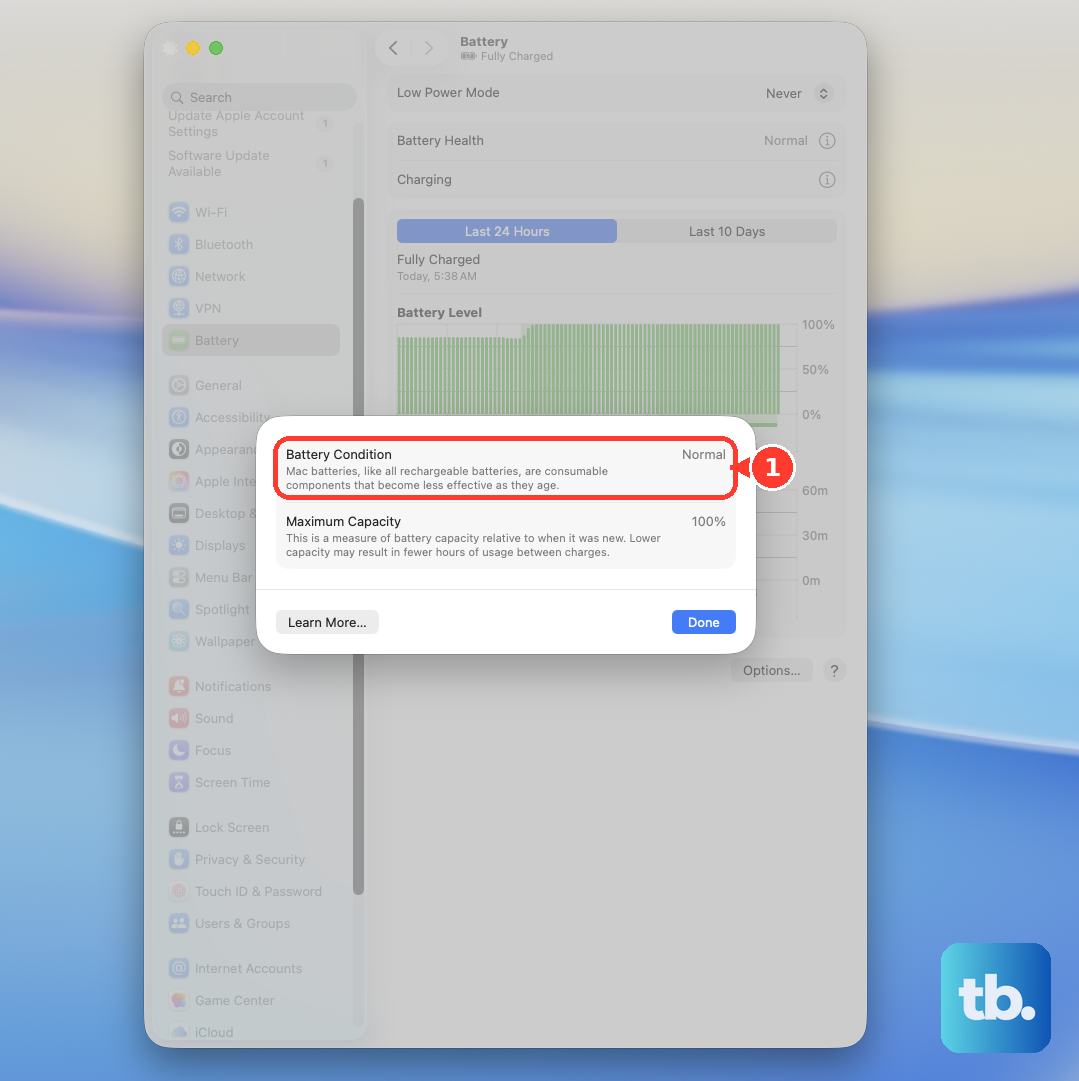
To check cycle count, hold Option and click Apple menu then System Information.
Under Hardware, select Power, then check Cycle Count under Battery Information.
Run Apple Diagnostics when the charger, port, cable, or battery still looks suspect.
Install the latest macOS updates if possible, shut down, disconnect external devices except keyboard, mouse, display, Ethernet, and AC power, and place the Mac on a hard, flat, stable surface with good ventilation.
On Apple silicon, press and hold the power button or Touch ID until startup options appear, release at Options, then press and hold Command-D until the Mac restarts.
On Intel, turn on the Mac and immediately press and hold D; use Option-D if D does not work.
When the Mac still will not charge, use Apple Get Support or bring the Mac, power adapter, and charging cables to an Apple Store or Apple Authorized Service Provider.
Apple Self Service Repair is available for eligible Mac models introduced in 2020 or later, and it is intended for experienced users doing out-of-warranty repairs with genuine Apple parts and tools.
Frequently Asked Questions
Why does my Mac say Battery Is Not Charging while plugged in?
The Mac can draw more power than the charging source provides, charging can be paused by battery health settings, or the adapter can be too warm. Reduce high-load apps and accessories, check Battery settings, and use the correct wattage adapter and cable.
Can I charge my Mac from any USB-C port?
Yes, on supported Mac models. Apple says plugging in more than one charging source does not charge faster because the Mac uses the source that provides the most power.
What does Charge to Full Now do on a Mac?
It overrides a charging pause from Optimized Battery Charging or Charge Limit for a one-time full charge. Click the Battery status menu in the menu bar, then click Charge to Full Now.
Should I reset NVRAM to fix Mac charging?
No. Apple documents NVRAM reset for Intel settings such as sound volume, display resolution, startup disk selection, and time zone, not as a battery charging fix.